.png?width=180&height=32&name=NW%20Logo%20(2).png)
Tags: Version 11.5
The procedure tells you how to replace the internally generated NetWitness web server certificate (NGINX front-door) with a customer issued certificate. This enables client browsers to establish a trusted SSL connection.
Caution: The cert files and key files must be .pem format. All the files must have the same name and permissions as the original files generated by NetWitness Platform.
- Rename your certificate files and save them in for NGINX.
- Rename the customer provided cert.pem certificate pem file to web-server-cert.pem.
- Rename the customer provided key.pem key pem file to web-server-key.pem.
- Rename customer provided cert.chain certificate chain file to web-server-cert.chain.
- Rename cert.p7b certificate p7b file to web-server-cert.p7b.
- SSH to the NW Server.
- Replace the existing NetWitness Platform generated /etc/pki/nw/web/web-server-cert.pem, /etc/pki/nw/web/web-server-key.pem, /etc/pki/nw/web/web-server-cert.chain and /etc/pki/nw/web/web-server-cert.p7b files with the files you renamed in step 1.
- Restart NGINX service.
service nginx restart
To add Custom Server Certificate in PFX, P12 and JKS format.
- Go to
 (Admin) > Security.
The Security view is displayed with the Users tab open. - Click the PKI Settings tab.
- In the Server Certificates section, click
 .
.
The Import Server Certificates dialog is displayed.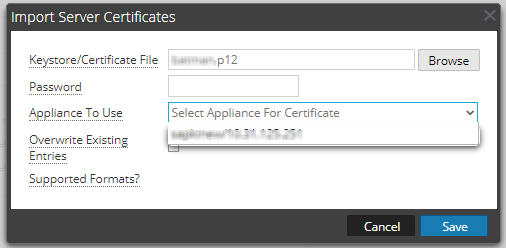
- In the Keystore/Certificate File field, click Browse and select the keystore.
- In the Password field, enter the keystore password.
- In the Appliance To Use field, select the appliance for which you want to use this certificate.
- (Optional) Select the Overwrite Existing Entries checkbox to overwrite the entries of the certificate that is already added.
- Click Save.
The NetWitness Server certificate with its private key is successfully added to NetWitness Platform.
Note: When the certificate is being applied on the selected appliance, no other operation on PKI can be performed until the process is completed.
Double-click on the added entries to view the details of the certificate.
9. To apply the server certificate on a server, select a certificate and click  .
.
Note: Uploading a keystore will add the server certificate and its private key locally. To apply a server certificate on a server, you need to select a server certificate and click the synchronization button .
All server certificates are also synchronized on the appliances when PKI is enabled.