.png?width=180&height=32&name=NW%20Logo%20(2).png)
Installation Tasks
Before you begin the installation tasks make sure you open the firewall ports. For more information on the lists of all the ports in a deployment, see the"Network Architecture and Ports" topic in the Deployment Guide for NetWitness Platform 12.5.
Caution: Do not proceed with the installation until the ports on your firewall are configured.
Install 12.5 on the NetWitness Server (NW Server) and Component Hosts
Note: You can perform this task for INTERNAL-NW-12.5.0.0.21645-Full-Signed instance.
Caution: If you want to install the Endpoint Relay Server, do not run the nwsetup-tui script. Follow the instructions in "(Optional) Installing and Configuring Relay Server" in the NetWitness Endpoint Configuration Guide.
IMPORTANT: In NetWitness Platform, deployment account password must contain at least one number, one upper and lower case letter, and one special characters (!@#%^,+ . ) along with the existing policy. The same password policy applies while updating deploy_admin password using nw-manage script. If deploy_admin password is changed on Primary NW Server, It must be changed on the Warm Standby Server if it exists.
-
Log in to the host with the root credentials and run the nwsetup-tui command to set up the host.
This initiates the nwsetup-tui (Setup program) and the EULA is displayed.
Note: Use the following options to navigate the Setup prompts.
1.) When you navigate through the Setup program prompts, use the down and up arrows to move among fields, and use the Tab key to move to and from commands (such as, , , and ). Press Enter to register your command response and move to the next prompt.
2.) The Setup program adopts the color scheme of the desktop or console you use to access the host.
3.) If you specify DNS servers during the Setup program (nwsetup-tui) execution, they MUST be valid (valid in this context means valid during setup) and accessible for the nwsetup-tui script to proceed. Any misconfigured DNS servers cause the Setup program to fail. If you need to reach a DNS server after setup that is unreachable during setup, (for example, to relocate a host after setup that would have a different set of DNS Servers), see "Change Host Network Configuration" topic in the System Maintenance Guide.
If you do not specify DNS Servers during setup (nwsetup-tui), you must select 1 The Local Repo (on the NW Server) in the NetWitness Update Repository prompt in step 12 (the DNS servers are not defined so the system cannot access the external repo).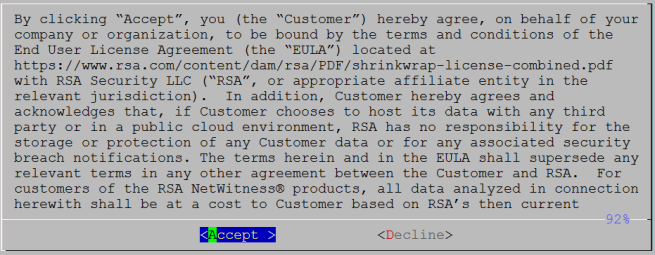
- Tab to Accept and press Enter.
The Is this the host you want for your 12.5 NW Server prompt is displayed.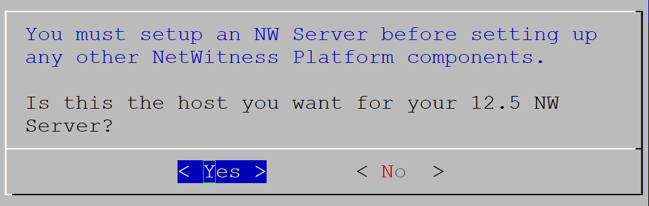
- Tab to Yes and press Enter to install 12.5 on the NW Server.
Tab to No and press Enter to install 12.5 on other component hosts.Caution: If you choose the wrong host for the NW Server and complete the Setup, you must restart the Setup Program (step 2) and complete steps all the subsequent steps to correct this error.
- The Install prompt is displayed (Recover does not apply to the installation. It is for 12.5 Disaster Recovery.).
NW Server Host prompt:
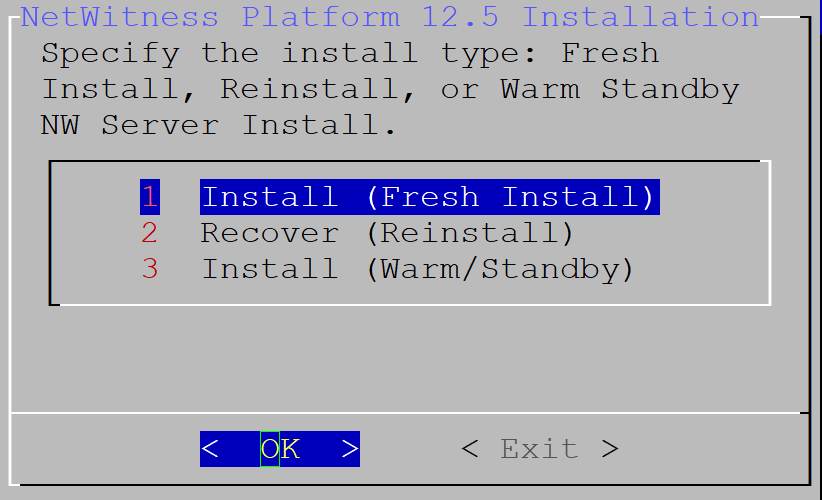
Other Component Hosts, the prompt is the same, but does not include option 3 Install (Warm/Standby) - Press Enter. Install (Fresh Install) is selected by default.
The System Host Name prompt is displayed.
NW Server prompt: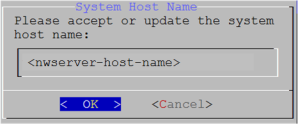
Other Component Hosts prompt says
Caution: If you include "." in a host name, the host name must also include a valid domain name.
Press Enter if want to keep this name. If not, edit the host name, tab to OK, and press Enter to change it. - This step applies only to NW Server hosts.
The Master Password prompt is displayed.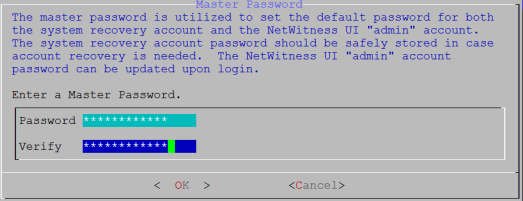
The following list of characters are supported for Master Password and Deployment Password: - Symbols: ! @ # % ^ +
- Numbers: 0-9
- Lowercase Characters: a-z
- Uppercase Characters: A-Z
No ambiguous characters are supported for Master Password and Deployment Password. For example:
space { } [ ] ( ) / \ ' " ` ~ ; : .< > -
Type the Password, down arrow to Verify, retype the password, tab to OK, and press Enter.
- This step applies to both NW Server hosts and component hosts.
The Deployment Password prompt is displayed.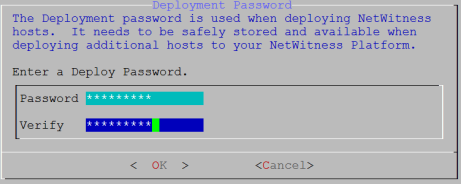
Type the Password, down arrow to Verify, retype the password, tab to OK, and press Enter. - One of the following conditional prompts is displayed.
- If the Setup program finds a valid IP address for this host, the following prompt is displayed.
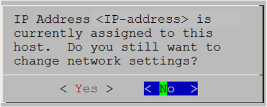
Press Enter if you want to use this IP and avoid changing your network settings. Tab to Yes and press Enter if you want to change the IP configuration on the host. - If you are using an SSH connection, the following warning is displayed.
Note: If you connect directly from the host console, the following warning is not displayed.
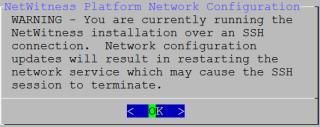
Press Enter to close warning prompt. - If the Setup Program finds an IP configuration and you choose to use it, the Update Repository prompt is displayed. Go to step 12 and complete the installation.
- If the Setup Program did not find an IP configuration or if you choose to change the existing IP configuration, the Network Configuration prompt is displayed.
Caution: Only select "Use DHCP" as an IP address configuration for the NW Server if DHCP issues static IP addresses.
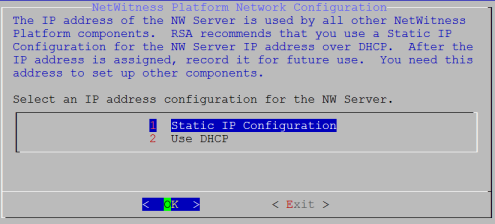
Tab to OK and press Enter to use Static IP.
If you want to use DHCP, down arrow to 2 Use DHCP and press Enter.
The Network Configuration prompt is displayed.
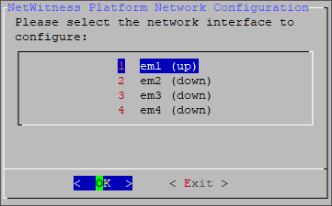
- Down arrow to the network interface you want, tab to OK, and press Enter. If you do not want to continue, tab to Exit.
The following Static IP Configuration prompt is displayed.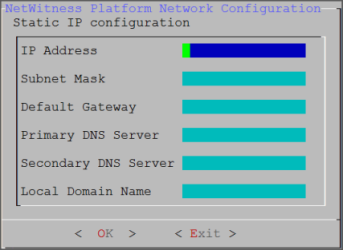
- Type the configuration values, tab to OK, and press Enter. If you do not complete all the required fields, an All fields are required error message is displayed (Secondary DNS Server and Local Domain Name fields are not required). If you use the wrong syntax or character length for any of the fields, an Invalid
error message is displayed. Caution: If you select DNS Server, make sure that the DNS Server is correct and the host can access it before proceeding with the installation.
-
The Use Network Address Translation (NAT) prompt is displayed.
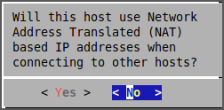
For the NW Server, tab to No and press Enter.
For component hosts, if this host requires the use of NAT-based addresses to communicate with the NW Server, tab to Yes. Otherwise, tab to No and press Enter. - The Update Repository prompt is displayed.
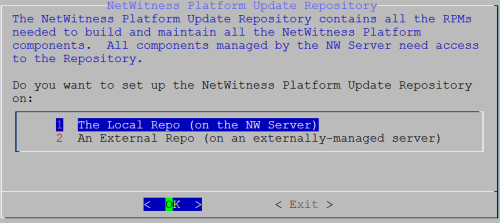
For the NW Server:
- Press Enter to choose the Local Repo.
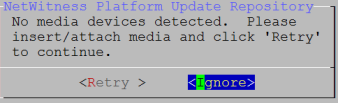
- If you want to use an external repo, down arrow to External Repo, tab to OK, and press Enter. If you select 1 The Local Repo (on the NW Server) in the Setup program, make sure that you have the appropriate media attached to the host (media that contains the ISO file, for example a build stick) from which it can install NetWitness 12.5. If the program cannot find the attached media, you receive the following prompt.
- If you select 2 An External Repo (on an externally-managed server), the UI prompts you for a URL. The repositories give you access to RSA updates and CentOS updates. Refer to "Appendix B. Create an External Repo" in this guide for instructions on how to create this repo and its external repo URL so you can enter it in the following prompt.
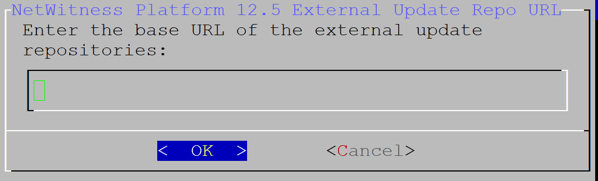
Enter the base URL of the NetWitness external repo and click OK. The Start Install prompt is displayed.
For component hosts:
- Select the same repo that you selected when you installed the NW Server host and follow the steps above.
- The NW Server IP Address prompt is displayed.
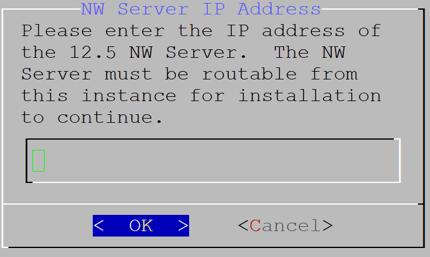
Type the NW Server IP address. Tab to OK and press Enter.
- The Disable firewall prompt is displayed.
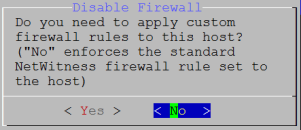
Tab to No (default), and press Enter to use the standard firewall configuration.
To disable the standard firewall configuration, tab to Yes, and press Enter.
If you select Yes, confirm your selection(select Yes again) or select No to use the standard firewall configuration.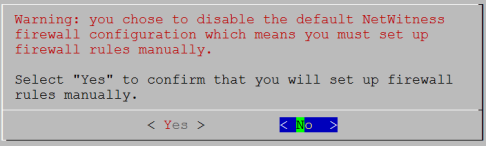
- The Start Install prompt is displayed.
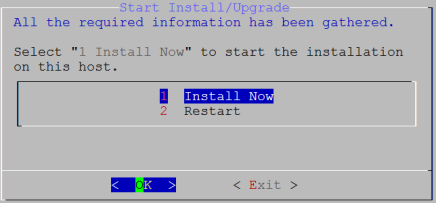
- Press Enter to install 12.5.
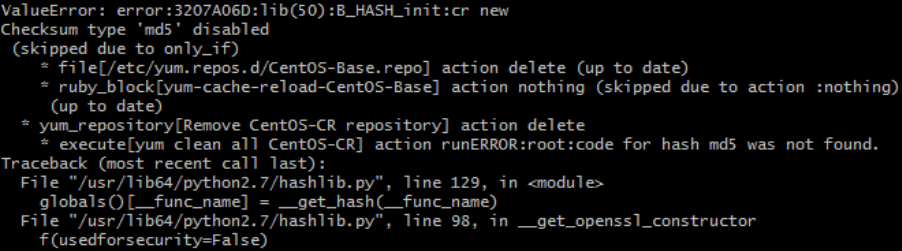
When Installation complete is displayed, you have installed 12.5 on this host.Note: Ignore the hash code errors similar to the errors shown in the following figure that are displayed when you initiate the nwsetup-tui command. Yum does not use MD5 for any security operations so they do not affect the system security.
- (Optional) If your system configuration requires that a component host must use a NAT IP address to reach the NW Server host, you must configure the NAT IP address of the NW Server by running the following command:
nw-manage --update-host --host-id--ipv4-public
Set Up ESA HostsSet Up ESA Hosts
After you install your NW Server and component hosts, follow these steps to set up your ESA hosts.
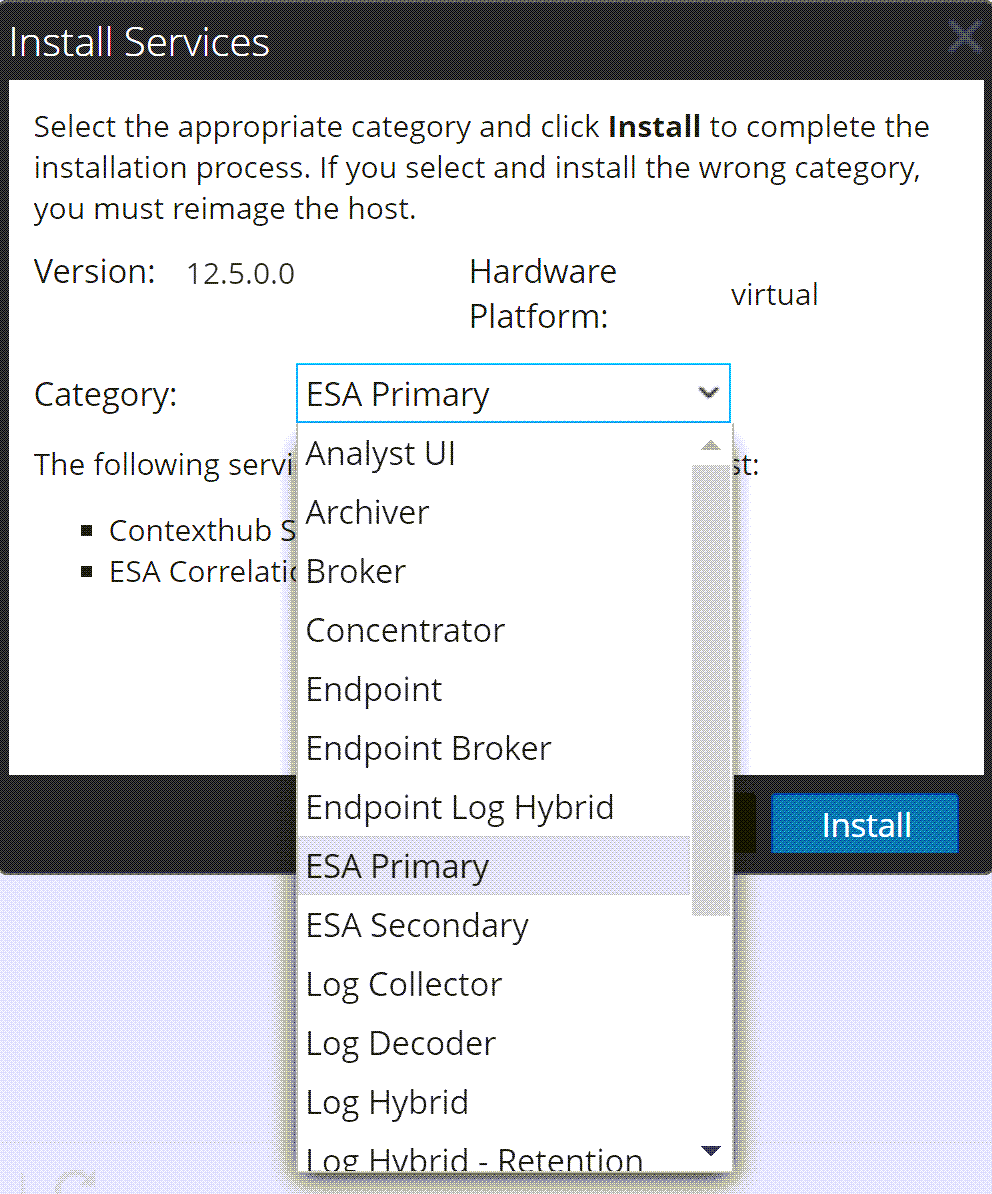
- Install your primary ESA host following the instructions in "Install 12.5 on the NetWitness Server (NW Server) Host and Other Component Hosts" in this guide, and install the ESA Primary service on it after you finish the Set Up program in the UI in
 (Admin) > Hosts >
  :
:
- (Conditional) If you have a secondary ESA host, install it and install the ESA Secondary service on it after you finish the Set Up program in the UI in (Admin) > Hosts > :
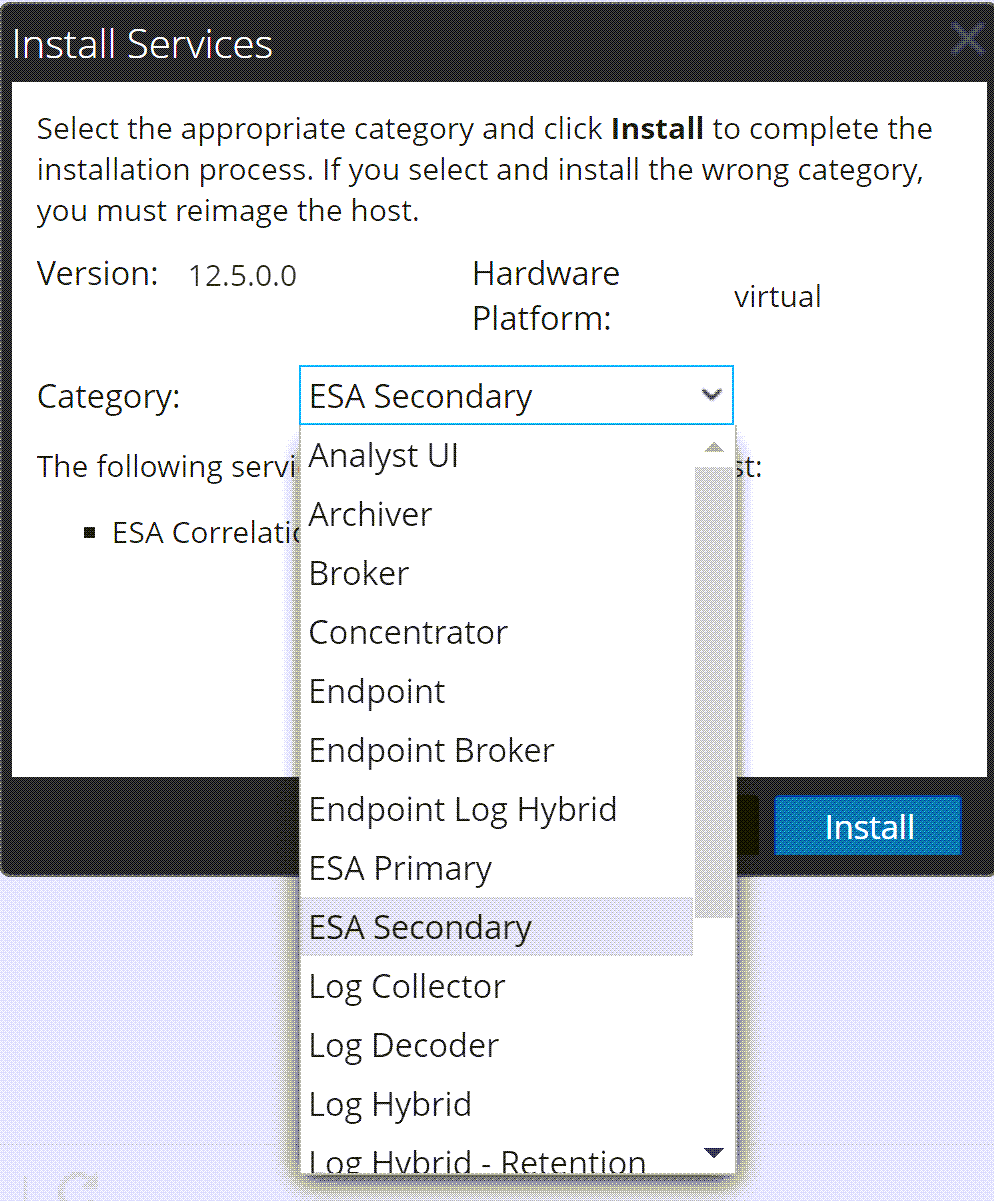
Install Component Services on HostsInstall Component Services on Hosts
After you have installed NW Server and component hosts, and set up your ESA hosts, follow these steps to install component services, such as Decoders and Concentrators, on your host systems.
- Install a component service on the host:
- Log into NetWitness and go to (Admin) > Hosts.
The New Hosts dialog is displayed with the Hosts view grayed out in the background.Note: If the New Hosts dialog is not displayed, click Discover in the Hosts view toolbar.
- Select the host in the New Hosts dialog and click Enable.
The New Hosts dialog closes and the host is displayed in the Hosts view. - Select that host in the Hosts view and click .
The Install Services dialog is displayed. - Select the appropriate host type (for example, Concentrator) in Category and click Install.
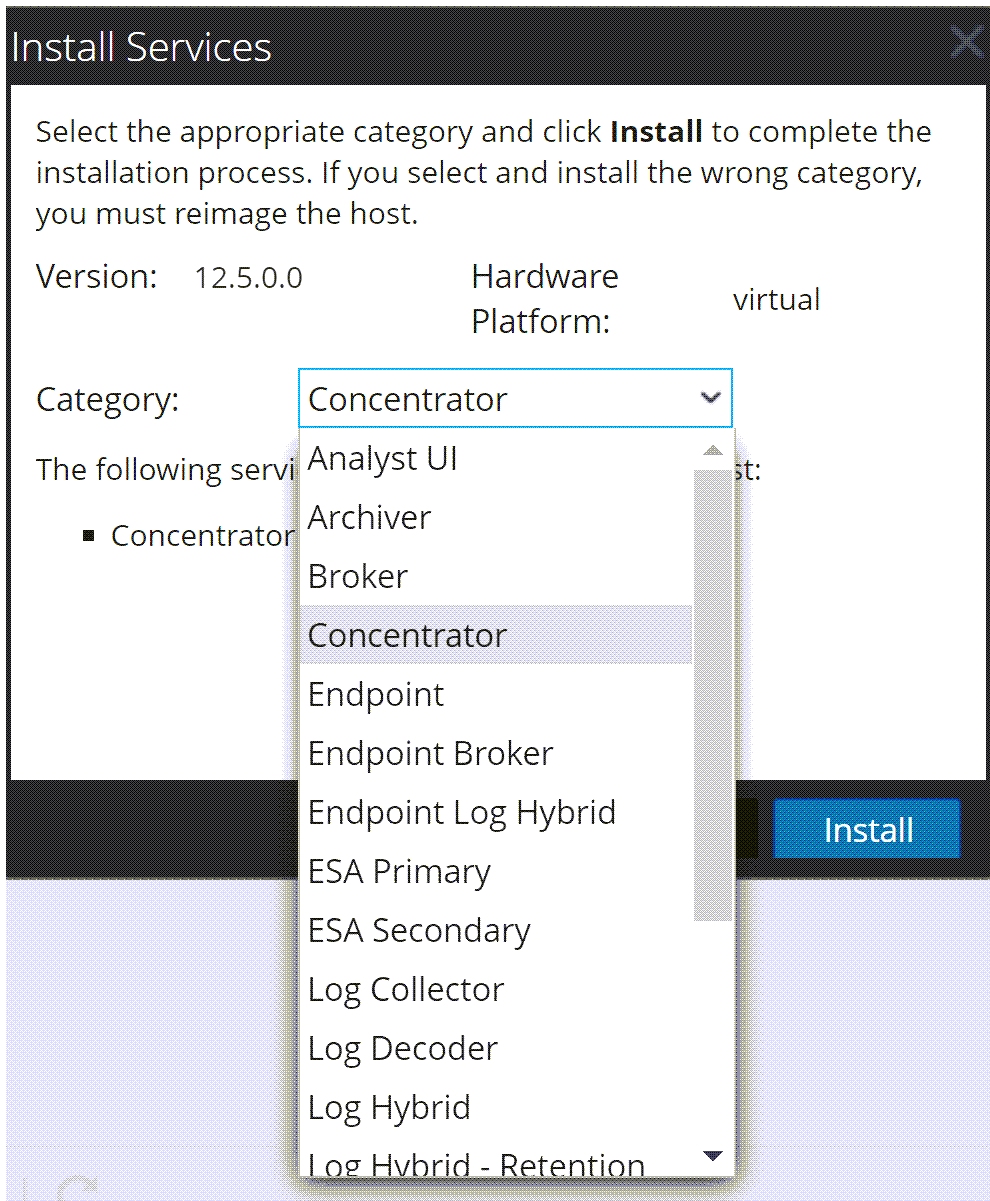
- Log into NetWitness and go to
Complete Licensing RequirementsComplete Licensing Requirements
Complete licensing requirements for installed services. See the NetWitness Platform 12.5 Licensing Management Guide for more information. Go to the NetWitness All Versions Documents page and find NetWitness Platform guides to troubleshoot issues.
(Optional) Install Warm Standby NW Server(Optional) Install Warm Standby NW Server
Refer to "Warm Standby NW Server Host" under "Deployment Option Setup Procedures" in the Deployment Guide for NetWitness Platform 12.5 for instructions on how to set up a Warm Standby NW Server.
NetWitness Azure Storage Allocation Procedure
To allocate storage in NetWitness Platform 12.5.0.0, perform the following steps:
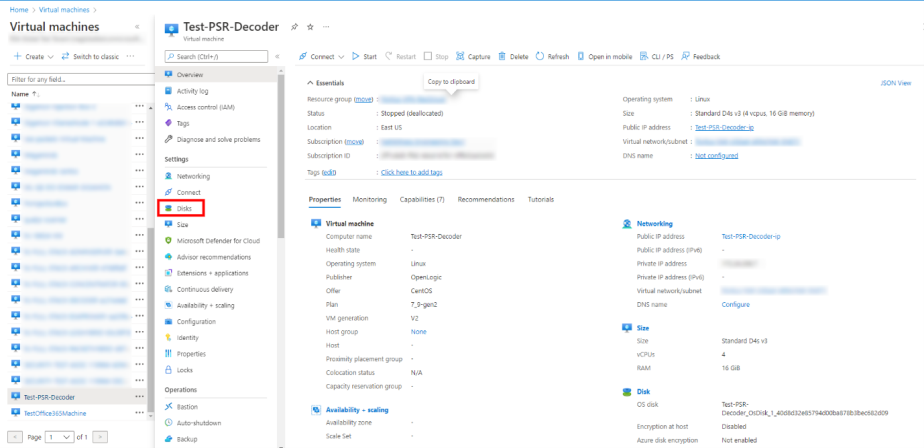
- In Microsoft Azure portal (https://portal.azure.com/), go to Virtual Machines.
-
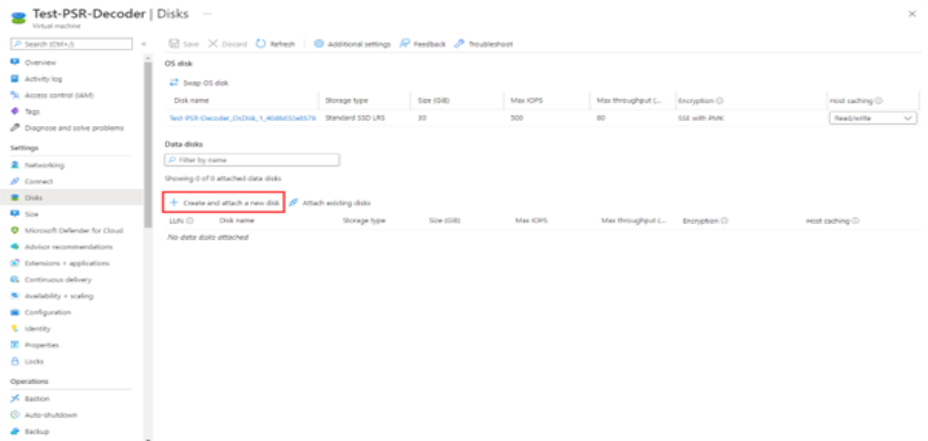
Click the required VM > Disks.
-
Click Create and attach a new disk.
Note: You need to add the appropriate amount of disks / IOPS to meet the retention requirements. If you need to add more than a single disk, a RAID configuration is needed.
-
In the Disks view:
-
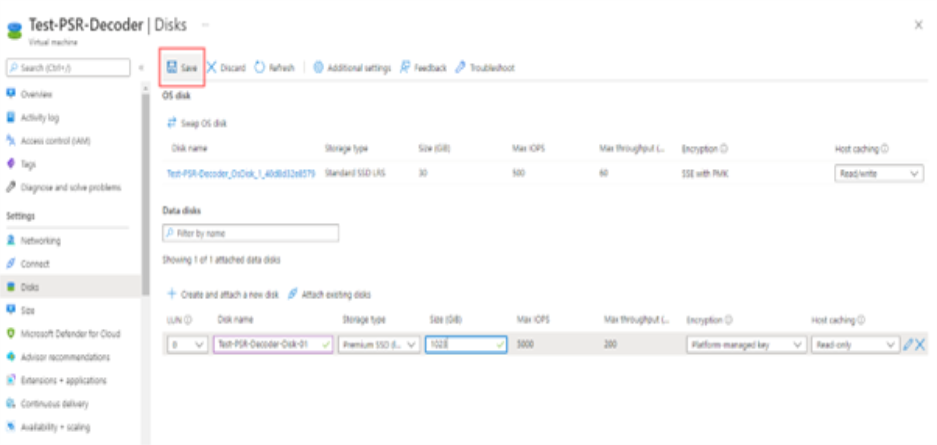
Enter the Disk name.
-
Select the storage type of disk.
Note: Premium SSD with high throughput / IOPS is recommended for Concentrator-IndexDB, Decoder-PacketDB.
-
Select appropriate disk tier and size based on IOPS / Required retention. For more information, refer Azure Managed Disks documentation (https://docs.microsoft.com/en-us/azure/virtual-machines/disks-types).
-
Enable Read/write caching.
-
-
Click Save to finish adding the disk.
-
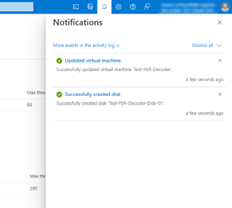
Once the disk is saved, the success notification messages are displayed in the Notifications view.
RAID Creation
NetWitness recommends striping the disks to get better performance / IOPS with added disks for deployments that require high IOPS/ throughput (for example: a packet decoder with 1.5Gbps). Mdadm Utility is used to create a raid array.
Parameters related to Raid Array Creation
-
--create: Name of the managed disk you want to create. Usually, the name begins with /dev/md0, /dev/md1, and /dev/md2.
-
--level: Raid level for creating an array. It can be 0, 1, 5, 6, or 10.
-
--raid-devices: Total count of the disks to be configured in an array along with device names separated by space.
For Example: --raid-devices=5 /dev/sdc /dev/sdd /dev/sde /dev/sdf /dev/sdg
Steps to create a Raid Array
Follow the steps below after the required disks are added to the Host VM
-
Identify the name of the newly added disks. Run the command lsblk.
For Example: /dev/sde and /dev/sdf
-
Select the set of disks as part of your RAID-5 configuration.
For example: Select the disks /dev/sde, /dev/sdf, /dev/sdg, /dev/sdh as part of your PacketDB for Decoder.
-
Run the command mdadm --create /dev/md0 --assume-clean --level 5 --raid-devices=4 /dev/sde /dev/sdf /dev/sdg /dev/sdh.
-
Check the status of the disks once the RAID configuration is created. Run the following command
mdadm--detail
-
Run the command vgcreate -s 32 decodersmall1 /dev/md0 to create a volume group decodersmall1 which will span across the entire RAID configuration.
-
Run the command lvcreate -L 4T -n packetdb decodersmall1 to create a logical volume PacketDB on decodersmall1.
-
Run the command mkfs.xfs /dev/mapper/decodersmall1-packetdb to format the newly created logical volume to an xfs partition required by the NetWitness services.
-
Make entries in the /etc/fstab configuration file to mount the logical volume (created) and retain the logical volumes even after a system reboot.
-
Run the command mdadm --detail --scan > /etc/mdadm.conf to create and store the information about the RAID configurations in the file. On system reboot, the RAID configuration is retained.
-
Run reconfig api on the core-service database node to update the database directory settings.
Example Scenario
The below commands describe the steps to configure a RAID-5 for PacketDB with 4 disks.
mdadm --create /dev/md0 --assume-clean --level 5 --raid-devices=4 /dev/sdc /dev/sdd /dev/sde /dev/sdf
vgcreate -s 32 decoder /dev/md0
lvcreate -L 3.9T -n packetdb decoder
mkfs.xfs /dev/mapper/decoder-packetdb
echo "/dev/decoder/packetdb /var/netwitness/decoder/packetdb xfs noatime,nosuid 1 2" >> /etc/fstab
mount -a
mdadm --detail --scan > /etc/mdadm.conf
Note: For more information regarding Azure Disks, see Azure managed disk types,