.png?width=180&height=32&name=NW%20Logo%20(2).png)
Deployment PanelDeployment Panel
ESA rule deployments map rules from your rule library to the appropriate ESA Services and data sources. The Deployment panel (  (Configure) > ESA Rules > Rules tab) enables you to create and configure ESA rule deployments that specify:
- ESA Services
- Data Sources (This is available in NetWitness version 11.3 and later.)
- ESA Rules
When you are ready to start aggregating data and generating alerts from an ESA rule deployment, you deploy the ESA rule deployment to activate it.
Note: An ESA rule deployment can have only one ESA service. You can, however, use the same ESA service in multiple deployments.
In NetWitness Platform version 11.2 and earlier, the ESA service is the Event Stream Analysis service. In version 11.3 and later, it is the ESA Correlation service.
What do you want to do?What do you want to do?
Related TopicsRelated Topics
Quick LookQuick Look
The following figure shows the Deployment panel.
ESA Services SectionESA Services Section
In the ESA Services section, you can manage each ESA service in the deployment.
The following table describes the actions you can perform in the ESA Services section.
The following table describes the columns in the ESA Services section.
Data Sources SectionData Sources Section
Note: This option is available in NetWitness Platform version 11.3 and later.
In the Data Sources section, you can select one or more data sources, such as Concentrators, to use for your selected ESA Service.
The following table describes the actions you can perform in the Data Sources section.
The following table describes the columns in the Data Sources section.
Note: You can add a Log Decoder as a data source for ESA, but it is better to add a Concentrator to take advantage of undivided aggregation as the Decoder may have other processes aggregating from it.
Position Tracking Information Position Tracking Information
The ESA Correlation service continuously streams data from the data sources like decoders (log and network), and concentrators. ESA retrieves events from the data sources, and applies rules to generate alerts to detect malicious activities. When you deploy a data source, ESA starts processing information from the latest available session, by default. Position Tracking Information enables you to visualize the progress of the sessions that ESA has processed, and provides information on the session IDs and the time/date when the events were processed.
Edit Position Tracking Information enables you to:
-
Visualize the number of sessions that a particular ESA data source has already analyzed, review the number of sessions ESA would process after you edit the position tracking, and plan your work.
- Edit the tracking position information based on:
- Date and Time (Collection Time)
Session ID
- Edit position tracking for multiple data sources before you deploy them.
- Calculate the number of sessions that the ESA Correlation Service is scheduled to process for a particular data source to either process, reprocess, or skip sessions with respect to the current position of the data source.
Note: The Edit Position tracking feature with the Date and Time option works based on the profile time settings in the NetWitness UI. This time-zone based time from the UI is converted to UTC, and is sent to the core, to retrieve the corresponding session ID for that time stamp.
Example: If the UI follows IST, the UI converts it to UTC and sends it to the core. The session ID is fetched for the specific UTC time stamp, and set to position tracking at deployment.
Editing Position Tracking Information Editing Position Tracking Information
The following figure shows the Edit Position Tracking window.
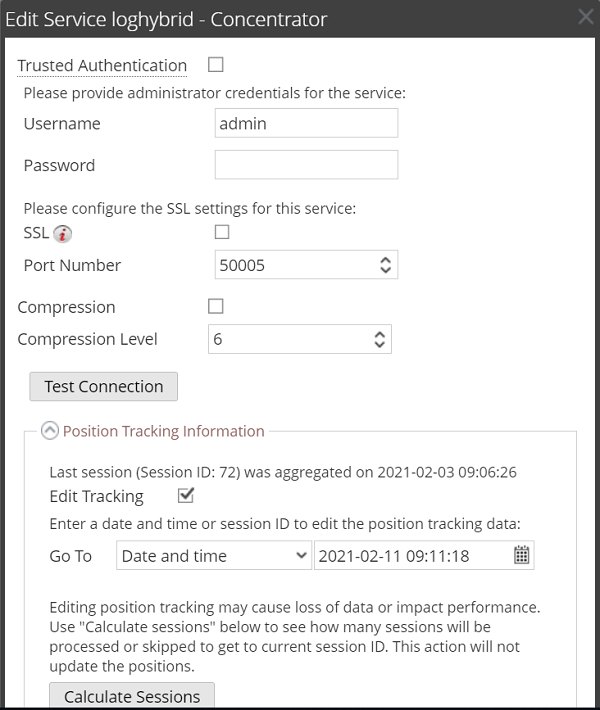
To edit position tracking information:
1. Select the specific data source from the Data Source menu.
2. Click  .
.
The Edit Service window is displayed.
3. Select the Trusted Authentication check-box, or enter your administrative credentials (username and password).
4. In the Position Tracking Information menu, click the Edit Tracking check-box to select it.
a. If you want to edit the position tracking information based on date and time stamp:
In the Go To text field, select Date and Time and enter the date and time.
The ESA Correlation service starts processing the events from the date and time that you entered.
b. If you want to edit the position tracking information, based on the session ID:
In the Go To text field, select Session ID and enter the session ID.
The ESA Correlation service starts processing the events from the session ID that you entered.
5. Click Calculate Sessions to calculate the number of sessions that will be processed with respect to the existing position of the data source, if any.
6. Click OK.
7. Click Deploy Now.
The tracking position information will be deployed to the ESA Correlation service, only when the deployment is successfully completed.
Note: After you deploy, in the Data Sources menu, click on , to view the edit tracking information. The default time-out associated with this information is 1 minute.
Use Case Scenario Use Case Scenario
This section provides information about how you can use position tracking information in a real world scenario.
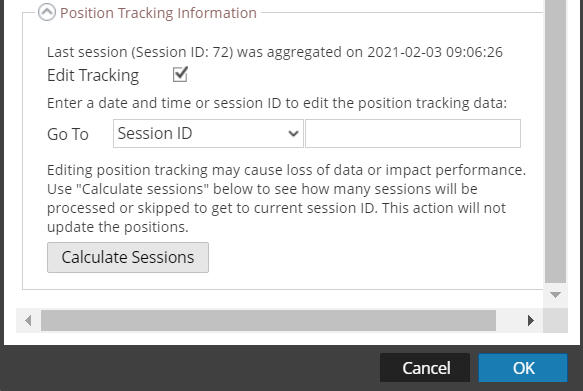
If you have deployed a data source with a total of 72 sessions that ESA has already processed, and if you want to start processing the events from the beginning, or go back with respect to the time or sessions ID.
1. Click Edit Tracking.
2. Enter 1 in the Session ID text box.
3. Click Calculate Sessions.
All the 72 sessions will be reprocessed.
The following image shows the use case scenario.
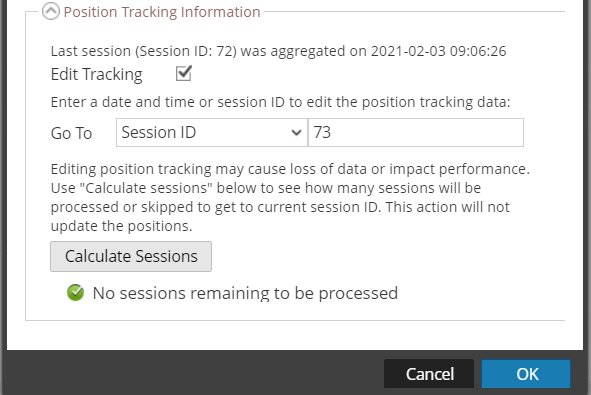
4. Enter a future Session ID.
The No sessions remaining to be processed message is displayed.
Note: Editing the tracking information is optional. If you add a new data source to an existing ESA deployment, and you do not edit the tracking information, ESA follows the default behavior to process events.
Importing Position Tracking InformationImporting Position Tracking Information
You can migrate the settings of position tracking for one or more data sources at the same time from an existing deployment, using the import function.
To import position tracking information from an existing deployment:
1. Go to Configure > ESA Rules > Deployment tab.
2. Create a new deployment. See ESA Rule Deployment Steps
3. Add ESA Services. See Step 2. Add an ESA Service
The Data Sources panel will be enabled.
4. Add Data Sources. See Step 3. Add Data Sources
5. In the Data Sources tab, click  to add a configured data source.
The Available Configured Data Sources window appears.
6. Select the Data Sources and click Save.The Data Sources window displays the data sources that are already in use by the other deployments.
The following figure shows the Import functionality.
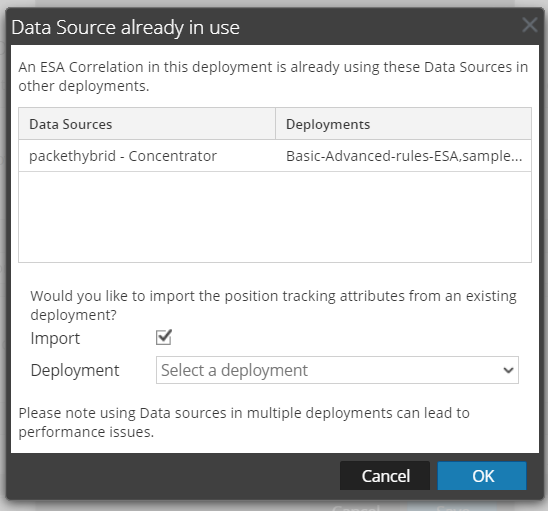
7. Select the Import check-box.
8. In the Deployment dropdown box, select the deployment from which you want to import the position tracking attributes from an existing deployment. The dropdown menu lists all of the deployments with which data sources are shared. Review the list of data sources in the Data Sources menu, and click OK.
9. Add an ESA Rule. See Step 4. Add and Deploy Rules
10. In the Data Sources tab, click Deploy Now.
The deployment retrieves the position tracking information from the selected pre-existing deployment, and applies it to the new deployment.
Note: Ensure that you do not delete the deployment from where you imported the position tracking information, before you perform Deploy Now on the newly created or edited deployment. The import position tracking information function is disabled by default. Sharing data sources between multiple deployments can lead to performance issues.
Deployment OptionsDeployment Options
There are two deployment options below the Data Sources section. These options apply to the entire ESA rule deployment.
The following table describes these deployment options.
ESA Rules SectionESA Rules Section
In the ESA Rules section, you manage rules in the deployment. This section lists all rules that are currently in the deployment.
The following table describes the actions you can perform in the ESA Rules section.
The following table describes the columns in the ESA Rules section.