.png?width=180&height=32&name=NW%20Logo%20(2).png)
Hosts View
Note: The information in this topic applies to NetWitness Version 11.1 and later.
The Hosts view provides a list of all hosts with an Endpoint agent installed. To access this view, go to Hosts. By default, hosts are sorted based on the risk score.
Workflow
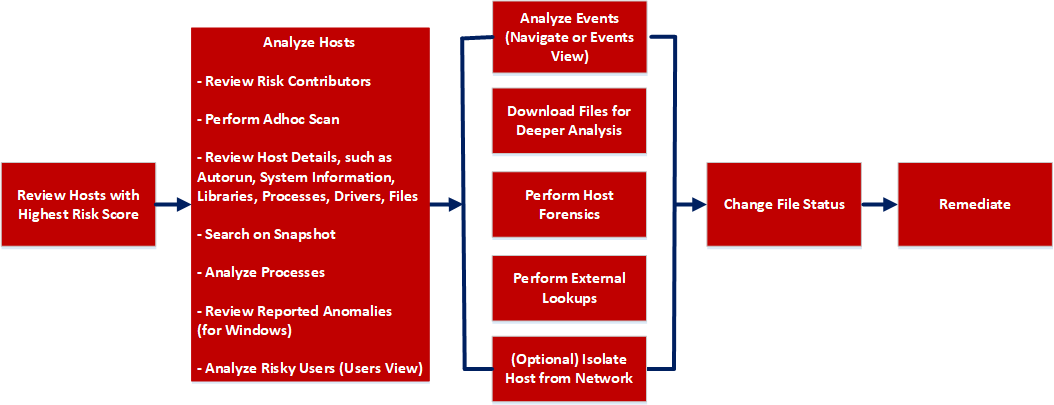
What do you want to do?
- User Role: Threat Hunter
- I want to ...: review hosts with highest risk score*
- Show me how:
- User Role: Threat Hunter
- I want to ...: analyze hosts*
- Show me how: Investigating Hosts
- User Role: Threat Hunter
- I want to ...: perform adhoc scan*
- Show me how:
- User Role: Threat Hunter
- I want to ...: review host details*
- Show me how:
- User Role: Threat Hunter
- I want to ...: search on snapshot*
- Show me how:
- User Role: Threat Hunter
- I want to ...: analyze processes*
- Show me how:
- User Role: Threat Hunter
- I want to ...: review reported anomalies*
- Show me how:
- User Role: Threat Hunter
- I want to ...: analyze risky users*
- Show me how: Analyzing Risky Users
- User Role:
Threat Hunter
- I want to ...:
analyze events*
- Show me how:
- User Role: Threat Hunter
- I want to ...: download files for deeper analysis*
- Show me how: Analyzing Downloaded Files
- User Role: Threat Hunter
- I want to ...: perform external lookups*
- Show me how: Launch an External Lookup for a File
- User Role: Threat Hunter
- I want to ...: change file status or remediate*
- Show me how: Changing File Status or Remediate
- User Role:
Threat Hunter
- I want to ...:
filter files*
- Show me how:
- User Role: Threat Hunter
- I want to ...: isolate host from network*
- Show me how: Isolating Hosts from Network
- User Role: Threat Hunter
- I want to ...: download MFT*, system dump*, or process dump
- Show me how: Performing Host Forensics
*You can perform this task in the current view.
Related Topics
- Focusing on Endpoint Analysis
- Investigating Hosts
- Analyzing Downloaded Files
- Changing File Status or Remediate
- Investigating a Process
- Analyzing Events
- Performing Host Forensics
- Isolating Hosts from Network
Quick Look
Below is an example of the Hosts view:
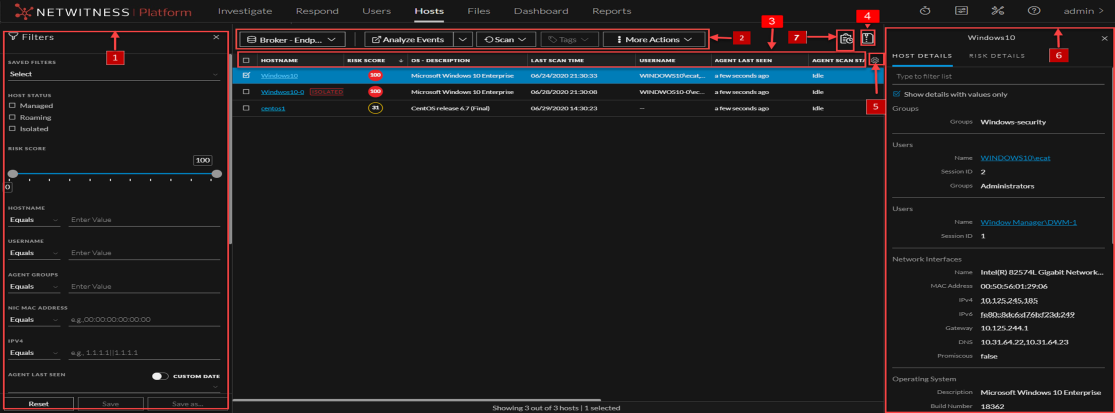
- Column 1: 1
- Column 2: Filter Hosts.You can filter the hosts by selecting the options in the Filters panel and create filters. For more information, see Filter Hosts.
- Column 1: 2
- Column 2: Actions in the toolbar:
Server drop-down list - You can select the Endpoint server or Endpoint Broker server to view the hosts.
Analyze Events - Lets you investigate a particular host, IP address, username, filename, or hash to get the entire context of the activity. For more information, see Analyzing Events.
Start Scan - Starts a scan for the selected hosts.
Stop Scan - Stops a scan for the selected hosts.
More Actions - Provides options to:
- Reset risk score.
- Delete - Lets you delete hosts manually from the user interface. After deletion, the Endpoint server does not process any request from this host. For more information, see Delete a Host.
- Download MFT to the server. For more information, see Performing Host Forensics.
- Download System Dump to the server. For more information, see System and Process Memory Dump.
-
Isolation host from the network. For more information, see Isolating Hosts from Network.
-
Perform remediation actions using the Remote Shell option. For more information, see Performing Host Forensics.
Note: You can perform the above actions from the right-click context menu.
- Column 1:
3
- Column 2:
Sort Columns. Lets you sort on column titles.
- Column 1: 4
- Column 2:
Export to CSV - Extracts host attributes to a CSV file. For more information, see Export Host Attributes.
- Column 1:
5
- Column 2:
Settings Menu. You can set Hosts view preferences by selecting columns from the Settings menu. For more information, see Set Hosts Preference.
- Column 1:
6
- Column 2:
Show/Hide Host Properties Panel. Click a row to show or hide the Host Properties panel. It displays the following tabs:
Host details - Displays the host information such as Network Interfaces, operating system, hardware and others.
Risk details - Displays the distinct alerts associated with the risk score.
- Column 1:
7
- Column 2:
View Agent History - Displays the list of commands issued to the agent. For more information, see View Agent History.