.png?width=180&height=32&name=NW%20Logo%20(2).png)
Post Upgrade Tasks
This topic is divided into two sections. Complete the tasks in one of the following sections based on your upgrade path:
- Post Upgrade Tasks for Customers Upgrading from version 11.7.x.x
- Post Upgrade Tasks for Customers Upgrading From 11.5.3.2 or 11.6.x.x
Post Upgrade Tasks for Customers Upgrading from version 11.7.x.xPost Upgrade Tasks for Customers Upgrading from version 11.7.x.x
Complete the tasks that apply to the hosts in your environment.
- General
- Event Stream Analysis (ESA)
- Respond
- Reference Log Decoder
- Windows Log Collector
- Context Hub
- User Entity Behavior Analytics
GeneralGeneral
(Conditional) Configure NAT-Based IP Addresses
If you have a host, such as a VLC, that requires a NAT-based IP address in order to connect to the NW Server host, you must update the host configuration with the following steps.
- Log in to the host that requires the use of NAT IP addresses, using the console or SSH.
- Run the following command:
nw-manage --enable-nat-usage - To set the NAT address for the NW Server:
- Log into the NW Server using the console or SSH.
- Run the following command:
nw-manage -update-host --host-id--ipv4-public
Note: You can find the UUID and view the current NAT IP address of the host by running nw-manage --list-hosts.
(Conditional - For Warm-Standby Hosts Only) Register the Secondary IP Address of Warm-Standby Hosts
The Warm-Standby server must be upgraded to 11.5 or later before completing the following steps.
- Log in to the NW Server using the console or SSH.
- Run the following command:
nw-manage --add-nws-secondary-ip --ipv4
Note: If the Warm-Standby server requires a NAT-based IP address (IPv4-public) for any host to access it during failover, the NAT IP address must also be registered by running the following command: nw-manage --add-nws-secondary-ip --ipv4
- Verify the correct Warm Standby host IP address value by running the following command:
nw-manage --get-nws-secondary-ip
Review Contents of /etc/hosts.user for Obsolete Host Entries
After upgrading the NW Server host or a component host, review the contents of the /etc/hosts.user file for any obsolete host entries. The /etc/hosts.user file contains system and user-generated entries that are not managed by NetWitness Platform. However, entries from /etc/hosts.user are merged with NetWitness Platform-generated host mappings to create and update /etc/hosts. To avoid conflicts with NetWitness Platform-generated mappings, and to avoid generating connectivity errors resulting from an IP address change, RSA recommends that you remove any entries in /etc/hosts.user that include a non-loopback IP address of a NetWitness Platform host.
After updating /etc/hosts.user, you must refresh the system by running the following command:
nw-manage --refresh-host --host-key
Jetty Configuration
For Jetty Configuration and related information, see Manage Custom Host Entries topic in the System Maintenance Guide.
Reconfigure DNS Servers
By default, a component host upgraded from 11.4 or earlier is configured with the same system DNS server as the NW Server. If this component host requires a different system DNS address, see "Change Host Network Configuration" in the System Maintenance Guide for instructions.
Make Sure Services Have Restarted and Are Capturing and Aggregating Data
Make sure that services have restarted and are capturing data (this depends on whether or not you have auto-start enabled).
If required, restart data capture and aggregation for the following services:
- Decoder
- Log Decoder
- Broker
- Concentrator
- Archiver
Start Network Capture
- In the NetWitness Platform menu, go to
 (Admin) > Services.
The Services view is displayed. - Select each Decoder service.
-
Under
 (actions), select View > System.
 -
In the toolbar, click

Start Log Capture
-
- In the NetWitness Platform menu, go to (Admin) > Services.
The Services view is displayed. - Select each Log Decoder service.
- Under (actions), select View > System.
- In the toolbar, click
- In the NetWitness Platform menu, go to
Start Aggregation
-
In the NetWitness Platform menu, go to
(Admin) > Services.The Services view is displayed.
-
For each Concentrator, Broker, and Archiver service:
- Select the service.
- Under (actions), select View > Config.
- In the toolbar, click

Event Stream Analysis (ESA)Event Stream Analysis (ESA)
Note: Mixed mode is not supported for ESA hosts in NetWitness Platform version 11.5 and later. The NetWitness server, ESA primary host, and ESA secondary host must all be on the same NetWitness Platform version.
There are no required post-upgrade tasks for ESA. For ESA troubleshooting, see ESA Troubleshooting Information.
If you want to add support for Endpoint, UEBA, and Live content rules, you must update the multi-valued and single-valued parameter meta keys on the ESA Correlation service to include all the required meta keys. It is not necessary to make these adjustments during the upgrade; you can make the adjustments later at a convenient time. For detailed information and instructions, see "Update Your ESA Rules for the Required Multi-Value and Single-Value Meta Keys" in the ESA Configuration Guide
Show Updates to an ESA Rule Deployment
You can view changes to an ESA rule deployment, such as adding or removing rules. When there is a change to a deployment, the update icon ( ) appears next to the name of the deployment in the Rules tab options panel.
- Go to
 (Configure) > ESA Rules.The Rules tab is displayed.
 - In the options panel, under Deployments click Show Updates on the far right.
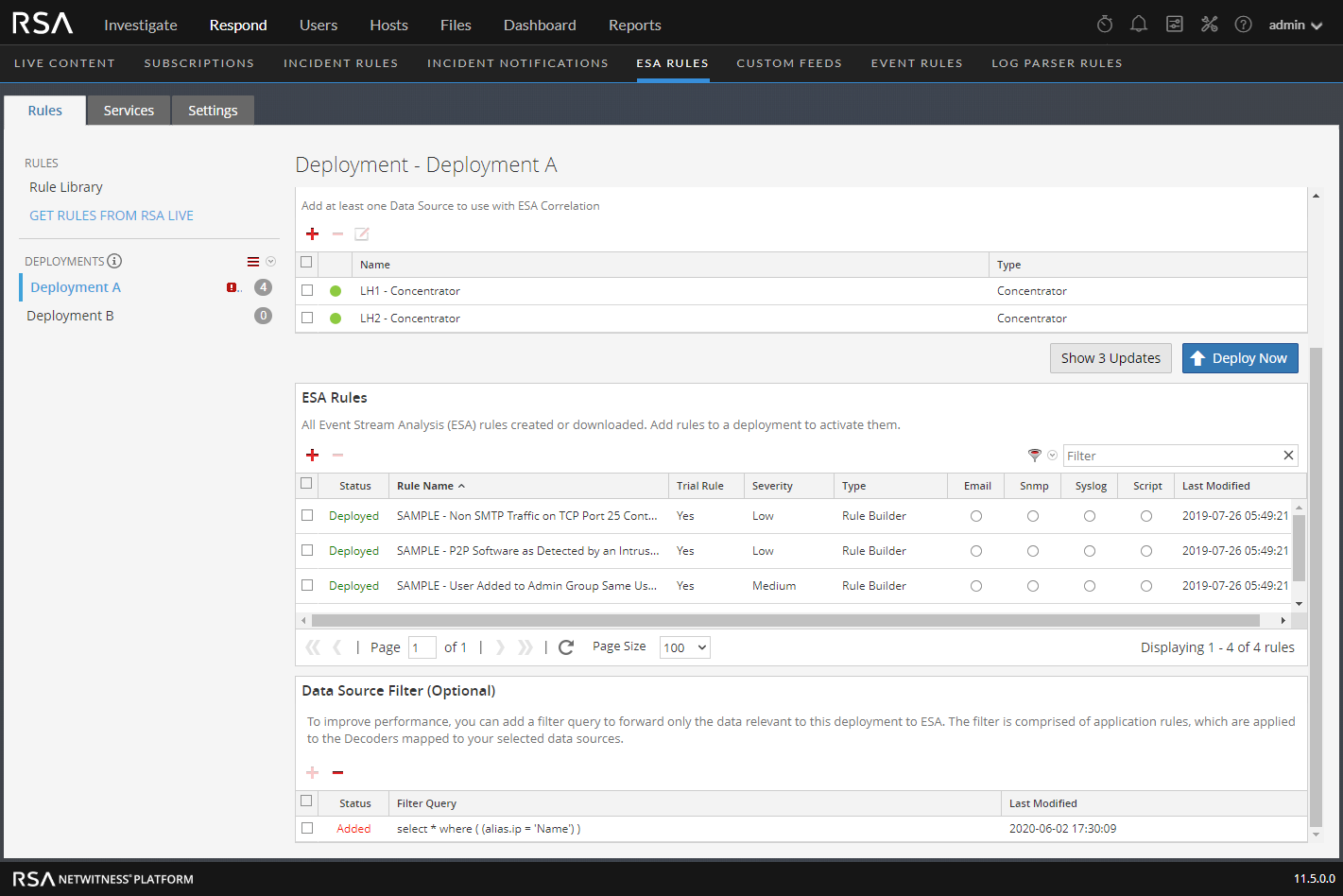
- Click Deploy Now.
If you are unable to deploy the ESA rule, see Known Issues for the workaround.
RespondRespond
The Primary ESA server must be upgraded to 11.7.1.0 before you can complete these tasks.
Note: After upgrading the primary NW Server (including the Respond Server service), the Respond Server service is not automatically re-enabled until after the Primary ESA host is also upgraded to 11.7.1.0. The Respond post-upgrade tasks only apply after the Respond Server service is upgraded and is in the enabled state.
(Conditional) Restore Any Respond Service Custom Keys in the Aggregation Rule Schema
Note: If you did not manually customize the incident aggregation rule schema, you can skip this task.
If you added custom keys in the var/lib/netwitness/respond-server/data/aggregation_ rule_schema.json file for use in the groupBy clause for 11.x, modify the /var/lib/netwitness/respond-server/data/aggregation_rule_schema.json file and add the custom keys from the automatic backup file.
The backup file is located in /var/lib/netwitness/respond-server/data and it is in the following format:
aggregation_rule_schema.json.bak-
Reference Log DecoderReference Log Decoder
For full functionality, make sure your reference Log Decoder is at 11.5 or later. If you never set up a reference Log Decoder, there is no need to take action. For details, see the Log Parser Customization Guide.
Windows Log Collector Windows Log Collector
Update the Windows Log Collector UUID
After upgrading to 11.5 or later, for each Windows Log Collector configured in your environment, run the following command on the NW Server:
wlc-cli-client --update-to-uuid --host
Context HubContext Hub
Disable the UCF configuration
Disable the UCF (Unified Collection Framework) configuration to stop sending events to NetWitness. Do the following steps.
- On the UCF host, stop the UCF services (SA SecOps Watchdog, RSA Unified Collector Framework). For more information, see "Manage Unified Collector Framework" topic in Archer Integration Guide for RSA NetWitness.
- Create a backup of the collector-config.properties file which is in the following location.
C:\Program Files\RSA\SA IM integration service\config
- In the collector-config.properties file, comment the lines that starts with “archer.ArcherPull.baseUri = xxx” by adding # character before the line.
For example,
#archer.ArcherPull.baseUri = xxx
#archer.ArcherPull.instance = xxx
#archer.ArcherPull.userName = xxx
#archer.ArcherPull.password = xxx
#archer.ArcherPull.readWrite = xxx
#archer.ArcherPull.moduleId.dataBreach = xxx
#archer.ArcherPull.moduleId.incident = xxx
- Also delete the value “ArcherPull” in all the lines. For example, for the line “archer.configured.endpoints = ArcherPull,ArcherPush”, delete “ArcherPull” but retain the other values. “archer.configured.endpoints = ArcherPush”
- Start the UCF services (SA SecOps Watchdog, RSA Unified Collector Framework). For more information, see "Manage Unified Collector Framework" topic in Archer Integration Guide for RSA NetWitness.
User Entity Behavior AnalyticsUser Entity Behavior Analytics
IMPORTANT: Before the upgrade, if you encountered and resolved the task failure issues, then after the upgrade, you must replace the authentication.json file before you run the post-upgrade tasks. The task failure issues in Airflow and their solutions are described in the 'Troubleshooting' topic of the UEBA Configuration Guide.
IMPORTANT: Every UEBA deployment when upgraded requires additional steps to complete the upgrade process. When you upgrade from 11.5.x to 11.5.x.x or 11.6.x to 11.6.x.x, you must follow UEBA instructions in the Upgrade Guide for 11.5.x.x or 11.6.x.x, before you upgrade to 11.7.x.
Note: When you upgrade to 11.7.1.0 from 11.4.x.x, you don't need to rerun the UEBA system for the last 28 days, if you don't update the current processing schemas. When you upgrade to 11.7.1.0 from a version prior to 11.4.x, the UEBA system runs a rerun automatically.
-
(For Virtual Machines Only) Update the airflow parallelism on VM.
If the UEBA system is running on VM, update the airflow parallelism to be 64 by running the following command as root from the UEBA host.sed -i "s|parallelism = 256|parallelism = 64|g" /var/netwitness/presidio/airflow/airflow.cfg
Note: Copy this command in a single line.
-
Update the UEBA configuration using the following command from the UEBA machine.
source /etc/sysconfig/airflowsource $AIRFLOW_VENV/bin/activate
OWB_ALLOW_NON_FIPS=on python /var/netwitness/presidio/airflow/venv/lib/python2.7/site-packages/presidio_workflows-1.0-py2.7.egg/presidio/resources/rerun_ueba_server_config.py
-
(Optional) Update the UEBA processing schema, if needed.
RSA recommends that the UEBA start date is set to 28 days earlier than the current date. For UEBA systems that intend to process TLS data, you must make sure that the start date is set to no later than 14 days earlier than the current date.
For more information, see the "reset-presidio script" section in the UEBA Configuration Guide.
-
Run the airflow upgrade DAG.
-
Go to Airflow main page https://
/admin - Enter the admin username and password.
-
Click the Play in presidio_upgrade_dag_from_
to_11.7.1.0.
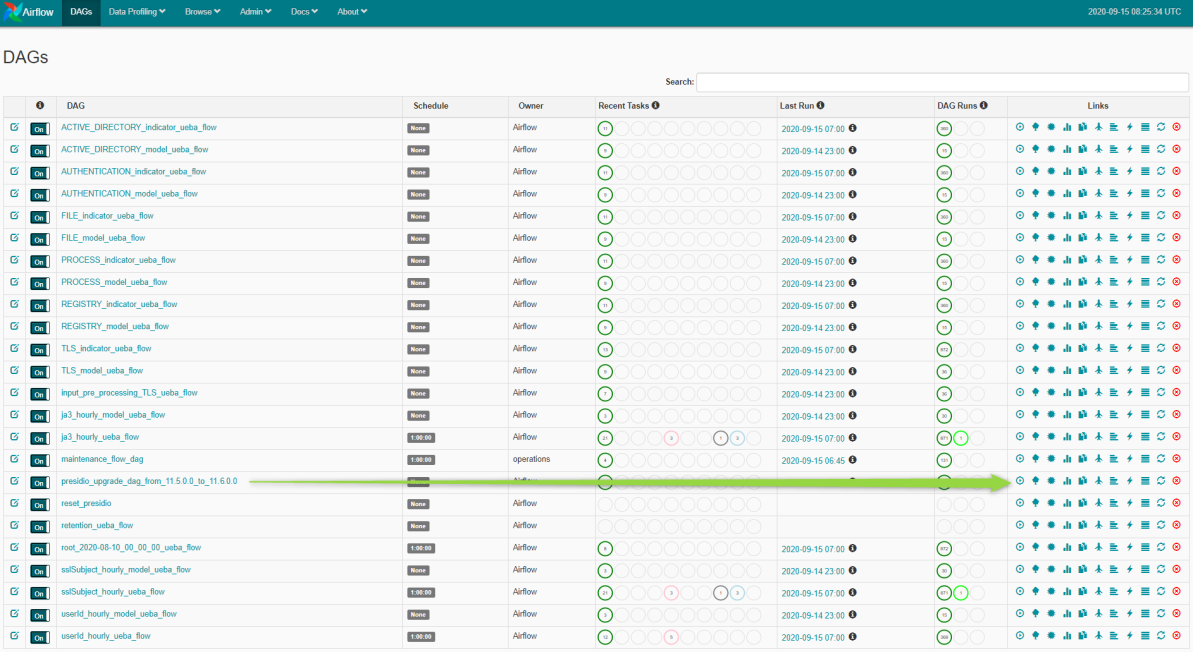
Note: A light green circle will appear next to the upgrade DAG row during the upgrade. If the upgrade process is completed successfully the light green circle changes to green. If the upgrade process fails, the light green circle changes to red.
-
-
Set the appropriate "Boot Jar Pools" slots:
-
Physical Appliance: Update the spring_boot_jar_pool slot value be 18.
- Virtual Appliance: Update the spring_boot_jar_pool slot value to 22.
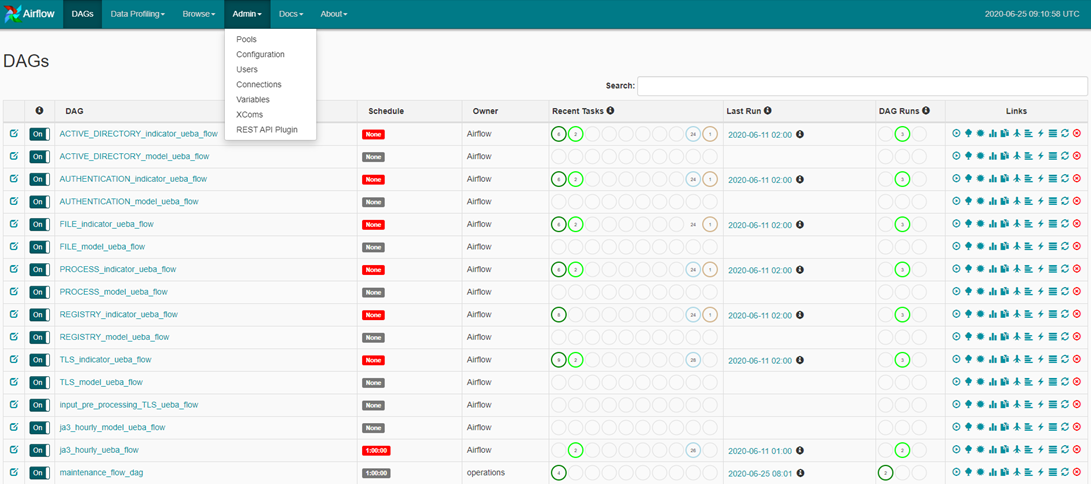
To update the “Spring Boot Jar Pools” slots, Go to the Airflow main page, tap the “Admin” tab at the top bar and tap “Pools”.
- To access the Airflow UI, go to https://
/admin and enter the credentials.
User: admin
Password: The environment deploy admin password.
- Click on the pencil mark of the Pools to update the slot values.
-
- Edit the spring_boot_jar_pool and update the slots amount to 5.

Post Upgrade Tasks for Customers Upgrading From 11.5.3.2 or 11.6.x.xPost Upgrade Tasks for Customers Upgrading From 11.5.3.2 or 11.6.x.x
Complete the tasks that apply to the hosts in your environment.
- General
- Event Stream Analysis (ESA)
- New Health and Wellness
- Respond
- Reference Log Decoder
- Windows Log Collector
- Context Hub
- Update UEBA Configurations
GeneralGeneral
(Conditional) Configure NAT-Based IP Addresses
If you have a host, such as a VLC, that requires a NAT-based IP address in order to connect to the NW Server host, you must update the host configuration with the following steps.
- Log in to the host that requires the use of NAT IP addresses, using the console or SSH.
- Run the following command:
nw-manage --enable-nat-usage - To set the NAT address for the NW Server:
- Log into the NW Server using the console or SSH.
- Run the following command:
nw-manage -update-host --host-id--ipv4-public
Note: You can find the UUID and view the current NAT IP address of the host by running nw-manage --list-hosts.
(Conditional - For Warm-Standby Hosts Only) Register the Secondary IP Address of Warm-Standby Hosts
The Warm-Standby server must be upgraded to 11.5 or later before completing the following steps.
- Log in to the NW Server using the console or SSH.
- Run the following command:
nw-manage --add-nws-secondary-ip --ipv4
Note: If the Warm-Standby server requires a NAT-based IP address (IPv4-public) for any host to access it during failover, the NAT IP address must also be registered by running the following command: nw-manage --add-nws-secondary-ip --ipv4
- Verify the correct Warm Standby host IP address value by running the following command:
nw-manage --get-nws-secondary-ip
Review Contents of /etc/hosts.user for Obsolete Host Entries
After upgrading the NW Server host or a component host, review the contents of the /etc/hosts.user file for any obsolete host entries. The /etc/hosts.user file contains system and user-generated entries that are not managed by NetWitness Platform. However, entries from /etc/hosts.user are merged with NetWitness Platform-generated host mappings to create and update /etc/hosts. To avoid conflicts with NetWitness Platform-generated mappings, and to avoid generating connectivity errors resulting from an IP address change, RSA recommends that you remove any entries in /etc/hosts.user that include a non-loopback IP address of a NetWitness Platform host.
After updating /etc/hosts.user, you must refresh the system by running the following command:
nw-manage --refresh-host --host-key
Reconfigure DNS Servers
By default, a component host upgraded from 11.4 or earlier is configured with the same system DNS server as the NW Server. If this component host requires a different system DNS address, see "Change Host Network Configuration" in the System Maintenance Guide for instructions.
Make Sure Services Have Restarted and Are Capturing and Aggregating Data
Make sure that services have restarted and are capturing data (this depends on whether or not you have auto-start enabled).
If required, restart data capture and aggregation for the following services:
- Decoder
- Log Decoder
- Broker
- Concentrator
- Archiver
Start Network Capture
- In the NetWitness Platform menu, go to (Admin) > Services.
The Services view is displayed. - Select each Decoder service.
-
Under
(actions), select View > System. -
In the toolbar, click
Start Log Capture
-
- In the NetWitness Platform menu, go to (Admin) > Services.
The Services view is displayed. - Select each Log Decoder service.
- Under (actions), select View > System.
- In the toolbar, click
- In the NetWitness Platform menu, go to
Start Aggregation
-
In the NetWitness Platform menu, go to
(Admin) > Services.The Services view is displayed.
-
For each Concentrator, Broker, and Archiver service:
- Select the service.
- Under "inclusion" : [ "/concentrator/**"
"username" : "nwservice"