.png?width=180&height=32&name=NW%20Logo%20(2).png)
Configure Decoder Rules
This topic provides procedures for creating and managing rules for Decoder or Log Decoder traffic capture in the Services Config view > Rules tabs . Services Config View - Rules Tabs provides details about the Rules tab options.
The following figure illustrates commonly used settings on a Decoder. For a quick basic setup with only the required steps, see Decoder and Log Decoder Quick Setup.

Capture rules can add alerts or contextual information to sessions or logs. They can also define which data is filtered out by a Decoder or Log Decoder. Rules are created for specific metadata patterns, which result in predefined actions when matches are found. For example, to keep all traffic that fits certain criteria, but discard all other traffic, you can create a rule to perform the necessary actions. When applied, rules affect both packet capture file importing, as well as live network capture.
Rule and Query Guidelines provides guidelines that all queries and rule conditions in NetWitness Core Services must follow.
By default, no rules are defined when you first install NetWitness. Until rules are specified, the packets are not filtered. You can deploy the latest rules from Live. You can define three types of rules: Network Rules, Application Rules, and Correlation Rules.
- Network rules are applied at the packet level and are made up of rule sets from Layer 2, Layer 3, and Layer 4. Multiple rules can be applied to the Decoder. Rules can be applied to multiple layers (for example, when a network rule filters out specific ports for a specific IP address). Network rules are only available on Network Decoders.
- Application rules are applied at the session level. If the first rule listed is not a match, the Decoder then attempts to match the next rule listed, until a match is found.
- Correlation rules are applied over a configurable sliding time window. When a match is found, the service creates a new super session that identifies other sessions that match the rule, then creates a session list for analysis.
The two most common uses of rules are:
- To alert, and thereby create a custom alert meta value, when certain conditions are found.
- To filter out certain types of traffic that do not add value to the analysis of the data.
Groups of capture rules form rule sets, which you can import and export. This feature enables use of multiple rule sets for various scenarios. You can import the exported rule set, in the form of an .nwr file, to other NetWitness services, simplifying the deployment and configuration of multiple services.
Rule Processing
These are the principles governing capture rule processing:
- Multiple rules can be applied to the Decoder.
- Capture rules are executed one after the other, in sequence.
- Rule processing stops when all rules are processed or after a rule configured to stop rule processing is matched.
- A default rule can be used to either include or exclude all traffic not otherwise selected by a rule. A default rule, if used, must always be placed at the bottom of the rule list. Otherwise, rule processing stops as soon as the default rule is evaluated since, by definition, all traffic is selected by the default rule.
- When rule processing stops, the session is saved using the configured session options and debug options.
Rule and Query GuidelinesRule and Query Guidelines
All queries and rule conditions in NetWitness Core services must follow these guidelines:
All string literals and time stamps must be quoted. Do not quote numbers, MAC, or IP addresses.
extension = 'torrent'time='2015-jan-01 00:00:00'service=80ip.src=192.168.0.1
Note: The space on the right and the left of an operator is optional. For example, you can type a rule as service=80 or service = 80 .
Rule Examples
The following table shows examples of rule conditions. You can use rule conditions for log retention collections in an Archiver and for application, network, and correlation rules on a Decoder, Log Decoder, or Concentrator. Rule conditions are also used in all WHERE clauses in all Core database queries.
For detailed information on rule syntax in NetWitness, see "WHERE Clauses" in the "Queries" section of the Core Database Tuning Guide .
Invalid Rules
NetWitness uses a rule parser that strictly defines valid syntax for rules and queries. When a Core service encounters invalid syntax, it writes a warning in the NetWitness logs indicating the error.
Note: NetWitness Platform does not support parsing of legacy syntax rules. After you update to NetWitness latest version, rules with invalid syntax are highlighted in the user interface, and no rules will be applied until the invalid rules are corrected. The Rule Editor provides additional tooltips. After you fix the rules, the highlights disappear. See Fix Rules with Invalid Syntax.
The /decoder/config/rules/rule.errors and /concentrator/config/rules/rule.errors stats, contain the count of rules with errors. If rule.errors is nonzero, NetWitness generates a Health and Wellness alert to indicate that you need to fix the rules.
General Syntax Guidelines
- All text values must quote literal values. Example:
user = 'user1' - Quotes can use single or double quotes; but they must match. (You cannot start with a single quote and finish with a double quote.)
- If the literal value has a quote, you can escape it using double quotes. Example:
user = "User's"
The following are valid syntax rules:
- All time values should use quotes for dates in this form:
time = 'YYYY-MM-DD HH:MM:SS' - All time values that are the number of seconds since EPOCH (Jan 1, 1970), should not be quoted.
Example:time = 1448034064 - Everything else is unquoted: IP addresses, MAC addresses, numerics, and so on. Example:
service = 80 && ip.src=192.168.1.1/16
Capture Rule Syntax
Capture rules compare fields to values or to other fields. This is an example of a simple expression with a meta key on the left side of the operator and a value on the right side.
ip.dst=192.168.1.1
The syntax allows a meta key on the right side of the operator in Decoders and Log Decoders for application and network rules. Meta key comparison does not apply in the where clause in queries. This is an example of a simple expression with a meta key on the left side of the operator and a meta key on the right side.
ip.src=ip.dst
Rules that include a meta key comparison support renamed meta keys; if a rule queries a meta key that has been renamed, the rule is parsed for the renamed meta key. For example, if the meta key ip_dst is used in a rule, it is transparently mapped to the renamed meta key: ip.dst. Existing rules that include original keys will trigger alerts that include data for the renamed meta key.
This is an example of a rule that finds packets having the same ip.src address and ip.dst address on a Decoder, and generates an alert on the Concentrator.
alert=ioc name=testRule8 rule="ip.src=ip.dst" order=38
This rule would generate an error because eth.src and ip.src are incompatible formats.
rule="eth.src=ip.src" name="testRule99" alert=ioc
Values can be expressed as discrete values, a range of values, an upper or lower bound, or a combination of these three. You can create a greater than or less than comparison, and test equality or inequality against a range of values or an upper/lower bound.
key 0-5 (a range of values)
key = 0-u is the same as key >= 0 (upper bound, greater than or equal to)
The following table summarizes the operators on meta keys.
The following table summarizes other syntax elements used in rules.
Configure Capture Rules
The Decoder and Log Decoder rules are editable in the Services Config view. While each type of rule (network, application, and correlation) has its own tab; the functions are similar for all types of rules. You can:
- Add, edit, and delete rules
- Enable and disable rules
- Change the execution sequence of rules
- Import rules from a file
- Export rules to a file
- Push rules to another service
- Revert or apply rule changes
- Restore one of the last ten rule configurations from a snapshot
To configure rules in the Rules tabs
- Go to
 (Admin) > Services.
 - In the Services view, select a Decoder service and
 > View > Config.
 - In the Services Config view, select one of the Rules tabs: Network Rules, App Rules, or Correlation Rules.
The rules list for the selected rule type is displayed.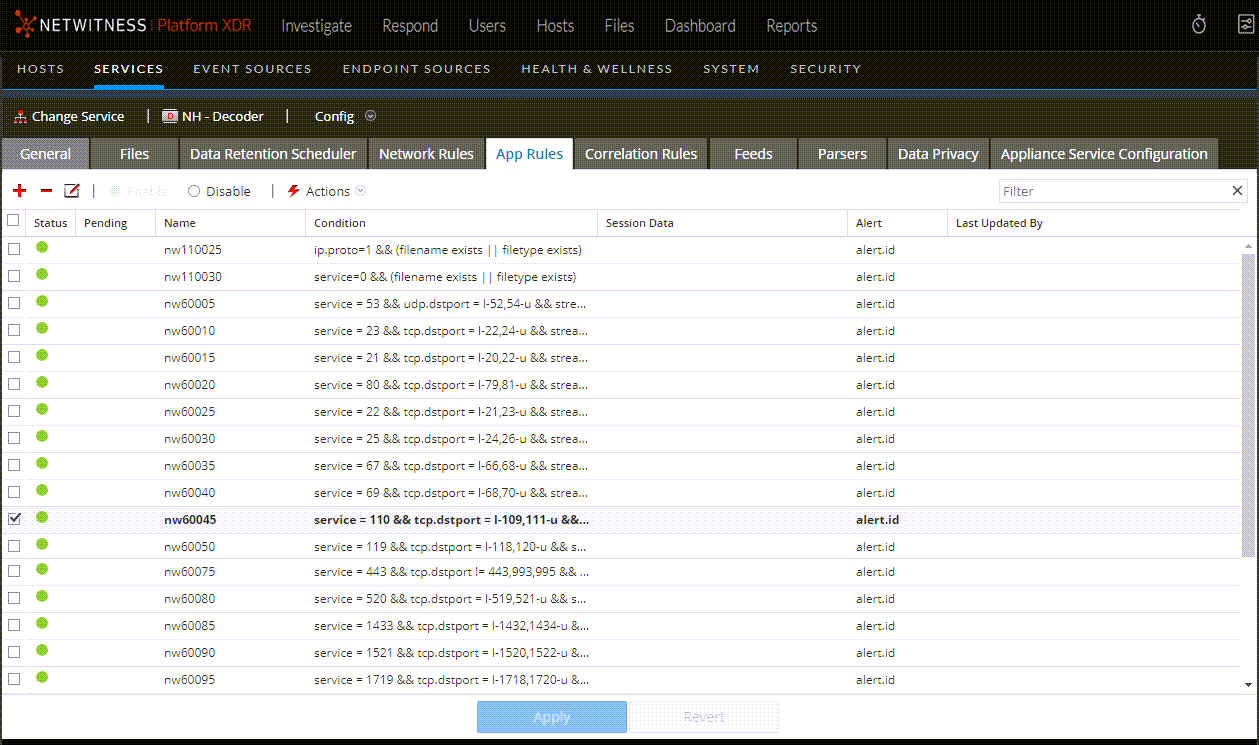
Each type of rule has a list with slightly different columns and different parameters. Several basic guidelines apply to all rule management activities:
- The rules are executed in the sequence they are displayed in the list. To change the execution sequence of rules, drag and drop rules to the appropriate location in the list or use the context menu options to arrange the rules in the list.
- To select a single row, click the row.
- To select a group of adjacent rows, click the first, then shift-click the row at the end of the group.
- To select multiple non-adjacent rows, click the first, then control-click the others.
- When editing rules in the Rules tab, you must apply the configuration changes in order to activate.
- Until changes are applied, you can discard edits to the list and revert to the unedited rules.
- Once rules are applied, you can recover the last ten rules configurations using the History option in the Actions menu.
To add a rule in any Rules tab, do one of the following:
- Click
 .
. - Right-click a rule, and select Insert Above or Insert Below from the context menu.
The Rule Editor dialog for that type of rule is displayed.
To remove a rule:
- From any Rules tab, select the rules to remove from the rules list.
- Click
 .
.
The selected rules are removed from the list, but still exist on the service.
To edit a rule
- From any Rules tab, select the rule to edit.