.png?width=180&height=32&name=NW%20Logo%20(2).png)
Configure System-Level Security Settings
Most global security settings, such as the maximum number of failed login attempts to allow, apply to all NetWitness users and sessions. Settings related to passwords in the Password Strength section, such as password expiration period and the default number of days before user passwords expire, apply to internal NetWitness users, but not external users.
Configure Security SettingsConfigure Security Settings
-
Go to
 (Admin) > Security.
The Security view is displayed with the Users tab open.
-
Click the Settings tab.
-
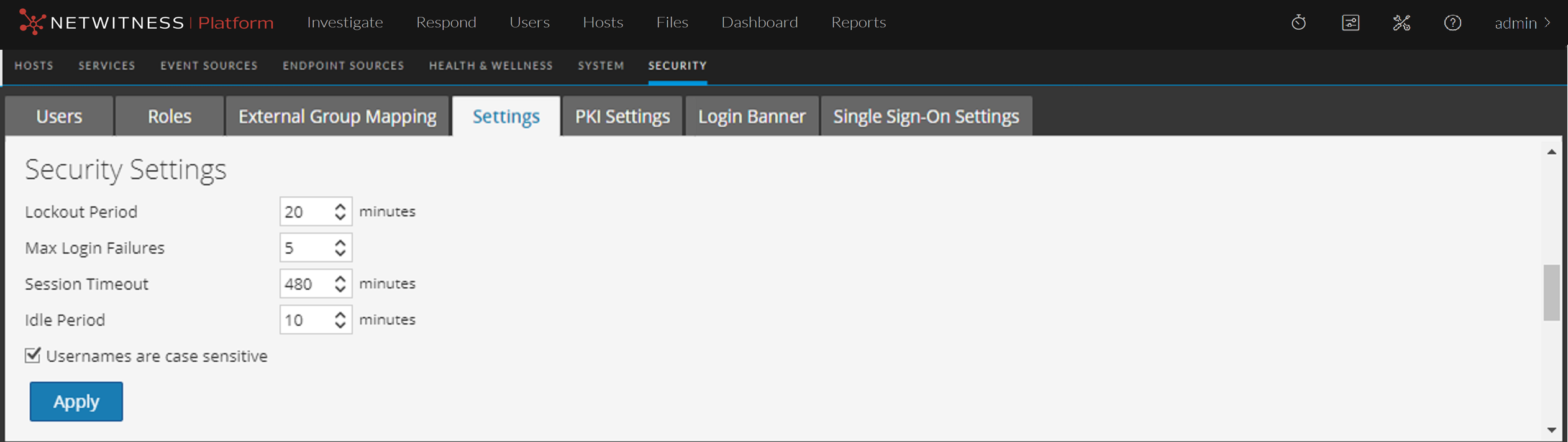
In the Security Settings section, specify values for the fields as described in the following table.
- Click Apply. The Security Settings take effect immediately. If a password expires, the user receives a prompt to change the password when they log on to NetWitness.
Restrict Access to Incidents
By default, analysts can view all of the incidents, alerts, and tasks in the Respond view. If you have sensitive or restricted information that should not be shared, you can restrict what analysts and other users can see in the Respond view.
If you restrict access to incidents:
- Analysts can only see incidents assigned to them as well as the alerts and tasks associated with those incidents. Likewise, they can only change the status of and add journal entries (notes) to their own incidents.
- Analysts cannot see the Alerts and Tasks tabs in the Respond view (Respond > Tasks and Respond > Alerts are hidden), so they cannot view all alerts and tasks.
- Analysts cannot see the Assignee button or change the assignee of an incident.
- Analysts cannot see the Related Indicators (alerts) panel (Incident Details view > Find Related tab in the left-side panel).
- When adding events to incidents from the Investigate views, users can only add events to incidents to which they have access. The list of incidents to which users can add events only shows incidents that the user can access.
- When creating incidents from the Investigate views, users must have access to those incidents to view them in the Respond view. For example, when creating incidents from the Investigate view, Analysts must assign the incidents to themselves to view them in the Respond view.
Caution: These restrictions apply to all NetWitness users, except users with the Administrators, Respond_Administrator, and SOC_Managers roles. However, you can adjust the list of user roles whose access to incidents should not be restricted.
To restrict access to incidents:
- Go to (Admin) > Security and click the Settings tab.
- In the Restrict Access to Incidents section, select Restrict access to incidents for all users, except for users with the roles listed below.
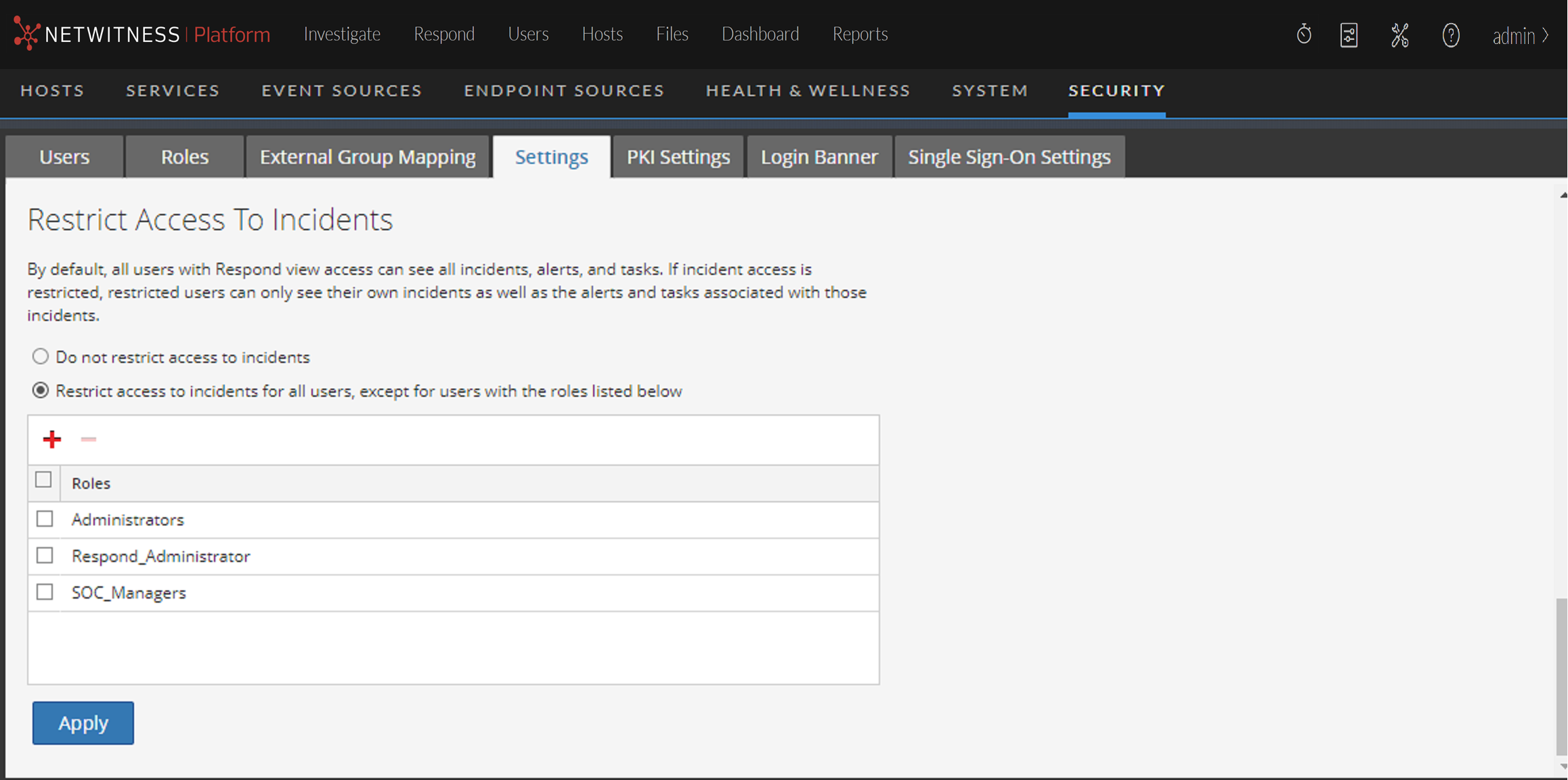
- In the list, add the user roles whose access to incidents should not be restricted.
- Click Apply.
Changes take effect on the next log in to NetWitness.