.png?width=180&height=32&name=NW%20Logo%20(2).png)
Configure Windows Legacy and NetApp Event SourcesConfigure Windows Legacy and NetApp Event Sources
This topic tells you how to configure Windows Legacy event sources in NetWitness.
The Windows Legacy collection protocol collects event data from Windows 2003 or earlier event sources, and from NetApp event sources.
PrerequisitesPrerequisites
Before you configure a Windows Legacy event source, make sure that you have:
- Installed the NetWitness Windows Legacy Remote Collector on a physical or virtual Windows 2008 64-bit server.
- Added this Windows Legacy Remote Collector to NetWitness.
Add a Windows Legacy Event SourceAdd a Windows Legacy Event Source
- Access the Services view by selecting
 (Admin) > Services from the NetWitness menu.
 - In the Services grid, select a Windows Legacy Log Decoder service.
- Under Actions, select
 > View > Config to display the Log Collection configuration parameter tabs.
 - Click the Event Sources tab.
-
In the Event Sources tab, select one of the following options from the drop-down menu.
- Windows Legacy/Windows.
- Windows Legacy/NetApp.
-
Configure the alias:
-
Click
 in the Event Categories panel toolbar.
The Add Source dialog is displayed.
-
Specify values for the parameters and click OK.
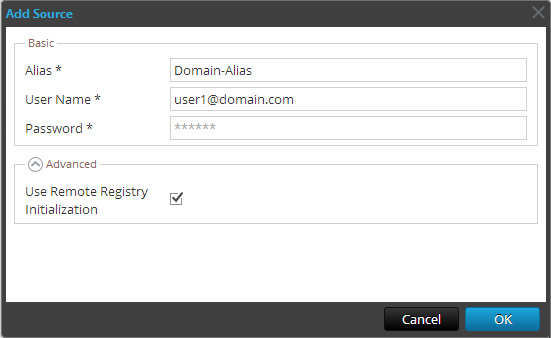
Note: By default, Remote Registry Initialization is selected. For details, see Remote Registry Access below.
The newly added windows event source type is displayed in the Event Categories panel.
-
-
Add the event source:
-
Select the new alias in the Event Categories panel and click
in the Source panel toolbar.The Add Source dialog is displayed.
-
Specify values for the event source parameters and click OK.
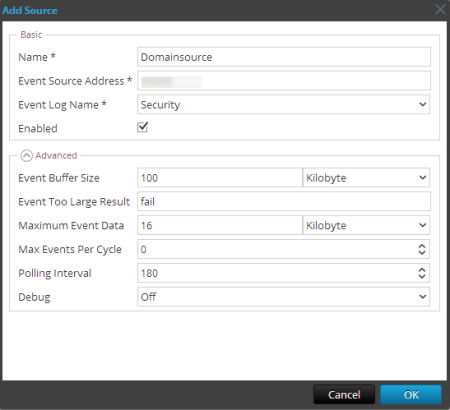
For details, see Windows Legacy Configuration Parameters below.
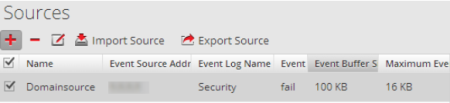
The newly added Windows event source is displayed in the Event Categories panel.
-
Remote Registry AccessRemote Registry Access
Windows Legacy Collector performs an initial verification of the event source before collecting data. By default, Windows Legacy Collector uses Windows Management Instrumentation (WMI) method to perform this initial verification. If you enable Remote registry access method, Windows Legacy Collector performs a remote registry query to verify the event source.
Configure Push or Pull between Log Collector and Windows Legacy CollectorConfigure Push or Pull between Log Collector and Windows Legacy Collector
You can configure the Windows Legacy Collector to push event data to a Local Collector, or you can configure a Local Collector to pull event data from the Windows Legacy Collector.
To configure a Local Collector or the Windows Legacy Collector:
- Go to (Admin) > Services.
- Select a Local Collector or the Windows Legacy Collection service.
- Under Actions, select > View > Config to display the Log Collection configuration parameter tabs.
-
Depending on your selection in step 2:
- If you selected a Local Collector, the Remote Collectors tab is displayed. Select the Windows Legacy Collector from which the Local Collector pulls events in this tab.
- If you selected a Windows Legacy Collector, the Local Collectors are displayed. Select the Local Collectors to which the Windows Legacy Collector pushes events in this tab.
Windows Legacy Configuration ParametersWindows Legacy Configuration Parameters
The following table describes the basic parameters for a Windows Legacy event source.
Note: Required parameters are marked with an asterisk. All other parameters are optional.
The following table describes the advanced parameters for a Windows Legacy event source.