.png?width=180&height=32&name=NW%20Logo%20(2).png)
Data Retention Tab - Archiver
From the  (Admin) > Services > Config view > Data Retention tab of an Archiver, administrators can define the criteria for log retention and storage.
Workflow
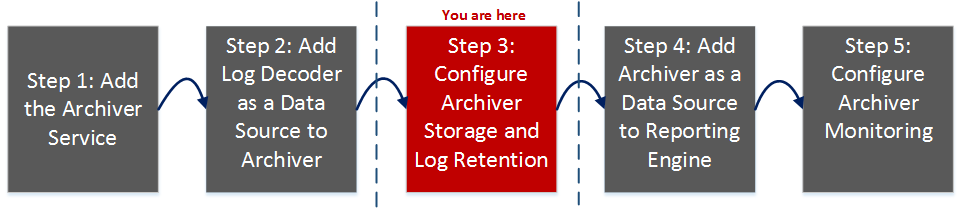
This workflow illustrates the end-to-end installation and configuration process for an Archiver. From the Data Retention Tab you can configure hot, warm, and cold storage along with configuring multiple storage collections for data retention.
What do you want to do?
*You can perform these tasks here.
Related Topics
Configure Hot, Warm, and Cold Storage
Quick Look
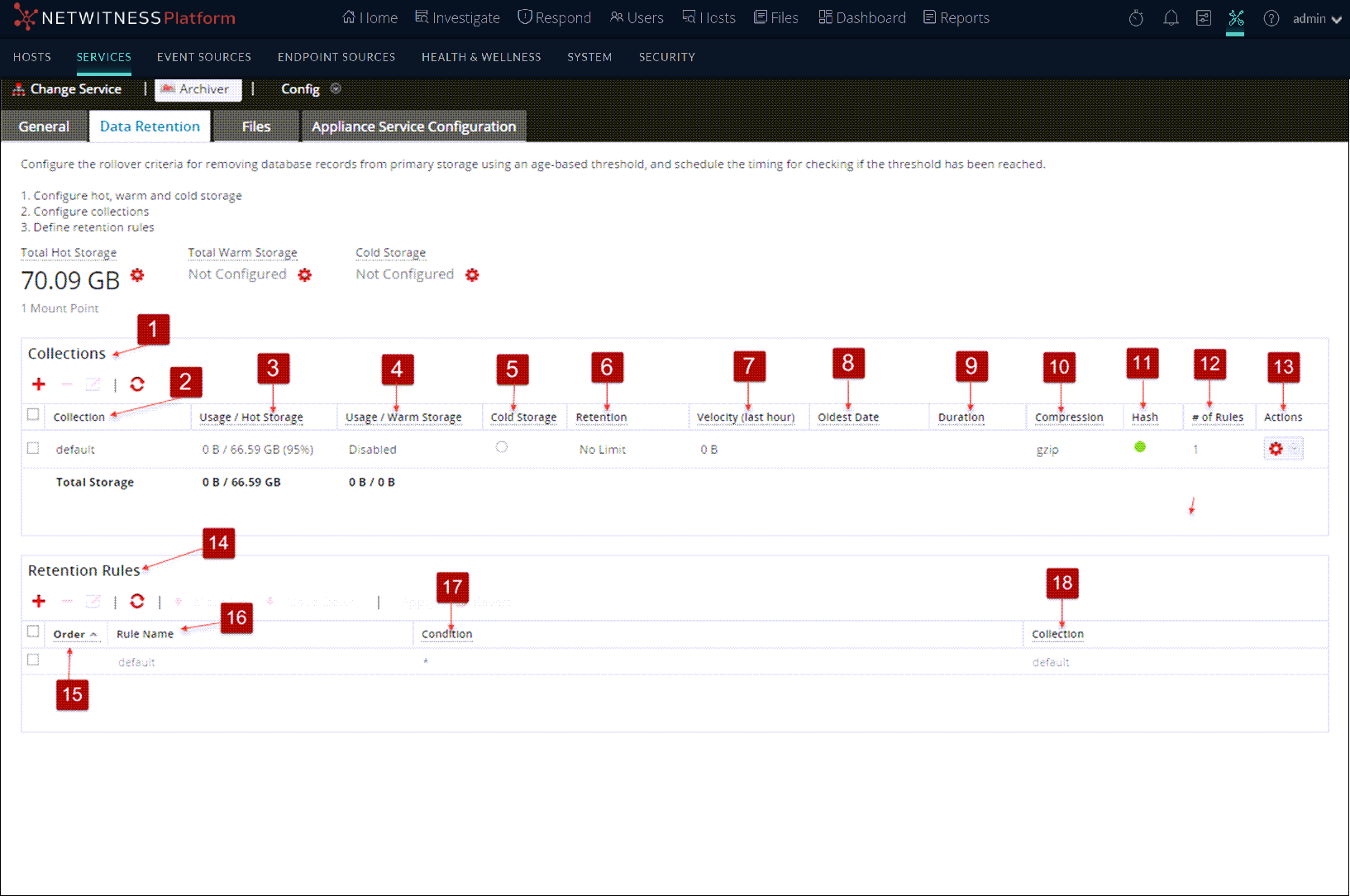
As an administrator, you can configure hot, warm, and cold storage as well as multiple storage collections with different locations and criteria for retaining logs. For example, you can create a Compliance collection that stores logs for a specific time period as required by government regulations. You can create another collection that stores low value logs in hot storage with a much shorter retention period. The flexibility of these collections enables you to have significantly less overall storage requirements.
Total Hot, Warm, and Cold Storage
The Total Hot Storage section shows the total amount of Hot storage available and the number of hot storage mount points. The Total Hot Storage section shows the total amount of Warm storage available and the number of warm storage mount points. The Total Cold Storage section shows the total amount of Cold storage and the remaining free space available in Cold storage.

Hot, Warm, and Cold Storage Mount Points Dialogs
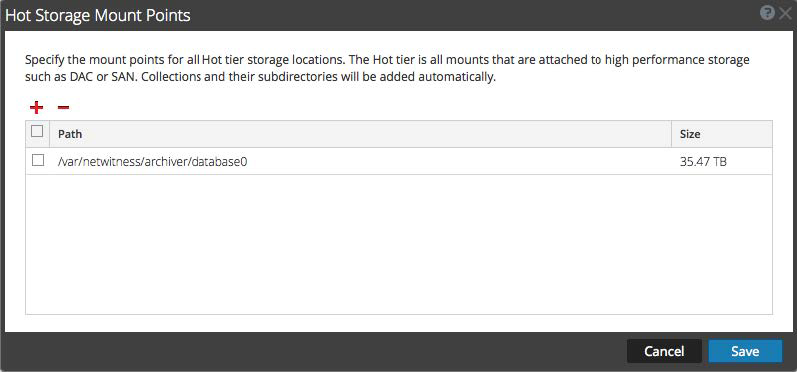
In the Hot, Warm, and Cold Storage Mount Points dialogs, you can specify the mount points for your storage locations. You can specify portions of this storage to use for your log storage collections.
To access the Hot, Warm, and Cold Storage Mount Points dialogs, click the  icon near the respective section.