.png?width=180&height=32&name=NW%20Logo%20(2).png)
Health and Wellness Settings View - Event Sources
Note: To manage Event Sources, use the  (Admin) > Event Sources view. For details, see "About Event Source Management" in the NetWitness Event Source Management Guide.
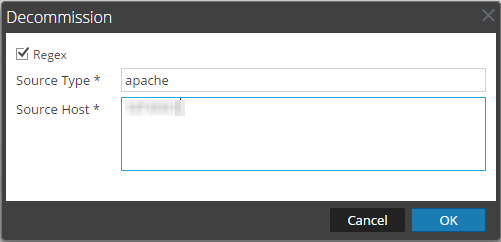
The Event Source Monitoring view consists of the Event Source panel, the Add/Edit Source Monitor dialog, the Decommission panel, and the Decommission dialog. You use the view to configure:
- When to generate notifications for event sources from which the Log Collector is no longer receiving logs.
- Where to send those notifications.
- When to decommission a Log Collector when a Remote Collector and the Local Collector fails over to a standby Log Decoder.
The required role to access this view is Manage NW Auditing. To access this view:
- Go to (Admin) > Health & Wellness.
- Select Settings > Event Source.
What do you want to do?
Related Topics
Configure Event Source Monitoring
Quick Look
The Event Source tab is displayed.
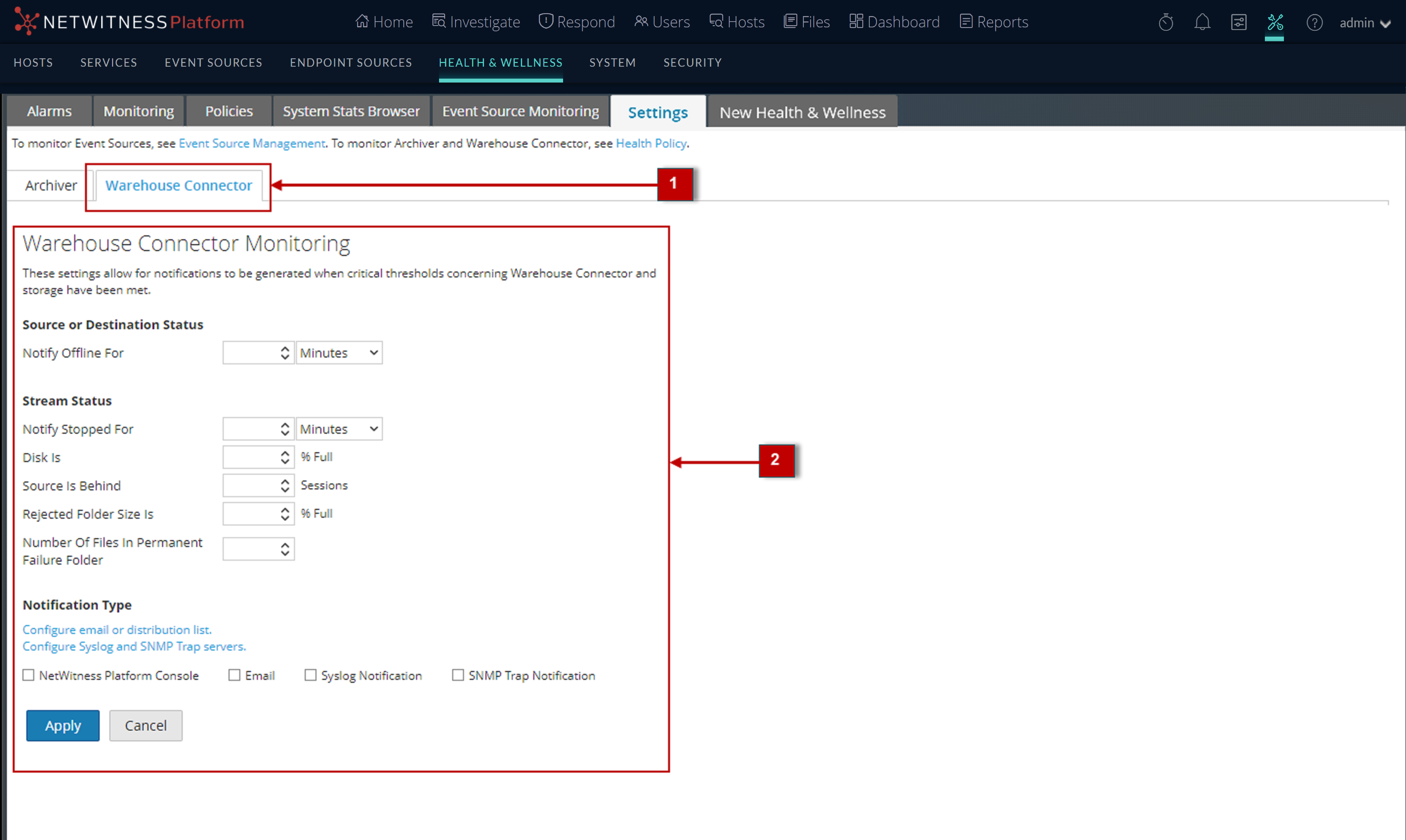
Event Source Monitoring Panel
Decommission Panel
Add/Edit Source Monitor Dialog
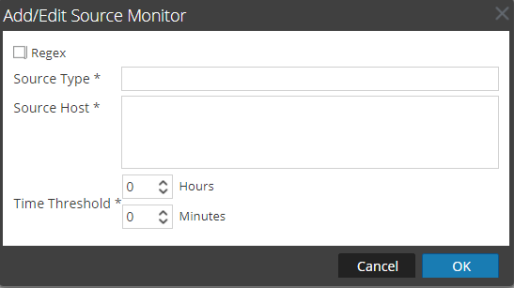
In the Add/Edit Source Monitor dialog, you can add or modify the the event sources that you want to monitor. The two parameters that identify an event source are Source Type and Source Host. You can use globbing (pattern matching and wildcard characters) to specify the Source Type and Source Host of event sources as shown in the following example:
Features
Decommission Dialog