.png?width=180&height=32&name=NW%20Logo%20(2).png)
Health and Wellness View - Alarms View
You can monitor hosts and services to determine when user-defined limitations have been reached by viewing all the active alarms. Policy rules, that you define or assign to hosts and services, in the Policies tab trigger these alarms. You can:
- View all the alarms that are currently active for all your systems and services
- Select an alarm and view its details
What do you want to do?
Related Topics
Quick Look
The required permission to access this view is Manage services. To access the Alarms view, go to  (Admin) > Health & Wellness. The Health & Wellness view opens with the Alarms tab displayed. The Alarms tab contains an alarms list and an Alarm Details panel.
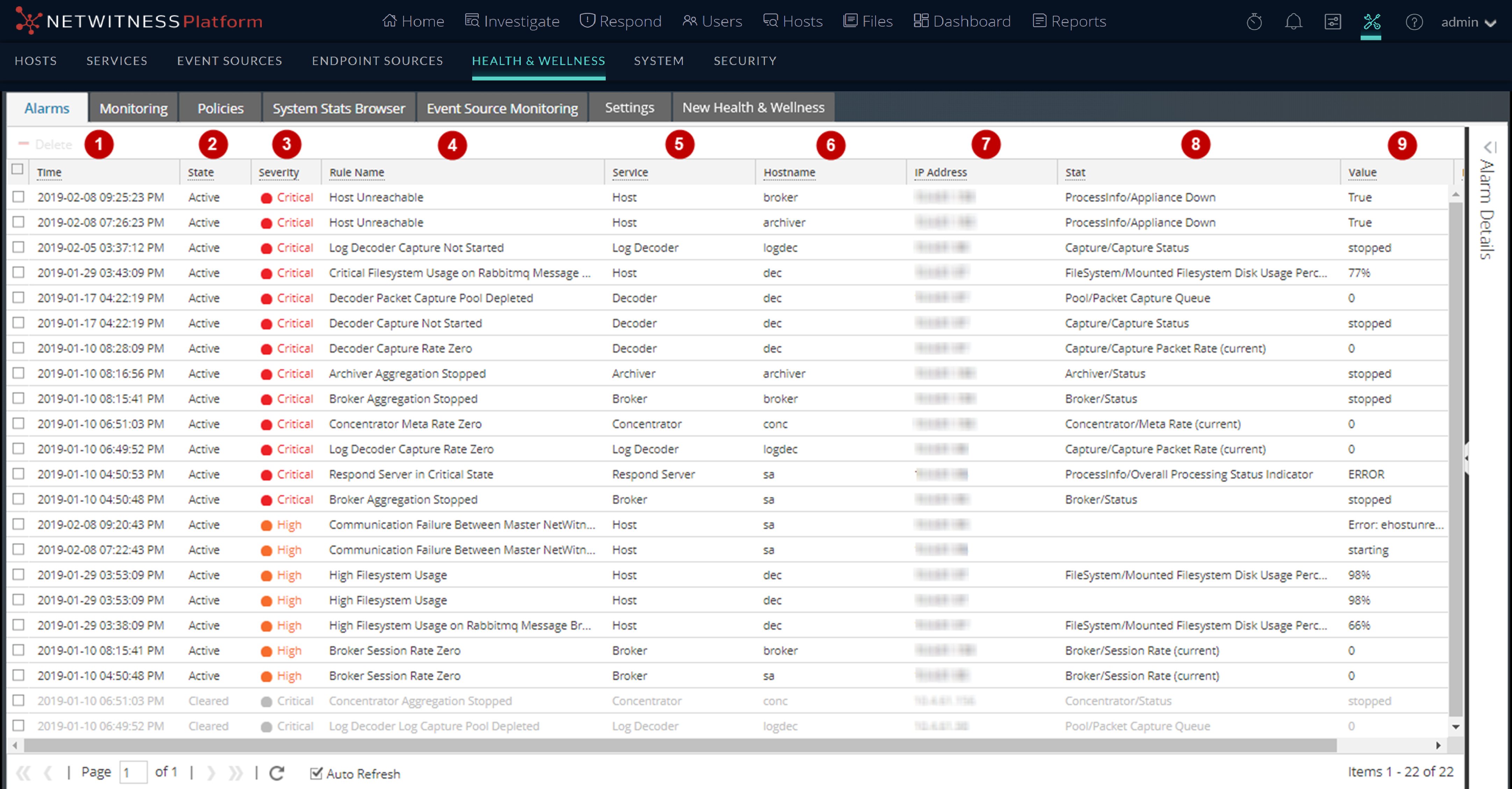
Note: NetWitness sorts the alarms in time order. You can sort the relevant parameters in ascending or descending order.
This figure shows the Alarms tab with the Alarm Details panel expanded.
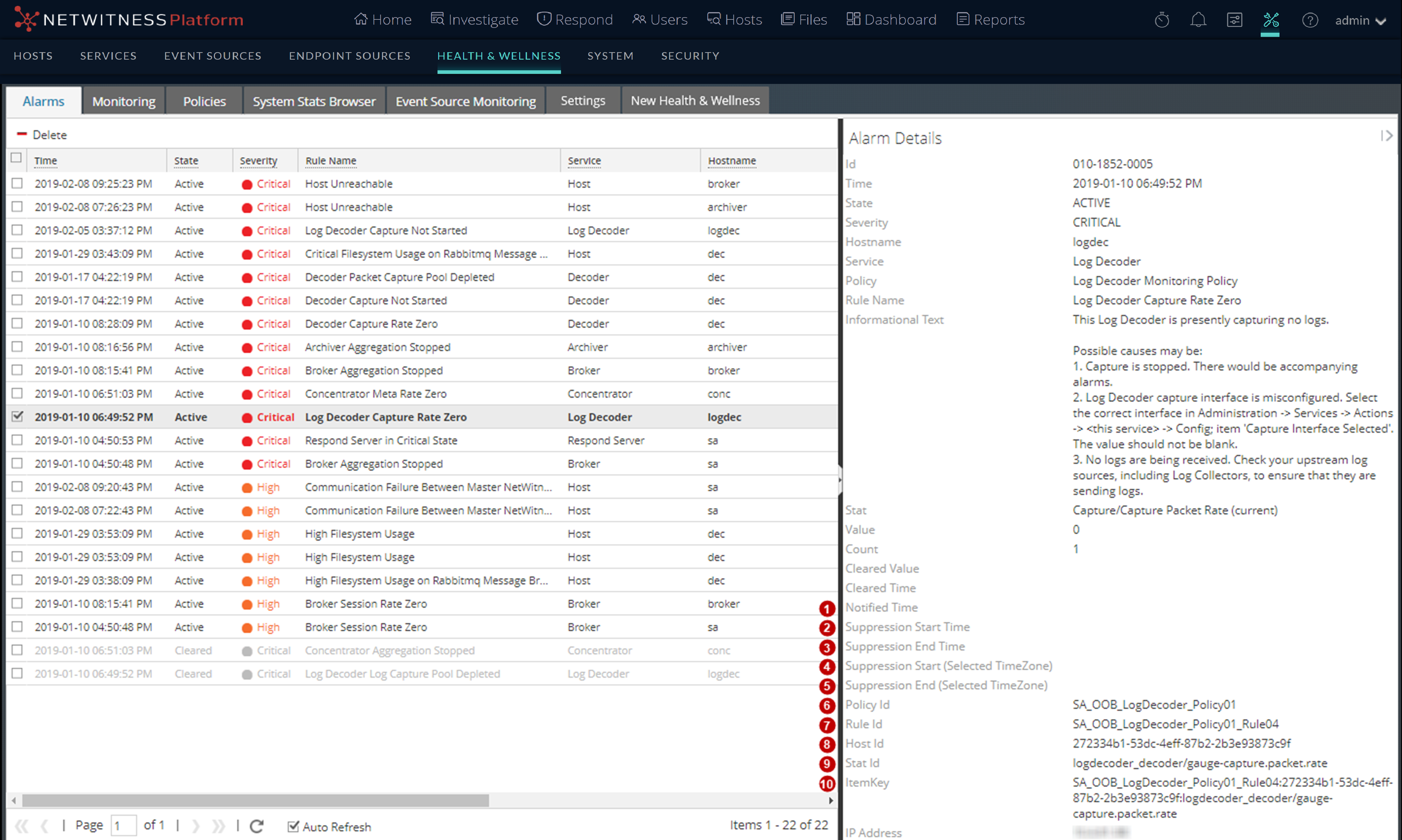
Alarm Details Panel
The Alarm Details panel displays information for the alarm selected in the Alarms list. It contains all the information in the Alarms list plus the following fields.