.png?width=180&height=32&name=NW%20Logo%20(2).png)
Import Content to Content Library
Before the custom content can be used in policies, it must be imported to the Content Library.
To export Application Rules or Network Rules from Legacy UI
- Go to
 (Admin) > Services.
 - Go to Config view of the service where application rule or network rule is deployed.
- Click either the Application Rule or the Network Rule tab.
Note: The Network Rule tab is only available for Network Decoder services.
- Select the content to migrate.
- Click Export to export the selected content or click All to export all the content.
The following table lists the supported file types and file extensions for Application Rules and Network Rules:
To export Feeds, LUA Parsers, or Log Devices
The content file locations are as given below:
- Feeds content file location: /etc/netwitness/ng/feeds
- Lua Parsers content file location: /etc/netwitness/ng/parsers
- Log Devices content file location: /etc/netwitness/ng/envision/etc/devices
You can upload the files which are copied locally from these locations and import these files to Content Library.
The following table lists the supported file types and file extensions for Log Devices, LUA Parsers and Feeds:
Note: Any imported content will be treated as custom content. If imported content has the same name as existing Live content, then it must be renamed upon import. Custom content with the same name can be overwritten.
To create .envision files (Applicable only for NetWitness 12.2)
-
Keep all the Log Devices in a root folder in your local drive. For example, "logDevices".
-
From the command prompt, run the python script specified in the NetWitness Community portal with input argument as the path of the above folder.
Note: The script package can be downloaded from the following URL: Script download to create envision files in NetWitness 12.2.
- Once you run the script, a new zip named "nw_content_logDevices.zip" is created. This zip file will contain all the envision files.
IMPORTANT: All actions except ‘Export’ are disabled for Application Rules, Network Rules, Feeds, LUA Parsers and Log Devices from Service Config page for all core services if the service is managed by Policy-based Centralized Content Management.
To import content to Content Library
- Go to
 (CONFIGURE) > Policies.
 - In the policies panel, click Content.
- In the left panel, click Content Library.
- Depending upon the type of content to be imported, click the following tabs:
-
Application Rule
-
Network Rule
-
Parser
-
Feeds
-
Log Devices
Note: The name of the application rule or network rule to be imported should not be same as existing rule name.
- In the respective content panel, click Import.
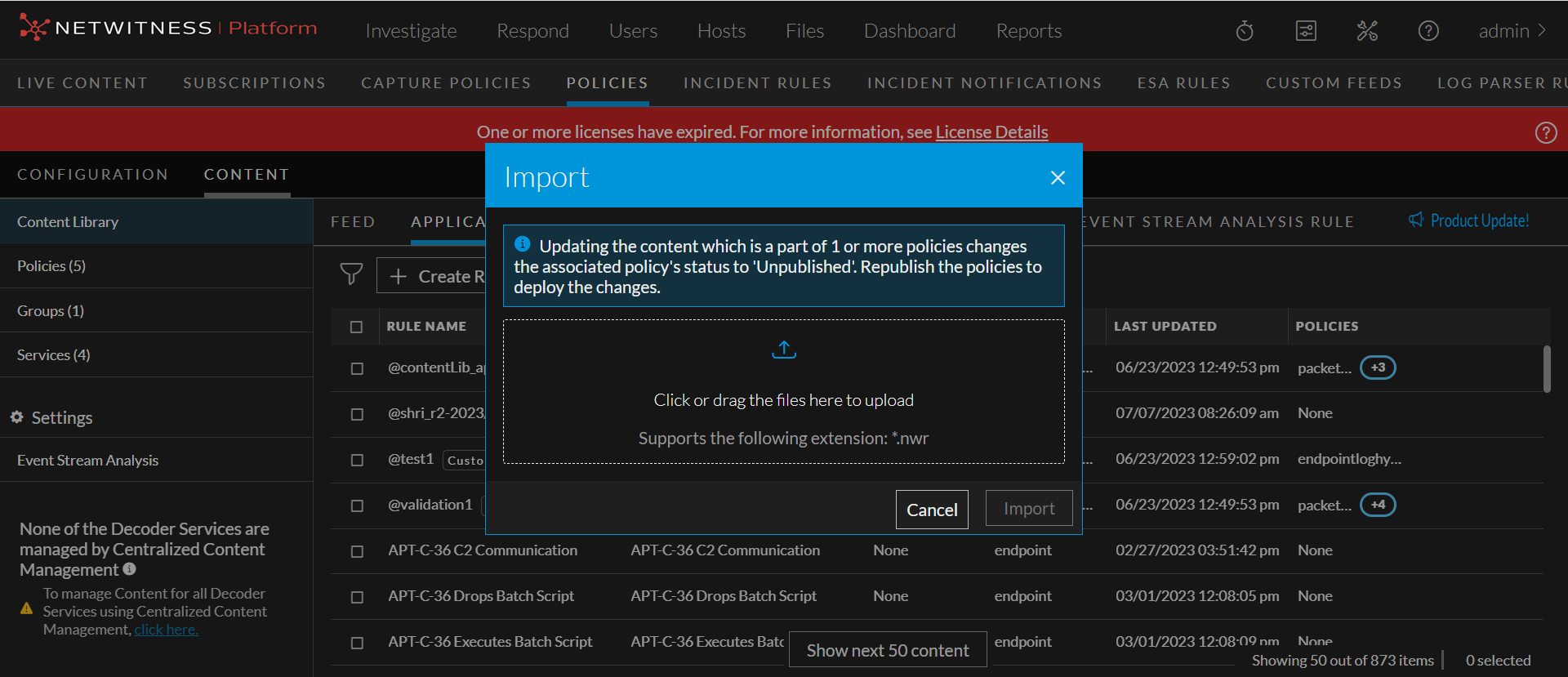
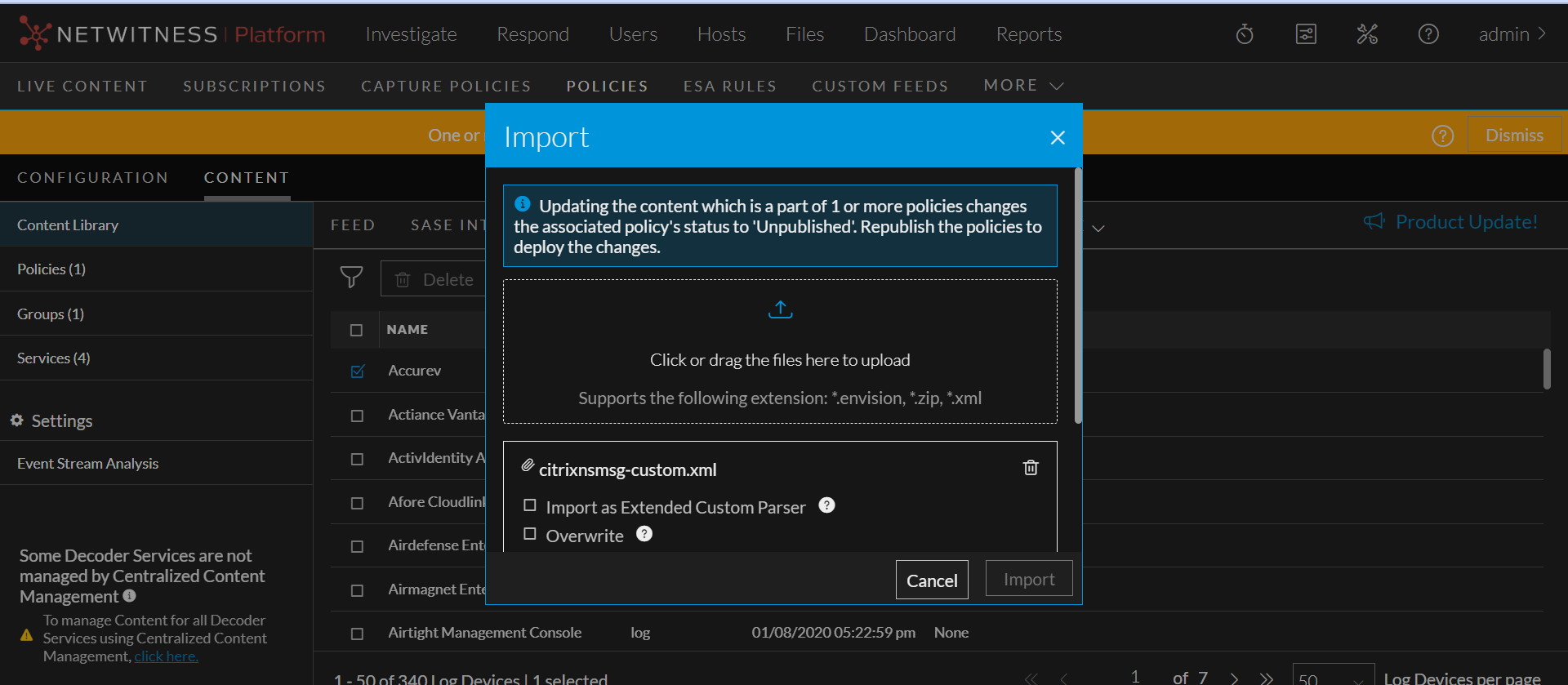
- In the Import panel, click or drag the file to upload.
- While importing a Log Device parser, if you want to import a standalone XML as an extended parser, select Import as Extended Custom Parser. If this option is not selected, then the XML will be imported as a standalone parser.
- Click Overwrite to overwrite content. This is applicable only in case of overriding an already imported content.
Note: You cannot overwrite the content if the content name is same as the rule name of the existing content of the same type from live server. However, you can overwrite the content if the content name is same as the custom content rule name.
- Select the medium types.
- Click Import to complete the import process.