.png?width=180&height=32&name=NW%20Logo%20(2).png)
Incident Details View
In the Incident Details view (Respond > Incidents > click an ID or NAME hyperlink in the Incidents List), you can view and access extensive incident details. The Incident Details view contains multiple panels that provide the following benefits:
- Overview: View an incident summary and update the incident.
- Indicators: View the indicators (alerts) involved in the incident, the events within those alerts, and available enrichment information. You can also access Event Analysis details for some events and perform event reconnaissance.
- Related Indicators: View indicators (alerts) that are related to the incident and add them to the incident if they are not associated with an incident.
- History: View all the actions performed by the user on any incident.
- Nodal Graph: Visualize the size and interactions between entities (IP address, MAC address, user, host, domain, file name, or file hash).
- Events List: Study the events associated with the incident.
- Journal: Add notes and collaborate with other analysts.
- Tasks: Create incident tasks and track them to closure.
You can also filter the data in the Incident Details view to study indicators and entities of interest.
Workflow
This workflow shows the high-level process that Incident Responders use to respond to incidents in NetWitness.
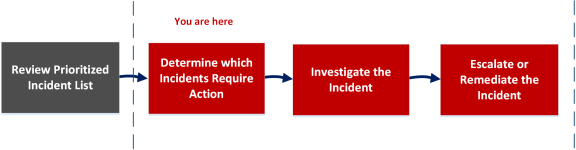
In the Incident Details view, you can use the extensive information provided about the incidents to determine which incidents require action. You also have the tools and information to investigate the incident, and then escalate or remediate it.
What do you want to do?
*You can complete these tasks here (that is, in the Incident Details view).
Related Topics
- Incidents List View
- Determine which Incidents Require Action
- Investigate the Incident
- Escalate or Remediate the Incident
Quick Look
The following example shows the locations of the Incident Details view panels.

Note: Your Incident Details view may not look like these diagrams because the layout changed in NetWitness 11.3.2 and later versions.
The Related tab is renamed as the Find Related tab and is located on the left-side panel.
The journal is open by default on the right-side panel. When the journal is closed, the Journal & Tasks button enables easy access to notes and tasks.
Overview Panel
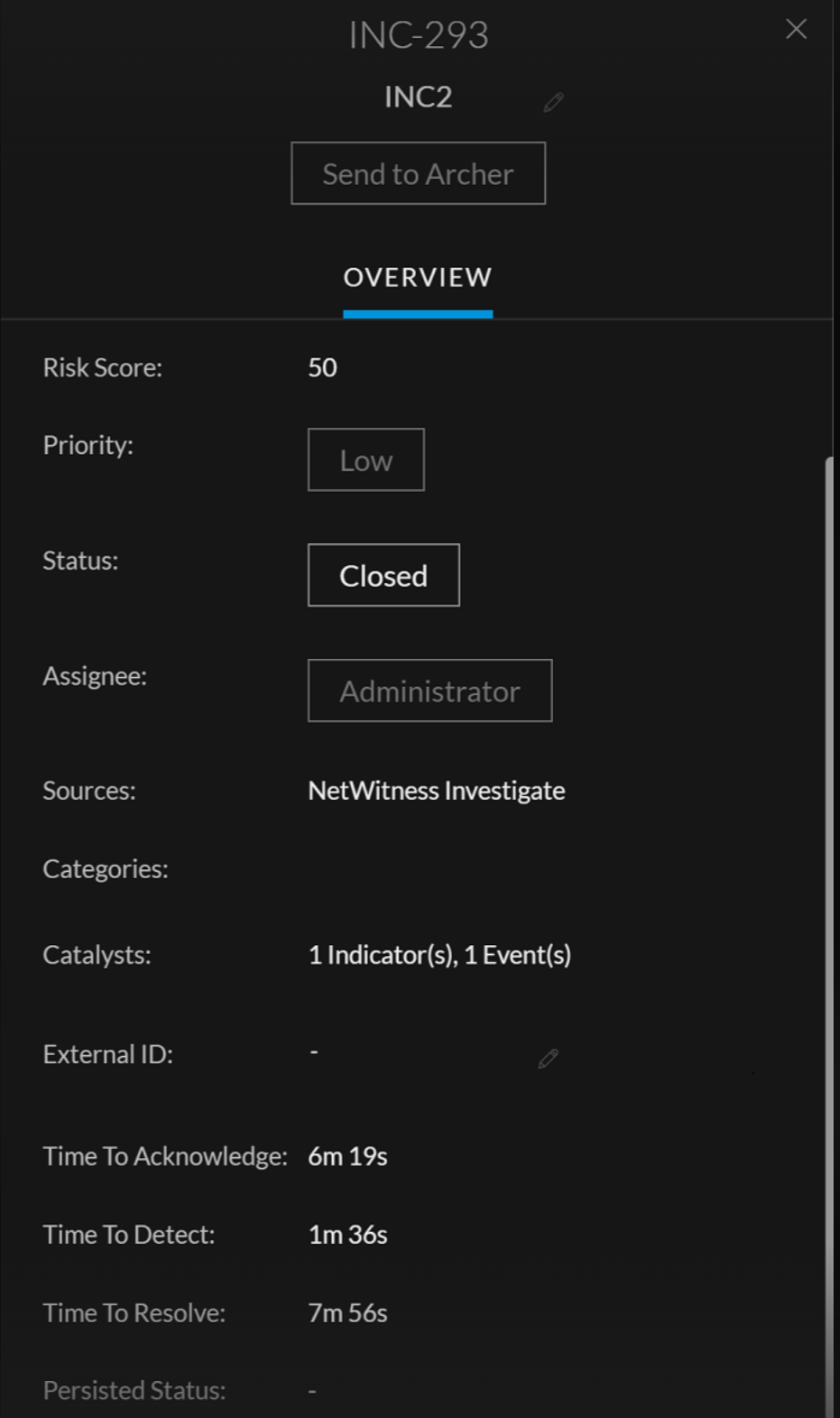
The Overview panel shows basic summary information about a selected incident. It also allows you to change the incident name and update the incident priority, status, and assignee. The Overview panel in the Incidents List view contains the same information. The Incidents List view Incident Overview Panel topic provides details.
To view the Overview panel in the Incident Details view, click the Overview tab in the left panel.
Indicators Panel
The Indicators panel contains a chronological listing of indicators. Indicators are alerts, such as an ESA alert or a NetWitness Endpoint alert. (This is different than a timeline, which provides a visual representation of the timing of the events in the incident). This listing helps you to connect indicators and notable data. For example, an IP address connected to a command and communication ESA alert might also have triggered a NetWitness Endpoint alert or other suspicious activities.
To view the Indicators panel, in the left panel of the Incident Details view, click the Indicators tab.
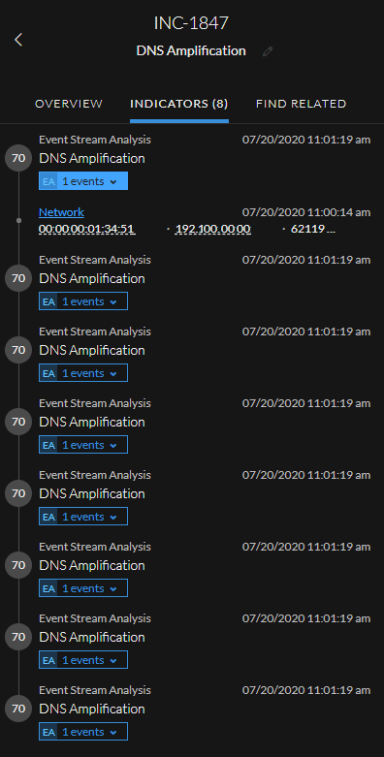
Data source information is shown below the names of the indicators. You can also see the creation date and time of the indicator and the number of events in the indicator. In the Indicators panel, you can drill deeper into the events associated with the listed indicators to get a better understanding of the events.
Note: The maximum number of indicators (alerts) displayed in the Indicators panel is 1,000.
Related Indicators Panel
The Related Indicators panel enables you to search the NetWitness alerts database to find alerts that are related to this incident. You can add alerts that you find to the incident if they are not already associated with an incident.
To view the Related Indicators panel, in the left panel of the Incident Details view, click the Find Related tab.
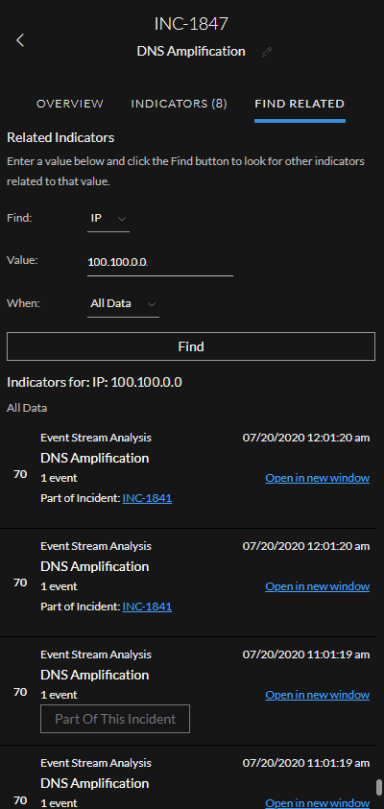
The following table describes the fields in the search section at the top of the panel.
The following table describes the options in the Indicators for (results) section at the bottom of the panel.
History Panel
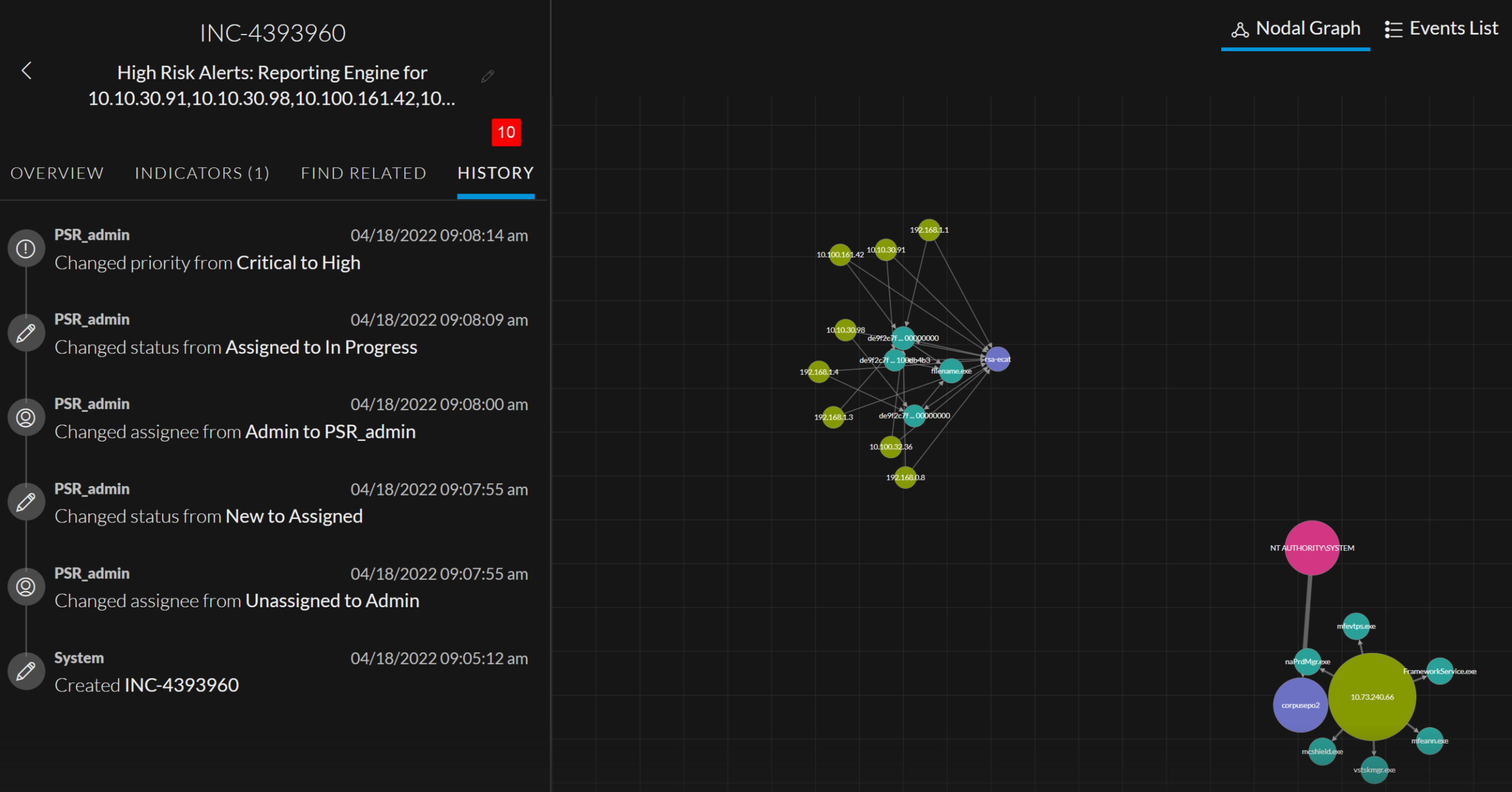
The History panel displays every action performed by the user on an incident. The various actions performed on an incident are as shown below
-
Incident Assignee Change
-
Incident Status Change
-
Incident Priority Change
-
Incident Creation
Every time a user performs an action on an incident, the date and time also gets recorded and is displayed in the panel. Consider the following example
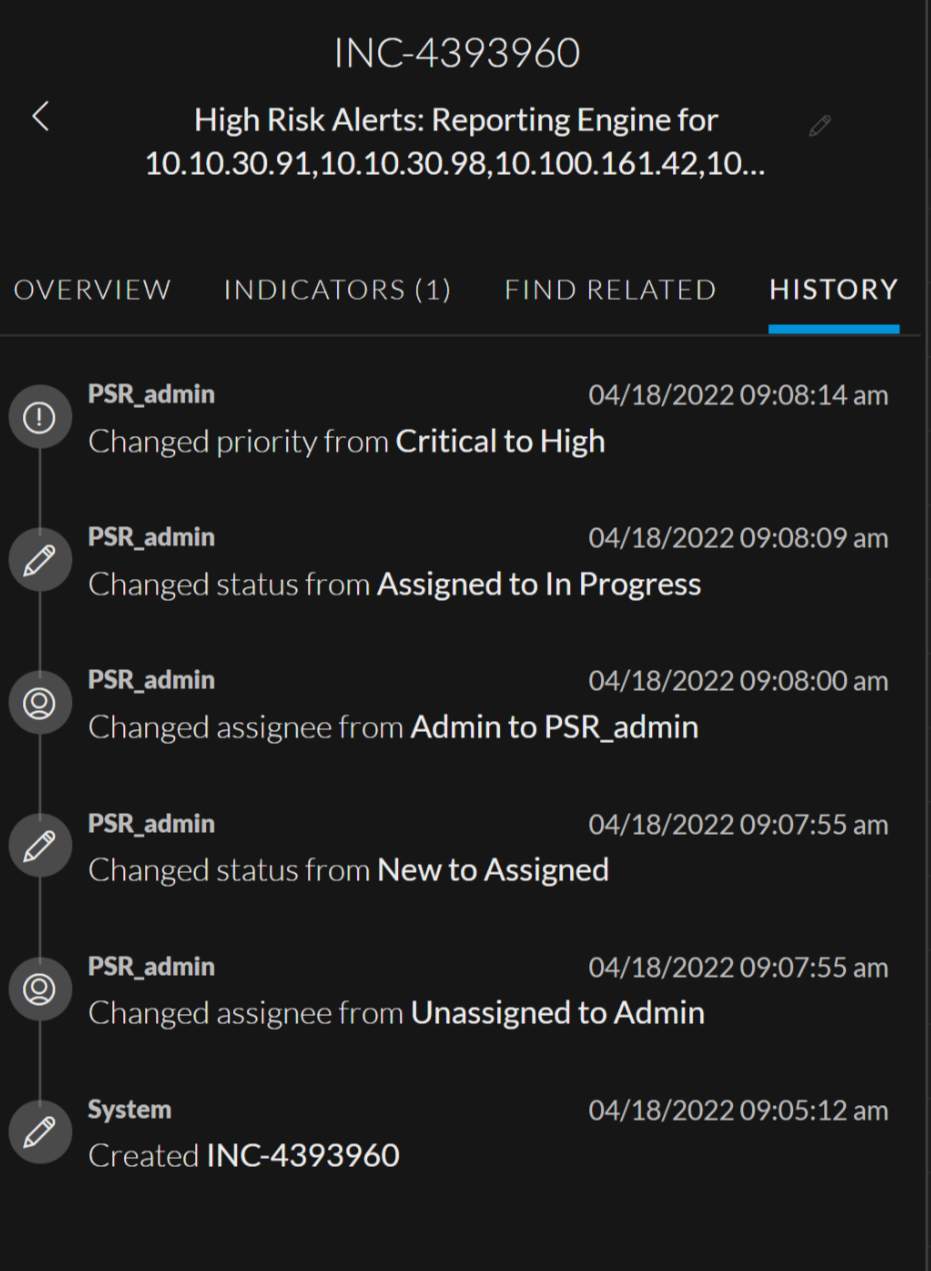
The different actions performed by the user are described below
-
In this example, the Incident INC-4393960 was created by the user (System) on 18/04/2022 at 09:05:12 am.
Risk Accepted
and metadata in the Events panel in the Respond Incident Details view. For more information about event analysis