.png?width=180&height=32&name=NW%20Logo%20(2).png)
Live Services Configuration Panel
Live Services Configuration Panel introduces the features for setting up your Live account and the CMS server connection.
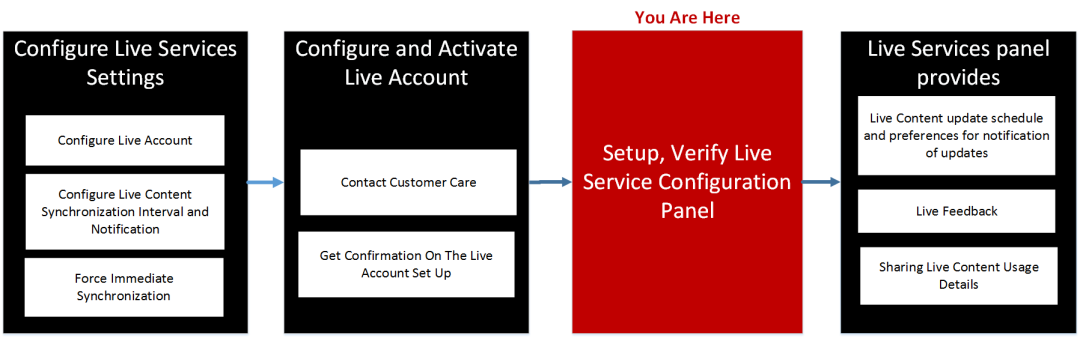
Live Account consists of two sections, namely RSA Live Status and Download Live Feedback Activity Log. Sign In by entering your Live Account credentials to access the Live Services. To activate your Live account for NetWitness, contact NetWitness Customer Support. When you have confirmation that your Live account has been set up, you can configure the CMS server connection as described in Configure Live Services Settings
The Live Services panel provides the user interface for:
- The Live account
- The Live Content update schedule and preferences for notification of updates
- Participation in Live Feedback
- Sharing Live Content Usage Details
For information on Live Feedback, see Live Feedback Overview
For information on Analyst Behaviors and Data Sharing, see the "NetWitness Feedback and Data Sharing topic in the Live Services Management Guide.
Note: If you are logged into an Analyst UI, you can only view but cannot enable, disable, edit, or configure NetWitness Live.
Workflow
What do you want to do?
Related Topics
- Live Feedback Overview
- Configure Live Services Settings
- Live Services Management Guide
Live Services Quick Look
You access this view in the  (Admin) > System > Live Services.
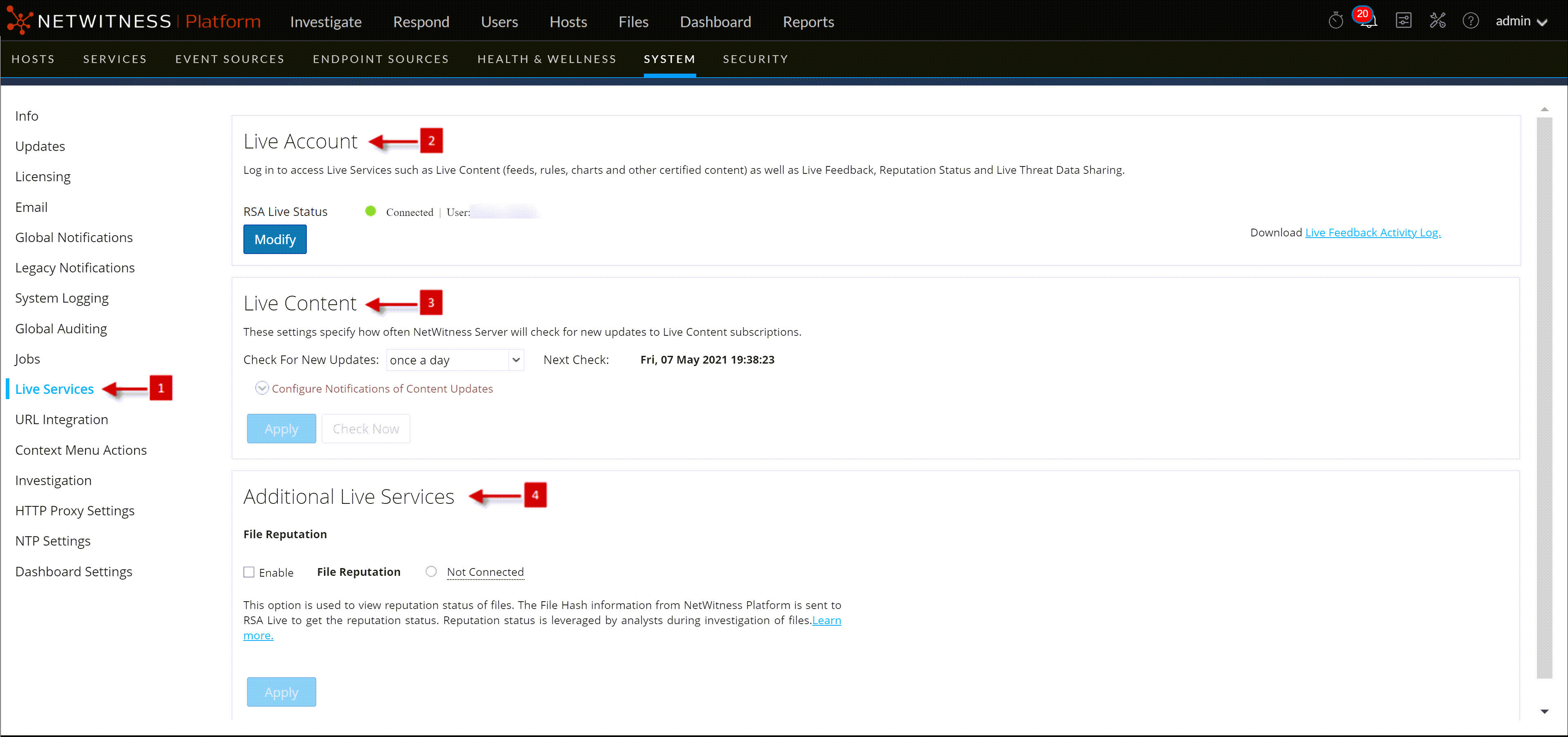
Note: If you are not signed in with your Live Account credentials, a masked screen is displayed as shown here.
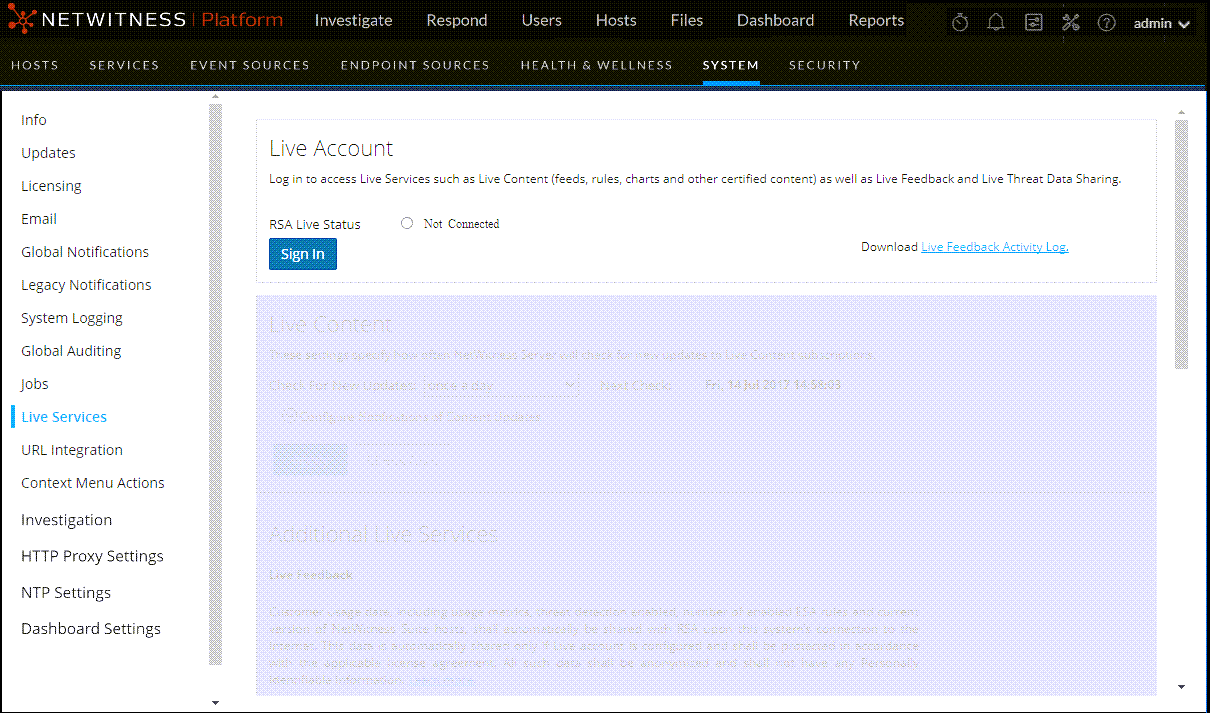
The Live Configuration panel has three sections: Live Account, Live Content, and Additional Live Services.
Live Account Section
In the Live Account section, you must enter the Live credentials. The information needed to set up the user’s Live account consists of the Username, Password, and Live URL for the NetWitness Content Management System. This information is provided by Customer Care.
The following table describes the Live Account section features.
The Live Account section provides an option to download and share the Live Feedback historical data by clicking Live Feedback Activity Log.
For more information about how to download historical data, see Upload Data to RSA for Live Feedback
Live Content Section
You can configure the Live Content Synchronization interval and notification at which NetWitness checks for new updates to Live Content:
Use the Check for New Updates field to change the interval. Select an interval from the drop-down list. The default value for this setting is once a day.
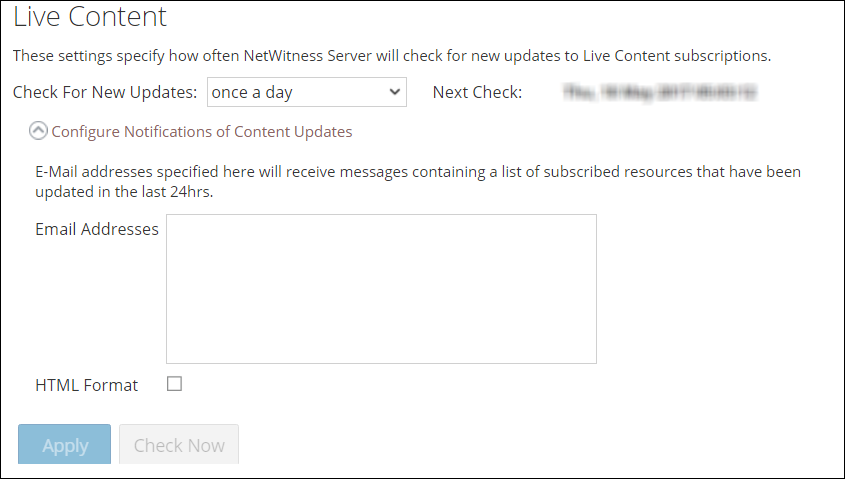
The following table describes the Live Content features.
Force Immediate Synchronization
To force immediate synchronization, click Check Now. NetWitness checks for updates in subscribed resources.
Instead of waiting for the next scheduled resource cycle, this option forces Live to begin immediate synchronization of the subscribed resources in this instance of NetWitness. One use for this is to see the immediate impact of a configuration change. For example, a new service has been added, or new resources have been toggled for automatic deployment. The scheduled synchronization could take place hours later if Live Services is set to synchronize a few times a day.
Caution: Synchronization can cause a parser reload if a Flex Parser is deployed in the update cycle. This is acceptable once or twice a day, but a number of back-to-back parser reloads can cause packet loss at the Decoder. If this is the initial setup and you haven’t configured Live resource subscriptions, do not Synchronize Now. Wait until you have configured subscriptions.
Additional Live ServicesAdditional Live Services
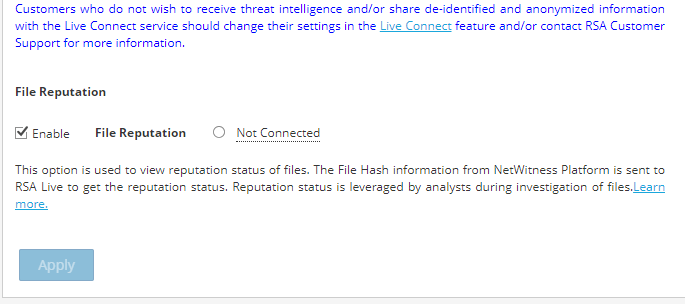
Note: Click on Learn more to know more about the data NetWitness is collecting. For more information, see Live Feedback Overview
The following tables describes the Additional Live Services features.
About Live Feedback Participation
Once you sign up for a Live account, Live Feedback automatically collects relevant information for further improvement and anonymously sends it to RSA. The shared data is protected in accordance with the applicable license agreement. For information on Live Feedback, see Live Feedback Overview. For information, see Configure Live Services Settings
If needed, you can manually download historical usage data and share it with RSA. For information on how to download historical usage data and share it with RSA, see Upload Data to RSA for Live Feedback.