.png?width=180&height=32&name=NW%20Logo%20(2).png)
Malware Analysis ViewMalware Analysis View
In NetWitness Investigate, the Malware Analysis view provides the user interface for conducting a malware analysis. The Malware Analysis view is in the form of a customizable dashboard, in which default dashlets in the initial view are based on the user role (Administration or Analyst) and user customizations. Initially, the Summary of Events dashlet is displayed in the Malware Analysis view. Additional dashlets present different visualizations of the events being viewed, and each representation is configurable to further refine your view as you search for Indicators of Compromise. The Malware Analysis dashlets available in the Dashboard are also available in the Malware view.
To access this view, select Investigate > Malware Analysis. If a default service has not been selected, the Select a Malware Analysis Service dialog is displayed. Select a service, then click View Continuous Mode.
WorkflowWorkflow
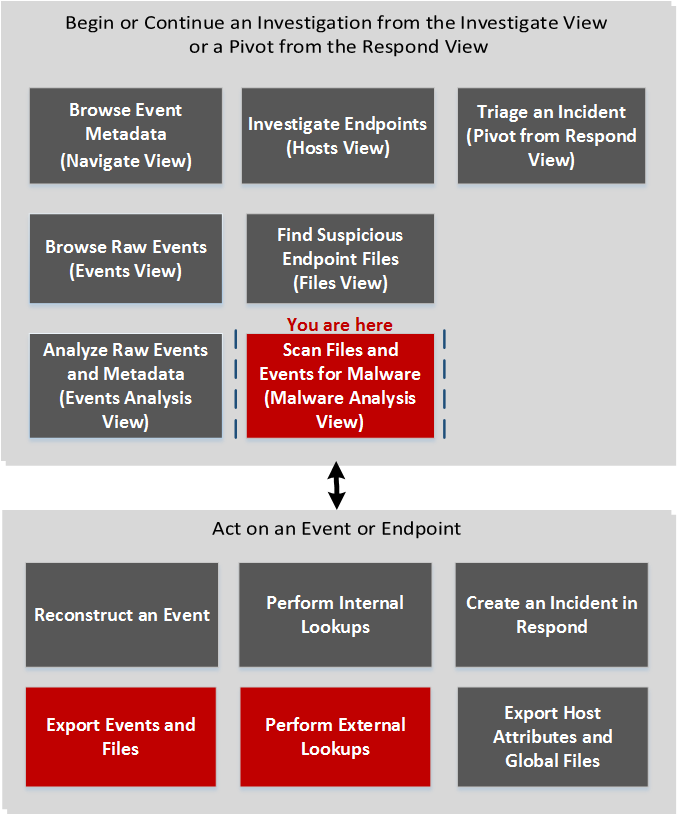
What do you want to do?What do you want to do?
*You can perform this task in the current view.
Related TopicsRelated Topics
- "How NetWitness Investigate Works" in the NetWitness Investigate User Guide
- "Launch a Malware Analysis Scan from the Navigate View" in the NetWitness Investigate User Guide
Quick LookQuick Look
Below is an example of the Malware Analysis view.
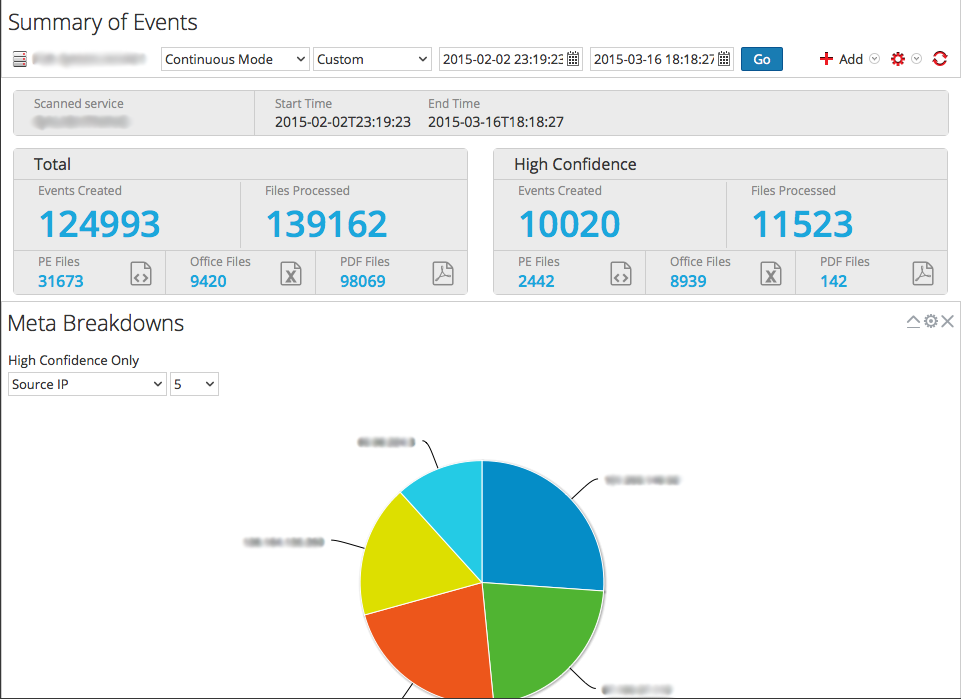
The Malware Analysis view consists of the Summary of Events panel and four dashlets unique to this view. Each of the unique dashlets have identical Options dialogs. The Malware Analysis dashlets in the MONITOR view are also available, and are described in the Dashlets topic in the NetWitness Content space.
Summary of Events PanelSummary of Events Panel
In the Summary of Events panel, you can select the service, the scan mode, and the time range. In addition, you can select a data point and view the events associated with the event.
The following table describes all features in the Summary of Events panel.
Options DialogOptions Dialog
In the Options dialog, you can customize the results displayed in the dashlet. This dialog can be accessed by clicking the  icon in the top right corner of each dashlet. The following table describes the features of the Options dialog.
Meta BreakdownsMeta Breakdowns
Meta Breakdowns presents events in the form of a pie chart, with each slice representing a meta value for the specified meta key. You can select the meta key and the count of meta values for that key to render in the chart, starting with the meta value having the most events. Hovering over an event displays the count.
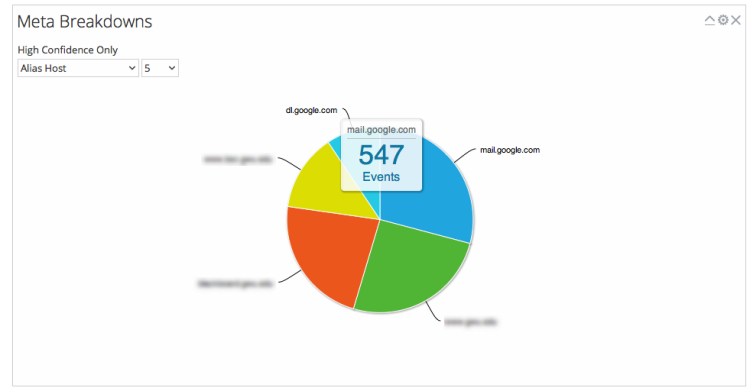
The following table describes the options in the Meta Breakdowns dashlet.
Meta TreemapMeta Treemap
Meta Treemap presents events in the form of a heat map. You can select the meta key and the count of meta values for that key to render in the chart, starting with the meta values having the most events. In addition, you can select the module that detected the meta value in the events: static, network community, or sandbox.
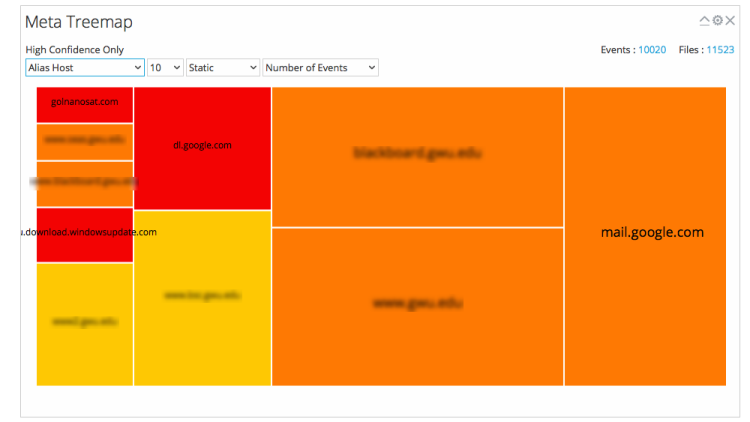
The following table describes the options in the Meta Treemap dashlet.
Score WheelScore Wheel
The Score Wheel offers a view of events as concentric rings with colors representing scores for events based on Indicators of Compromise and the scoring module. You can arrange the position of the rings using the Up and Down arrows to obtain a view that highlights events that were detected by one scoring module (red) and not detected by other scoring modules.
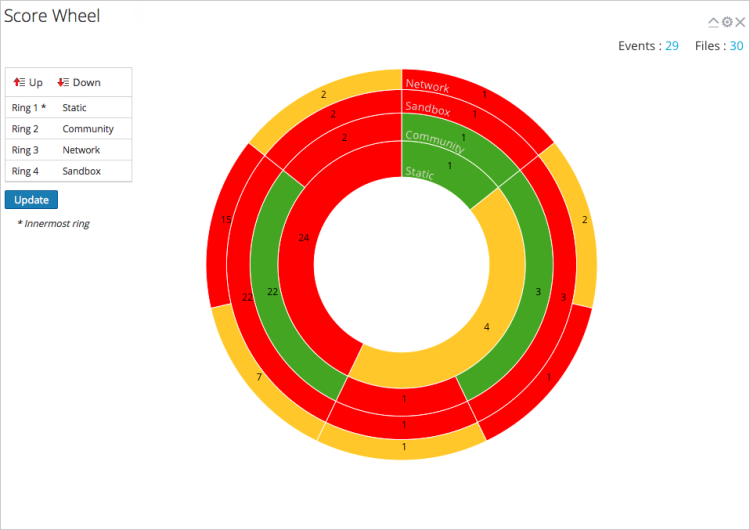
The following table describes the features of the Score Wheel dashlet.
Event TimelineEvent Timeline
The Event Timeline offers a view of events organized by the time of occurrence in a bar graph. Clicking and dragging to select a time range within the chart zooms in on the selected time.
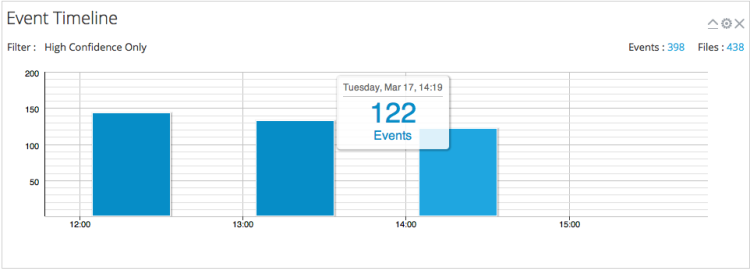
The following table describes the features of the Event Timeline dashlet.