.png?width=180&height=32&name=NW%20Logo%20(2).png)
Meta Groups DialogsMeta Groups Dialogs
You can use meta groups to filter data displayed in an investigation. A fresh installation of NetWitness includes built-in meta groups to help you find interesting data sets in Investigate. The built-in meta groups are prefixed with RSA for identification and can be duplicated but cannot be edited or deleted. You can create your own groups and you can duplicate and edit a built-in group to create a custom group. With a meta group in effect during an investigation, the information in the Navigate view and Events view includes only the meta keys in the selected group.
While the functionality of meta groups is similar in the Navigate view and the Events view, the user interface and some of the procedures are different.
Using options in the Events view Meta Groups menu (Version 11.5 and later) , you can:
- Select a meta group to apply.
- See the details of a meta group.
- Create, edit, and delete custom meta groups.
- Clone and edit the clone of a built-in or custom meta group.
Using options In the Navigate view Manage Meta Groups dialog, you can do all of the above as well as import and export a meta group. Refer to Use Meta Groups to Focus on Relevant Meta Keys for detailed information.
Related TopicsRelated Topics
- How NetWitness Investigate Works
- Use Meta Groups to Focus on Relevant Meta Keys
- Filter Results in the Navigate View
Quick Look - Meta Groups Menu, Create Meta Group Dialog, and Meta Group Details DialogQuick Look - Meta Groups Menu, Create Meta Group Dialog, and Meta Group Details Dialog
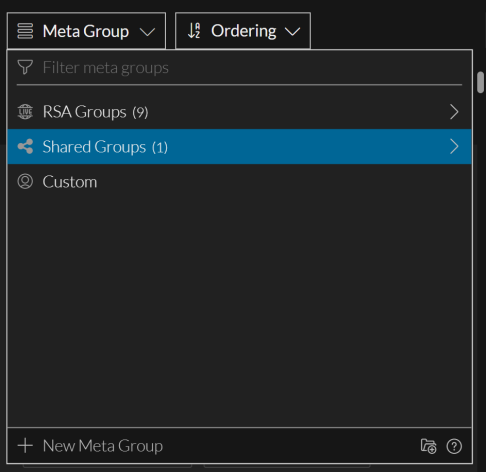
This section introduces the Meta Groups Menu, Create Meta Group dialog, and the Meta Group Details dialog. The following figure is an example of the Meta Group menu. The table describes the options.
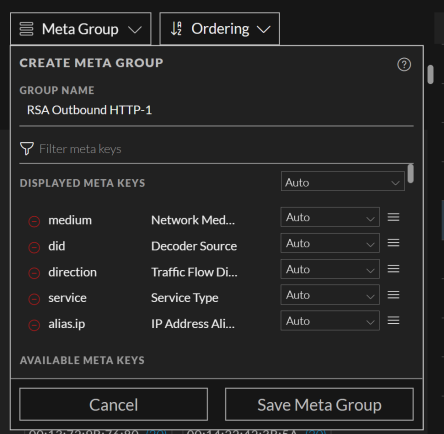
The Create Meta Group dialog, shown in the figure on the left, allows you to define a custom meta group. The figure on the right illustrates the Meta Group Details dialog, in which you can edit a custom meta group. The table describes the fields and options in the dialogs.
Quick Look - Manage Meta Groups Dialog Quick Look - Manage Meta Groups Dialog
The following figure is an example of the Manage Meta Groups dialog.
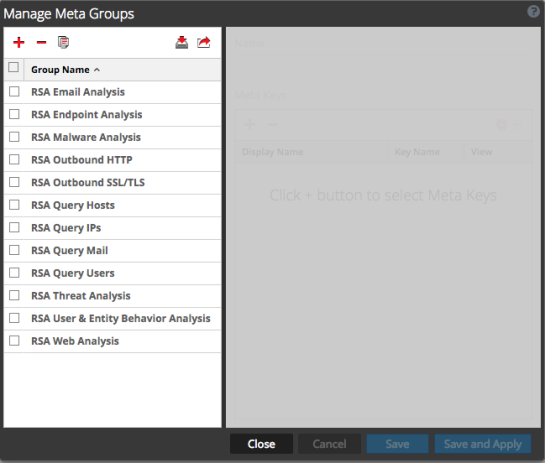
The Meta Groups panel is on the left side of the Manage Meta Groups dialog. This is where you can add, delete, import, and export meta groups. The following table describes the features of the Meta Groups panel.
The Settings panel is on the right side of the Manage Meta Groups dialog. This is where you create and edit meta groups. Below the Name field is the Meta Keys list. The following table describes the features of the Settings panel.
The following table describes the buttons at the bottom of the dialog.