.png?width=180&height=32&name=NW%20Logo%20(2).png)
NetWitness Platform Basic Navigation
The NetWitness application is divided into ten main functional areas, known as views, that are based on typical Security Operation Center (SOC) roles.
Note:On upgrade to version 12.5 or later, by default theHomepage is displayed if you have not configured the default landing page in previous versions.

-
Home: NetWitness introduces a new Home page menu that consists of Admin, Analyst, and Manager views. Each home page is comprised of multiple widgets. Administrators, Analysts, and SOC Managers can access the respective widgets that display certain data in graphical form. The data can be associated with Endpoints, Users, Assets, Content, Incidents, Alerts, MITRE ATT&CK, Retention, and many more.
- Springboard: Springboard presents Analysts with the platform-wide detections and signals in a single view to hunt and investigate faster than ever before. System Administrators set up and maintain the Springboard. You can view the Springboard at any time by clicking NetWitness in the main menu. For more information, see Managing the Springboard.
- Investigate: This view is primarily for Threat Hunters, who prefer to manually hunt for threats using NetWitness metadata, raw event data, and event reconstruction and analysis. Incident Responders also use this view to get details about events associated with an incident being investigated. Both Threat Hunters and Incident Responders can use the forensic event reconstruction and event analysis features in this view.
- Respond: This view is for Incident Responders, who can view a list of prioritized incidents to triage. These incidents come from sources such as ESA rules, NetWitness Endpoint, or ESA Analytics modules for Automated Threat Detection. You can also view all of the alerts received by NetWitness here.
- Users: This view is for SOC Managers and Analysts to discover, investigate, and monitor risky behaviors across entities namely Users and Network in your environment.
- Hosts: This view is for Analysts, who can investigate or perform analysis on hosts using attributes such as IP address, host name, Mac address, risk score, and so on.
- Files: This view is for Analysts, who can investigate or perform analysis on files using attributes such as IP address, host name, Mac address, risk score, and so on
- Dashboard: This view is for all users. You can view dashboards on different areas of interest depending on your user permissions.
- Reports: This view is for all users. You can view reports on different areas of interest depending on your user permissions.
 Configure: This view is for Threat Intel personnel (Content Experts), who configure data sources and inputs to NetWitness. Content Experts use this area to download and manage Live content. They can also create and manage incident and ESA rules.
 Admin: This view is for System Administrators, who set up and maintain the overall application.
Accessing Main Views
The options that open each of the main views are listed at the top of the browser window. With the appropriate permissions, you can access any of these views at the top of every UI at any time.
Note: Home page is newly introduced in NetWitness 12.5 version .

Secondary Menus
The main views have secondary menus with additional views that you can select, which vary according to the tasks that you can complete. The following example shows the Respond menu.

Additional Options
In addition to the main views, there are additional options at the top of the UI that are common to the application.
The following table describes the common options.
Main Views
The following sections explain the main views:


Home
Springboard
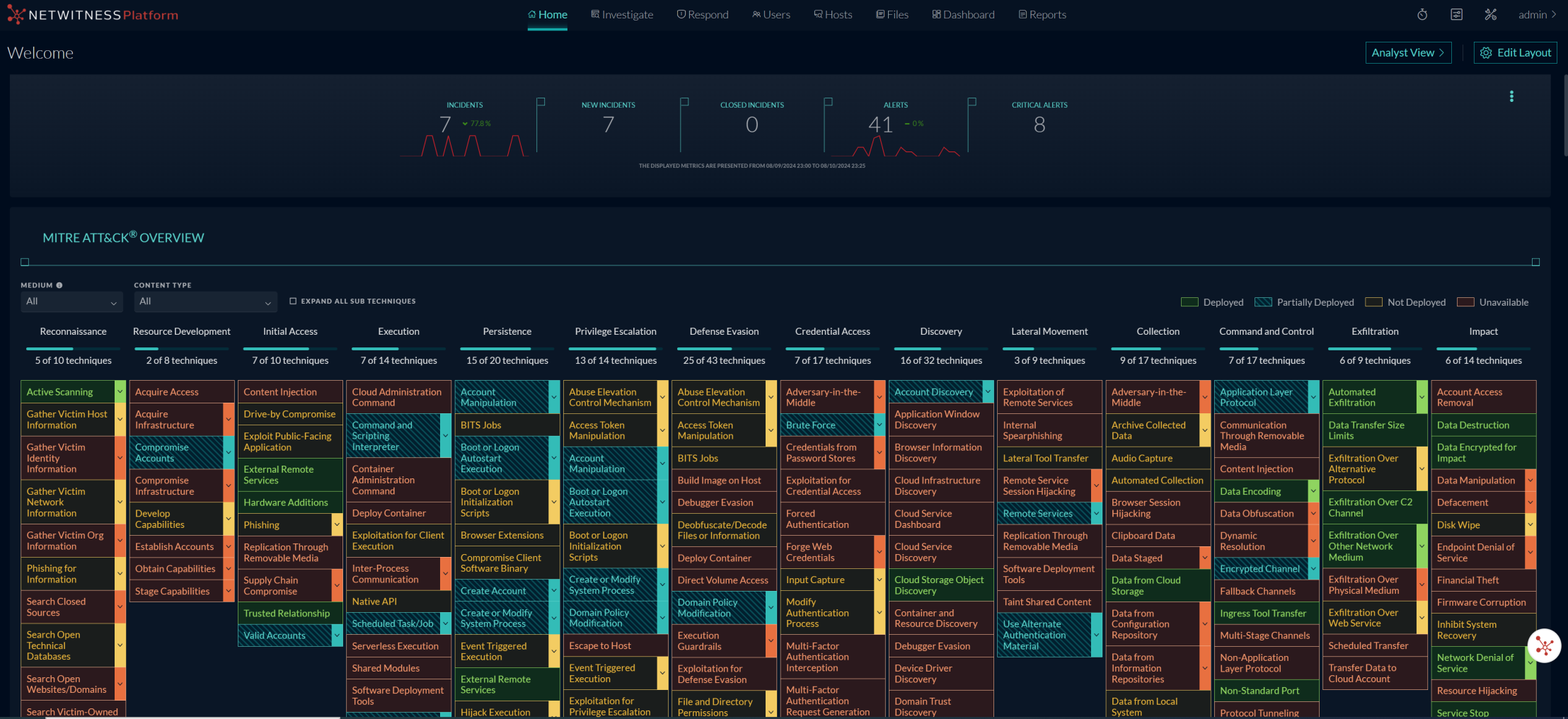
(From 12.5 and later) NetWitness Platform introduces a new Home page menu that consists of Admin, Analyst, and Manager views. Each home page is comprised of multiple widgets. Administrators, Analysts, and SOC Managers can access the respective widgets that display certain data in graphical form. The data can be associated with Endpoints, Users, Assets, Content, Incidents, Alerts, MITRE ATT&CK, Retention, and many more.
Note: From NetWitness 12.5 and later, the Home page will be the default landing page for users installing the NetWitness Platform for the first time. For existing users, Springboard will still be the default landing page. However, the Springboard feature will be deprecated in future releases, and the Home page will become the default landing page. Users can click the Home Page to view the new widgets.
Springboard
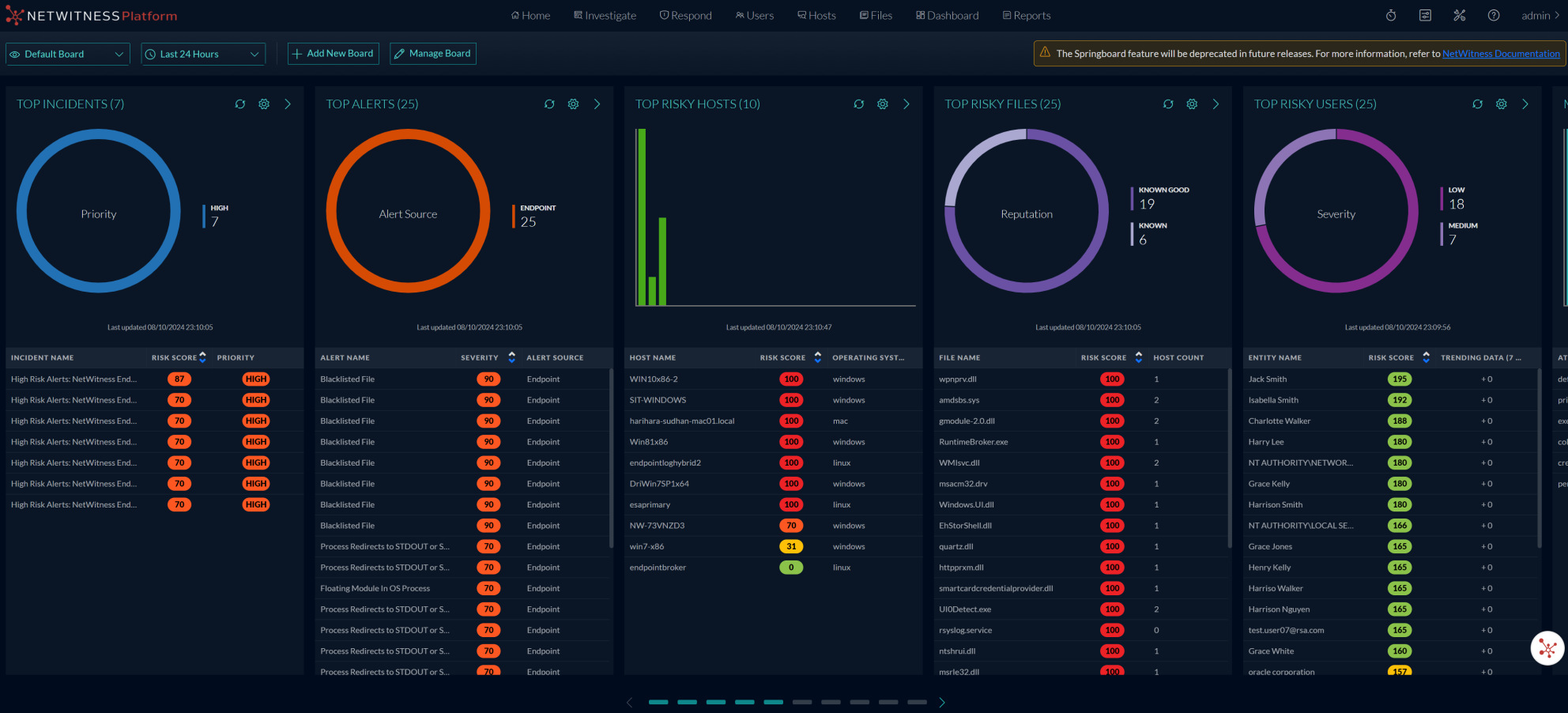
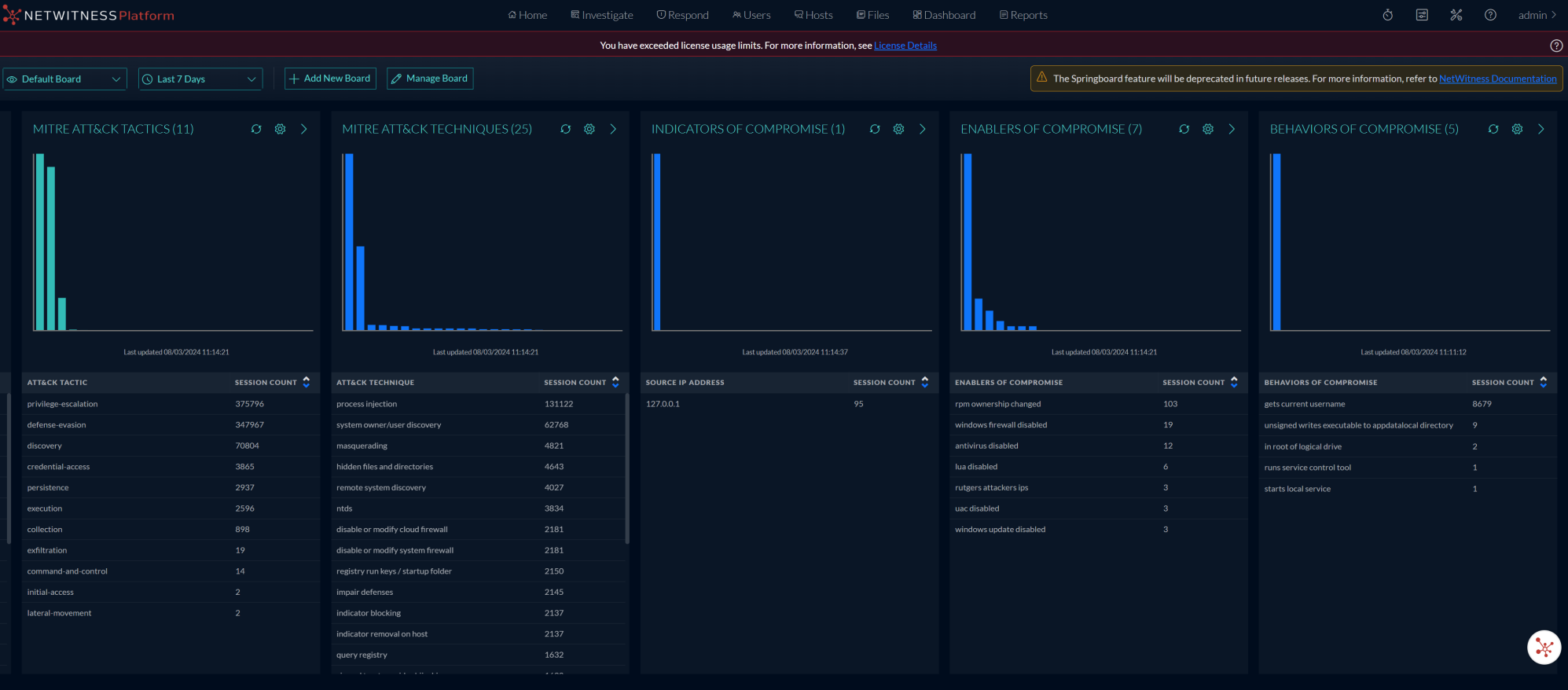
NetWitness Platform Springboard is an easy-to-use landing page that presents platform-wide detections and signals in a single view to help analysts hunt and investigate faster than ever before.
Click the NetWitness Platform logo at the top left corner to view the Springboard.
Go to the NetWitness All Versions Documents page and find NetWitness Platform guides to troubleshoot issues.
Investigate
The Investigate view is the tool for SIEM, network, and endpoint data investigation, presenting different views into a set of data. Analysts can see metadata and raw data for endpoints, logs, and events, as well as potential indicators of compromise. In addition to investigating data on a specific service, you can pivot into Investigate from Respond, the Dashboard view, an entry in a report generated by the Reporting Engine, or a properly configured third-party application.
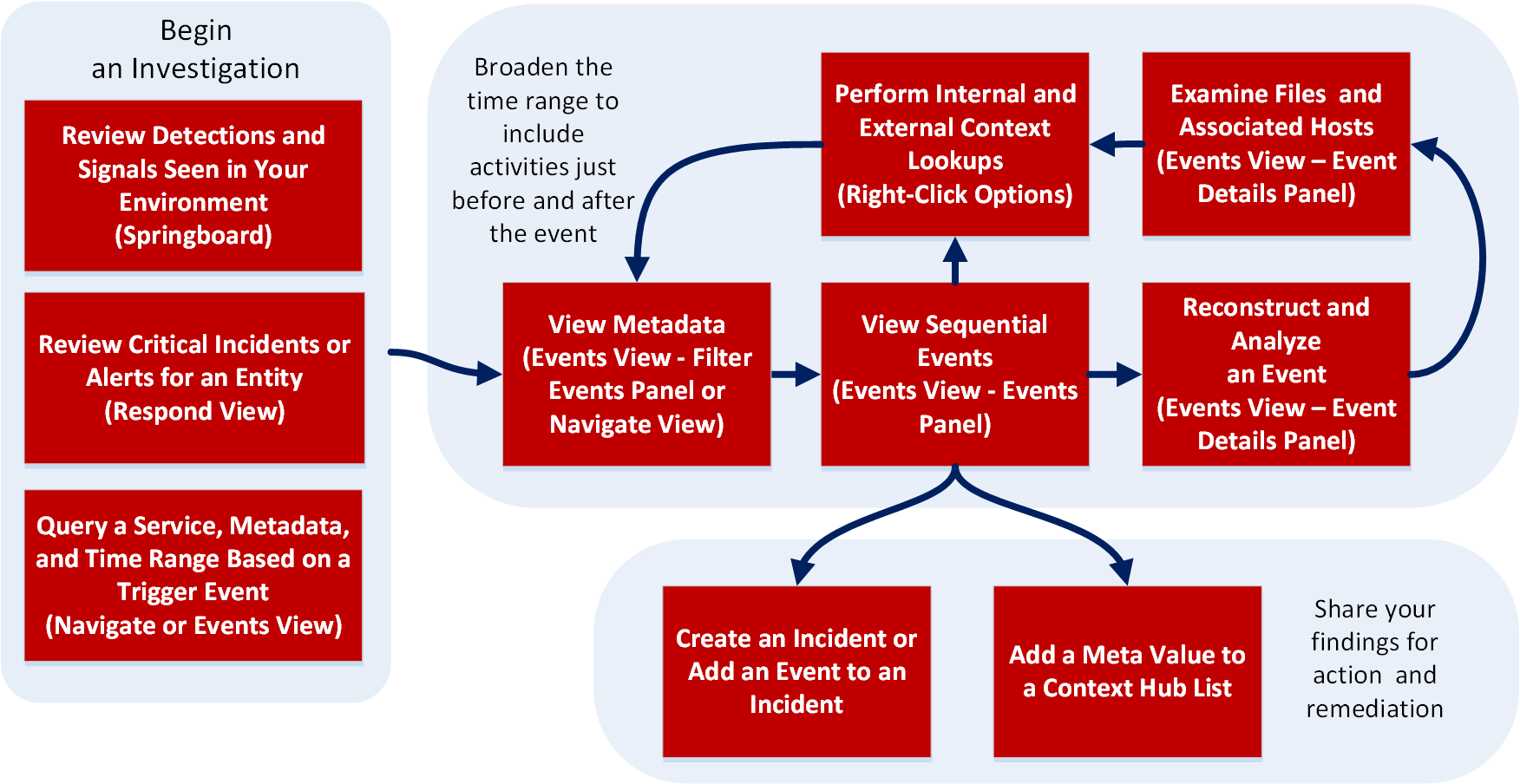
You can begin your investigation in any Investigate view, then continue the investigation seamlessly in another Investigate view. The manner in which you proceed is determined by the question that needs to be answered. If you find an event that needs a response, you can create an incident in Respond where an incident responder will take further action. The following figure depicts the high-level flow of an investigation. The NetWitness Investigate User Guide provides detailed information.
Investigate Menu

The Investigate menu has the following options:
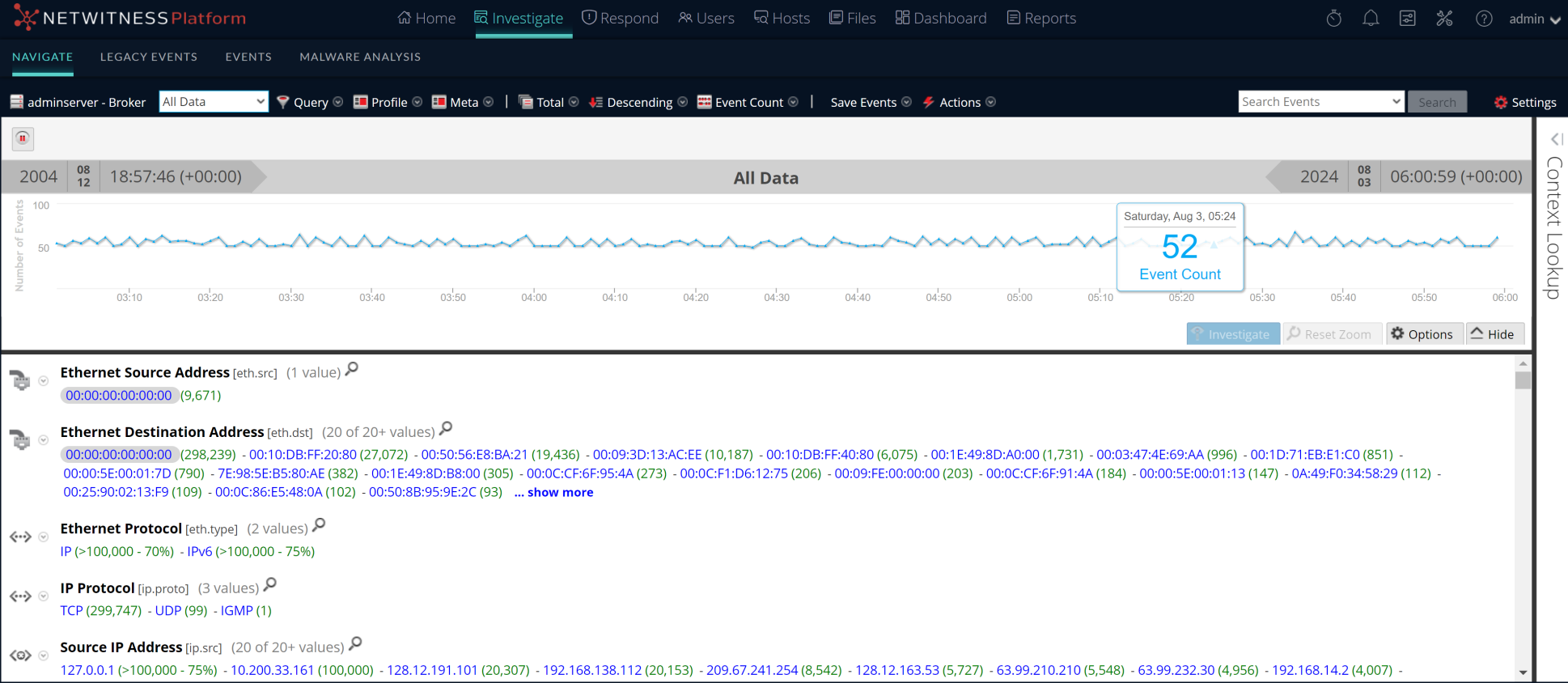
- Navigate: The Navigate view provides a list of meta keys and meta values with a focus on metadata. You can drill into the data, search for events, open a selected event in the Events view, and look up additional context from the Context Hub service.
-
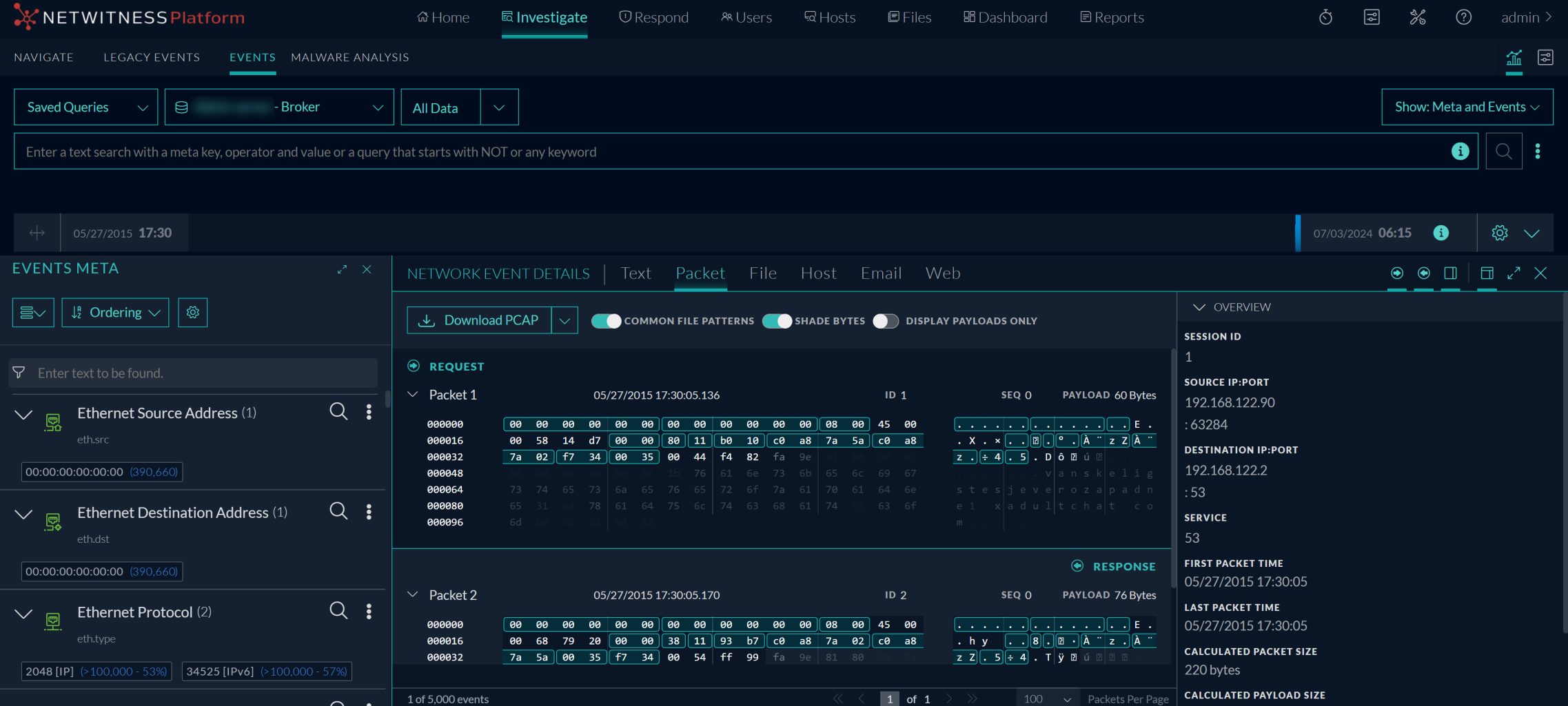
Events: The Events view (formerly Event Analysis view) is the default user interface for interacting with events. It provides a sortable list of events with focus on metadata and raw data. You can search for events, view a reconstruction that offers helpful cues to identify points of interest, pivot to standalone Endpoint, look up additional context from the Context Hub service, look up data in Live, do external lookups, and create an incident for incident responders. By default only the Events view appears in the menu, but when the Legacy Events view is enabled, both the Events view and the Legacy Events view are visible in the menu bar.
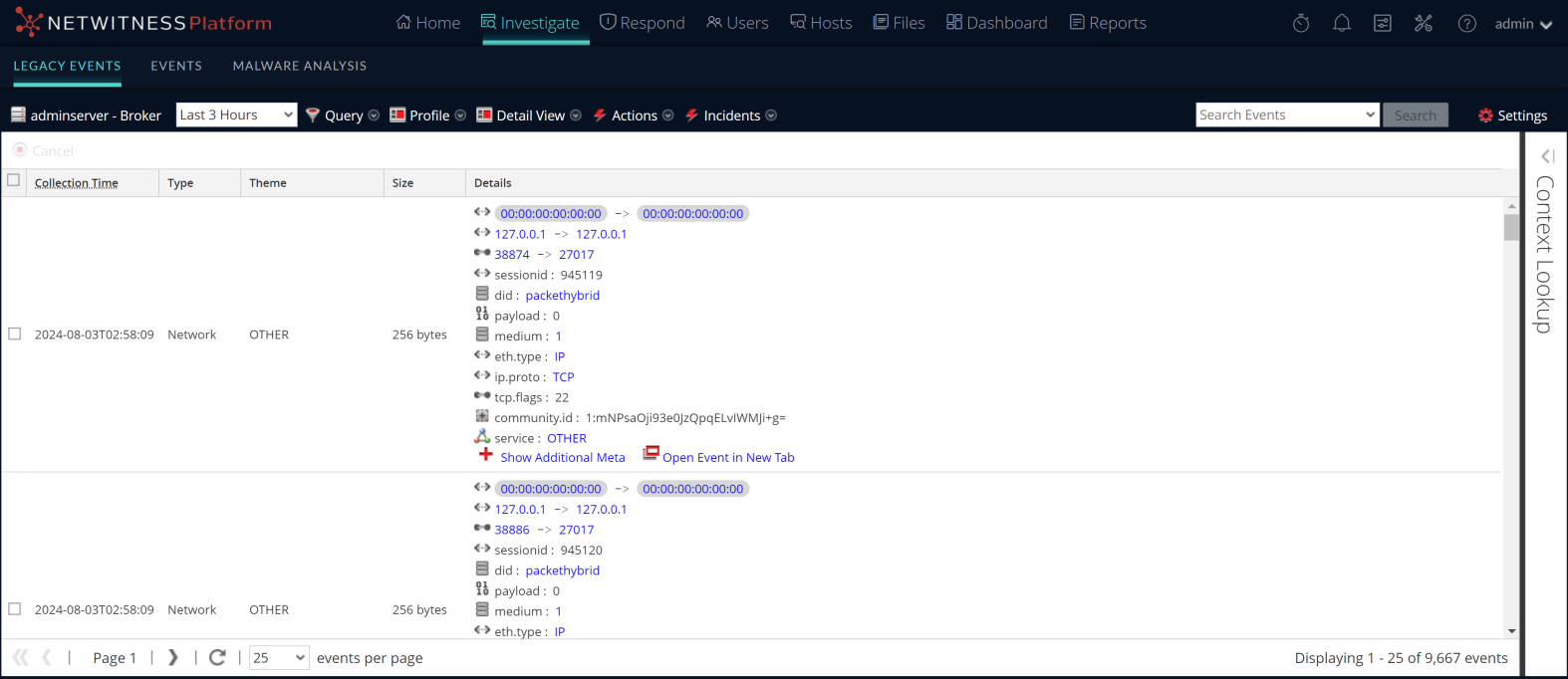
- Legacy Events: With major functionality added to the Events view, the Legacy Events is no longer needed and it is hidden unless the administrator enables it. The Legacy Events view provides a list of events with a focus on raw data. You can browse a simple list of events, a detailed list, and a log list. You can search for events, view a reconstruction of an event, look up additional context from the Context Hub service, and create an incident for incident responders.
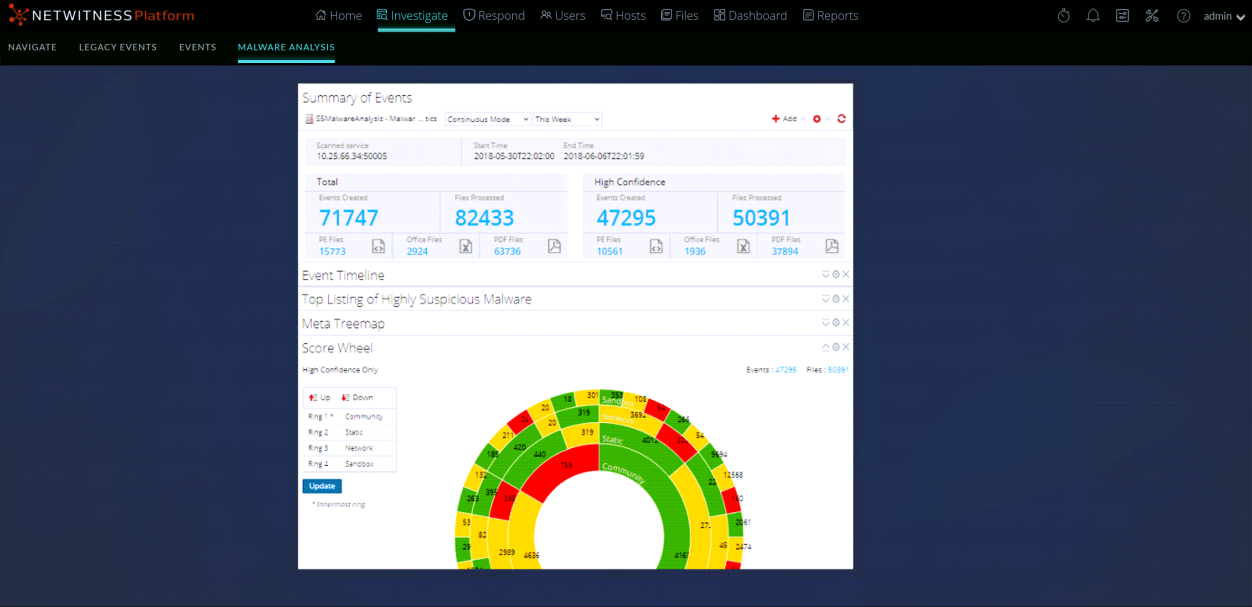
- Malware Analysis: Malware Analysis is an automated malware analysis processor designed to analyze certain types of file objects (for example, Windows PE, PDF, and MS Office) to assess the likelihood that a file is malicious. Using Malware Analysis, you can prioritize the massive number of files captured in order to focus analysis efforts on the files that are most likely to be malicious.
Go to the NetWitness All Versions Documents page and find NetWitness Platform guides to troubleshoot issues.
Respond
The Respond view presents analysts with a queue of incidents in severity order. When you take an incident from the queue, you receive relevant supporting data to help you investigate the incident. From there, you can determine the incident scope and escalate or remediate it as appropriate.
Respond Menu

The Respond menu has the following options:
- Incidents: The Incidents List view contains a list of all incidents with basic information. The Incident Details view provides extensive details about the incident.
- Alerts: The Alerts List and Alert Details views provide information about all of the threat alerts and indicators received by NetWitness in one location.
- Tasks: The Tasks List view enables you to create tasks and track them to completion.
The following figure shows the Respond view - Incidents List view, which shows a list of prioritized incidents.
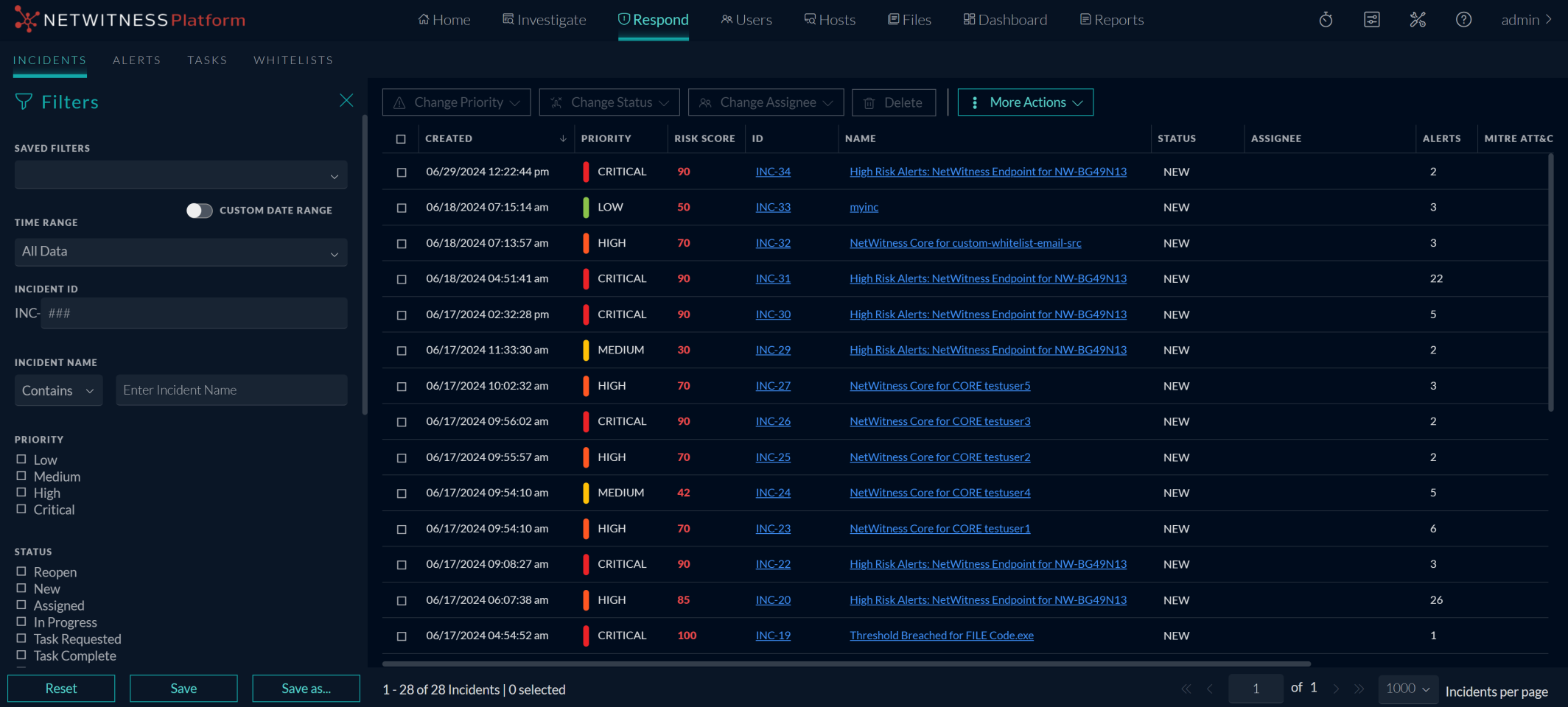
When using NetWitness as your case management tool, you can also manage incidents from this view. New incidents appear at the top of the incident queue.
The following figure shows an example of the Respond view - Incident Details view, which shows details for a selected incident.
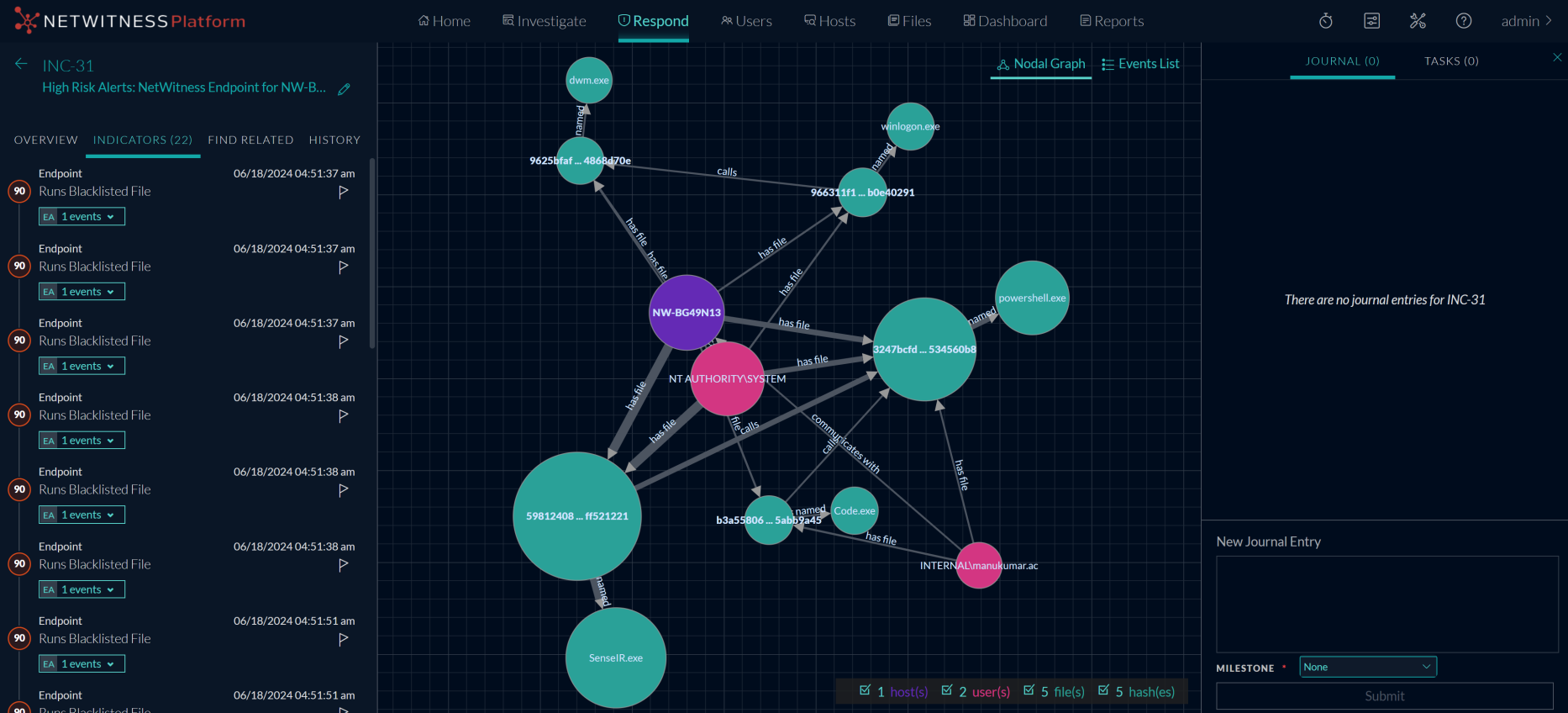
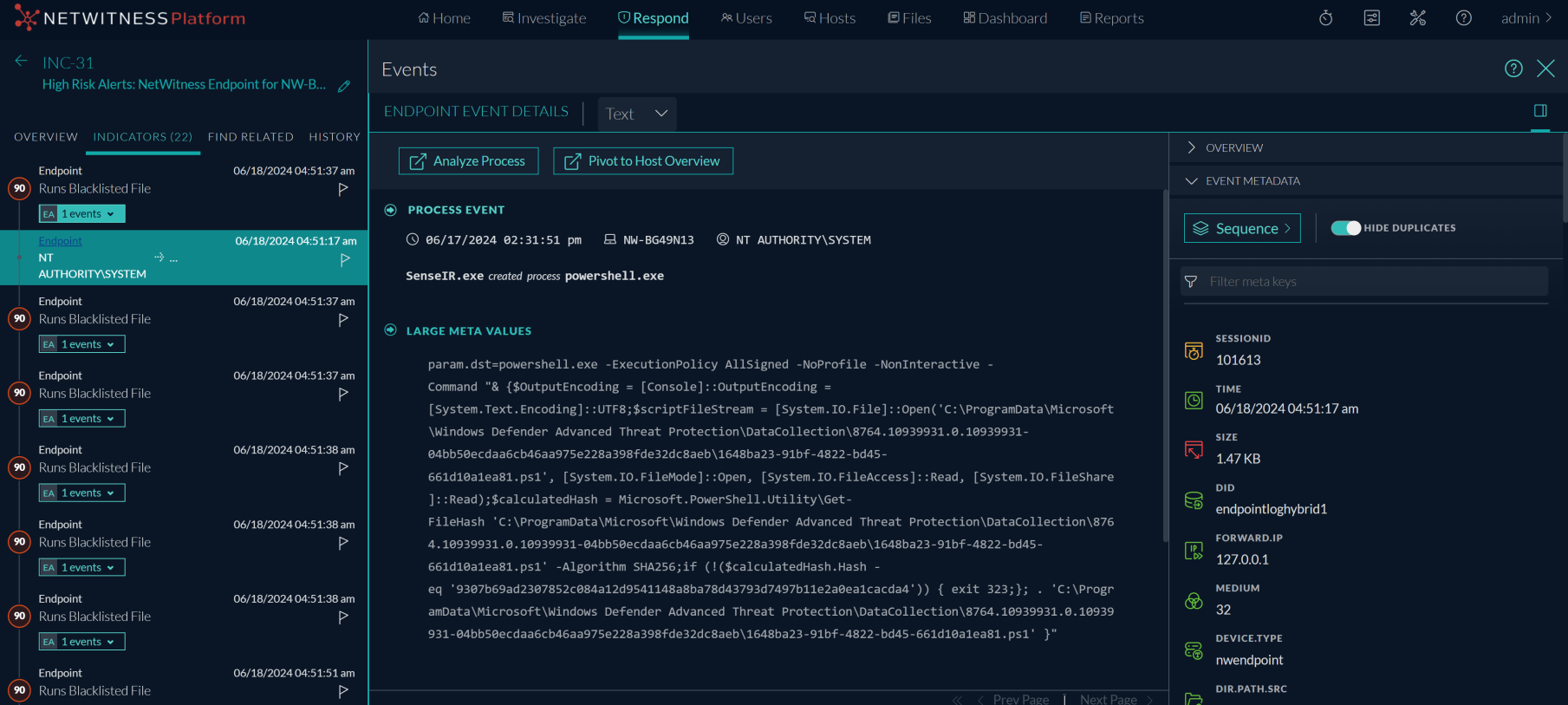
The Respond view is designed to make it easy to evaluate incidents, contextualize that data, collaborate with other analysts, and pivot to a deep-dive investigation as needed. The following figure shows an example of an event analysis in the Incident Details view.
The following figure shows the high-level Respond workflow process.
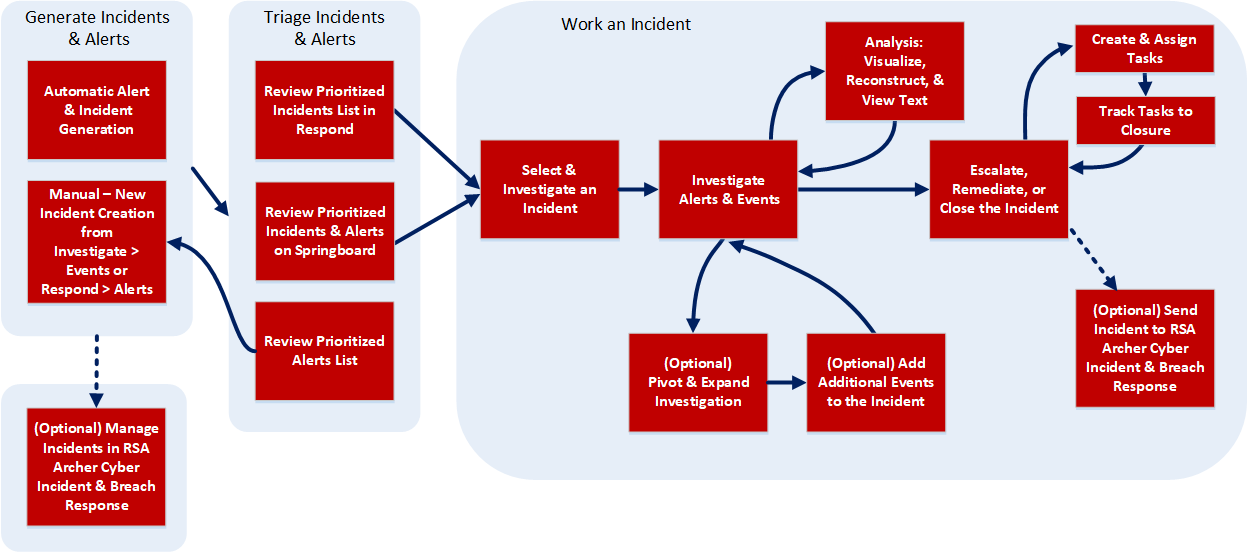
The following figure shows the high-level process that Incident Responders use to respond to incidents in the Respond view.

In the Respond view, analysts look at the prioritized list of incidents and determine which incidents require action. They click an incident for a clear picture of the incident with supporting details and they can investigate the incident further. Analysts can then determine how to respond to the threat, by escalating or remediating it.