.png?width=180&height=32&name=NW%20Logo%20(2).png)
Resource Package Deployment WizardResource Package Deployment Wizard
If you have created a package of resources and saved it on a network drive, you can use the Resource Package Deployment Wizard to deploy the resources manually to a service or a service group without subscribing to the resources. NetWitness accepts packages in .nwp files or .zip files.
Deploying resources manually deploys them directly to the services without taking advantage of the powerful resource management capabilities of NetWitness.
If you want to receive notification and updates for updated resources and be able to easily remove resources from a service, you must subscribe to resources in the Live Search view and deploy the resources in the Live Configure view.
Note: Use NetWitness Live to create resource bundles; this is a different application that is not part of NetWitness. Selecting Package > Create in the Live Search - Matching Resources toolbar displays the Content Package Tool window. You can choose resources to include in a package and save the package as a NetWitness Package File.
The required permission to access this view is Deploy Live Resources.
To access this view:
- Go to
 (Configure) > Live Content.
 -
In the Live Search - Matching Resources toolbar, select
 > Deploy.
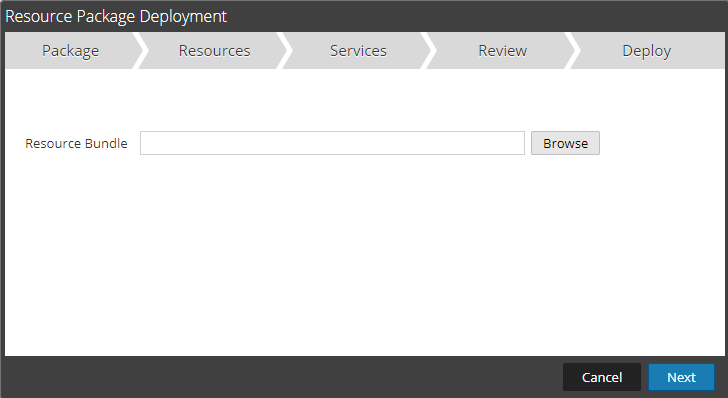
The Resource Package Deployment wizard is displayed.
Features Features
The Deployment Wizard has five tabs: Package, Resources, Services, Review and Deploy.
Use Close to exit before you complete the wizard.
When you complete the wizard, NetWitness returns to the Live Resources View.
Package TabPackage Tab
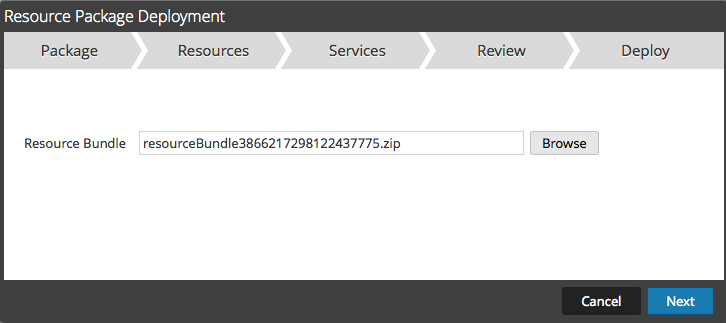
You use this tab to select a resource bundle from your network in this page.
This is an example of the Package tab, with a resource bundle already selected.
The following table describes the elements in the Package tab.
Resources TabResources Tab
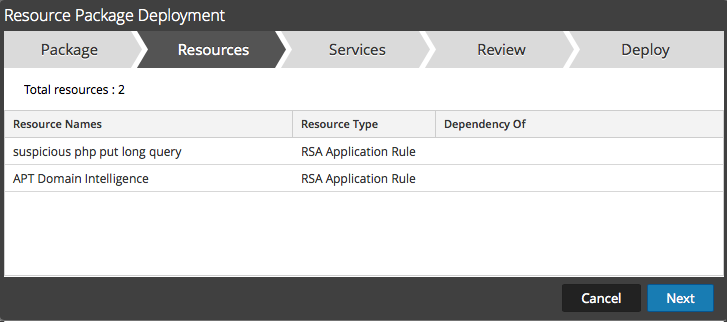
This tab displays the resources contained in the bundle.
The following figure shows an example of the Resources tab.
The following table describes elements in the Resources tab.
Services TabServices Tab
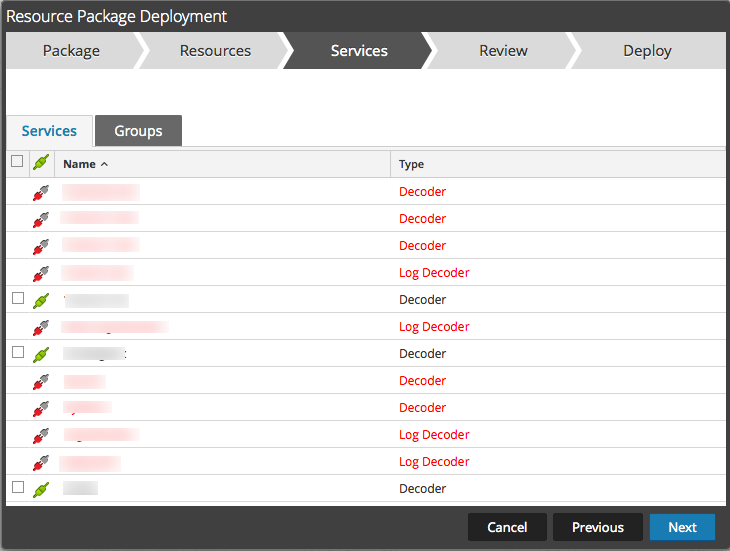
You select the services on which you want to deploy the resources in the bundle.
The Services tab has two tabs, Services and Groups. These provide a list of services and service groups that are configured in the  (Admin) > Services view. The columns are a subset of the columns available in the Services view. You can select the services or the service groups on which you want to deploy the resources in the bundle.
This is an example of the Services tab.
The following table describes the elements in the Services tab.
Review TabReview Tab
Displays the resources and services on which the resources will be deployed.
In this tab, you can do the following:
- Review the content and services before you deploy.
- Initiate the deployment of the resources.
The following figure shows an example of the Review tab.
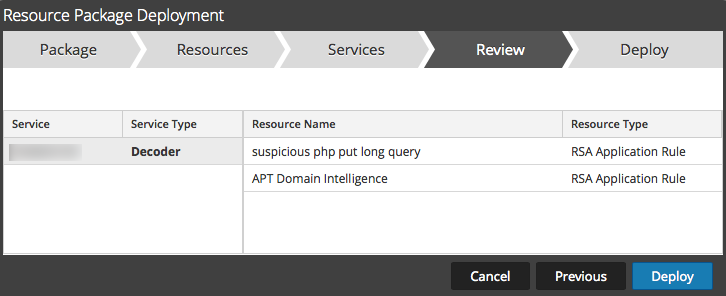
The following table describes the elements in the Review tab.
Deploy TabDeploy Tab
This tab allows you to do the following:
- View the progress of the job
- Cancel the job
This is an example of the Deploy tab.
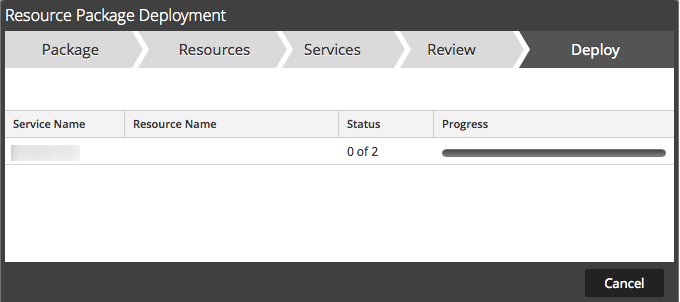
The following table describes the elements in the Deploy tab.