.png?width=180&height=32&name=NW%20Logo%20(2).png)
Services Config View - Edit Capture Policies Wizard
In the Edit Policies view (  (Configure) > Capture Policies > Edit, administrators can configure selective network data collection policies. The panels for creating a new policy and editing an existing policy are the same except that in the editing wizard, the definitions of the existing policy are displayed.
You can edit existing policies to customize them for your environment. A base set of protocols are available for alterations, allowing you to choose what level of capture you prefer on a per-protocol basis. If you are only making slight changes, a good start for customization is to clone one of the predefined polices and alter it.
Note: A set of predefined policies are available immediately. The only way you can edit a predefined policy is by assigning Decoders to the policy to collect the targeted data.
Workflow
The following figure shows the workflow for common Decoder configuration tasks with the steps you can complete in this view highlighted.

What do you want to do?
*You can complete these tasks here.
Related Topics
Quick Look
- To access the Edit Policy wizard, go to (Configure) > Capture Policies, select a policy, and click Edit.
The Identify Policy page is displayed, where you can change the name and description of the policy.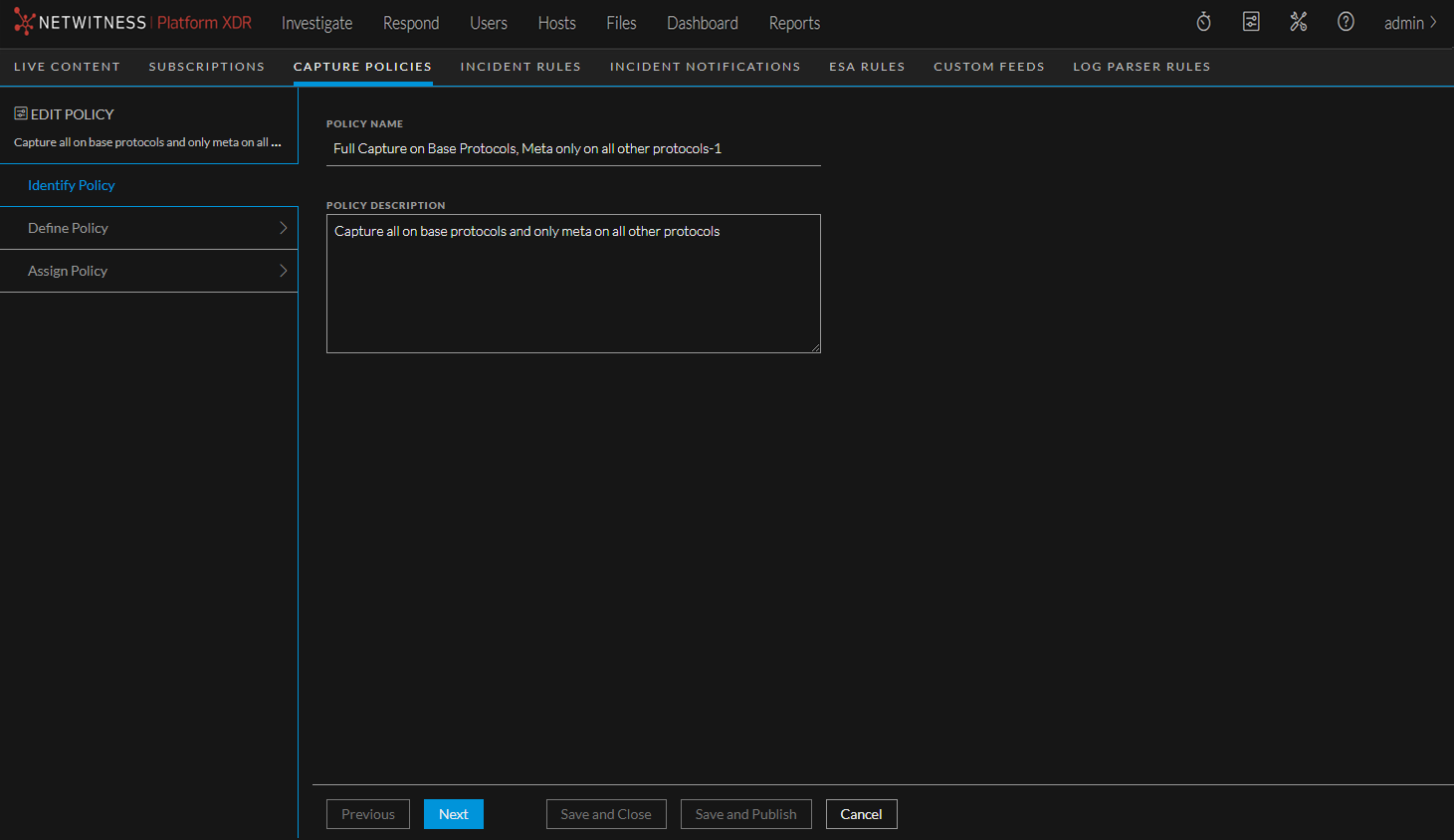
- To view the Define Policy page, click Next.
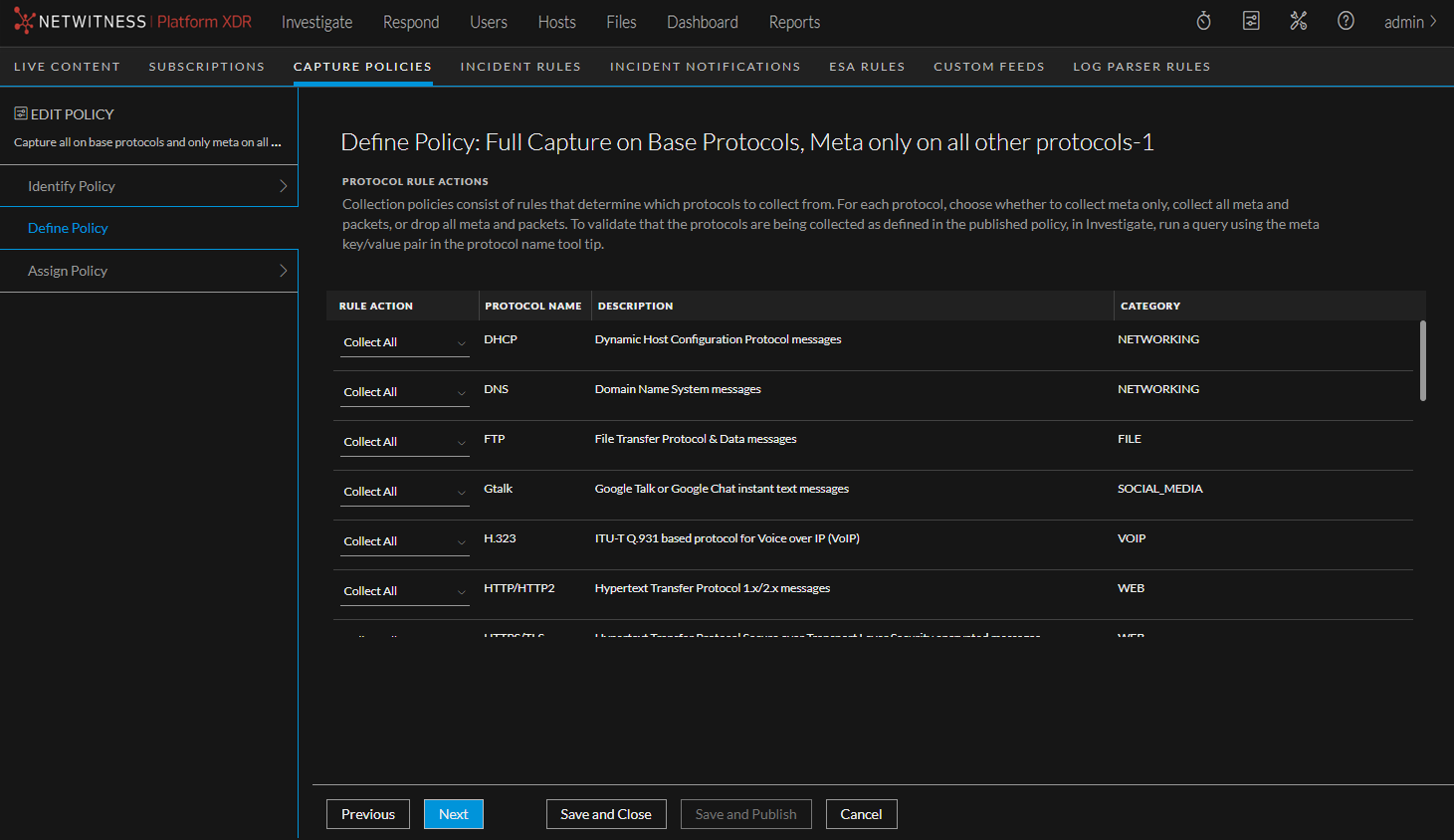
In the Define Policy page, you can define rule actions for the protocols for which you are interested in collecting data. The rule actions are:
- Collect Meta Only: Collect metadata
- Drop All: Drop metadata and network packets
- Collect All: Collect metadata and network packets
You can click Save and Close to save your policy without deploying it on Decoders.
The following table describes the actions of the buttons on this page.
- Click Next to go to the Assign Policy page.
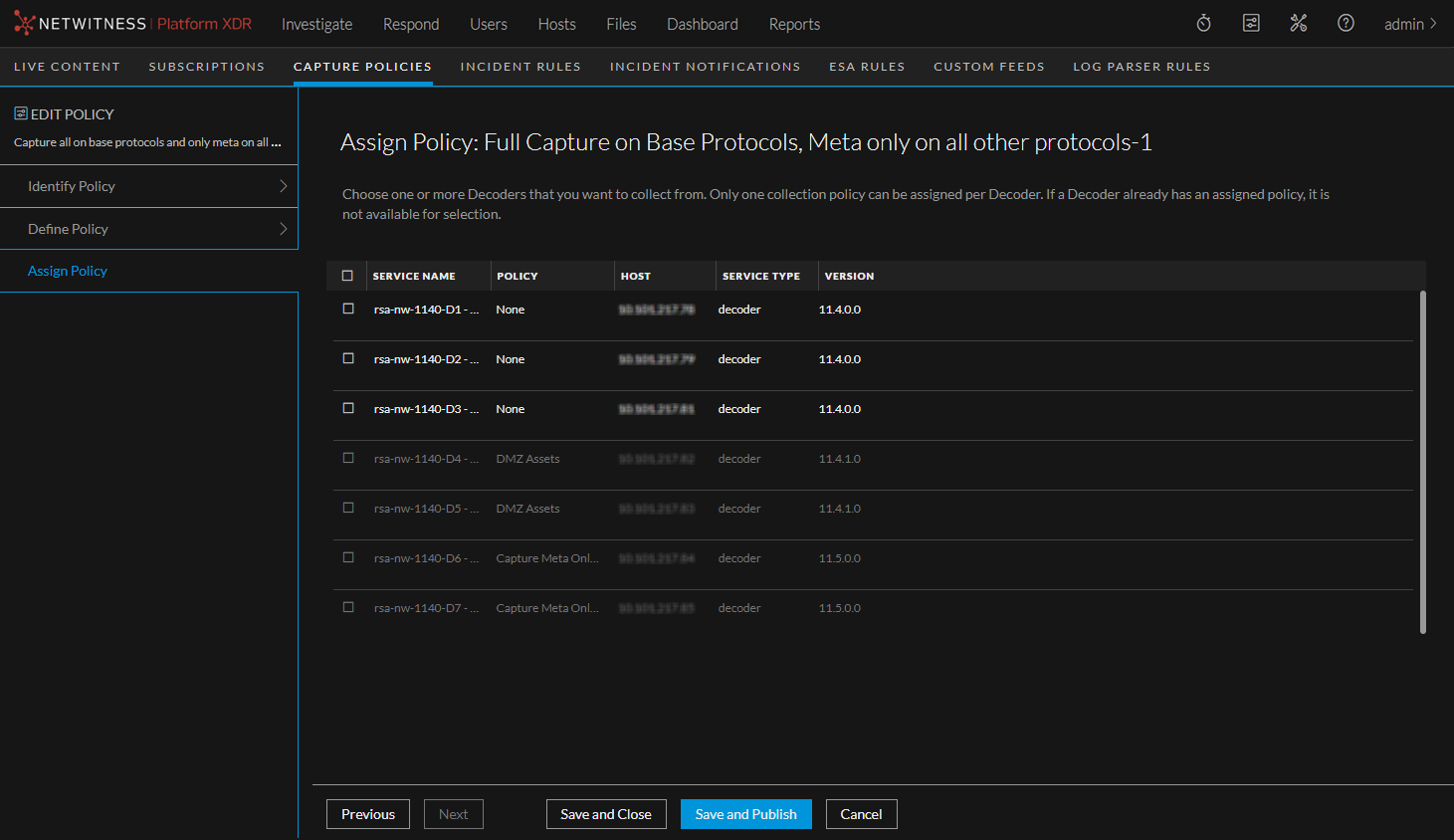
This is where you assign the policy to Decoders to capture the data. The following table describes the columns in this page.