.png?width=180&height=32&name=NW%20Logo%20(2).png)
Settings Dialogs for Investigate ViewsSettings Dialogs for Investigate Views
NetWitnessVersion 11.0 has two settings dialogs, one for the Navigate view and one for the Legacy Events view. With the addition of the settings dialog for the Events view in Version 11.1, Investigate has three settings dialogs.
The settings in these dialogs are a subset of the Investigation settings made in the Profiles > Preferences panel > Investigation. Analysts can save time by editing these settings within the Investigate view. If you change a setting here, the same setting is changed in the Profiles view, and if you change a setting in the Profiles view, the same setting is changed here.
To access this dialog, go to the Navigate or Legacy Events view, and select the Settings option in the toolbar.
The settings in the Events view have no corresponding settings in the Profiles > Preferences panel.
Related TopicsRelated Topics
Quick LookQuick Look
This is a quick look at the settings dialog for the Navigate view, Legacy Events view, and Events view.
Navigate View Settings DialogNavigate View Settings Dialog
The following figure illustrates the Navigate view Settings dialog. The settings that influence performance when loading values in the Values panel have default values based on common usage, and individual analysts can adjust these settings for their own investigations. The following table describes the features.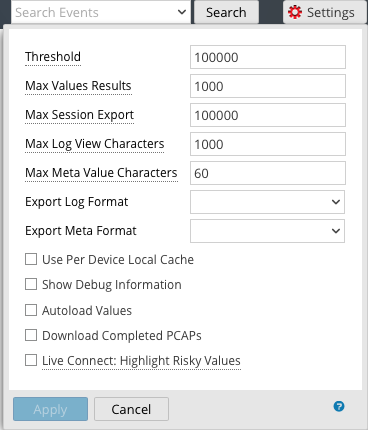
Legacy Events View Settings DialogLegacy Events View Settings Dialog
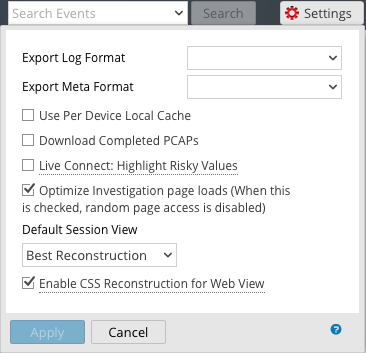
The following figure is an example of the Settings dialog for the Legacy Events view, and the table describes the features.
Events View Preferences Dialog Events View Preferences Dialog
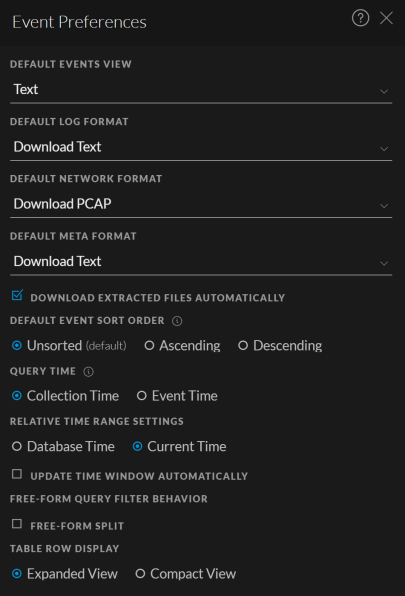
Beginning with Version 11.1, the Events view has user preferences that you can configure in the Events view > Event Preferences dialog. These settings persist so that they are applied each time you log in and go to the Events view. The following figures are examples of the dialog for Version 11.3 and Version 11.6. The table below describes the options.