.png?width=180&height=32&name=NW%20Logo%20(2).png)
System Logging - Historical TabSystem Logging - Historical Tab
The Historical tab provides a searchable view of a NetWitness log or a service log in a paged format. When initially loaded, the grid shows the last page of the log entries for the system or the system.
To access the Historical tab:
- Go to
 (Admin) > System.
 -
In the options panel, select System Logging.
The System Logging panel opens to the Realtime tab by default.
- Click the Historical tab.
What do you want to do?What do you want to do?
Related TopicsRelated Topics
System Logging - Settings View
Quick LookQuick Look
The following is an example of the Historical tab in the System Logging panel. It shows the NetWitness logs.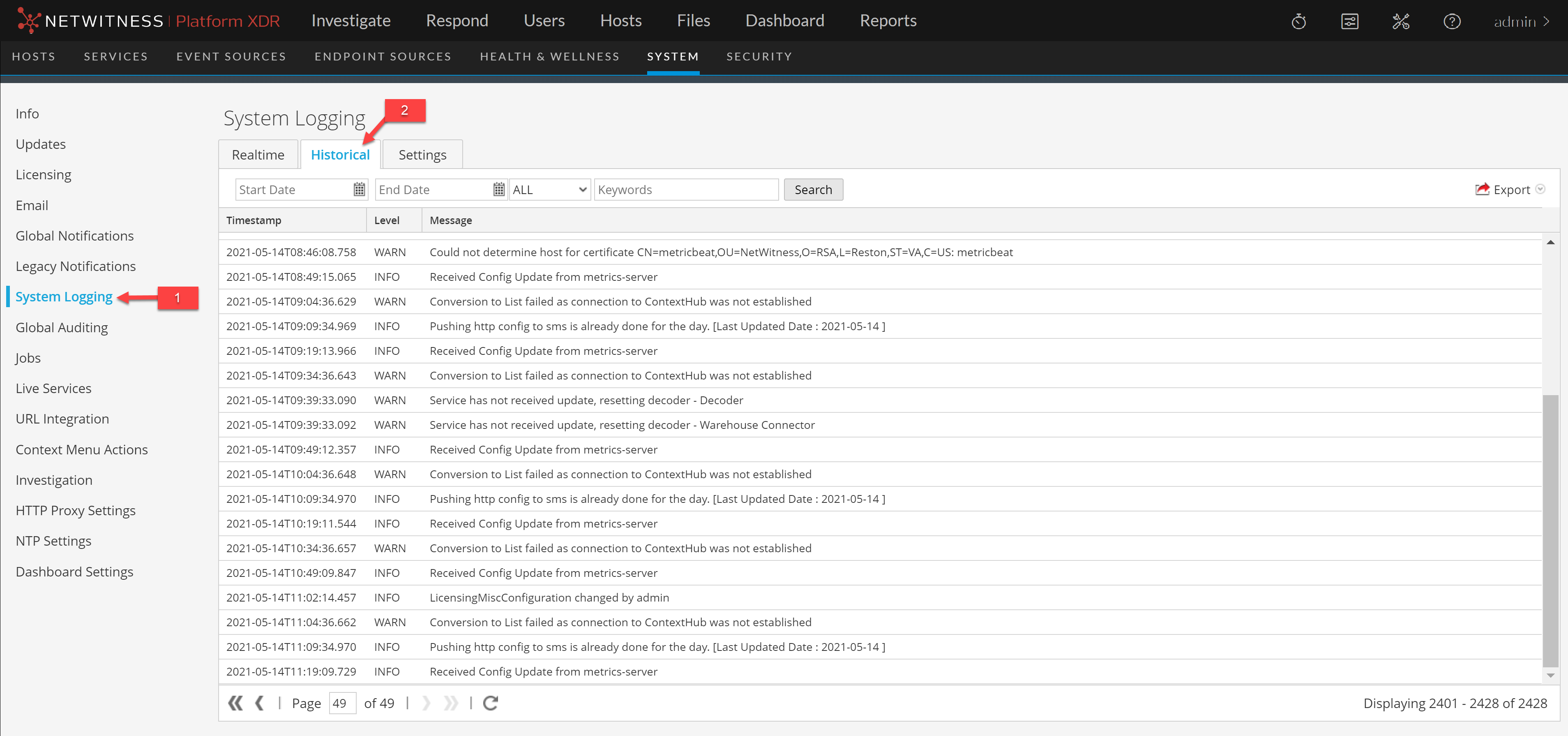
The following is an example of the Historical tab in the Services Logs view. It shows the services logs.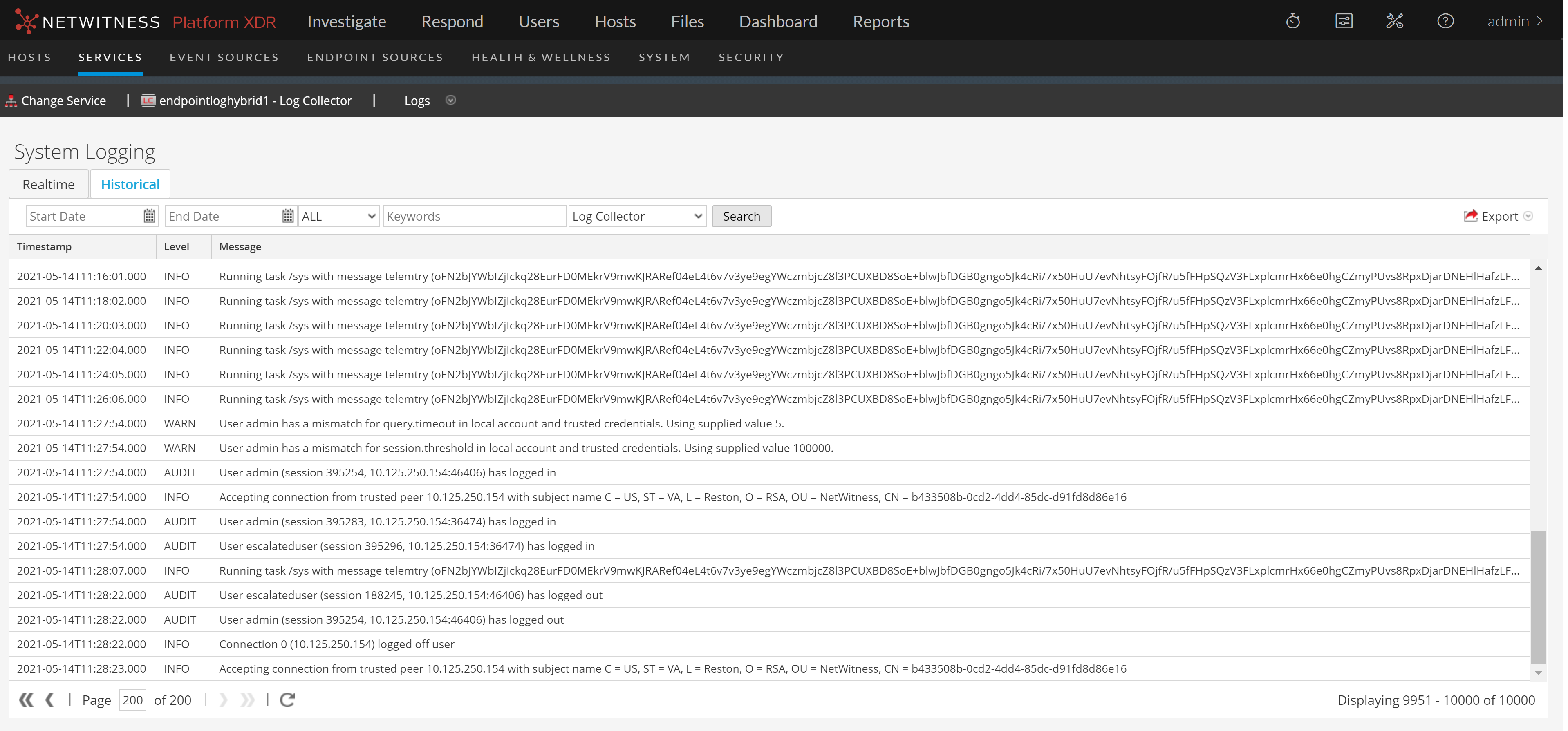
FeaturesFeatures
The Historical tab has a toolbar with input fields to allow filtering of the entries, a grid containing the log entries, and paging tools.
The paging tools below the grid provide a way to navigate through the pages of log entries.

Search Log EntriesSearch Log Entries
To search the results shown in the Historical tab:
- (Optional) Select a Start Date and End Date. Optionally, select a Start Time and End Time.
- (Optional) For system and service logs, select a Log Level and a Keyword, or both.
- (Optional) For service logs, select the Service: host or service.
- Click Search.
The view is refreshed with the most recent 10 entries matching your filter. As new matching log entries become available, the view is updated to show those entries.
Show Details of a Log EntryShow Details of a Log Entry
Each row of the Historical tab Log grid provides the summary information of a log entry. To view complete details:
-
Double-click a log entry.
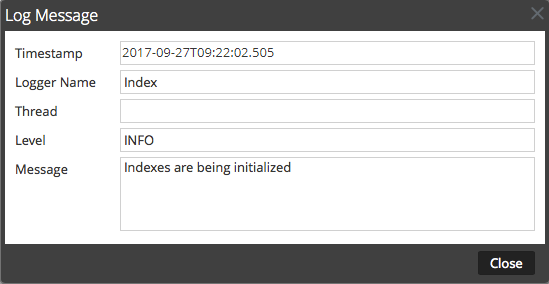
The Log Message dialog, which contains the Timestamp, Logger Name, Thread, Level and Message, is displayed.
- When finished viewing, click Close.
Page Through the EntriesPage Through the Entries
To view the different pages of the grid, use the paging controls on the bottom of the grid as follows:
- Use the navigation buttons
- Manually enter the page you want to view, and press ENTER.
ExportExport
To export the logs in the current view:
Click Export, and select one of the drop-down options, CSV Format or Tab Delimited.
The file is downloaded with a filename that identifies the log type and the field delimiter. For example, a NetWitness system log exported with comma-separated values is named UAP_log_export_CSV.txt, and an appliance log exported with tab-separated values is named APPLIANCE_log_export_TAB.txt.