.png?width=180&height=32&name=NW%20Logo%20(2).png)
System Stats Browser ViewSystem Stats Browser View
NetWitness provides a way to monitor the status and operations of hosts and services. The System Stats Browser tab displays key statistics, service system information, and host system information for a host or service.
You can customize the stats view depending on the parameter you select to filter the data.
To access the System Stats Browser view:
-
Go to
 (Admin) > Health & Wellness.
The Health & Wellness view is displayed with the Alarms tab open.
-
Click the System Stats Browser tab.
What do you want to do?What do you want to do?
Related TopicsRelated Topics
Quick LookQuick Look
The System Stats Browser view is displayed.
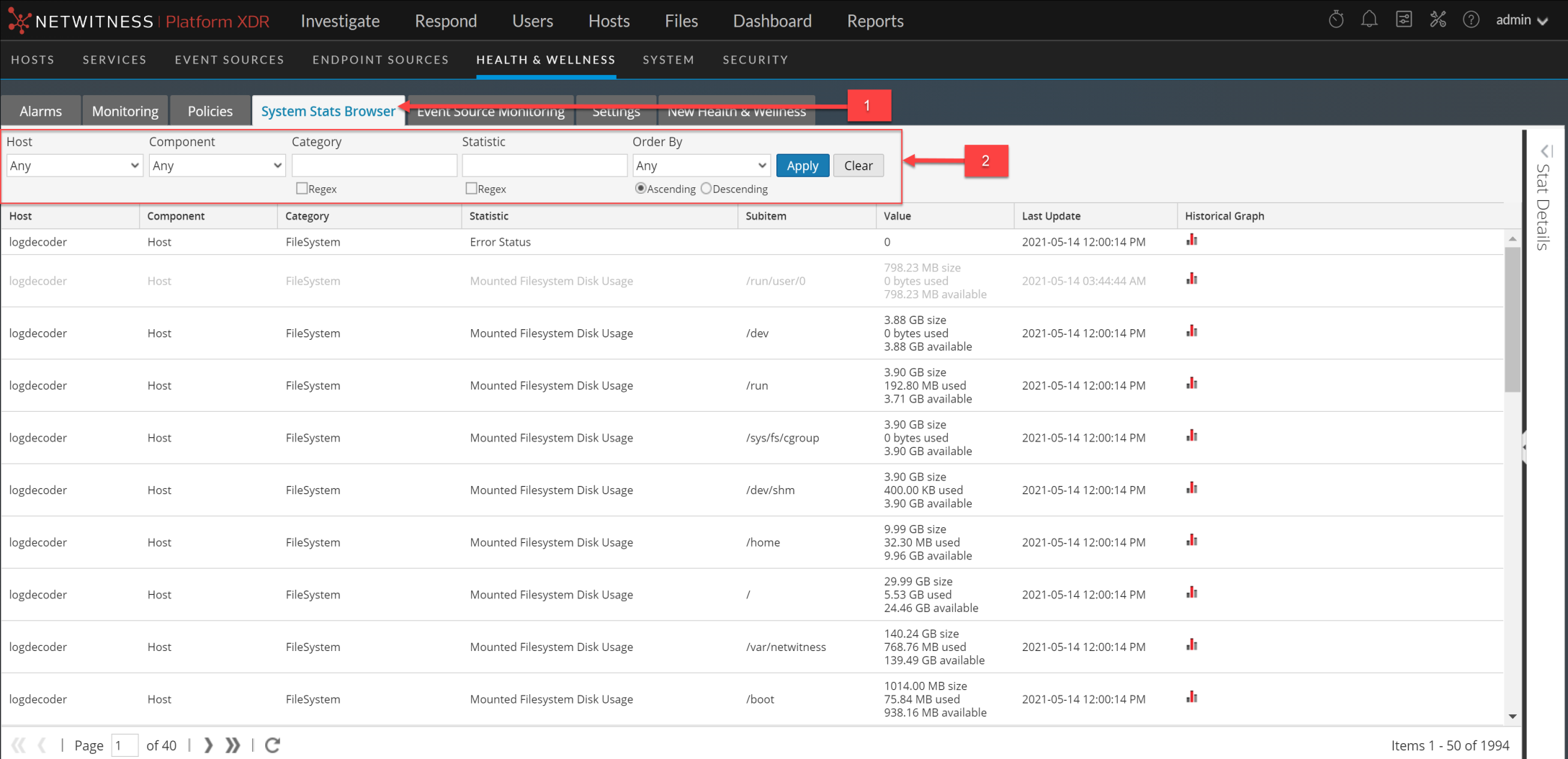
Note: Historical graphs are enabled, and can be displayed, for statistics with numeric values. However, historical graphs are disabled for statistics with string values, for example, Health checks (Healthy), and are displayed as gray in the UI.
FiltersFilters
This table lists the various parameters you can use to filter and customize the System Stats view.
CommandsCommands
System Stats View DisplaySystem Stats View Display
Displays statistics, service system information, and host system information for a host or service.
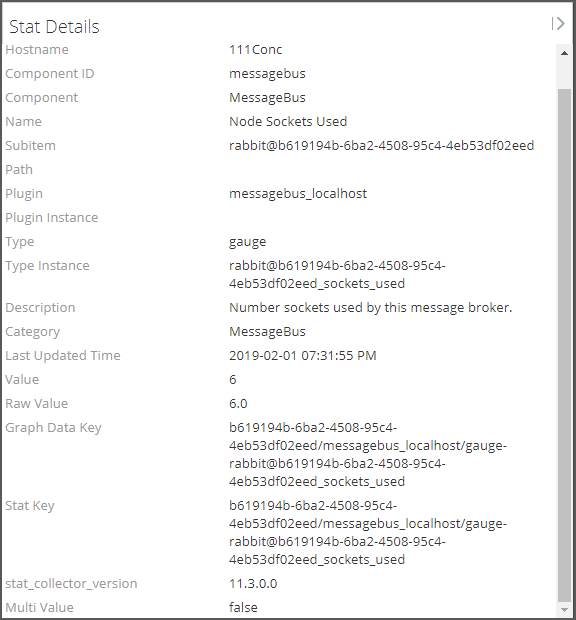
Access Stats Details
Select one of the stats and click Stats Details on the right hand side of the panel.
The Stats details panel opens with details of the selected stats.