.png?width=180&height=32&name=NW%20Logo%20(2).png)
Tags: Documentation
Related Topics
Whitelist Insight Alerts from Respond View
Quick Look
To access the Whitelists List view, go to Respond > Whitelists. The Whitelists List view consists of the Whitelists List and a Filters panel.
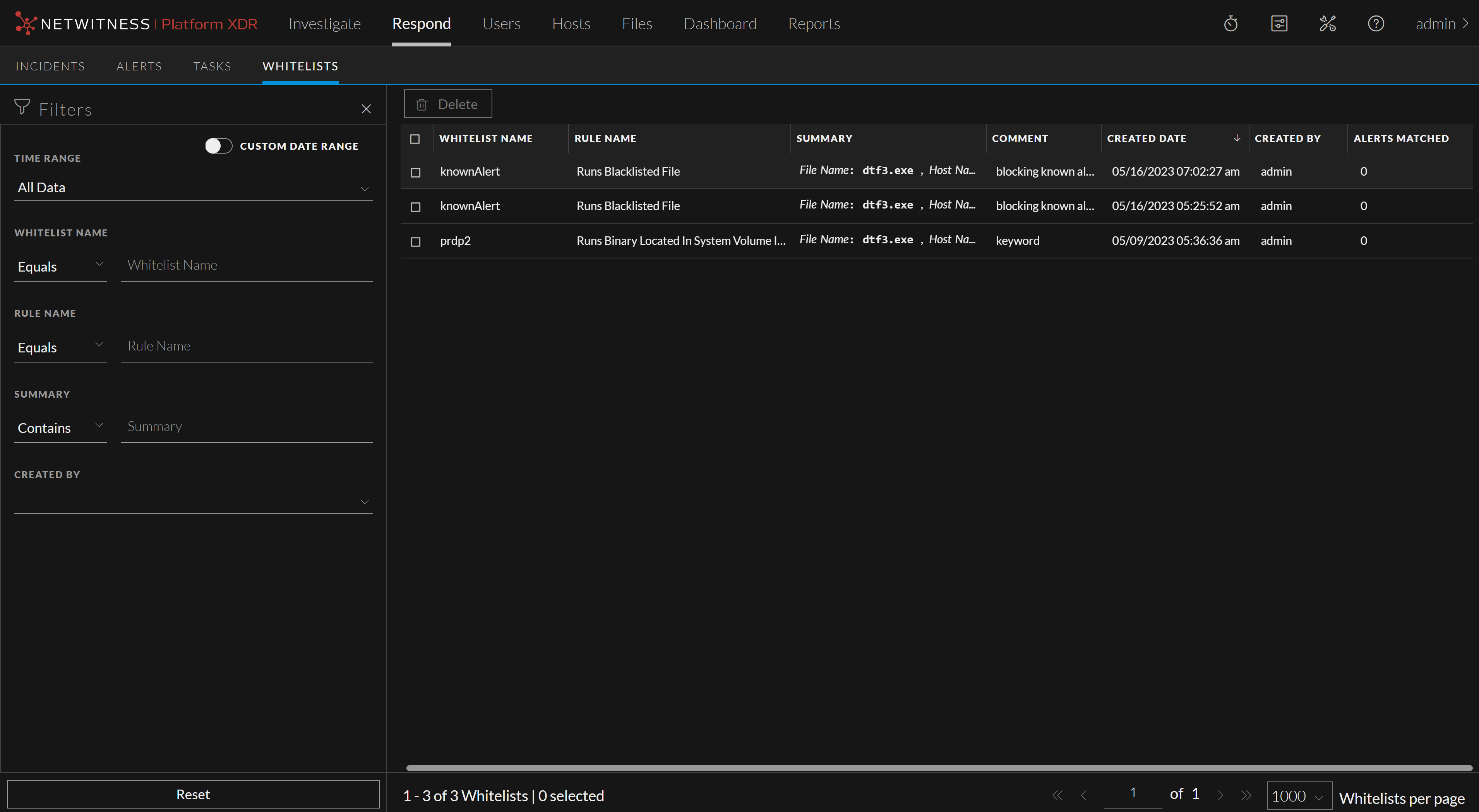
Whitelists List
The Whitelists List displays all the Endpoint and Insight Whitelists in the NetWitness Platform . You can filter this list to view only the Whitelists of interest.

The following table describes the columns in the Whitelists List.
The following parameters are displayed at the bottom of the list.
-
The count of the Whitelists displayed on the current page.
-
The total number of Whitelists created.
-
The number of Whitelists selected in the list.
-
The current page number.
-
Total number of pages available.
-
The maximum number of Whitelists displayed in each page.
The values of the above mentioned parameters vary depending upon the filters you apply.
For example, consider the existing count of the Whitelists displayed on page 1 is 1 - 3 and the total number of Whitelists created is 3.
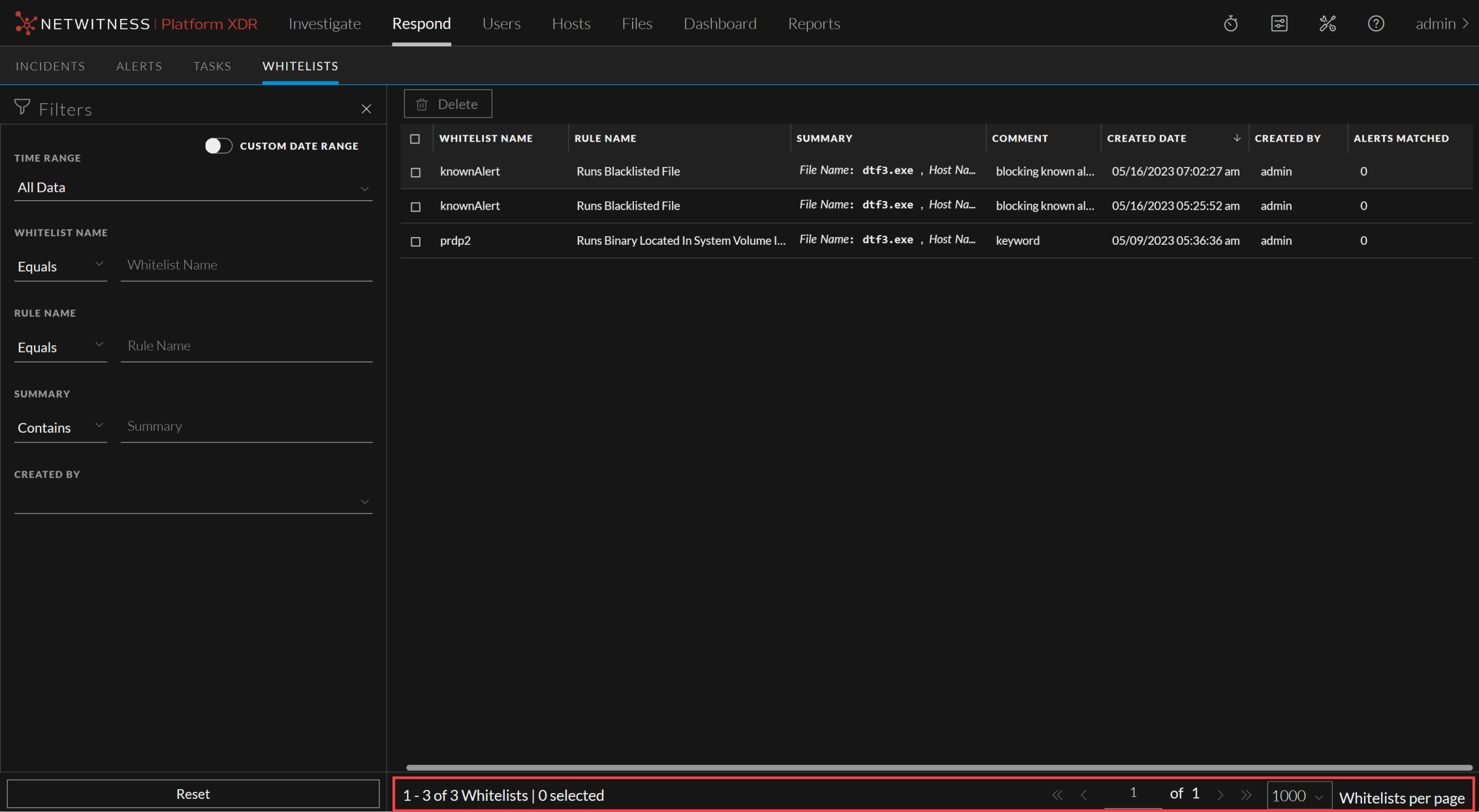
After entering the Whitelist name (completely or partially) in the Filters panel and filtering the required Whitelist, the count of the Whitelists displayed on page 1 changes to 1 - 1 and the total number of Whitelists created is displayed as 1 since only 1 Whitelist matches the filter applied.
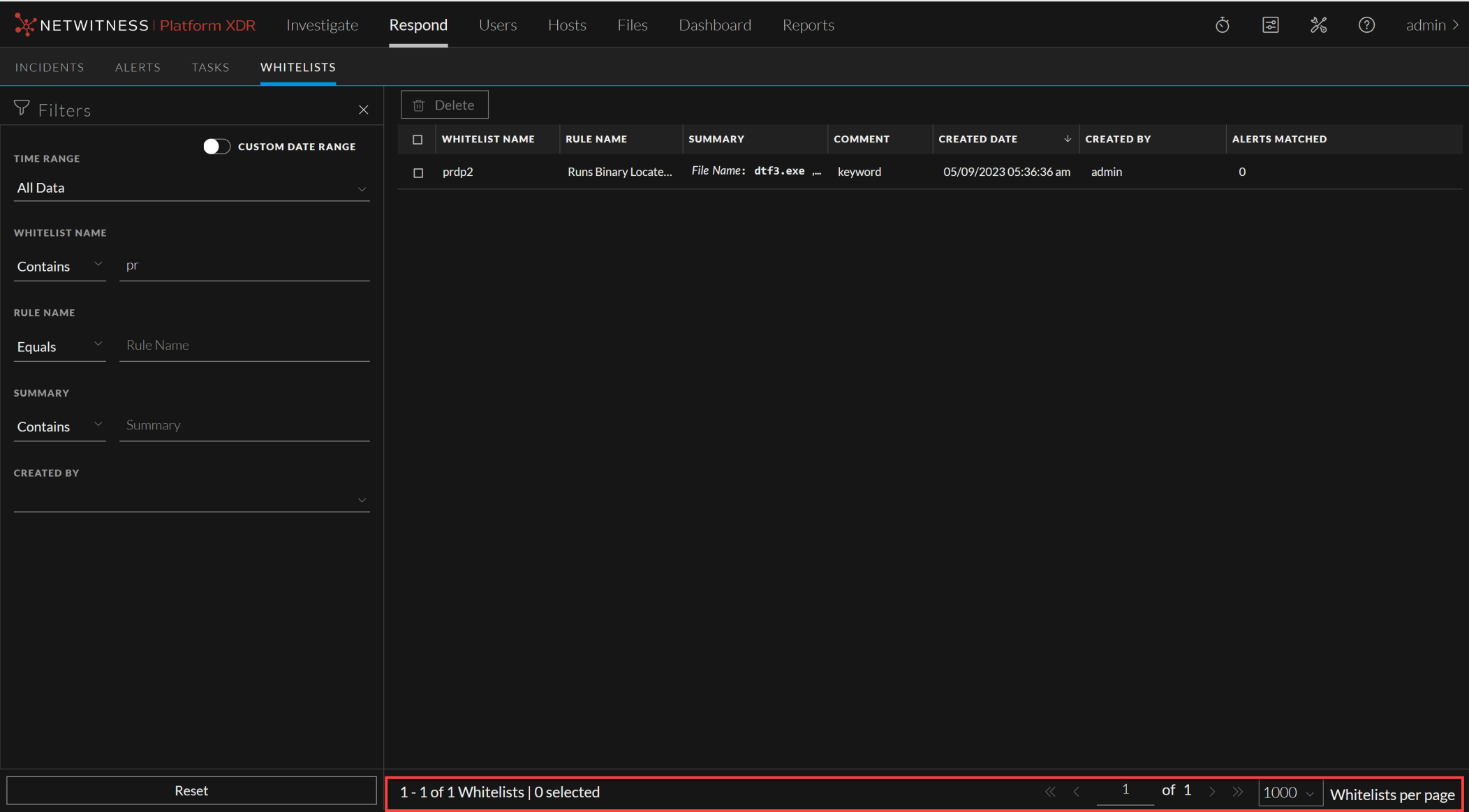
Whitelists Filters Panel
The following figure shows the filters available in the Whitelists Filters panel.
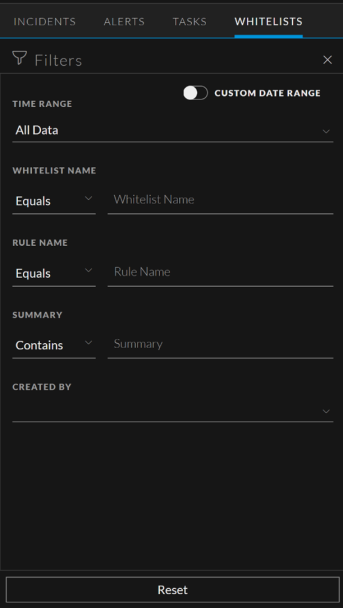
You can filter the Whitelists based on the following parameters.
-
Time Range
-
Whitelist Name
-
Rule Name
-
Summary associated with the Whitelists
-
User who created the Whitelists
The following table lists all the fields displayed in the Filters panel.
You can click Reset at the bottom of the Filters panel to remove the filters applied.
When you navigate away from the Filters panel, the Whitelists List view retains your filter selections.
Toolbar Actions
This table lists the toolbar actions available in the Whitelists List view.