.png?width=180&height=32&name=NW%20Logo%20(2).png)
Add or Edit User Dialog
All users must either have a local user account with a username and password or an external user account that is mapped to NetWitness.
What do you want to do?
Related Topics
Quick Look
To access Add or Edit User dialog, go to  (Admin) > Security > Users tab and in the toolbar, click
 , or select a user and click
  .
.
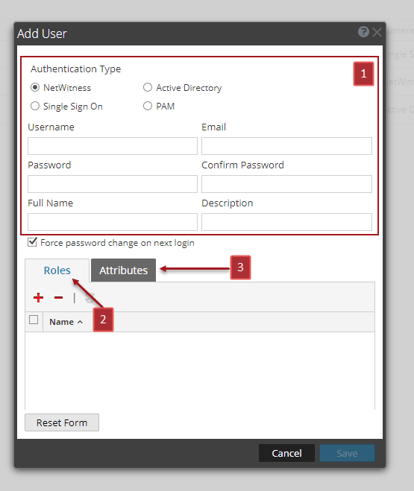
Add User Dialog
This is the Add User dialog for an internal user.
Edit User Dialog
This is the Edit User dialog for an internal user.
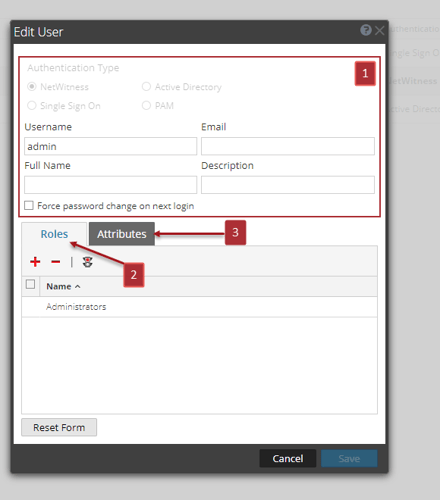
The Add User and Edit User dialogs are the same except that the Add User dialog contains additional Password and Confirm Password fields. You can add a password for a new user in the Add User dialog. Users can change their own passwords in the user preferences. You can reset a password for a user directly from the Users tab.
The Add User and Edit User dialogs have following sections:
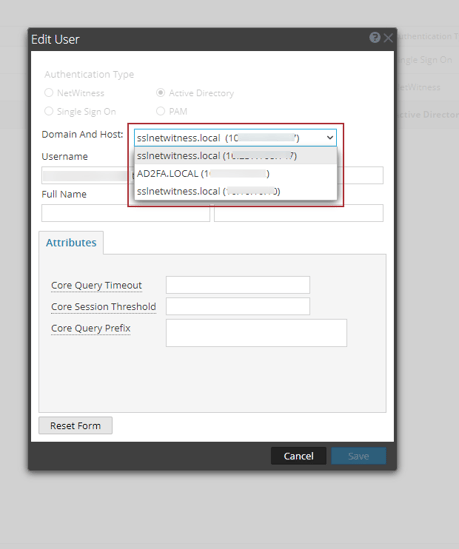
Note: From NetWitness 12.5 or later, you can now select the host along with the domain from the 'Domain Name and Host' dropdown to update the Active Directory User's Account Provider in the edit user dialog.
User Information
The following table provides descriptions of the user information.
Roles Tab
The following table provides descriptions of the Roles tab options. The Roles tab shows the roles that are assigned to the user.
Attributes Tab
The following table lists the descriptions of the Attributes tab options. The Attributes tab shows the attributes that are assigned to the user.