.png?width=180&height=32&name=NW%20Logo%20(2).png)
Tags: Documentation
NetWitness 12.5.1 enhanced the Policies tab in CCM with the Add to Policy option. Users can directly add Application or Network Rules to a policy if it does not exist. All dependents and their corresponding content are also included in the policy. Users can create a policy and assign it to one or more groups.
To add an Application Rule to the policy
- Go to
 (CONFIGURE) > Policies.
 - In the policies panel, click Content.
- In the left panel, click Content Library. The available application rules are displayed.
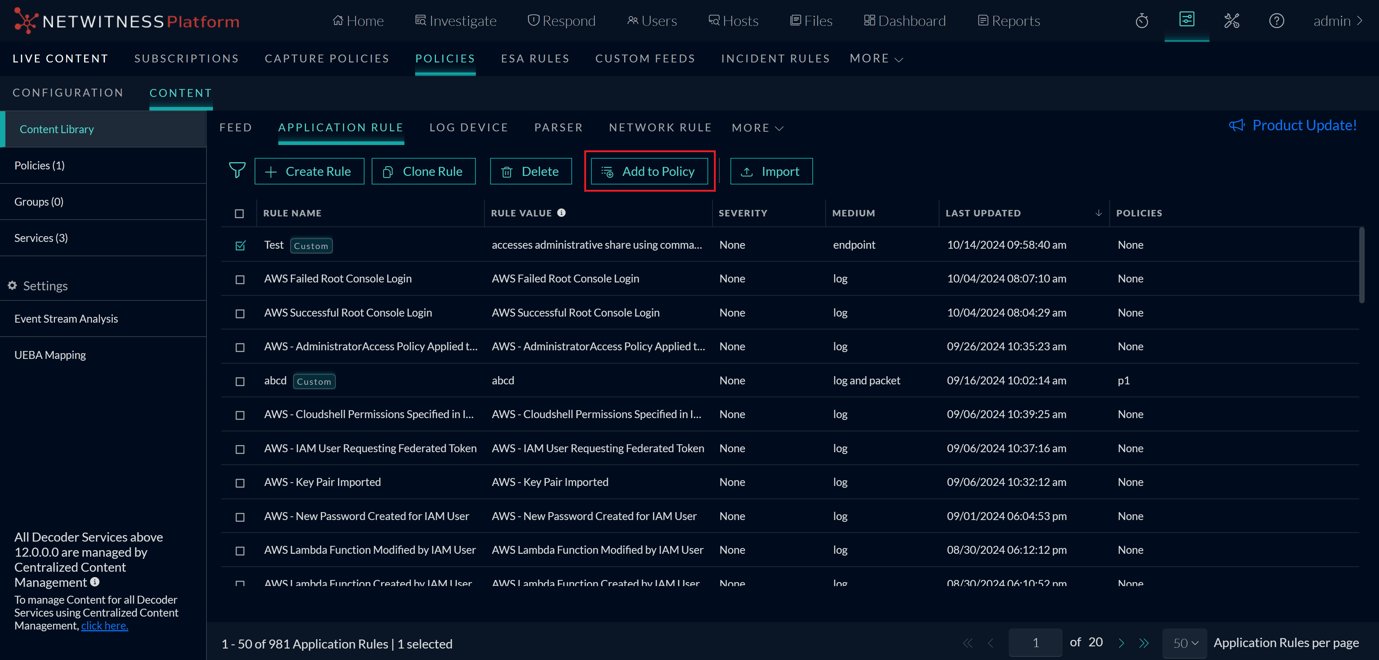
- Select an Application Rule and click Add to Policy.
-
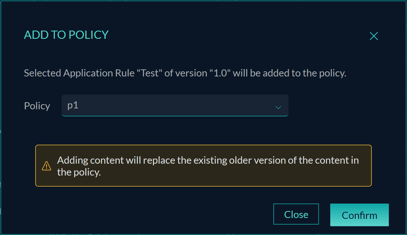
Select the available policies from the Policy drop-down. A warning may be displayed about any already existing older version of the content in the policy which will be replaced by the content in the new Policy.
-
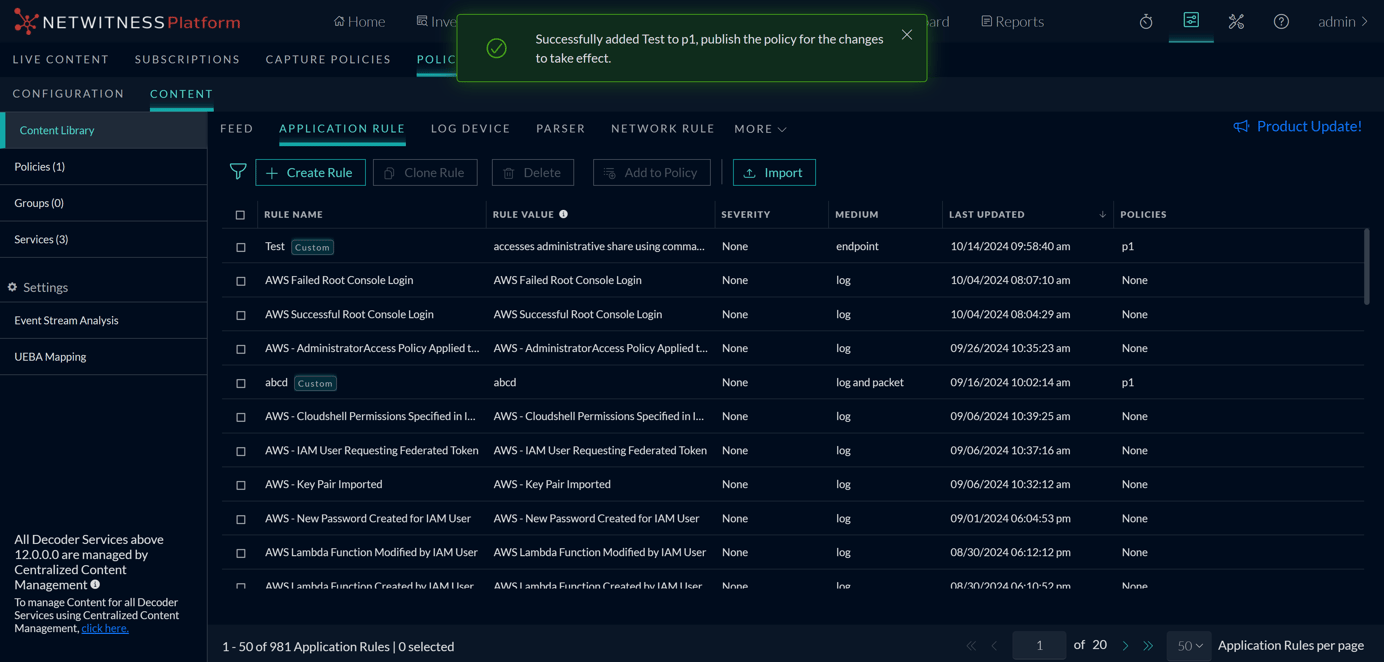
Click Confirm, the selected App Rule is successfully added to the policy.
To view the added Application Rule to the policy
- Go to (CONFIGURE) > Policies.
- In the policies panel, click Content.
-
Click Policies.
The available policies are displayed.
-
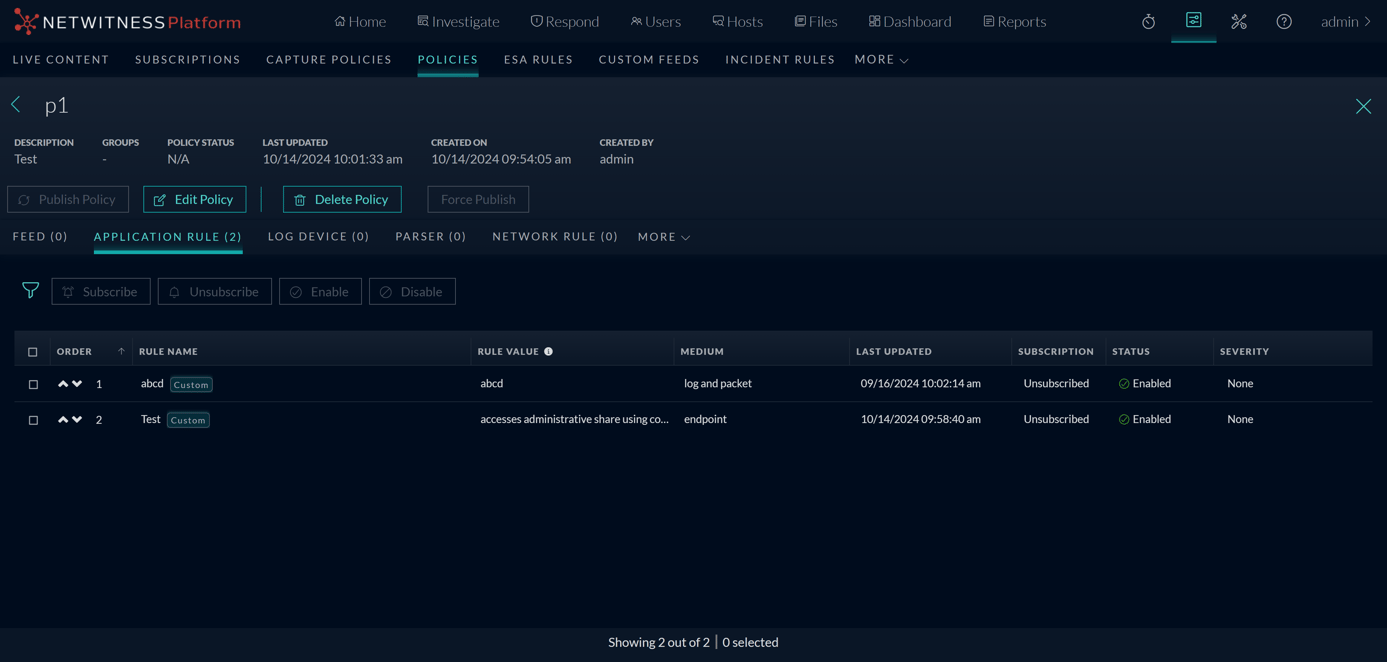
Click the policy to view the newly added Application Rule.