Skip to content
  • There are no suggestions because the search field is empty.

Advanced EPL Rule Tab

Advanced EPL Rule TabAdvanced EPL Rule Tab

The Advanced EPL Rule tab enables you to define rule criteria with an Event Processing Language (EPL) query.

What do you want to do?What do you want to do?


Related TopicsRelated Topics

Quick LookQuick Look

To access the Advanced EPL Rule tab:

  1. Go to netwitness_configureicon_24x21.png (Configure) > ESA Rules.

    The Configure view is displayed with the Rules tab open by default.

  2. In the Rule Library toolbar, select netwitness_ic-addlist.png > Advanced EPL.

    The Advanced EPL Rule tab is displayed.

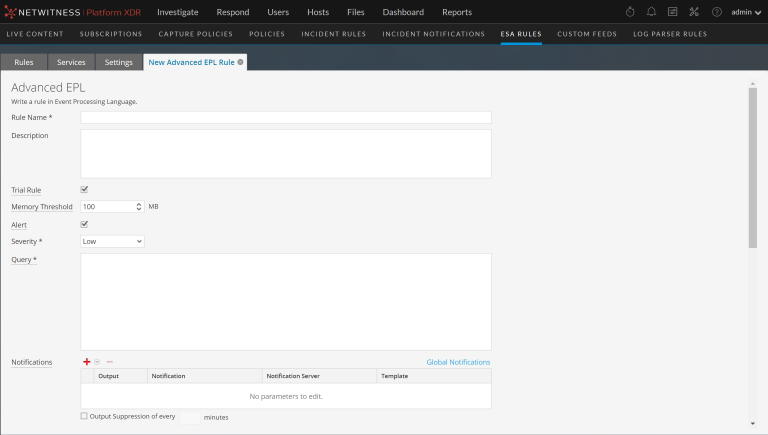
The following figure shows the Advanced EPL Rule tab.
netwitness_121_adveplbldr_1122_768x435.png

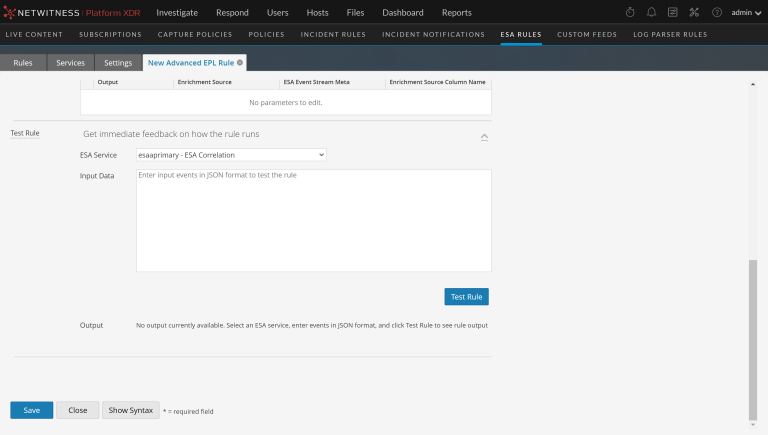
The following figure shows the Advanced EPL Rule tab scrolled down with the Test Rule section in view.
netwitness_121_adveplbldrtest_1122_768x435.png

The following table lists the parameters in the Advanced EPL Rule tab.

  • Parameters: Rule Name
  • Description: Purpose of the ESA rule.

  • Parameters: Description
  • Description: Summary of what the ESA rule detects.

  • Parameters: Trial Rule
  • Description: Deployment mode to see if the rule runs efficiently.

  • Parameters: Memory Threshold
  • Description: (This option applies to version 11.5 and later.) The maximum memory usage allowed for this rule in MB. Add Memory Thresholds to ESA rules that use memory. For example, if a rule contains windows or pattern matching, configure a memory threshold for that rule. If the configured memory threshold is exceeded, it gets disabled individually and an error is displayed for that rule on the netwitness_configureicon_24x21.png (Configure) > ESA Rules > Services tab.
    New rules default to a 100 MB memory threshold. Rules that existed before version 11.5 do not have a default value and a memory threshold is not set.

  • Parameters: Alert
  • Description: (This option applies to version 11.3 and Later.) When selected, the alert is sent to Respond. If the checkbox is cleared, an alert will not be sent to Respond.
    To turn alerts on or off for ALL rules, see the ESA Configuration Guide.

  • Parameters: Severity
  • Description: Threat level of alert triggered by the rule.

  • Parameters: Query
  • Description: EPL query that defines rule criteria.

Notifications SectionNotifications Section

In the Notifications section, you can choose how to be notified when ESA generates an alert for the rule.

For more information on the alert notifications, see Add Notification Method to a Rule.

The following figure shows the Notifications section.

netwitness_notificationadded_672x95.png

  • Parameter: netwitness_add.png
  • Description: To add an alert notification type.

  • Parameter: netwitness_ic-delete.png
  • Description: To delete the selected alert notification type.

  • Parameter: Output
  • Description: Alert notification type. Options are:
    • Email
    • SNMP (This option is not supported in NetWitness version 11.3 and later.)
    • Syslog
    • Script

  • Parameter: Notification
  • Description: Name of previously configured output, such as an email distribution list.

  • Parameter: Notification Server
  • Description: Name of server that sends the output.

  • Parameter: Template
  • Description: Name of template for the alert notification.

  • Parameter: Output Suppression of every
  • Description: Option to specify alert frequency.

  • Parameter: Minutes
  • Description: Alert frequency in minutes.

Enrichments SectionEnrichments Section

In the Enrichments section, you can add a data enrichment source to a rule.

For more information on the enrichments, see Add an Enrichment to a Rule.
The following figure shows the Enrichments section.

netwitness_ruleenrsec_672x94.png

  • Parameter:

    netwitness_add.png

  • Description: To add an enrichment.

  • Parameter:

    netwitness_ic-delete.png

  • Description: To delete the selected enrichment.

  • Parameter: Output
  • Description: Enrichment source type. Options are:
    • In-Memory Table (Ad hoc only - Recurring In-Memory Tables are no longer supported in version 11.3 and later.)
    • GeoIP

  • Parameter:

    Enrichment Source

  • Description: Name of previously configured enrichment source, such as a .CSV filename for an In-Memory Table.

  • Parameter: ESA Event Stream Meta
  • Description: ESA meta key whose value will be used as one operand of join condition.

  • Parameter:

    Enrichment Source Column Name

  • Description: Enrichment source column name whose value will be used as the other operand of the join condition.

Test Rule SectionTest Rule Section

Note: The Test Rule section is available in NetWitness Platform 11.5 and later.

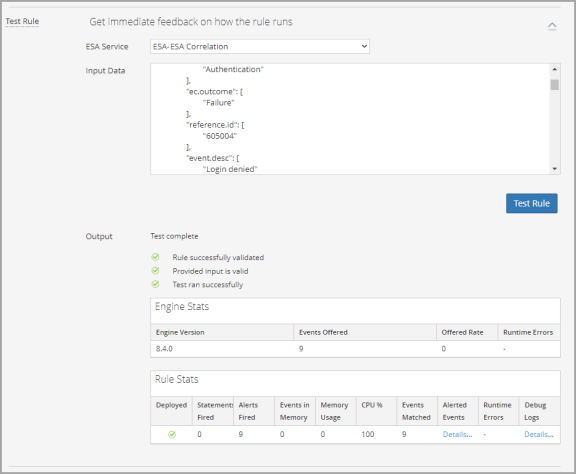
In the Test Rule section, you can validate your ESA rule to determine if the rule logic is working as expected before deploying the rule.
netwitness_advrb_testrulesection_576x474.png

  • Field: ESA Service
  • Description: Select the ESA Correlation service to process the rule.

  • Field: Input Data
  • Description: Enter the input events to test the rule. You can download the events from the Investigate view in JSON format, copy the events, and paste them in this field.

  • Field: Output Data
  • Description: After you select an ESA Correlation service, input data, and click the Test Rule button, you can view the output of the rule here and verify that the rule is working according to your requirements. You can view the alerts in the output, but this test does not send any alert notifications. If you want to view all of the debug information for the test, include an @Audit(‘stream’) annotation to your rule query.

The following table describes the test rule output Engine Stats.

  • Field: Engine Version
  • Description: Esper version running on the ESA service

  • Field: Events Offered
  • Description: Number of events processed by the ESA service since the last service start

  • Field: Offered Rate
  • Description: The rate that the ESA service processes current events / The maximum rate that the ESA service processed events

  • Field: Runtime Errors
  • Description: If applicable, this field can contain a link to runtime error messages related to the ESA rule deployment.

The following table describes the test rule output Rule Stats.

  • Field: Deployed
  • Description: A green checkmark indicates that the rule is deployed on the selected ESA service.

  • Field: Statements Fired
  • Description: The number of statements that fired the alerts

  • Field: Alerts Fired
  • Description: The number of alerts generated from the test data

  • Field: Events in Memory
  • Description: The number of events placed in memory by the rule

  • Field: Memory Usage
  • Description: The total amount of memory used by the rule

  • Field: CPU %
  • Description: The percentage of the deployment CPU used by the rule. For example, a deployment with 1 rule shows 100% CPU usage for that rule and a deployment with two equally CPU heavy rules show 50% each.

  • Field: Events Matched
  • Description: The number of events that matched the rule

  • Field: Alerted Events
  • Description: If applicable, this field can contain a link to events that caused an alert.

  • Field: Runtime Errors
  • Description: If applicable, this field can contain a link to runtime error messages related to the rule.

  • Field: Debug Logs
  • Description: This field contains a link to Esper debug (audit) logs.

SyntaxSyntax

Click Show Syntax to view the EPL syntax of conditions, statements, and debugging parameters. It also provides a warning when the syntax is invalid. For more information, see Rule Syntax Dialog.