Skip to content
  • There are no suggestions because the search field is empty.

Alert List View

Alert List View

The Alert List view allows you to import, export, manage, and add alerts.

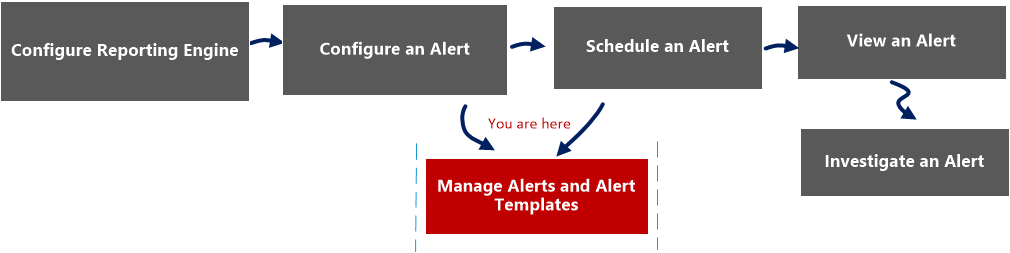
Workflow
netwitness_alertlist_view_workflow.png

What do you want to do?


  • Role:

    Administrator/ Analyst

  • I want to...:

    Configure an alert

  • Documentation:

    Configure an Alert


  • Role:

    Administrator/ Analyst

  • I want to...: Schedule an alert
  • Documentation: Schedule an Alert

  • Role:

    Administrator/ Analyst

  • I want to...:

    View an alert

  • Documentation:

    View an Alert


  • Role: Administrator/ Analyst
  • I want to...: Investigate an alert
  • Documentation: Investigate an Alert


*You can complete these tasks here.

Related Topics

Alerting Overview

Quick View

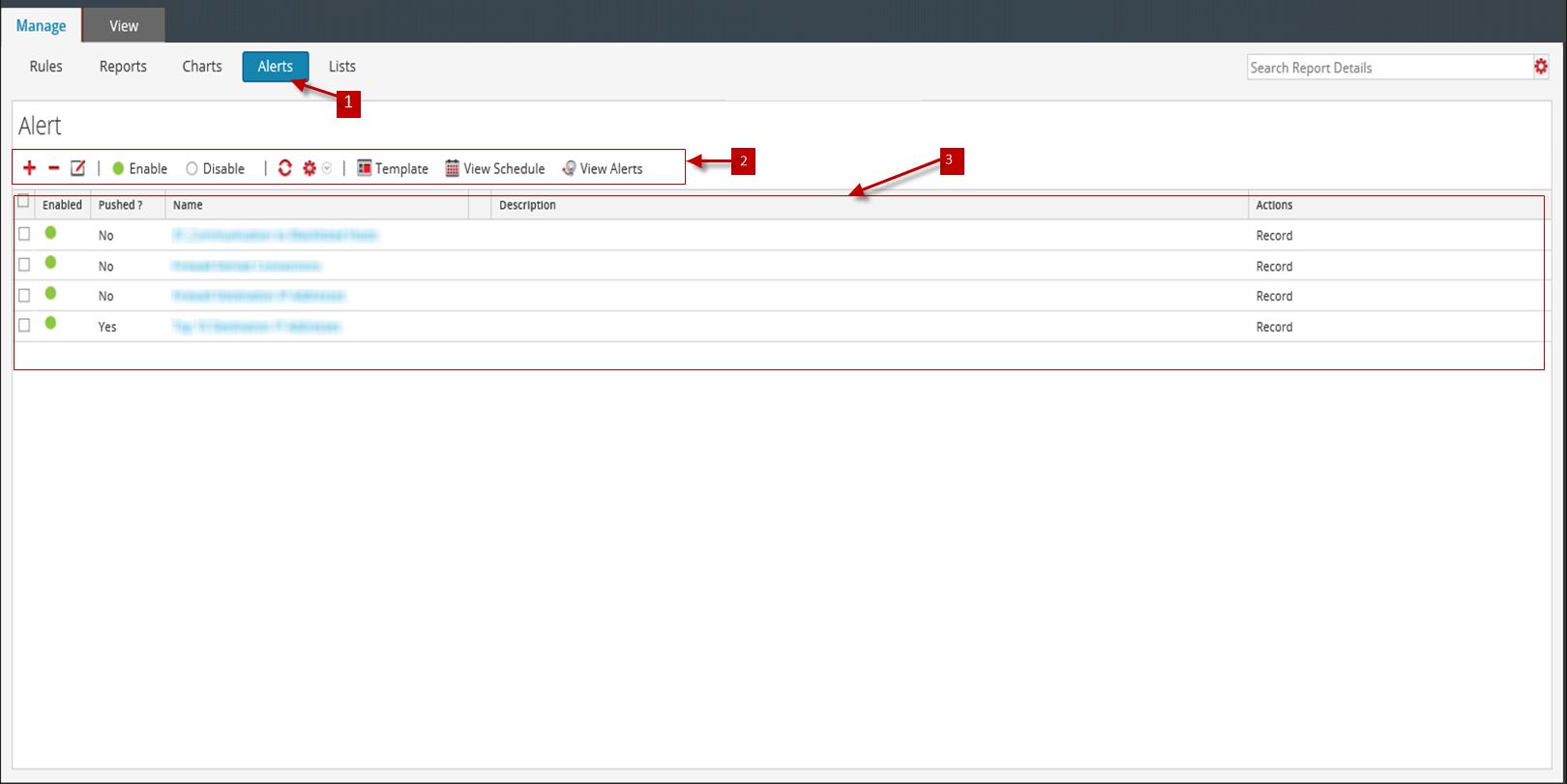
The following figure is an example with the important features labeled.
alert_list_pane1.png

  • Column 1: 1
  • Column 2: Click Alerts to open the Alert view.

  • Column 1: 2
  • Column 2:

    The Alert toolbar allows you to add, modify, delete, enable, disable, refresh, import, and export an alert. Using this toolbar, you can also set access permissions for the selected alert.


  • Column 1: 3
  • Column 2: The Alert panel lists all the alerts in a tabular format.

The Alerts List view has the following panels:

  • Alert Toolbar
  • Alert

Alert Toolbar

The Alert toolbar panel has the following features:

  • Feature: netwitness_add_17x17.png
  • Description: Adds a new alert to the Reporting module.

  • Feature: netwitness_delete.png
  • Description: Deletes one or more selected alerts.

  • Feature: netwitness_edit_icon.png
  • Description: Edits an alert.

  • Feature: Enable
  • Description: Enables the selected alerts.

  • Feature: Disable
  • Description: Disables the selected alerts.

  • Feature: netwitness_refresh.png
  • Description: Refreshes the view.

  • Feature: netwitness_options_button.png
  • Description: Enables the following options: Import, Export and Permissions.

Alert

The Alert panel lists all the alerts in a tabular format. The following table lists the columns in the Alert panel and their descriptions.

  • Feature: Enabled
  • Description:

    Displays the state of the alert:

    • Enabled - the alert is active and fires based on the rule assigned to it.
    • Disabled - the alert is not active.

  • Feature: Name
  • Description: Identifies the name of the alert. Clicking the alert name displays the rule on which this alert is based in the Define Rules panel.

  • Feature: Description
  • Description:

    Indicates the alert description.


  • Feature: Actions
  • Description:

    Indicates the action the system takes when the alert fires. The different available action types are as follows:

    • Record
    • SMTP
    • SNMP
    • Syslog