.png?width=180&height=32&name=NW%20Logo%20(2).png)
Alert Permissions Dialog
In the Alert Permissions dialog, the users with 'Read & Write' access permission can set access permissions for an alert to configure permissions in the Alert Permissions dialog.
Workflow
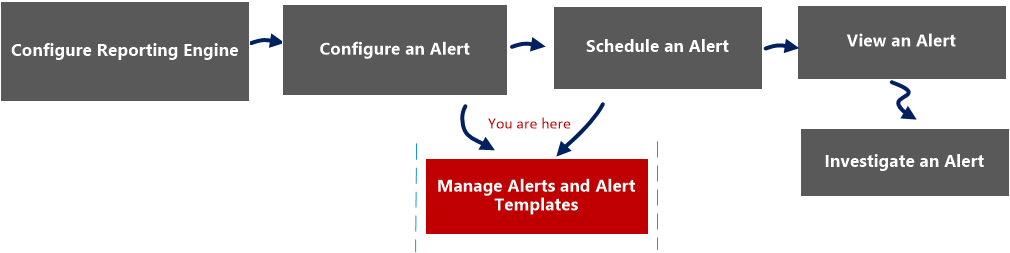
What do you want to do?
- Role:
Administrator/ Analyst
- I want to...:
Configure Reporting Engine
- Documentation:
- Role:
Administrator/ Analyst
- I want to...:
Configure an alert
- Documentation:
- Role:
Administrator/ Analyst
- I want to...: Schedule an alert
- Documentation: Schedule an Alert
- Role:
Administrator/ Analyst
- I want to...:
View an alert
- Documentation:
- Role: Administrator/ Analyst
- I want to...: Investigate an alert
- Documentation: Investigate an Alert
- Role: Administrator/ Analyst
- I want to...: Manage an alert and alert template*
- Documentation: Manage an Alert and Alert Template
*You can complete these tasks here.
Related Topics
Quick View
The Alert permissions dialog allows you to set alert permissions depending on the user role.
The following figure is an example with the important features labeled.
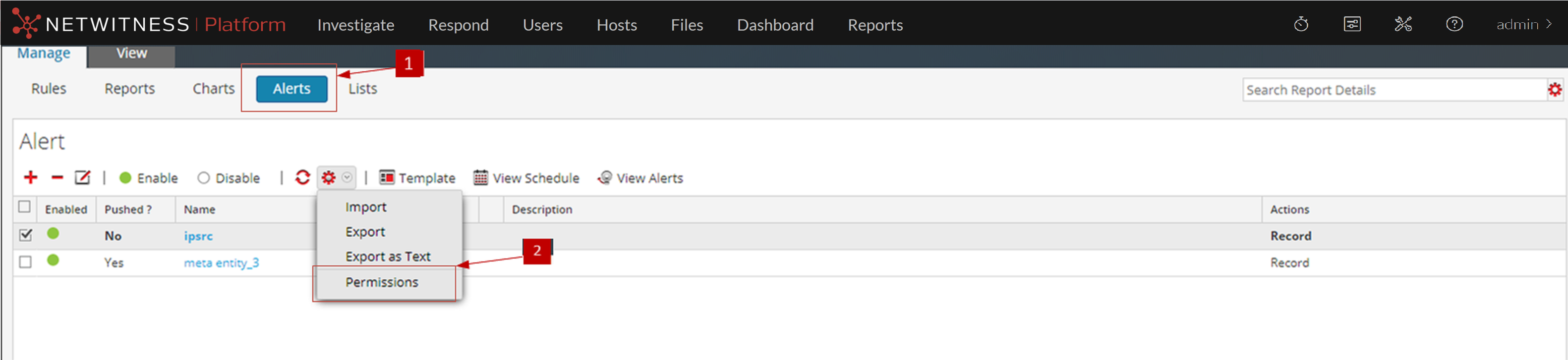
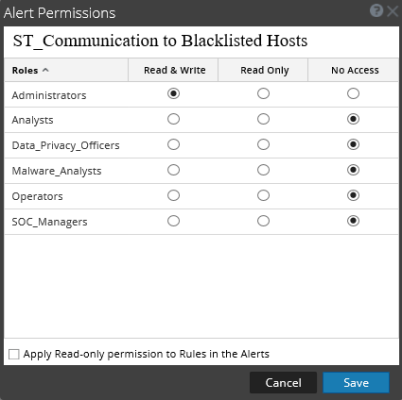
- Column 1: 1
- Column 2: Click Alerts to open the Alert view.
- Column 1: 2
- Column 2:
Click
 > Permissions. The Alert Permissions dialog box is displayed.
- Column 1: 3
- Column 2: Based on the user role, select the appropriate options.
- Column 1: 4
- Column 2: (Optional) Select the checkbox if you want to automatically provide read access permission to dependent rules.
- Column 1: 5
- Column 2: Click Save.
Note: If a User (other than a super user) creates an alert, super users will not be able to access the alert.
The following table lists the columns in the Alert Permissions dialog.
- Column 1: Column
- Column 2: Description
- Column 1: Roles
- Column 2: Displays all the user roles in the NetWitness user interface.
- Column 1:
Read & Write
- Column 2:
Allows you to apply 'Read&Write' access to the alert.
- Column 1: Read Only
- Column 2: Allows you to apply only 'Read' access to the alert.
- Column 1:
No Access
- Column 2:
By selecting this permission, you cannot access or view the alert.
- Column 1:
 Apply Read-only permission to Rules in the Alerts
 - Column 2: Allows you to automatically apply permissions to the rules in the alerts.
- Column 1:
Cancel
- Column 2:
Cancels all the changes made to the permissions.
- Column 1: Save
- Column 2: Saves the selection and provides access to the role based on the selection.