.png?width=180&height=32&name=NW%20Logo%20(2).png)
Tags: Documentation, Version 11.7, Version 12.0, Version 12.1
The Alerts tab displays details about all alerts in your environment. You can view forensic information about suspicious activity in your environment that is based on a specific timeframe.
Workflow
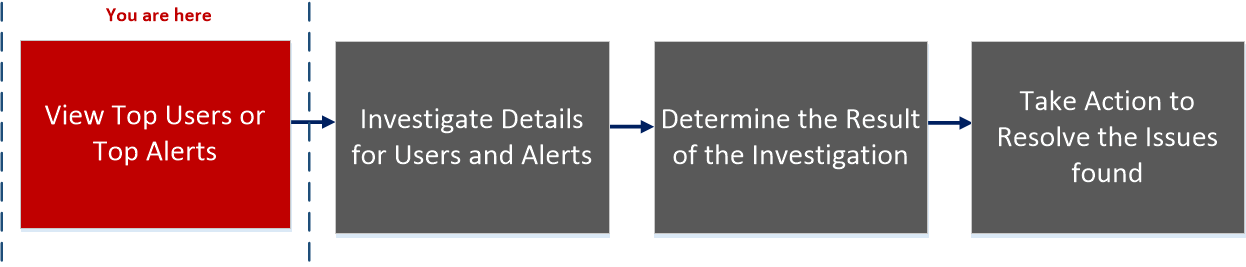
What do you want to do?
*You can complete the tasks here.
Related Topics
Quick Look
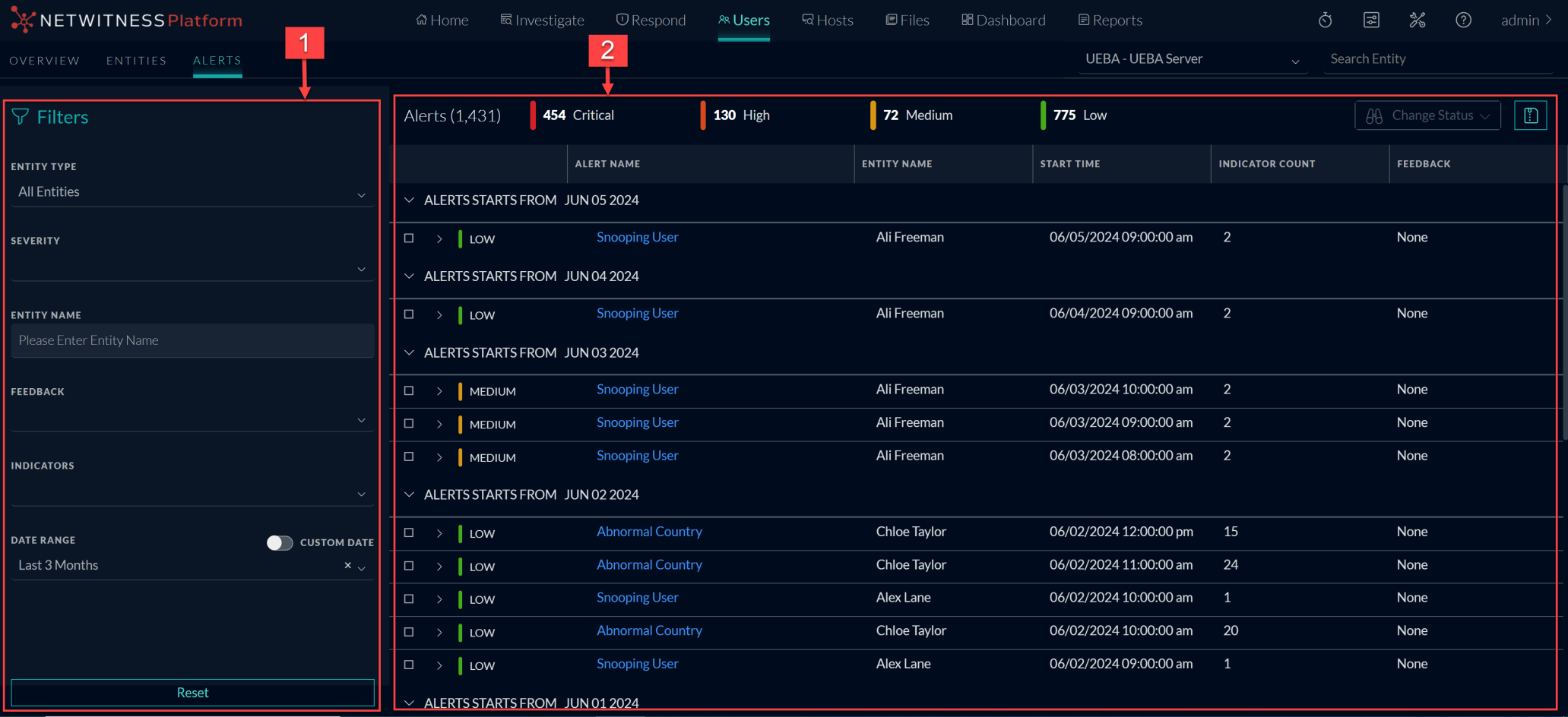
The Alerts tab consists of the following panels:
Filters Panel
Use the filters panel to refine your investigation of alerts. The filters are automatically applied as you make your selections. You can reset all currently set filters by clicking Reset.
The following table describes the filters types.
Alerts Panel
The Alerts panel displays the following information for each alert:
- Severity Icon: An icon next to the alert name that indicates the severity level of the alert.
- Alert Name: The name of the alert and the alert timeframe.
- Entity Name: The name of the entity that generated the alert.
- Start Time: The date and time when this alert was first detected.
- Indicator Count: The number of unique behavior anomalies (indicators) associated with the alert.
- Feedback: Indicates if a feedback value assigned for the alert.
At the beginning of each alert line is an arrow that expands the alert to display additional details. When you expand, the following fields are displayed:
- Indicator Name – The name of each unique indicator that is associated with the alert.
- Anomaly Value – The indicator’s value, representing the deviation amount or value as it differs from the user’s normal behavior.
- Data Source – The type of data where the indicator was found.
- Start Time – The date and time when this indicator was first detected.
The data that is currently displayed in the central pane can be exported to a .csv file by clicking Export at the top right of the pane.