.png?width=180&height=32&name=NW%20Logo%20(2).png)
Tags: 2:00 PM in 12-hour time is 14:00 in 24-hour time.<, li><, ol>
Changes in the Investigate and Respond views become effective immediately.<, p> <, ol>
Note: <, strong><, span><, span>When Daylight Saving Time (DST) starts or ends
select the opening view that you would like to see when you log in to NetWitness. You can choose Home Page, Springboard, Investigate, Respond, Users, Hosts, Files, Dashboard, Reports, Configure, and Admin, and according to your user role. For example, you can choose Respond to go directly to the relevant section of the application for Incident Responders. For more information, see Setting Up Your Default View by SOC Role to help you select the appropriate default view.This selection sets the default view for the entire application. The changes take effect immediately.
Select the Default Investigate View
- Open the User Preferences dialog.
- In the Default Investigate View field, select the default landing page when you log in to NetWitness and navigate to Investigate. You can choose Navigate, Legacy Events (if enabled), Events (formerly Event Analysis), or Malware Analysis as the default Investigate view. For example, you can choose Events for the default Investigate view to go directly to the Events view to see the events generated for a service. See Setting Up Your Default View by SOC Role to help you select the appropriate default view. For more information, see the NetWitness Investigate User Guide.
Note: After you have applied the change in the drop-down, sometimes it takes few seconds for the changes to take effect.
Choose the Appearance of NetWitness Platform
You can choose a dark theme or a light theme for your application, depending on your personal preference. When you change the theme, the Respond view and some Investigate views change to the light or dark theme. Your selection only changes how NetWitness appears to you, not other users.
- Open the User Preferences dialog.
- Under Theme, select one of the following options:
- Dark: The dark theme is best for darker environments or when you do not need as much contrast.
- Light: The light theme is best for lighter environments, when you need more contrast, or when you are projecting the application for others to view. Since some views are not affected by the theme changes, you may want to choose the light theme for a more cohesive viewing experience.
Changes become effective immediately.
The following figure shows the dark theme.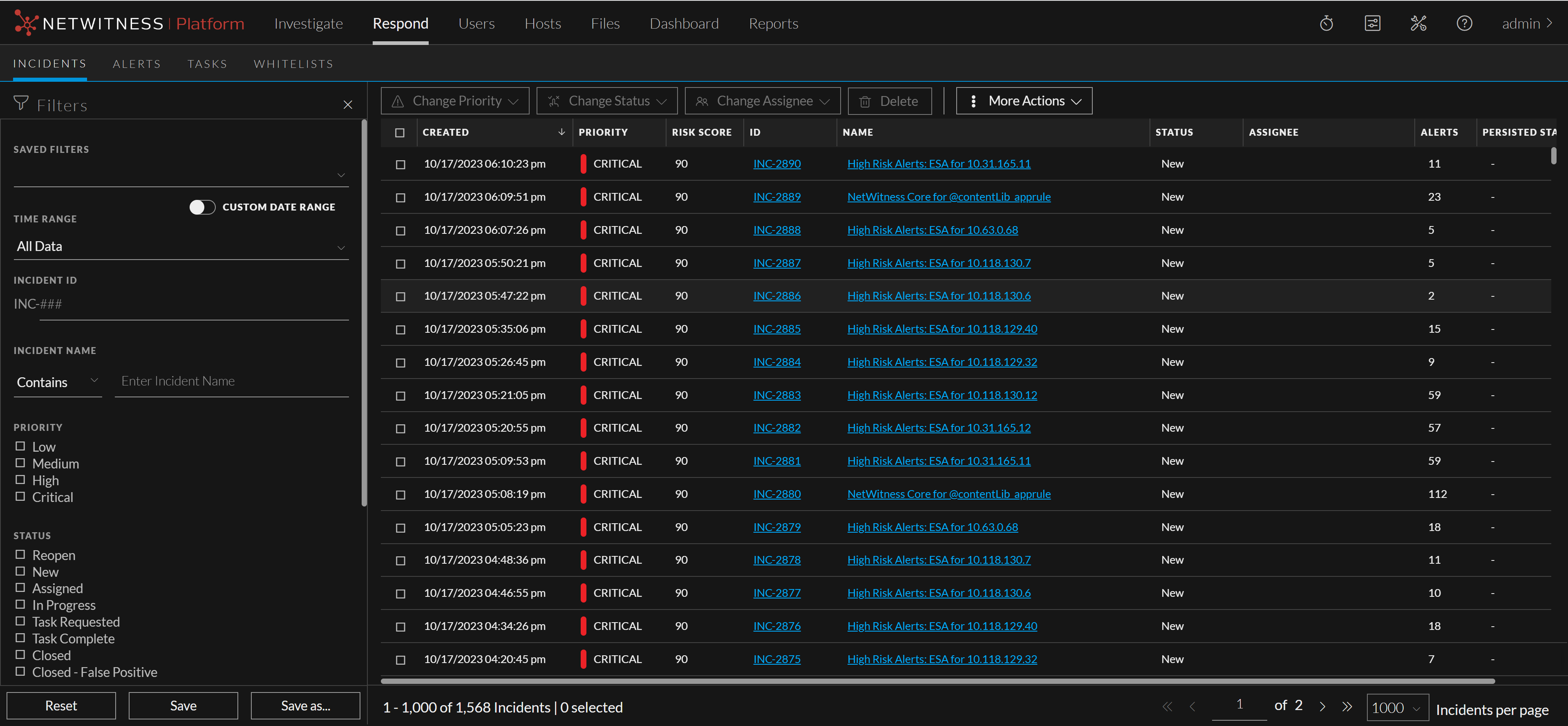
The following figure shows the light theme.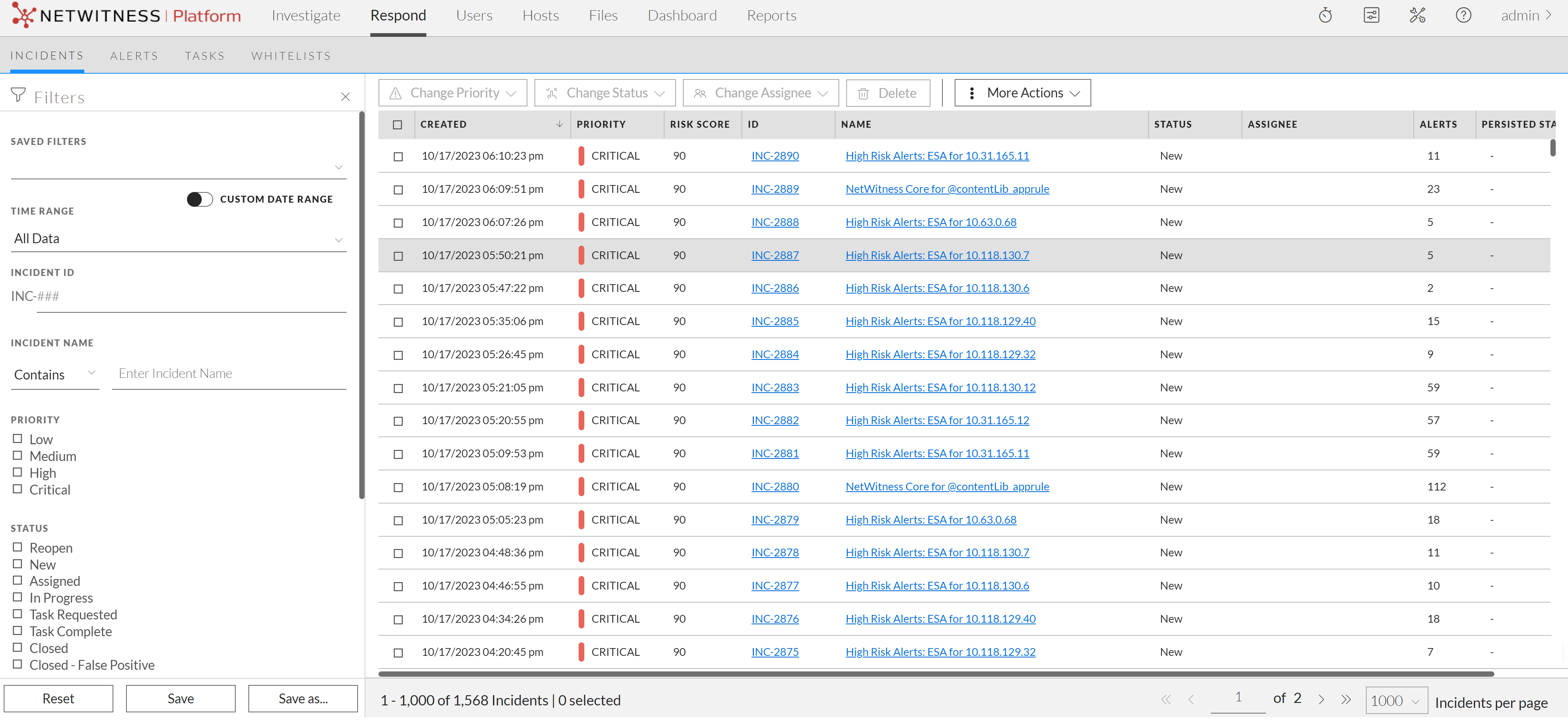
Attachments:
if the selected time zone for the currently logged in user observes DST