.png?width=180&height=32&name=NW%20Logo%20(2).png)
Issue
Some reasons to boot into Single-User mode- Reset a forgotten root password.
- Repair OS file system.
- Fix an /etc/fstab entry.
- Disable a service.
Single user mode is also seen as maintenance or emergency mode.
Resolution
Access the NetWitness appliance using the Console that is attached to the appliance, or over the configured iDRAC interface.Reboot or power on the appliance.
After the BIOS and RAID controller checks, when the CentOS kernel boot starts to display the Grub Menu screen.
Press the down arrow to pause on the Grub Menu screen.

There should be one of more CentOS Linux kernel versions that can be selected.
Select by selecting a CentOS Linux kernel version and enter "e" to edit the kernel boot parameters for that kernel version.
Enter the root login and password. Grub password is "netwitness" (without quotation-marks).

Edit the kernel boot parameters using either of the 2 below methods (where Method 1 seems easier).
Method 1:
Use the down arrow key to scroll through the lines of the kernel boot parameters.
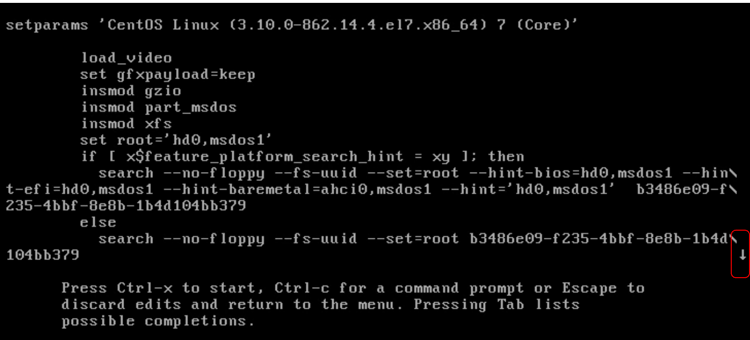
Look for the line that starts with "linux16", and with the cursor on this line press [End] to go to the end of the line.
Change the parameter "rd.shell=0" at the end of the line to "rd.break".

Press [Ctrl]-x to boot the kernel with this change, and it should boot to the switch_root prompt.

Remount the /sysroot in "rw" mode, and set the mount /sysroot as the root (/) directory.
mount -o remount,rw /sysroot
chroot /sysroot
chroot /sysroot
Or Method 2:
Use the down arrow key to scroll through the lines of the kernel boot parameter. Look for the line that starts with "linux16", and with the cursor on this line, use the arrow keys to move on the line.
Change the parameter "ro" in the middle of the line to "rw init=/sysroot/bin/bash".
Press [End] to go to the end of the line and remove the parameter "rd.shell=0" at the end of the line.
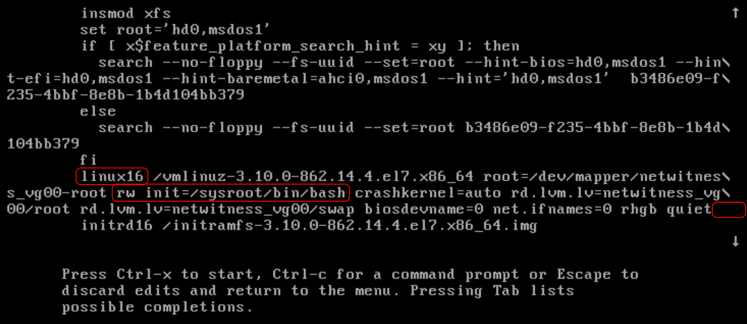
Press [Ctrl]-x to boot the kernel with this change, and it should boot to the bash prompt.

Set the mount /sysroot as the root (/) directory.
chroot /sysroot
The NetWitness appliance is now in Single user/maintenance/emergency mode.
Notes
For more verbose output during the kernel boot also remove the parameters "rhgb quiet",rhgb (redhat graphical boot) = This is a GUI mode booting screen with most of the information hidden whilst displaying a rotating activity icon spinning and shows only brief information as to what the computer is doing.
quiet = Hides the majority of the boot messages before rhgb starts.
For additional reference see Red Hat article, 26.10. Terminal Menu Editing During Boot
Product Details
RSA Product Set: NetWitness PlatformRSA Product/Service Type: NetWitness appliance
RSA Version/Condition: 11.x
O/S Version: CentOS 7
Summary
How to boot in CentOS 7 kernel Single User Mode?
Approval Reviewer Queue
Technical approval queue