Skip to content
  • There are no suggestions because the search field is empty.

Build List View

Build List ViewBuild List View

In the Build List view, you can enter or import values to create a list and save or reset the values. You can use lists when you are writing reporting rules to simplify the process of specifying values in the rule.

Workflow

This workflow shows the procedure to define lists or list groups. You can set access control at the list or list group level so that only users with specific roles can access the lists.

You must ensure that Reporting Engine is configured on the NetWitness.
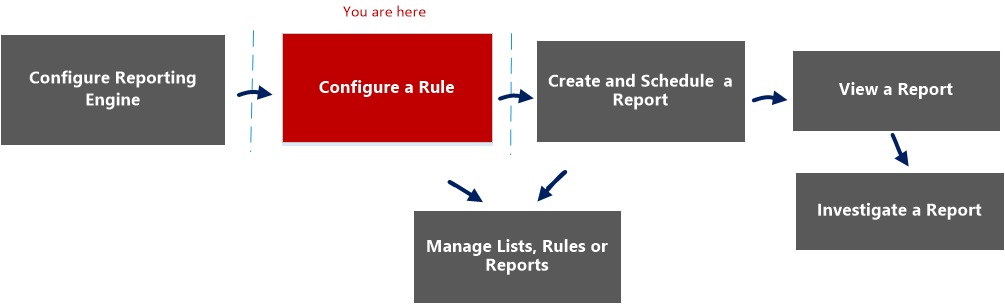
netwitness_confrule_workflow.png

What do you want to do?

  • Role: Administrator / Analyst
  • I want to ...:

    Configure Reporting Engine

  • Show me how:

    For more information, see "Step 3: Configure Reporting Engine Data Sources" topic in the Reporting Engine Configuration Guide


  • Role: Administrator / Analyst
  • I want to ...: Create a List or List Group/Create or Deploy a Rule/Test a Rule*
  • Show me how: Configure a Rule


  • Role: Administrator / Analyst
  • I want to ...: View a report or list of all reports
  • Show me how: View a Report

  • Role: Administrator / Analyst
  • I want to ...: Investigate a Report
  • Show me how: Investigate a Report


*You can complete these tasks here.

Related Topics

Quick View

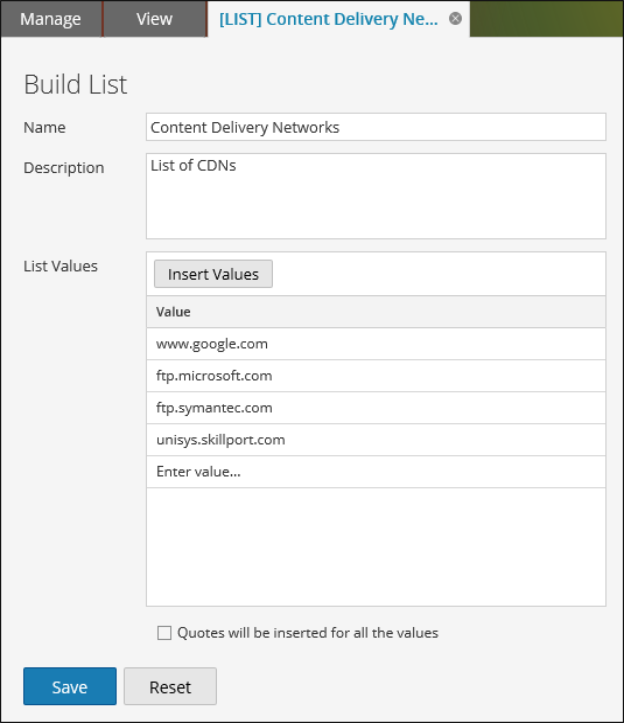
The following figure shows the Build List View.
netwitness_build_list_view_624x723.png

To access this view

  1. Go to Reports.

    The Manage tab is displayed.

  2. Click Lists.

    The Lists view is displayed.

  3. In the Lists toolbar, click netwitness_110_run_config_add.png.

    The Build List tab is displayed.

The following table describes the features in the Build List view.

  • Feature: Name
  • Description: Identifies and labels the list.

  • Feature: Description
  • Description: Provides a short description for the list.

  • Feature: List Values
  • Description: Provides the grid of values associated with selected list from the List Library panel. You can import these values from a file or list. You can also enter values manually.

  • Feature: Quotes will be inserted for all the values
  • Description: Automatically includes quotes for the values at runtime if checkbox is selected. If the checkbox is not selected and if a value in the list contains a comma, then that value has to be enclosed within single quotes. This syntax does not apply to list values for an NWDB rule.

  • Feature: Save
  • Description: Saves the rule which can be used to create a report, a chart or an alert.

  • Feature: Reset
  • Description: Deletes all the information from the fields.