Centralized Service Configuration - Groups Tab
Centralized Service Configuration – Groups Tab
Note: The information in this topic applies to NetWitness Platform Version 11.7 and Later.
The
(Configure) > Policies view contains two tabs: Groups and Policies.
Workflow
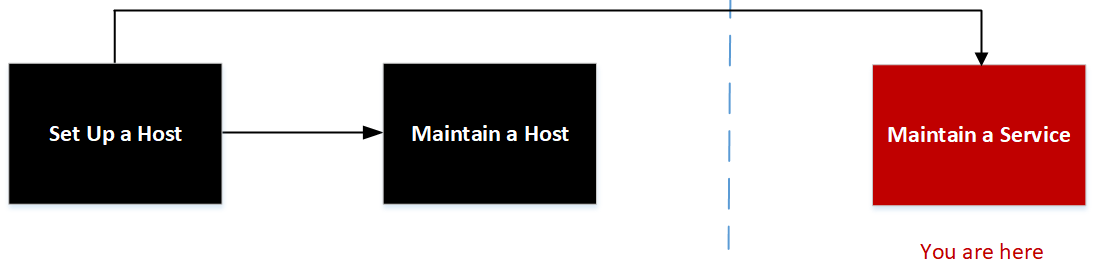
What do you want to do?
- User Role: Administrator
- I want to...: set up a host.
- Documentation:
- User Role: Administrator
- I want to...: maintain a host.
- Documentation: Maintaining Hosts
- User Role:
Administrator
- I want to...: maintain a service.
- Documentation:
- User Role: Administrator
- I want to...: Centrally Create and Maintain Service Groups.*
- Documentation:
* You can perform these tasks in the current view.
Related Topics:
Quick Look
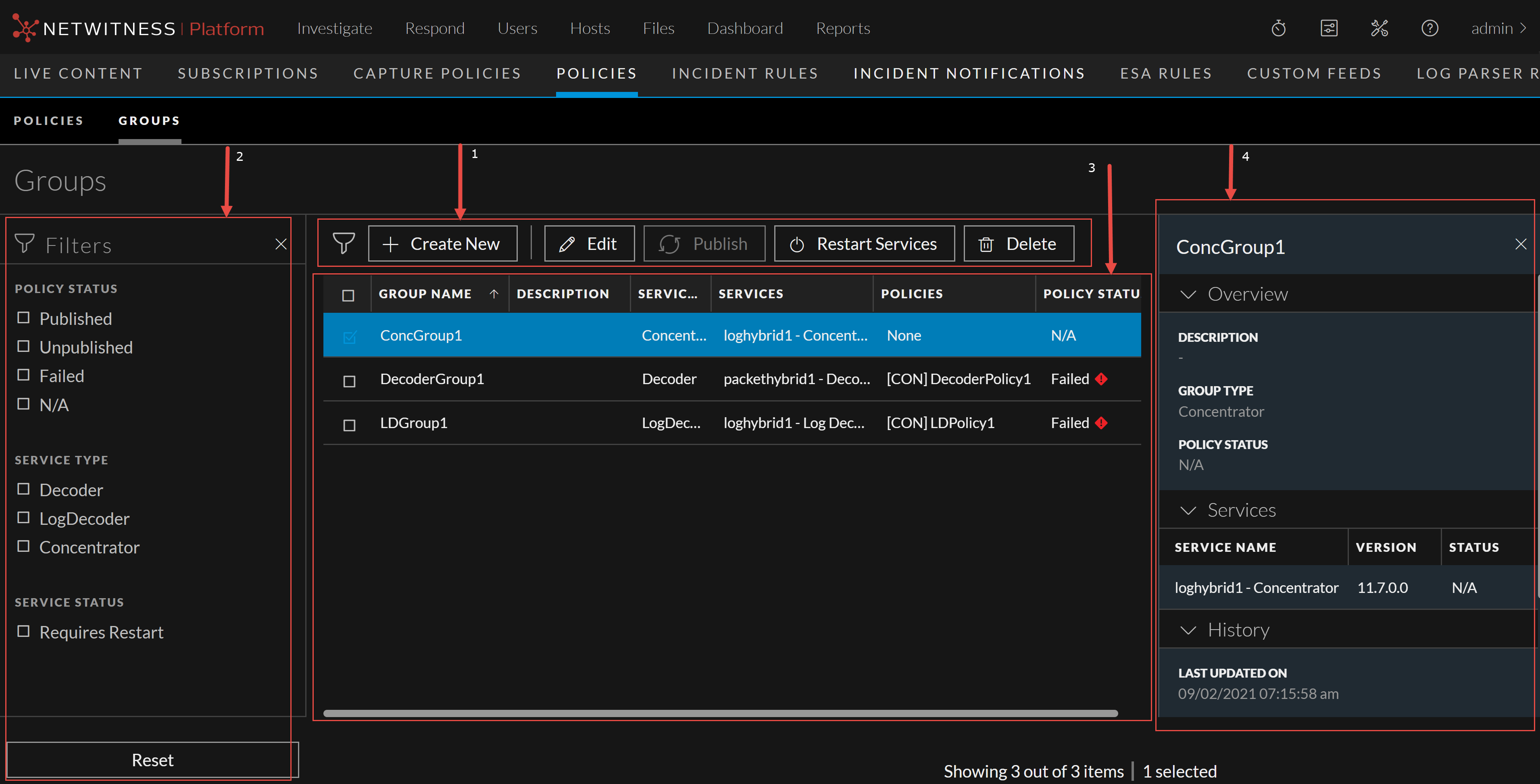
Below is an example of the Groups tab:
The following table describes the Groups tab.
- Column 1: 1
- Column 2:
Toolbar
-
Create New- Lets you create a new group. For more information, see "Create a Group" in the Centralized Service Configuration via Policy.
-
Edit – Lets you edit the group. For more information, see "Managing Policies and Groups" in the Centralized Service Configuration via Policy.
-
Publish – Publishes selected groups.
-
Restart Services – Restarts the service associated with the selected group. This option is disable if:
-
There are no services in the group.
-
No service restart is required.
-
-
Delete- Deletes the selected groups.
-
- Column 1: 2
- Column 2:
Filter Pane
-
Filters: You can filter groups based on Policy Type and Policy Status, Service Type and Service Status.
To hide, click the
icon at the top-right of the panel. To display if hidden, click the
icon in the toolbar. - Reset: Removes the currently applied filter criteria.
For more information, see "Filter Groups" in the Centralized Service Configuration via Policy.
-
- Column 1:
3
- Column 2:
Group List Pane
-
Group Name – Name of the group.
-
Description – Description of the group.
-
Service Type – Displays the service type to which the group is applied.
-
Services – Displays the service to the which the group is applied.
-
Policies – Displays the policy to which the group is applied.
-
Policy Status – Status of the policy. The values are: Published, Unpublished, Failed, N/A.
You can also sort on any column. If you mouse over a column header, a sort icon is displayed:
. Click the icon to sort by the selected column. -
- Column 1:
4
- Column 2:
Groups Details Panel
Displays the properties of the selected group.
Note: Click the row to view the Properties panel for a group.
Create Group Dialog
Below is an example of the Create Group dialog.
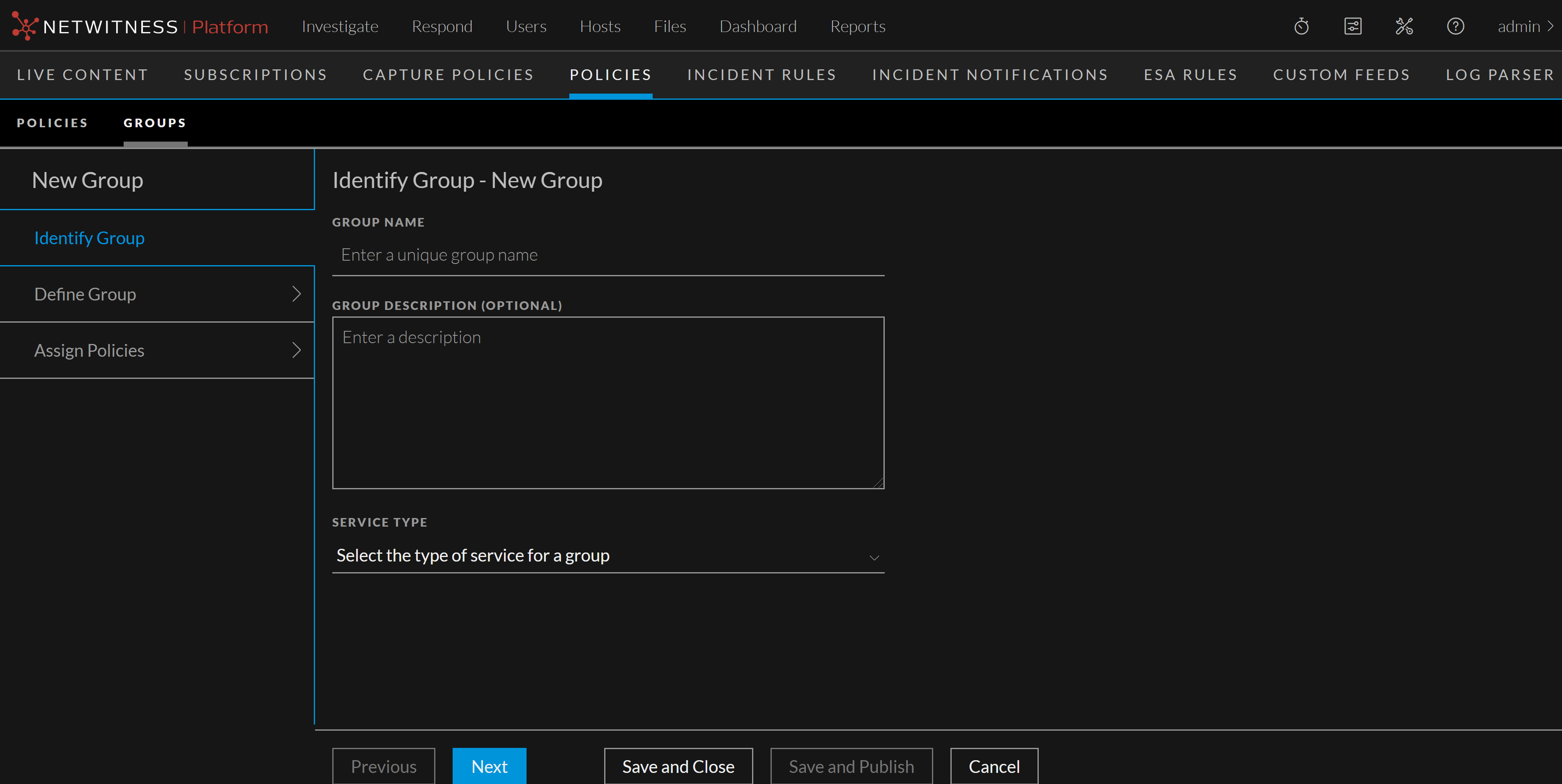
The table describes the information and options in the Create Group dialog.
- Field: Group Name
- Description: Name of the group. The name should be unique.
- Field: Group Description (Optional)
- Description: Description of the group. Description should not exceed 8000 characters.
- Field: Service Type
- Description: Select the type of service for a group. Available options are Log Decoder, Decoder, and Concentrator.
- Field: Save and Close
- Description: Saves the settings and closes the Create Group dialog.
Define Group Dialog
Below is an example of the define group dialog.
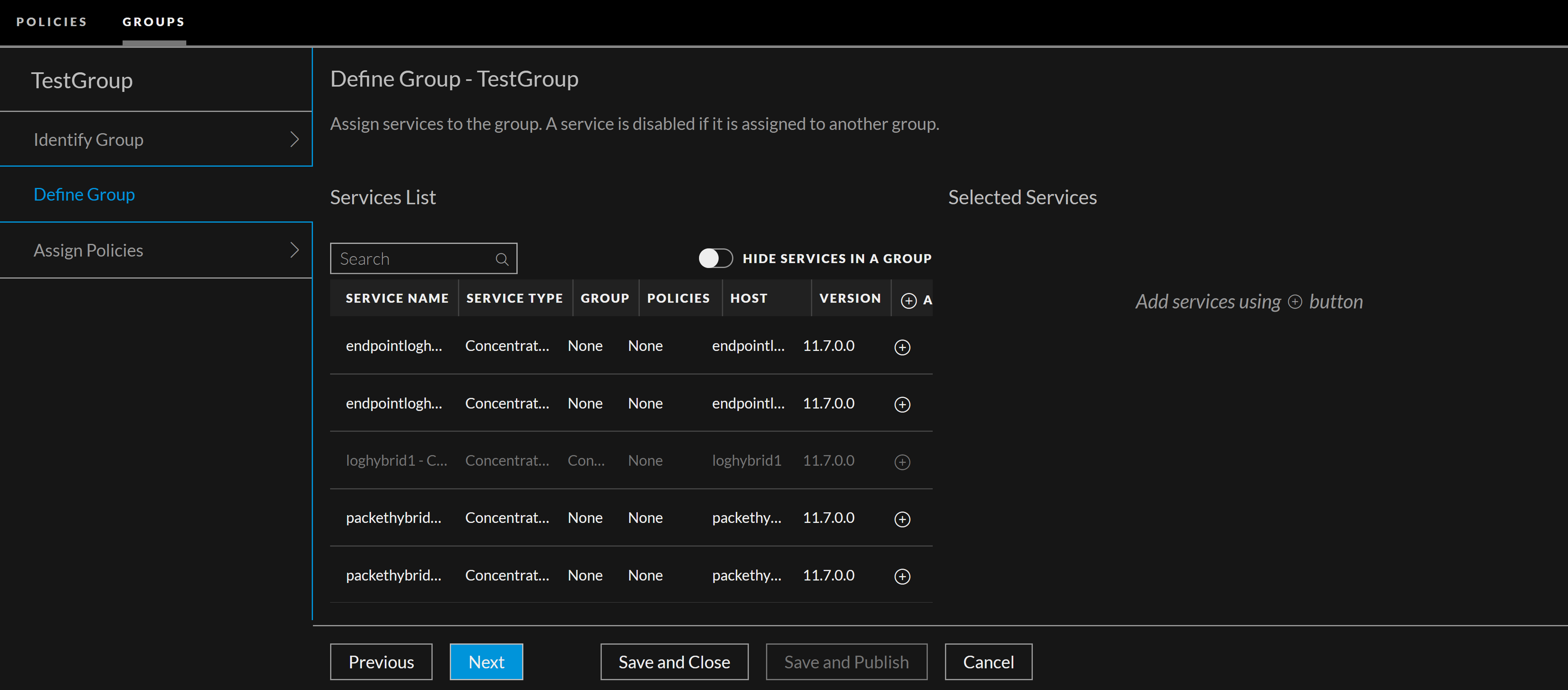
The table describes the information and options in the Define Group dialog.
- Field: Service List
- Description:
Displays the list of services associated with the selected service type.
The following describes services list:
-
Service name – Name of the service.
-
Service type – Displays the service type of the service.
-
Group – Name of the group.
-
Policies – Displays the policies associated with the service.
-
Host – Host name of the service.
-
Version – Service version.
-
All – Lets you to add services to the group. You can either click
to add all services or click
to add specific service.
-
- Field: Hide Services in a Group
- Description: Displays the services that is not assigned to any group. By default, this option is disabled.
- Field: Selected Services
- Description: Displays the list of selected services for the group.
- Field: Save and Close
- Description: Saves the setting and closes the Define Group dialog.
- Field:
Save and Publish
- Description:
Saves and publishes the created group.
Note: This option is disabled if you have not:
- Assigned services
- Assigned policies
Assign Policy Dailog
Below is an example of Assign Policy dialog.
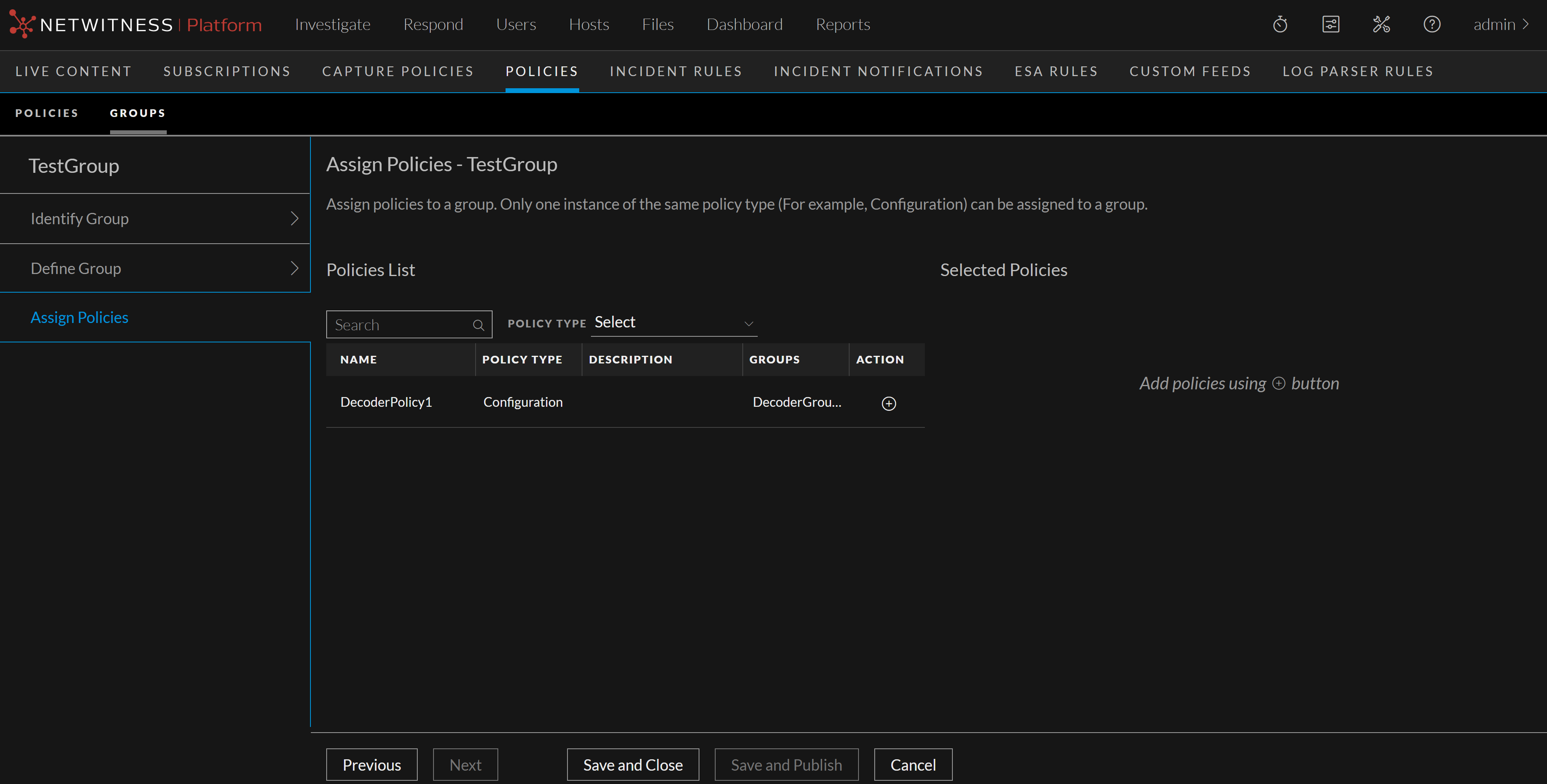
The following table describes assign policy dialog:
- Field: Policies List
- Description:
Displays the list of policies associated with the group. The following describes policies list:
-
Name – Name of the policy.
-
Policy Type – Displays the policy type.
-
Description – Description of the policy.
-
Groups – Groups associated with the policy.
-
Action - Click
to add policies to the group.
-
- Field: Policy Type
- Description: Select the policy type from the drop-down list.
- Field:
Selected Policies
- Description:
Displays the list of selected policies for the group.
- Field: Save and Close
- Description: Saves the settings and closes the Create Group dialog.
- Field: Save and Publish
- Description:
Saves and publishes the created group.
Note: This option is disabled if you have not:
- Assigned services.
- Assigned policies.