Centralized Service Configuration - Policies Tab
Centralized Service Configuration – Policies Tab
Note: The information in this topic applies to NetWitness Platform Version 11.7 and Later.
The
(Configure) > Policies view contains two tabs: Groups and Policies.
Workflow
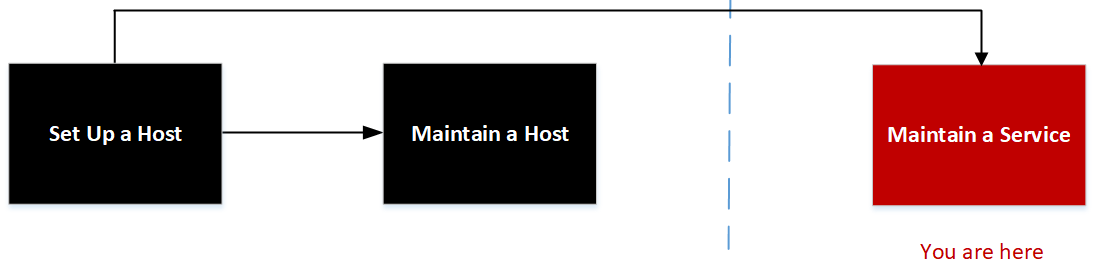
Related Topics:
What do you want to do?
- User Role: Administrator
- I want to...: set up a host.
- Documentation:
- User Role: Administrator
- I want to...: maintain a host.
- Documentation: Maintaining Hosts
- User Role:
Administrator
- I want to...: maintain a service.
- Documentation:
- User Role: Administrator
- I want to...: Centrally Create and Maintain Service Policy.*
- Documentation:
* You can perform these tasks in the current view.
Quick Look
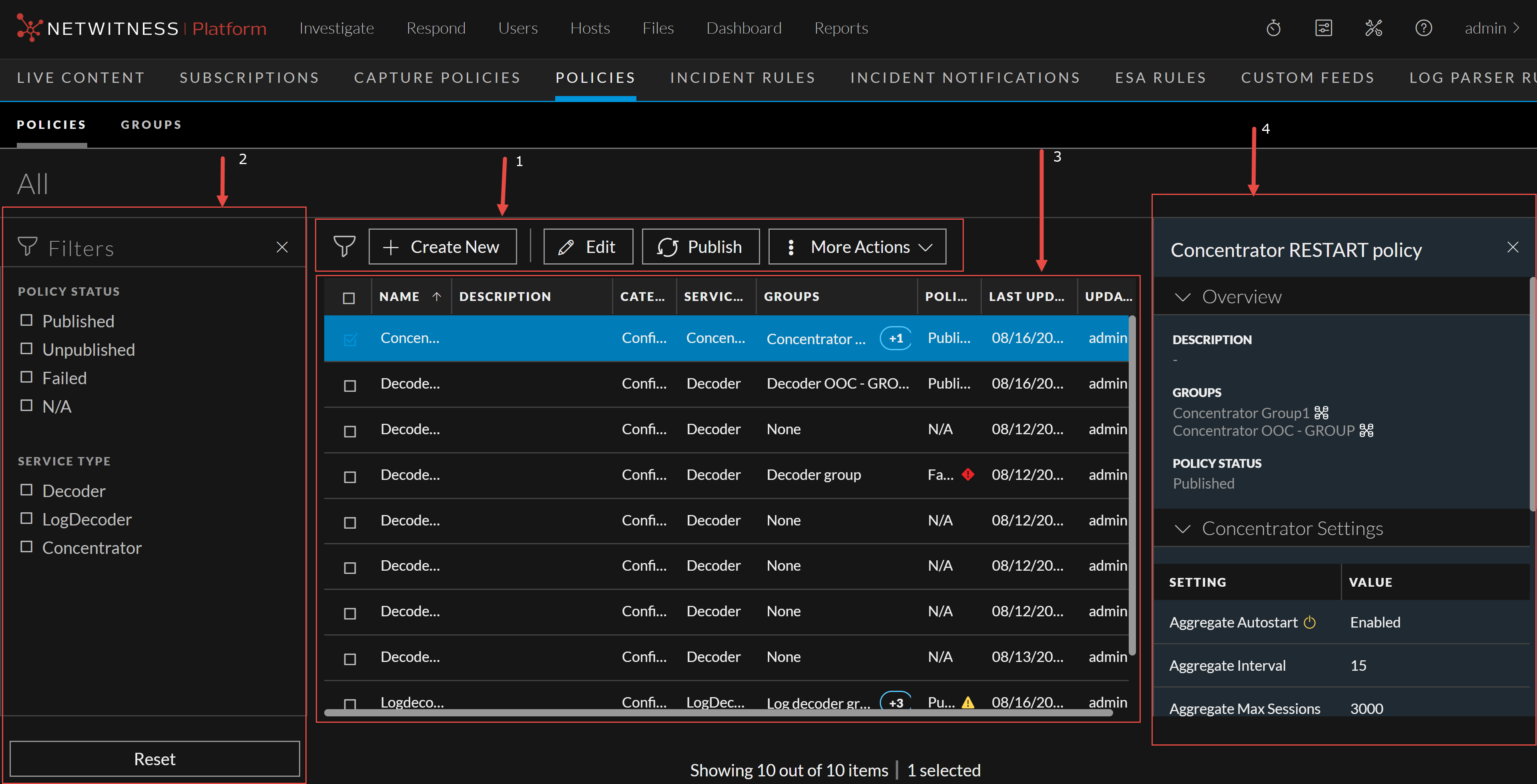
Below is an example of the Policies tab:
- Column 1: 1
- Column 2:
Toolbar
-
Create New- Lets you create a new policy. For more information, see "Create a Policy" in the Centralized Service Configuration via Policy.
-
Edit – Lets you edit the policy. For more information, see "Managing Policies and Groups" in the Centralized Service Configuration via Policy.
-
Publish – Publishes the selected policy or policies.
-
More Actions
-
Assign to Group -Lets you assign policy to a group.
-
Clone – Lets you clone a policy.
-
Revert – Lets you revert to previous policy settings. By default, the revert value is set to 5. You can customize the revert value in Explorer view.
-
Delete - Deletes the selected policy or policies permanently.
-
-
- Column 1: 2
- Column 2:
Filter Pane
-
Filters: You can filter policies based on Policy Type and Policy Status and Service Type.
To hide, click the
icon at the top-right of the panel. To display if hidden, click the
icon in the toolbar. - Reset: Removes the currently applied filter criteria.
For more information, see "Filter Policies" in the Centralized Service Configuration via Policy.
-
- Column 1:
3
- Column 2:
Policy List Pane
Name – Name of the policy.• Description – Description of the policy.
• Category – Type of policies applied.
• Service Type – Displays the service type to which the policy is applied.
• Groups - Lists the group to which this policy is applied.
• Policy Status – Status of the policy. The values are: Published, Unpublished, Failed, N/A.
• Last Updated – Displays the time when the policy is updated.
• Updated By – The user who updated the policy.
You can also sort on any column. If you mouse over a column header, a sort icon is displayed:
. Click the icon to sort by the selected column.
- Column 1:
4
- Column 2:
Policy Details Pane
Displays the properties of the selected policy.
Note: Click the row to view the Properties panel for a policy.
Create Policy
Below is an example of the Create Policy dialog.
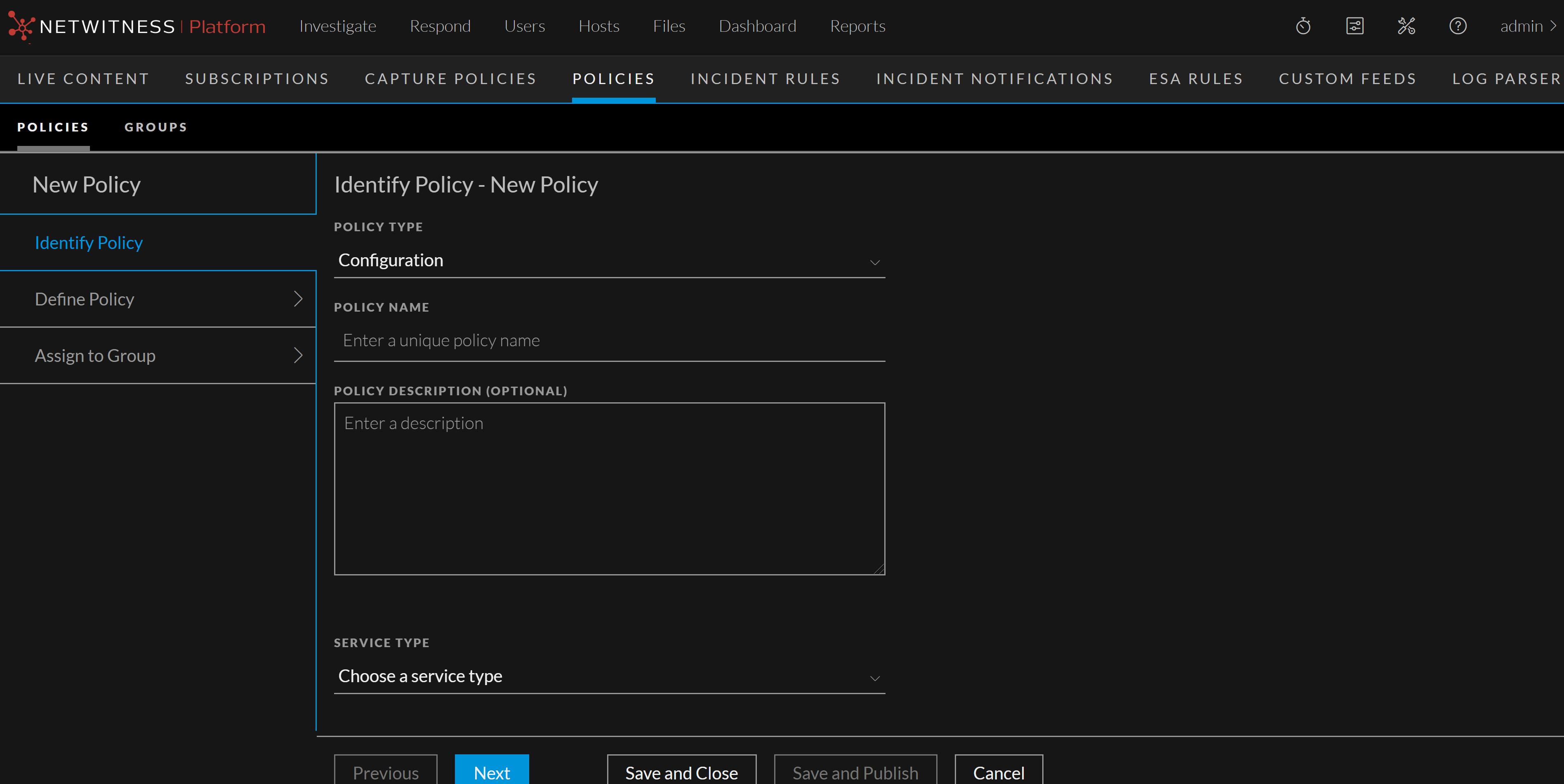
The table describes the information and options in the Create Policy dialog.
- Field: Policy Type
- Description: Displays the policy type.
- Field: Policy Name
- Description: Name of the policy. The name should be unique.
- Field: Policy Description (Optional)
- Description: Description of the policy. Description should not exceed 8000 characters.
- Field: Service Type
- Description: Displays the type of the service. Available options are Log Decoder, Decoder, and Concentrator.
- Field:
(For version 11.7.1 and Later) Clone from Existing Service (Optional)
- Description:
Displays the list of services based on the service type to clone those settings.
- Field:
Save and Close
- Description:
Saves the settings and closes the Create Policy dialog.
Define Policy Settings
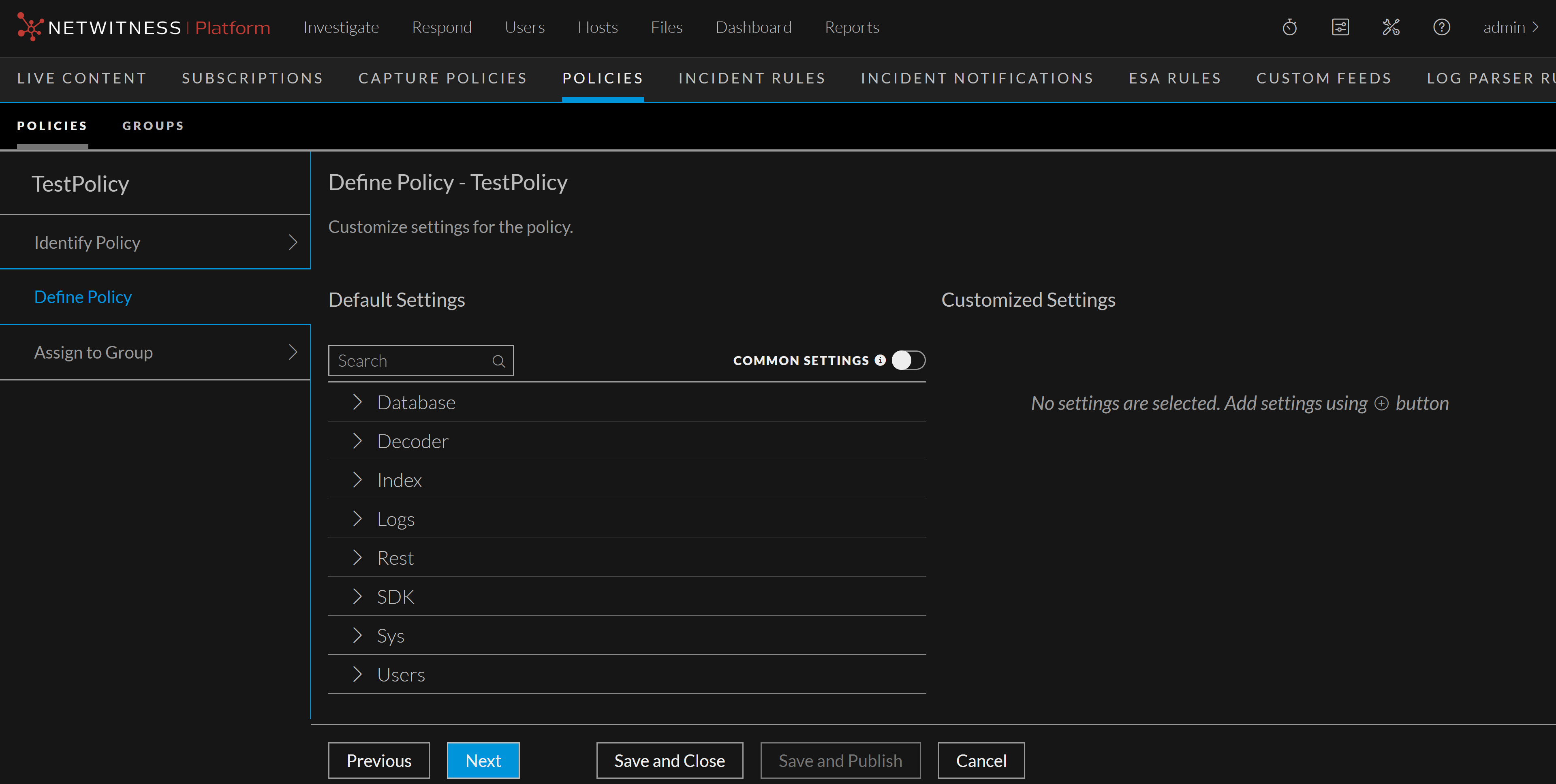
- Field: Default Settings
- Description:
Displays the settings of the service based on the category, for example, Database, Decoder and so on.
Click
to expand the setting category.
The following describes Default settings:
-
Setting- Name of the setting.
-
Value- The settings value.
-
Description- Description of the setting.
-
All – Lets you to select the settings for customization. You can either click
to customize all the settings value or click
on a specific setting
-
- Field: Common Settings
- Description: Displays the common settings of the service. By default, it is disabled.
- Field:
(For version 11.7.1 and Later) 10g Settings
- Description:
Fetches the 10g settings.
- Field: Customized Settings
- Description:
Lists the selected settings for customization. Click
to add the setting.
Update the value based on your requirement.

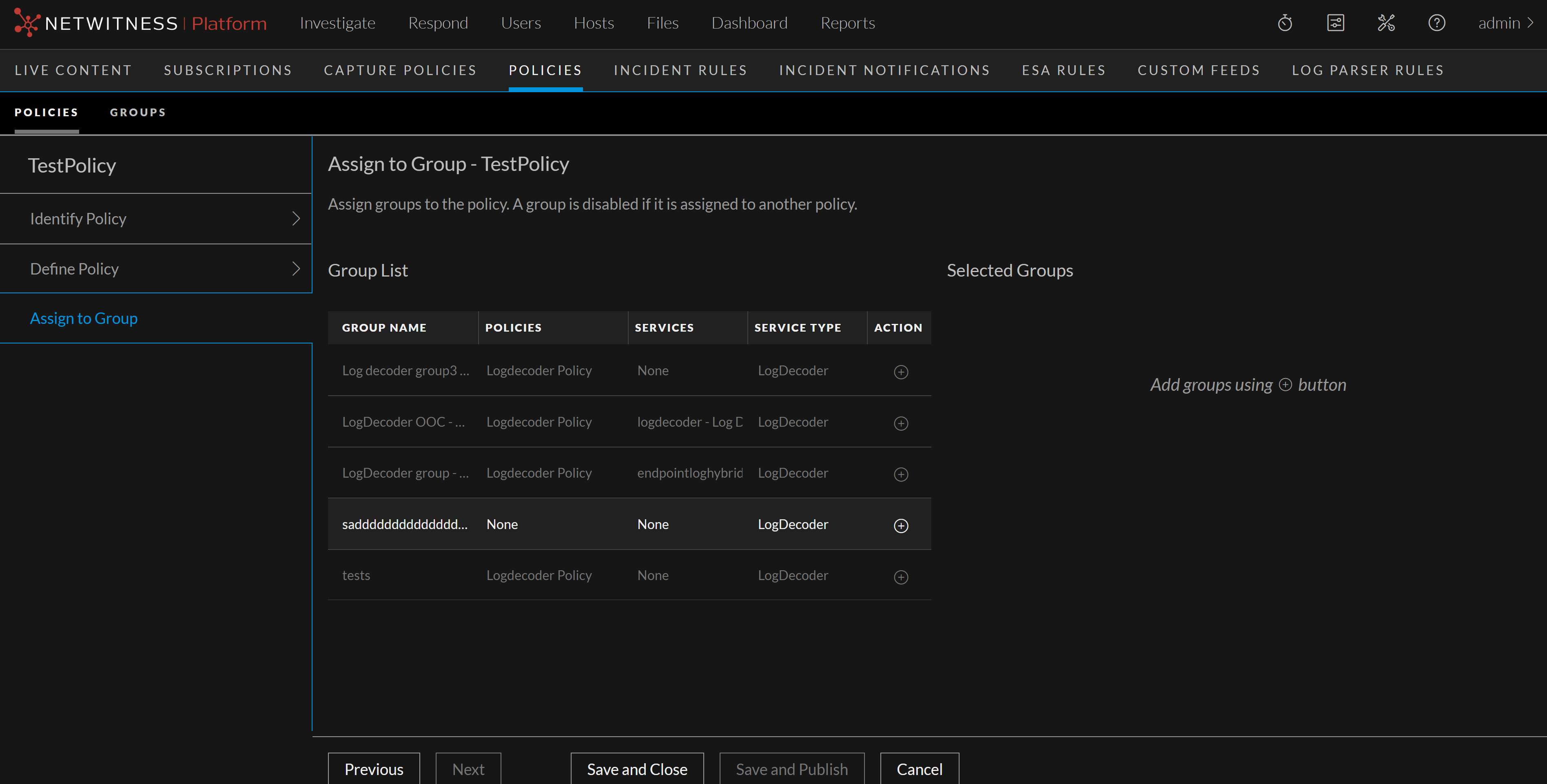
Assign to Group

- Field: Group List
- Description:
Displays the list of group associated with the policy. A group is disabled if it is already assigned to another policy.
-
Group Name
-
Policies
-
Services
-
Service Type
-
Action
-
- Field: Selected Group
- Description: Lists the selected groups. Click
to add groups.
- Field: Save and Close
- Description: Saves the settings and closes the Assign to Group dialog.
- Field: Save and Publish
- Description:
Saves and publishes the created policy.
Note: This option is disabled if:
- Policy settings are not customized.
- Policy is not assigned to groups.