Chart View
Chart View
In the Chart View, you can see the available charts and groups in a grid format and also schedule them by enabling the charts.
Workflow
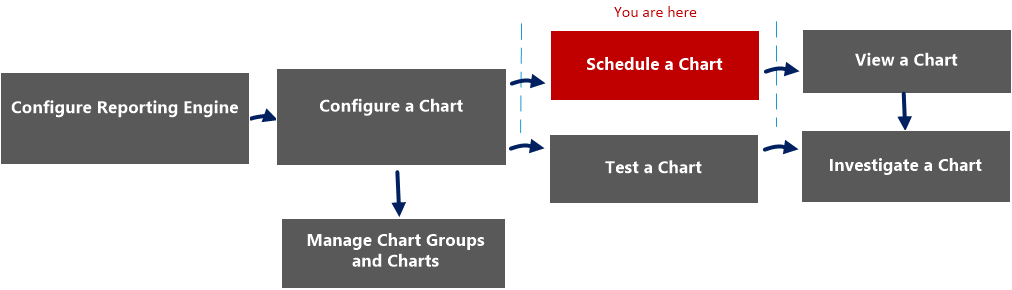
What do you want to do?
- Role:
Administrator/ Analyst
- I want to ...:
Configure Reporting Engine
- Documentation:
For more information, see "Configure Reporting Engine" in the Reporting Engine Configuration Guide.
- Role: Administrator/ Analyst
- I want to ...: Configure a chart
- Documentation: Configure a Chart
- Role:
Administrator/ Analyst
- I want to ...:
Schedule a chart*
- Documentation:
- Role:
Administrator/ Analyst
- I want to ...:
View a chart
- Documentation:
- Role: Administrator/ Analyst
- I want to ...: Test a chart
- Documentation: Test a Chart
- Role: Administrator/ Analyst
- I want to ...: Investigate a chart
- Documentation: Investigate a Chart
- Role: Administrator/ Analyst
- I want to ...: Manage a chart group and chart
- Documentation: Manage a Chart Group and Chart
*You can complete these tasks here.
Related Topics
Quick View
The following figure is an example with the important features labeled.
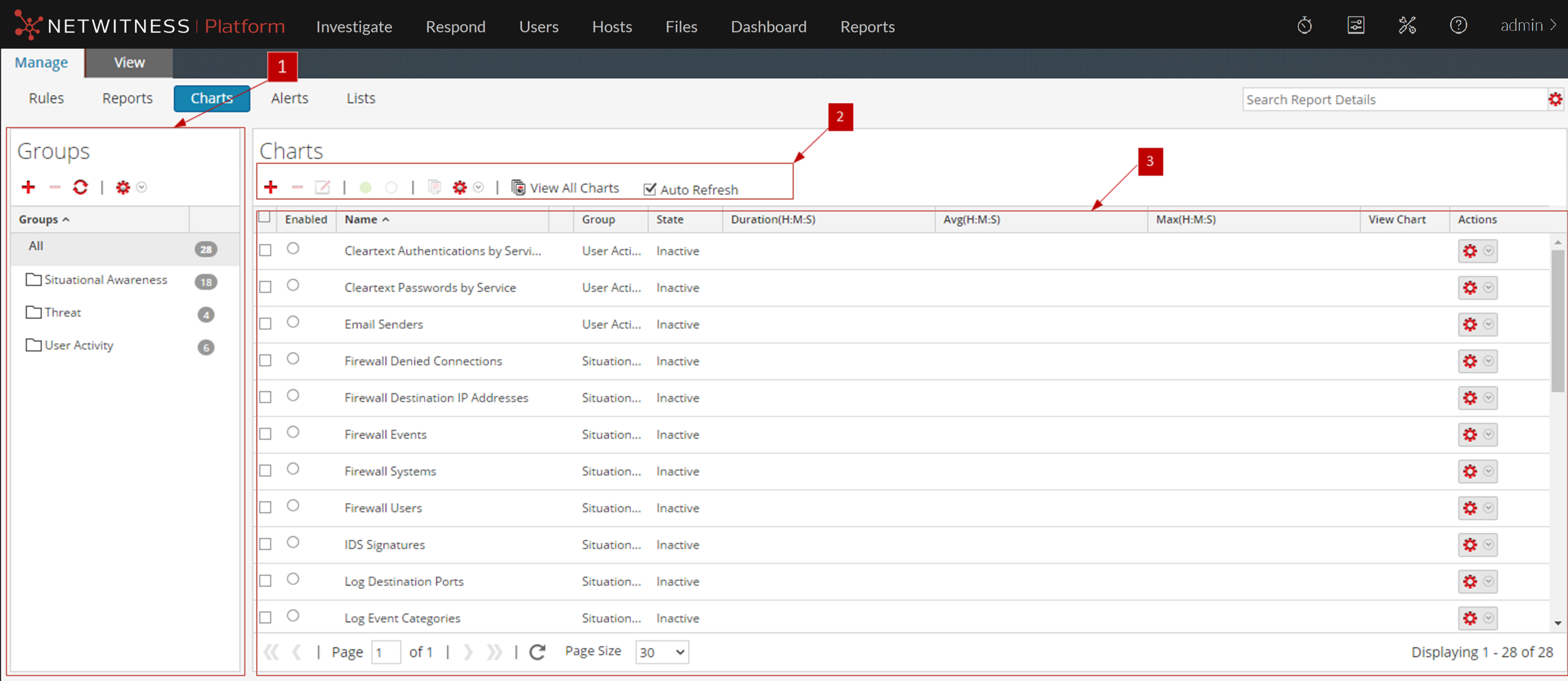
The Chart view includes the following panels:
- Column 1: 1
- Column 2: Charts Groups panel
- Column 1: 2
- Column 2: Charts toolbar
- Column 1: 3
- Column 2: Charts panel
Charts Groups Panel
The Charts Groups panel allows you to organize charts in a group. You can create a group, add charts to the group and move charts among groups. The following figure shows the Charts Groups panel.
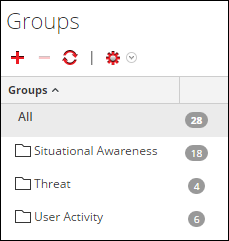
The Charts Groups Panel includes the following options:
- Feature:

- Description: Adds a new chart to the Reporting module.
- Feature:

- Description: Deletes one or more selected charts.
- Feature:

- Description: Edits a chart.
- Feature:

- Description: Refreshes the view.
- Feature:

- Description: Provides the following options: Import, Export and Permissions.
Charts Toolbar
The Charts toolbar allows you to add, modify, delete, duplicate, activate, deactivate, import and export a chart. You can also set access permissions for charts in a group.

The Chart toolbar includes the following options:
- Feature:

- Description: Adds a new chart to the Reporting module.
- Feature:

- Description: Deletes one or more selected charts.
- Feature:

- Description: Edit charts.
- Feature:

- Description: Enables the selected charts.
- Feature:

- Description: Disables the selected charts.
- Feature:

- Description: Creates a duplicate copy of the selected chart.
- Feature:

- Description: Provides the following options: Import, Export, Export as Text and Permissions.
- Feature: View All Charts
- Description: Displays all the executed charts.
- Feature:
Auto Refresh
- Description:
Automatically refreshes the charts list.
- Feature:

- Description: Allows users to filter unused charts.
Charts Panel
The Charts Panel presents all the charts in a tabular or grid format.
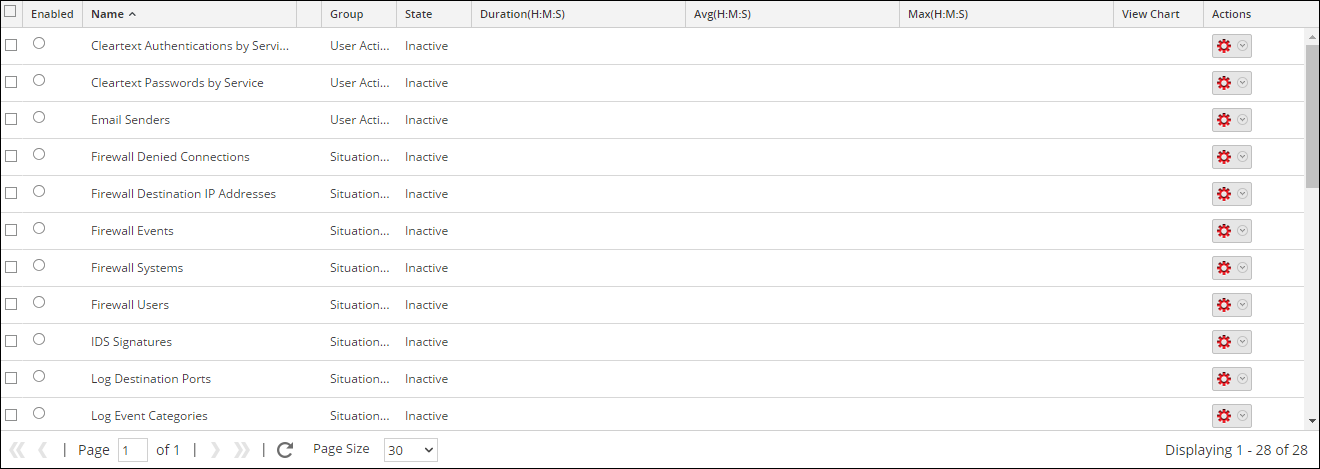
The following table lists the columns in the Chart panel and their description.
- Feature: Enabled
- Description:
- The chart is enabled.
- The chart is disabled.
- Feature: Name
- Description: The name of the chart.
- Feature: Group
- Description: The Chart Group to which the chart belongs.
- Feature: State
- Description: The state of the chart:
- Queued
- Completed
- Failed
- Feature: Duration (H:M:S)
- Description: The time taken to execute the latest chart.
- Feature: Avg(H:M:S)
- Description: The average time taken to run the chart.
- Feature: Max(H:M:S)
- Description: The maximum time taken to run the chart.
- Feature: View Chart
- Description: A hyperlink that redirects to the View a Chart panel.
- Feature:

- Description: The actions menu has the following options: Enable, Disable, View, Delete, Edit, and Export.