.png?width=180&height=32&name=NW%20Logo%20(2).png)
Column Groups Dialogs
Column groups allow you to format the events list to include only the relevant meta keys in the Events view and Legacy Events view (see Use Columns and Column Groups in the Events List). When the events list in Investigate is populated with events, each column lists the values returned for a meta key. Changing the meta keys displayed in the events list is a useful method of narrowing the focus of your investigation. For example, the default column group includes columns for Collection Time, Type, Theme, Size, and Summary. These are just the basic information, not specialized in any way. The NetWitness Email Analysis list has only that contain information useful when investigating email.
The column group definition includes the meta keys to use as column titles, the position of the column in the list, and the default width of the column. You can add, delete, import, export, and edit column groups. At fresh installation, built-in column groups are available. The built-in column groups are prefixed with NetWitness and can be duplicated but cannot be edited or deleted. You can also create custom column groups.
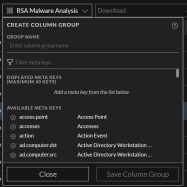
- The Create Column Group dialog is for the 11.4 and later Events view. To access this dialog, select Column Group > New Column Group in the Events view toolbar.
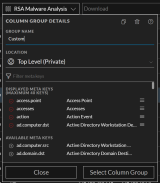
- The Column Group Details dialog is for the 11.4 and later Events view. To access this dialog, select Column Group in the Events view toolbar, then click the edit icon (
 ) next to a custom column group name.
- The Manage Column Groups dialog is for the Legacy Events view (Version 11.4) , and the Events view (Version 11.4 and earlier). The Manage Column Groups dialog has these features that are not yet available in the Create Column Group dialog: set column width, import, and export. To access this dialog, go to Investigate > Legacy Events and in the View drop-down list select Manage Column Groups. The View option is named for the current value, for example, Detail View, List View, Log View, or the currently selected column group.
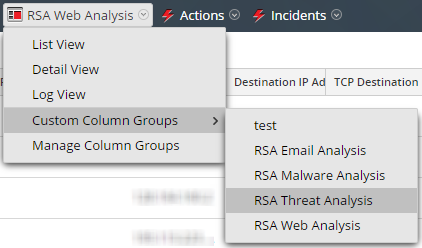
After column groups are defined, you can use them in other Investigate views. In the Navigate view, Query Profiles allow you to select a column group to use when the profile is applied. In the Events view and the Legacy Events view, you can select a column group to apply to the Events panel.
Related Topics
Quick Look - Column Group Menu, Create Column Group Dialog, and Column Group Details DialogQuick Look - Column Group Menu, Create Column Group Dialog, and Column Group Details Dialog
This section introduces the Column Group Menu, Create Column dialog, and the Column Group Details dialog. The following figure is example of the Column Group menu. The table describes the options.
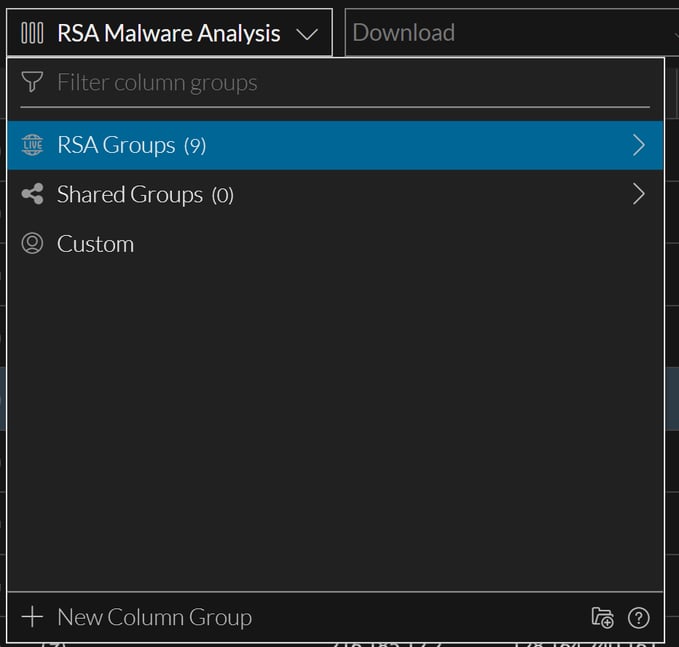
The Create Column Group dialog, shown in the figure on the left, allows you to define a custom column group. The figure on the right illustrates the Column Group Details dialog, in which you can edit a custom column group. The table describes the fields and options in the dialogs.
Quick Look - Manage Column Groups DialogQuick Look - Manage Column Groups Dialog
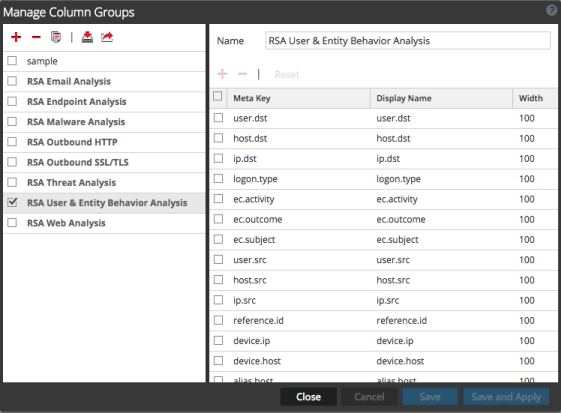
The Manage Column Groups dialog has two panels: Groups and Settings. At the bottom of this dialog are four buttons: Close, Cancel, Save, and Save and Apply.
The left panel is the Groups panel. This is where you can add, delete, import, or export column groups. At the top of the panel is a toolbar. Below the toolbar is a list of added column groups, where you can select one or more groups.
The following table lists the actions in the toolbar.
The right panel is the Settings panel. This is where you can create and edit column groups. This panel contains the Name field, a toolbar, and a list. The following table describes the features of the Settings panel.
The following table provides descriptions of the action buttons.