.png?width=180&height=32&name=NW%20Logo%20(2).png)
Configure a Rule
You can create a new rule or deploy an existing rule from the Live Services which can be used in a report. You can use different conditions to refine the data or information in the data sources such as:
- Select clause
- Where clause
- Group By
- Order By and so on
For example, you can write a rule to view the top 20 web addresses that the users visit daily.
You can create different type of rules using different data sources. Based on your requirements you can select any of the following options to create a rule:
- Create a Rule Using NetWitness Data Source
- Create a Rule Using Warehouse Data Source
- Create a Rule Using Respond Data Source
You can also use a list in a rule to refine a search result from the data source. Once a rule is created you can test a rule to see the results returned by the rule.
Create a Rule Group
To create a rule group or rule sub-group, perform the following:
-
Go to Reports.
The Manage tab is displayed.
-
Do one of the following.
-
To define a rule group:
-
In the Rules Groups Panel, click
 .
.
The new rule group is added to the Rule Groups panel. - Enter the name for the rule group and press ENTER.
-
-
To add a rule sub-group:
- In the Rules Groups panel, select the rule group to which you want to add a sub-group.
-
Click
.
The new rule sub-group is added to the rule group. - Enter the name for the rule sub-group and press ENTER.
-
Create a Rule Using NetWitness Data Source
You can create a rule to fetch data or events from a NetWitness data source. The same procedure is used to define a rule to fetch data or events from an Archiver data source.
The Archiver data source can be added in the Services Config View of the Reporting Engine. For more information, see "(Optional) Add Archiver as a Data Source to Reporting Engine" topic in the Archiver Configuration Guide.
Prerequisites
Make sure that you understand how custom meta keys are created using custom feeds. For more information, see "Create Custom Meta Keys using Custom Feed" topic in the Decoder and Log Decoder Configuration Guide.
To create a rule to fetch data or events from a NetWitness Data Source, perform the following:
-
Go to Reports.
The Manage tab is displayed.
-
In the Rules toolbar, click
> NetWitness Platform DB.The Build Rule view tab is displayed.
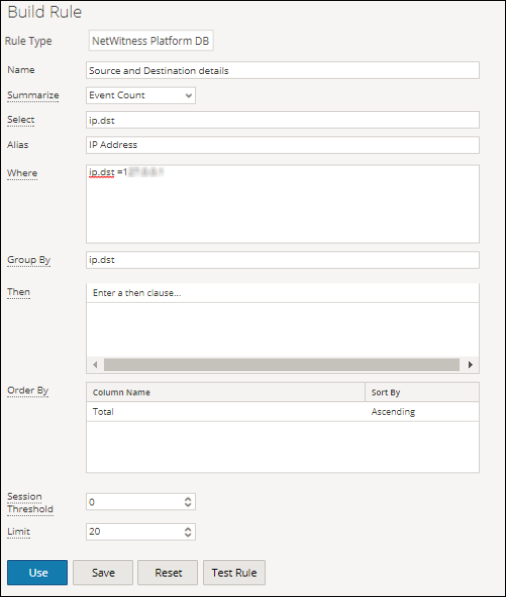
- In the Rule Type field, NetWitness Platform DB is selected by default.
- In the Name field, enter a name that is used to Identify or label the rule in alerts and reports.
-
The Summarize field determines the type of summarization or aggregation for the rule. Based on the type of rule to be defined, you must select one of the following:
- To define a Non-Aggregate rule without any grouping, select: None
-
To define an Aggregate rule with special aggregation like the collection (sessions/events/packets) related aggregates, select one of the following:
- Event Count
- Packet Count
- Session Size
-
To define an Aggregate rule with meta values and custom aggregates like sum(), count(), and so on, select: Custom
Choosing 'Custom' in the Summarize field enables you to define aggregate function of your choice in the Select clause. For example, select ip.src, countdistinct(ip.dst), distinct(ip.dst). The supported aggregate functions are:
- sum ( )
- count( )
- countdistinct( )
- min( )
- max( )
- avg( )
- first( )
- last( )
- len( )
- distinct( )
For more detailed information about Aggregate and Non-aggregate rule, see "NWDB Rule Syntax section" in Rule Syntax.
-
In the Select field, enter a meta or select a meta from the list of available meta types provided in the Meta Library. For more information, see "Meta Panel" in Build Rule View. The meta name to fetch raw log is raw. raw can only be used in the Select field. It cannot be used in the Where and Then fields. Multiple aggregate functions are supported for Custom aggregate rule in the Select field. For example, Select: ip.src, username, service, distinct(country.src), sum(payload).
- In the Alias field, enter the alias name for columns used in the Select clause.
- In the Where field, enter a meta or select a meta from the list of available meta types and use the operators to construct the Where clause for the base query criteria.
-
The Group By field is a read-only field which gets populated with meta that are defined in the Select clause. For a Non-Aggregate function, this field is not visible. A maximum of six meta are supported in the Group By field.
Note: In earlier versions of NetWitness, only one meta was supported for Custom aggregate rule in the Group By clause. From now, a maximum of six meta are supported in the Group By clause.
-
In the Then field, enter the rule actions that manipulate the original result set of a rule in order to make the output in a report more concrete or add additional functionality other than querying data and displaying it, for example, creating a feed from the results. For a complete list of available rule actions, see "NWDB Rule Syntax" in Rule Syntax.
Note: When a rule is executed for an Archiver data source, it is recommended not to use query intensive rule actions such as lookup_and_add() and show_whats_new().
-
In the Order By field, perform the following:
-
In the Column Name column, enter the name of the columns by which you want to sort the results. By default, the value is empty. The value gets populated based on the value selected in the Summarize field.
- For Summarize 'None', if no Order By is selected, then by default it is ordered by session or collection time.
- For other Summarize values, the default sorting is based on the first 'group by' meta selected when no 'order by' is defined. For Event Count, Packet Count, and Session size, the accepted values are Total and Value.
-
In the Sort by column, select one of the following ways to sort the results:
- Ascending Order
- Descending Order
-
-
In the Session Threshold field, enter the optimization setting to stop scanning the matching sessions for each possible unique value for the selected meta. The threshold is an integer between 0 (default) and 2147483647.
Note: This is applicable to only NWDB Aggregate rules. If the default value is specified, all the matching sessions will be scanned and the accurate value will be returned. A higher session threshold allows accurate counts for a value. However, this causes longer rule execution time. For example, consider you set the Session Threshold as 1000 for ip.src. If there are 5000 matching sessions then for a particular ip.src value which is present in more than 1000 sessions, NWDB stops the scan after 1000 sessions and returns the extrapolated aggregate value. This optimizes the query execution time. If the value is present in less than 1000 sessions, then the actual value is returned.
- In the Limit field, enter the limit to be put on the query while fetching data from the database. If a result set is sorted by event count, packet count, or session size, the limit represents the top (or bottom) N values to be returned. If the result set is not sorted, the first N values are returned.
-
Click Save.
Note: Unlike parsed meta, raw logs are fetched from decoders. When both raw log and parsed meta are queried in a single rule, due to different retention periods, parsed meta might be available and raw logs missing in the same session. So the result will have parsed meta values and empty raw value for those sessions. For example, for the rule Select ip.src, ip.dst, service, username, raw, the parsed meta might be populated and the raw meta remains empty for a few sessions.
Create a Rule Using Warehouse Data Source
You can create a rule to fetch data or events from a Warehouse event source. You can define the rules in two modes:
- Default Mode
- Expert Mode
Default Mode
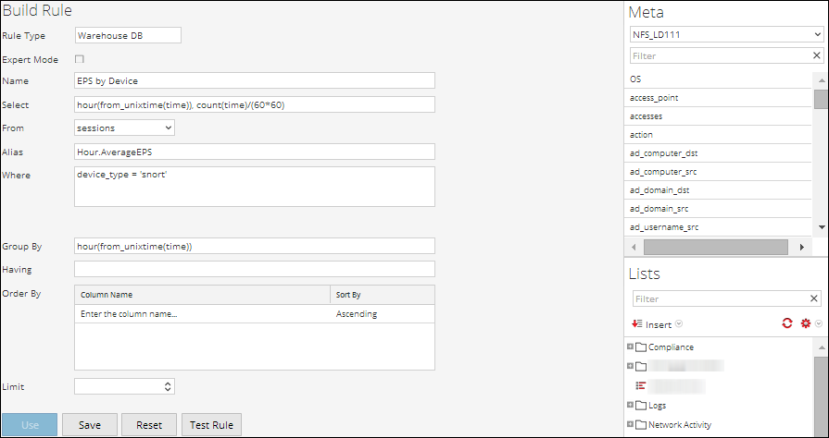
In Default Mode, you can create rules containing simple SQL like HIVE queries that contain clauses like Select, Where, Group By, and Having. By default, you can create rules to query sessions or raw logs. For more information on "Simple query syntax and examples", see Warehouse DB Simple Rules Syntax.
The following figure is an example of the Build Rule view that displays when you select Warehouse DB for Rule Type without the Expert Mode selected.
Querying Raw Logs
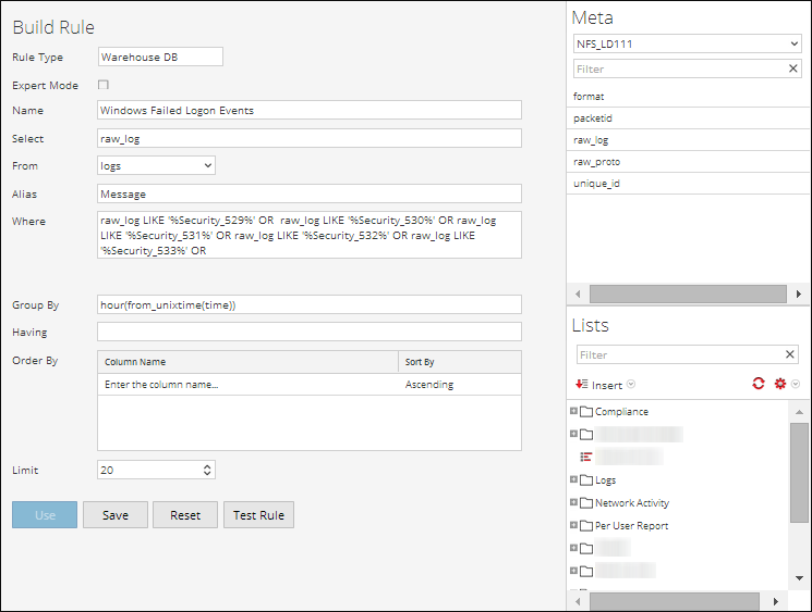
The raw log format is used in the select or where clause to query for raw logs.
Note: The time range that you can specify in your query is a day (24 hours). If you have specified a time range less than a day in your query, the result set contains data of at least a day (24 hours).
The following figure is an example of the Build Rule view that displays when you select Warehouse DB for Rule Type and create a rule for querying raw logs.
Expert Mode
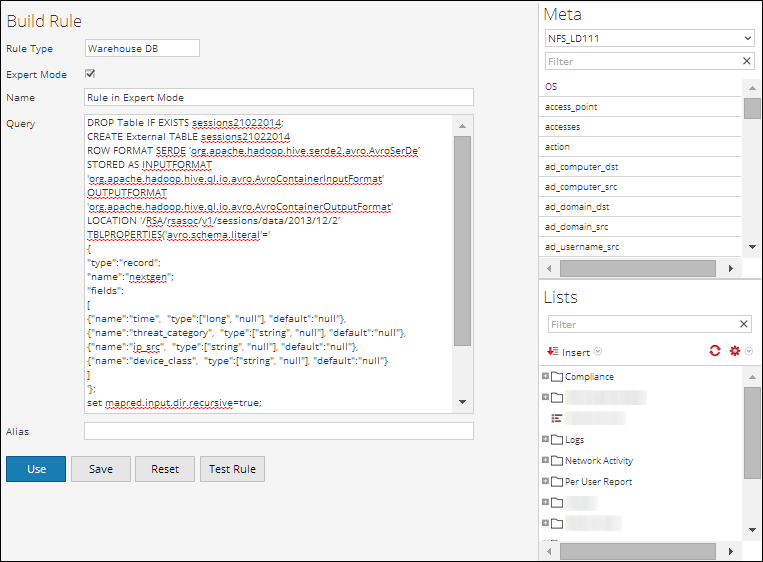
Advanced rules are defined using complex HIVE queries created using the clauses DROP, CREATE, and so on. Unlike simple rules, we always insert the results into a table. For more information on "Advanced HIVE query language", see HIVE language manual.
The following figure is an example of the Build Rule view that is displayed when you select Warehouse DB for Rule Type with Expert Mode selected.
If you want to generate a report for a specific time range, you need to manually define the time range in the query using the following two variables:
- ${report_starttime} - The starting time of the range in seconds.
- ${report_endtime} - The ending time of the range in seconds.
For example, SELECT col1, col2 FROM custom_table WHERE timecol >= ${report_starttime} AND timecol <= ${report_endtime};
Note: By default, Reporting Engine treats ${keyword} as a variable. If you want to specify HIVE variables, you must mention the complete syntax of a variable. For example, ${hiveconf:hive.exec.scratchdir}.
Prerequisites
Make sure that you understand how custom meta keys are created using custom feeds. For more information, see "Create Custom Meta Keys using Custom Feed" topic in the Host and Services Configuration Guide.
To create a rule to fetch data or events from a Warehouse data source, perform the following:
-
Go to Reports.
The Manage tab is displayed.
-
In the Rules toolbar, click
 > Warehouse DB.
The Build Rule view is displayed.
-
In the Rule Type field, Warehouse DB is selected by default.
If you are defining the rule in Default mode, perform the following:
- In the Name field, enter a name that is used to Identify or label the rule in alerts and reports.
- In the Select field, enter a meta or select the meta from the drop-down or select a meta from the list of available meta types provided in the Meta Panel. For more information, see " Meta Panel" in Build Rule View.
-
In the From drop-down menu, select one of the following:
- Session
- Logs
- In the Alias field, enter the alias name for columns used in the Select clause.
- In the Where field, enter a meta or select a meta from the list of available meta types provided in the Meta Panel. The Where clause provides the base query criteria for the rule.
- In the Group By field, enter the meta selected in the Select clause, so that the result set is grouped based on the meta.
- In the Having field, enter the criteria to filter the result set for aggregated queries.
-
In the Order By field, perform the following:
- In the Column Name column, enter the name of the columns by which you want to group the results.
-
In the Sort by column, select one of the following ways to sort the results:
- Ascending Order
- Descending Order
- In the Limit field, enter the limit to be put on the query while fetching data from the database. If a result set is sorted by session count, packet count, or session size, the limit represents the top (or bottom) N values to be returned. If the result set is not sorted, the first N values are returned.
- Click Save.
-
If you are defining the rule in Expert mode, select the Expert Mode checkbox and perform the following:
- In the Name field, enter a name that is used to Identify or label the rule in alerts and reports.
- In the Query field, enter the Hive query statement to query the data source.
- In the Alias field, enter the alias name for columns used in the Select clause.
- Click Save.
Create a Rule Using Respond Data Source
You can create a rule to fetch incidents or alerts from a Respond data source.
Prerequisites
Make sure that you:
- Ensure Reporting Engine service is up and running.
- Ensure the Incident Management service is up and running. For more information, see "Configure a Database for the Respond Server Service" topic in the NetWitness Respond Configuration Guide.
- (Optional) Ensure the Event Stream Analysis service is up and running. For more information, see "Step 2. Configure Advanced Settings for an ESA Service" topic in the ESA Configuration Guide.
- (Optional) Ensure the Malware Analysis service is up and running. For more information, see "(Optional) Configure Auditing on Malware Analysis Host" topic in the Malware Configuration Guide.
Note: You need to configure any one of the services (Event Stream Analysis, Reporting Engine, Malware Analysis, or Endpoint) based on your requirement and the type of alerts or incidents you want to generate.
To create a rule to fetch data or events from a Respond Data Source, perform the following:
-
Go to Reports.
The Manage tab is displayed.
-
In the Rules toolbar, click
> Respond DB.The Build Rule view tab is displayed.
- In the Rule Type field, Respond is selected by default.
- In the Name field, enter a name that is used to Identify or label the rule in alerts and incident reports.
- The Summarize field determines the type of summarization or aggregation for the rule. Based on the type of rule to be defined, you must select one of the following:
- To define a Non-Aggregate rule without any grouping, select None
-
To define an Aggregate rule with meta values and custom aggregates select Custom
Choosing 'Custom' in the Summarize field enables you to define aggregate function of your choice in the Select clause based on the report type you have selected.
For more detailed information about Aggregate and Non-aggregate rule, see Rule Syntax.
- In the From field, based on the type of report output to be displayed, you must select one of the following:
- Alert
- Incident
- incidentStats
- incidentUserStats
-
In the Selectfield, enter a meta or select a meta from the list of available meta types provided in the Meta Library. For more information, see "Meta Panel" in Build Rule View. It cannot be used in the Where field. Only one aggregate function is supported at a time in a query.
For example, the supported metas for alert are:
- alert_host_summary
- alert.name
- alert.numEvents
- alert.severity
- alert.source
- alert.timestamp
- incidentCreated
- incidentId
- receivedTime
For example, the supported metas for incident are:
- categories
- created
- priority
- riskScore
- sealed
- status
- assignee.id
- tta (for more information on this meta, see View Basic Summary Information about the Incident topic in the Respond User Guide.)
- ttd (for more information on this meta, see View Basic Summary Information about the Incident topic in the Respond User Guide.)
-
ttr (for more information on this meta, see View Basic Summary Information about the Incident topic in the Respond User Guide.)
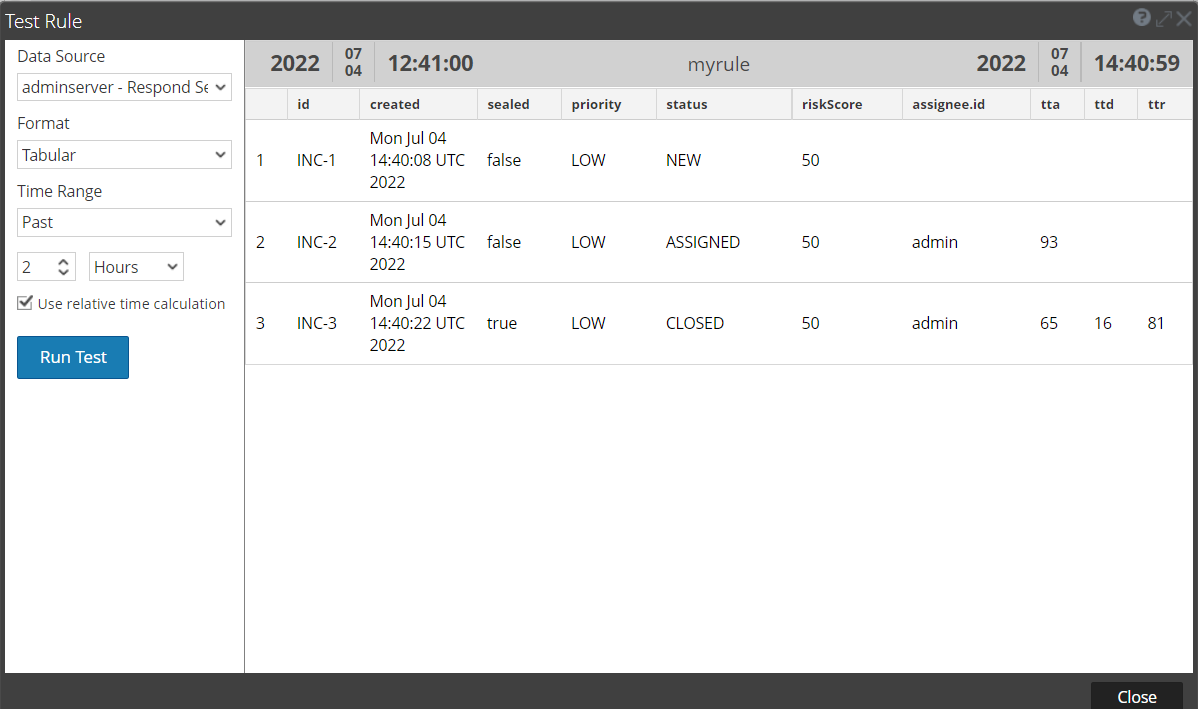
Note: When an incident is assigned, tta and assignee.id metas are populated. Similarly, when the task assigned is completed and the incident is closed, ttd and ttr metas are populated. Refer to the following figure.
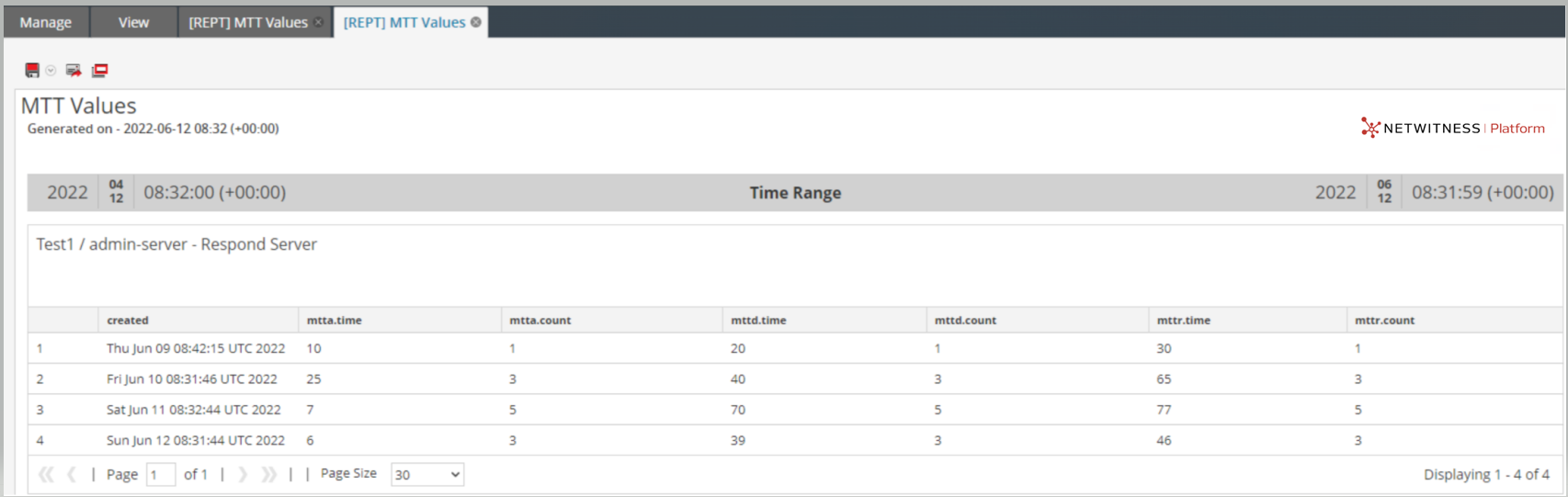
For example, the supported metas for incidentStats are:
-
created
-
mtta.time - This meta displays the average time taken to acknowledge the incidents in a single day.
-
mtta.count - This meta displays the number of incidents acknowledged in a single day.
-
mttd.time - This meta displays the average time taken to detect the incidents in a single day.
-
mttd.count - This meta displays the number of incidents detected in a single day.
-
mttr.time - This meta displays the average time taken to resolve the incidents in a single day.
-
mttr.count - This meta displays the number of incidents resolved in a single day.
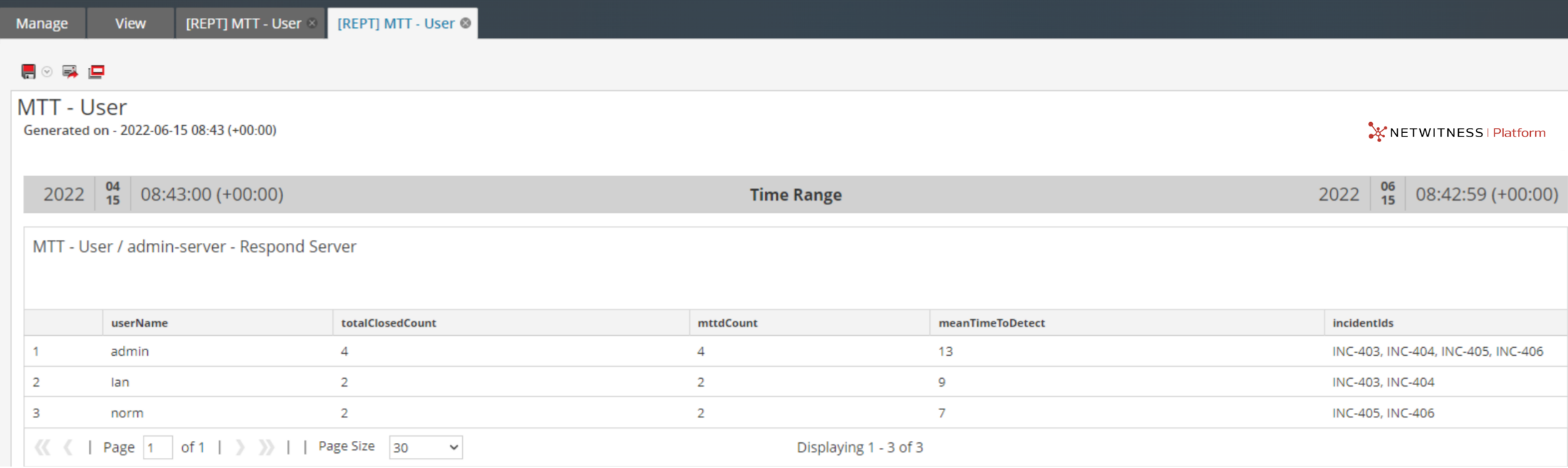
For example, the supported metas for incidentUserStats are:
-
userName - This meta displays the assignee's or the user's ID for the associated user stats.
-
totalClosedCount - This meta displays the total number of Incidents closed by the assignee till date.
-
meanTimeToDetect - This meta displays the average time taken by the user to detect the incidents in the time range selected.
-
mttdCount - This meta displays the count of incidents contributing to the MTTD value computed.
-
incidentIds - This meta displays the list of incident IDs closed by the user during the time range selected.
For more detailed information, see "Aggregate and Non-aggregate rule" topic in the Rule Syntax.
- In the Alias field, enter the alias name for columns used in the Select clause.
- In the Where field, enter a meta or select a meta from the list of available meta types and use the operators to construct the Where clause for the base query criteria.
-
The Group By field is a read-only field which gets populated with meta that are defined in the Select clause. For a Non-Aggregate function, this field is not visible. A maximum of six meta are supported in the Group By field.
-
In the Order By field, perform the following:
-
In the Column Name column, enter the name of the columns by which you want to sort the results.
Note: by default the first meta in the select clause will be dispalyed.
-
In the Sort by column, select one of the following ways to sort the results:
- Ascending Order
- Descending Order
-
- In the Limit field, enter the limit to be put on the query while fetching data from the database. If a result set is sorted by the limit represents the top (or bottom) N values to be returned. If the result set is not sorted, the first N values are returned.
-
Click Save.
Deploy a Rule
In NetWitness you can deploy the selected rules on the service (for example, Reporting Engine), using the Deployment Wizard.
Prerequisites
Make sure that:
- The services on which you deploy a rule is up and running.
- The Live Services is configured.
To deploy a rule, perform the following:
- Go to
 (Configure) > LIVE CONTENT.
 - In the Search Criteria panel, search Live resources (for example, search for the Application Rule resource Type).
-
In the Matching Resources panel, select Show Results > Grid.
-
Select the checkbox to the left or the rules that you want to deploy.
-
In the Matching Resources toolbar, click
 .
. - Click Next.
- Select the service on which you to deploy a rule (For example, Reporting Engine) and click Next.
- Click Deploy.
The rule is deployed successfully.
Use Meta Aliases for Reporting
When you refer to meta data in Reports and Charts, you can only view aliases for the meta names. These aliases makes them more understandable to a broader audience.
You cannot provide alias values for any meta in the WHERE clause because NetWitness uses the WHERE clause to fetch data from the data source (for example, in the Concentrator) and data sources do not support aliases. In other words, you cannot provide the alias value HTTP for the HTTP port # 80.
Note: * You cannot create aliases for meta other than the ones that have existing aliases by Reporting Engine. Also, the format of the aliases cannot be changed.
* Aliases are not supported for Alerts and CSV reports.
To use alias in a rule, perform the following:
- Go to Reports.
The Manage tab is displayed. - In the Rules panel, do one of the following:
- Select a rule and click
