.png?width=180&height=32&name=NW%20Logo%20(2).png)
Configure Capture SettingsConfigure Capture Settings
When initially setting up the Decoder, configuring the network adapter interface is required. Additional optional capture settings are available; two that are frequently used are the Berkeley Packet Filter, and Capture Autostart.

Besides the basic network adapter interface setup, you may decide to use one of the special-purpose configurations described in (Optional) Preserve VLAN Tags When Using the Packet MMAP Capture Interface or (Optional) Configure a Decoder to Capture Data Across All Types of Network Interfaces
The rest of the capture settings have default values chosen to be effective in most cases (see a detailed list in Services Config View - General Tab). You can adjust these in some circumstances, for example, if Customer Support advises a change. You can edit the capture settings at any time.
Select a Network AdapterSelect a Network Adapter
The table below describes the Network Adapter settings for a Decoder. The system administrator sets the default network adapters when the Decoder is installed. Consult your System Administrator for more information.
To configure the network adapter on a Decoder:
- Go to
 (Admin) > Services.
 -
In the Administration Services view, select the Decoder and
 > View > Config.
The Services Config view is displayed with the General tab open.
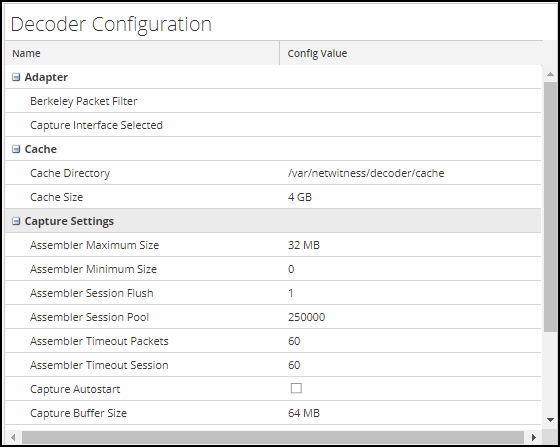
- In the Capture Interface Selected field, select the network adapter that best suits the Decoder.
- To save the changes, click Apply.
- If necessary to put the changes into effect, navigate back up to the Administration Services view, select the Decoder, and select > Restart.
Configure a Decoder to Begin Capturing Data AutomaticallyConfigure a Decoder to Begin Capturing Data Automatically
- Go to (Admin) > Services.
-
In the Administration Services view, select the Decoder and
> View > Config.The Services Config view is displayed with the General tab open.
- Under Capture Settings, select the Capture Autostart checkbox.
- To save the changes, click Apply.
- If necessary to put the changes into effect, navigate back up to the Administration Services view, select the Decoder, and select > Restart.
Configure Optional Capture SettingsConfigure Optional Capture Settings
-
Go to
(Admin) > Services. -
In the Administration Services view, select the Decoder and
> View > Config.The Services Config view is displayed with the General tab open.
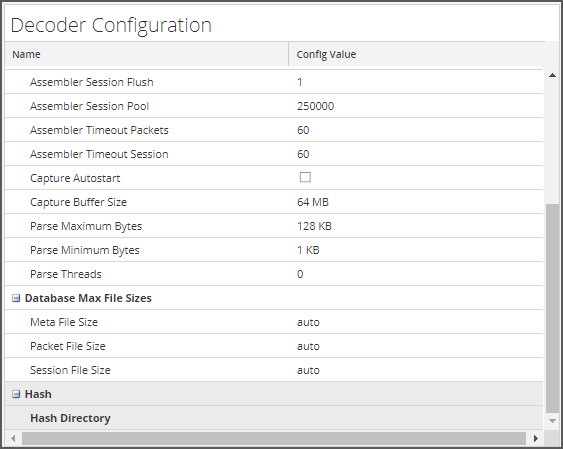
- If you want to apply a system-level filter to the packet stream before the packets are copied to the Decoder adapter for analysis, configure the Berkeley Packet Filter as described in (Optional) Configure System-Level (BPF) Packet Filtering.
- In the Capture Settings sections, review the default values. When a service is first added, default values are in effect and should be changed only in special circumstances, for example, if Customer Support advises a change. See Services Config View - General Tab for an explanation of these settings.
- In the Database Max File Sizes section, review the default values. When a service is first added, default values are in effect and should be changed only in special circumstances, for example, if Customer Support advises a change. See Services Config View - General Tab for an explanation of these settings.
- In the Hash section, define a directory for hash files if you are using this feature. See Services Config View - General Tab for an explanation of these settings.