.png?width=180&height=32&name=NW%20Logo%20(2).png)
Configure Check Point Event Sources in NetWitness
This topic tells you how to configure the Check Point collection protocol, which collects events from Check Point event sources.
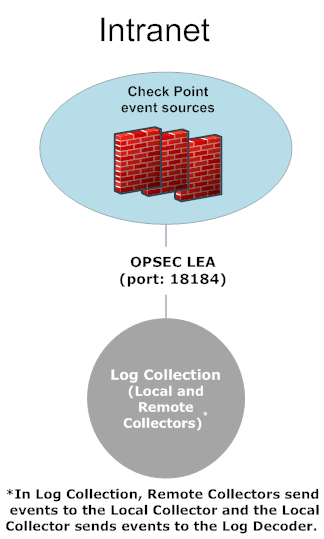
This protocol collects events from Check Point event sources using OPSEC LEA. OPSEC LEA is the Check Point Operations Security Log Export API that facilitates the extraction of logs.
How Check Point Collection Works
The Log Collector service collects events from Check Point event sources using OPSEC LEA. OPSEC LEA is the Check Point Operations Security Log Export API that facilitates the extraction of logs.
Note: OPSEC LEA (Log Export API) supports extraction of logs from Check Point event sources configured with a SHA-256 or SHA-1 certificate.
Deployment Scenario
The following figure illustrates how you deploy the Check Point Collection Protocol in NetWitness.
Configuration in NetWitness
To configure a Check Point Event Source:
- Go to
 (Admin) > Services from the NetWitness menu.
 - Select a Log Collection service.
- Select
 > View > Config to display the Log Collection configuration parameter tabs.
 -
Click the Event Sources tab.
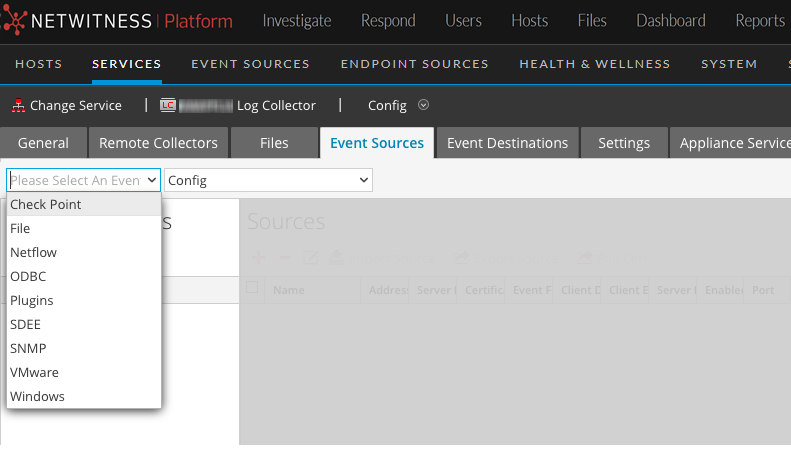
- In the Event Sources tab, select Check Point/Config from the drop-down menu.
-
In the Event Categories panel toolbar, click
 .
.The Available Event Source Types dialog is displayed.
-
Select a check point event source type and click OK.
The newly added event source type is displayed in the Event Categories panel.
-
Select the new type in the Event Categories panel and click
in the Sources toolbar.The Add Source dialog is displayed.
- Define parameter values. For details, see Check Point Parameters below.
-
Click Test Connection.
The result of the test is displayed in the dialog box. If the test is unsuccessful, edit the device or service information and retry.
Log Collector takes approximately 60 seconds to return the test results. If it exceeds the time limit, the test times out and the NetWitness displays an error message.
-
If the test is successful, click OK.
The new event source is displayed in the Sources panel.
Check Point ParametersCheck Point Parameters
This section describes the Check Point event source configuration parameters.
Basic Parameters
Determine Advanced Parameter Values for Check Point Collection
You use less system resources when you configure a Check Point event source connection to stay open for a specific time and specific event volume (transient connection). NetWitness defaults to the following connection parameters that establish a transient connection:
- Polling Interval = 180 (3 minutes)
- Max Duration Poll = 120 (2 minutes)
- Max Events Poll = 5000 (5000 events per polling interval)
- Max Idle Time Poll = 0
For very active Check Point event sources, it is a good practice to set up a connection that stays open until you stop collection (persistent connection). This ensures that Check Point collection maintains the pace of the events generated by these active event sources. The persistent connection avoids restart and connection delays and prevents Check Point collection from lagging behind event generation.
To establish a persistent connection for a Check Point event source, set the following parameters to the following values:
- Polling Interval = -1
- Max Duration Poll = 0
- Max Events Poll = 0
- Max Idle Time Poll = 0
Verify Check Point Collection is Working
The following procedure illustrates how you can verify that Check Point collection is working from the Administration > Health & Wellness > Event Source Monitoring tab.
To verify Check Point collection from the Event Source Monitoring tab:
- Access the Manage tab from the (Admin) > Event Sources view.
- Find a checkpoint event source in the Event Sources column.
- Look for activity in the Total Count column to verify that Check Point collection is accepting events.
To verify Check Point collection from the Investigation > Events view:
The following procedure illustrates how you can verify that Check Point collection is working from the Investigation > Events view.
- Access the Investigation > Events view.
- Select the Log Decoder (for example, LD1) collecting Check Point events in the Investigate a Device dialog.
- Look for a Check Point event source parser (for example, checkpointfw1) in the device.type field in the Details column to verify that Check Point collection is accepting events.
Note: If the logs from the VSX Checkpoint firewall server are collected by the Log Collector checkpoint service, to translate the VSX IP in the logs to ip.orig meta, you must add the VSX hostname and the VSX IP address to the /etc/hosts file in the Log Collector.