Configure Data Sources Settings
Configure Context Hub Data Source Settings
After you have configured the required data sources you can customize the settings for the data sources based on your requirement.
To access and configure settings:
-
Go to
(Admin) > Services.The services view is displayed.
-
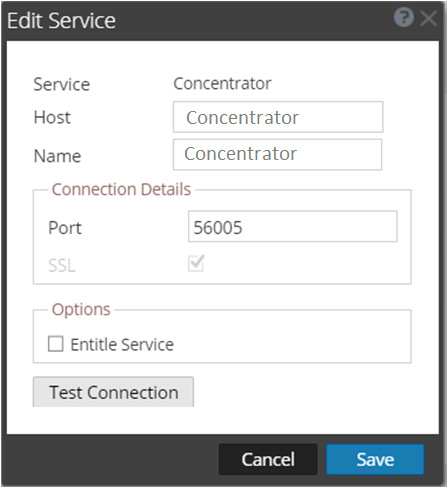
In the Services panel, select the Context Hub service and click > View > Config.
The Services Config view of Context Hub is displayed.
-
Select the data source for which you want to configure the settings and click in the Actions column.
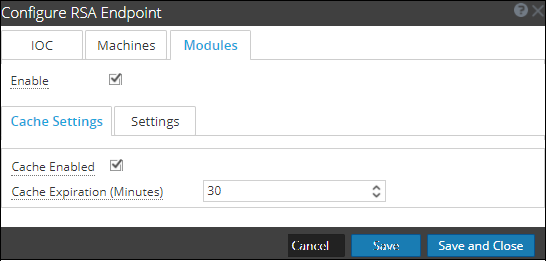
The following screenshot is an example of the NetWitness Endpoint settings dialog:
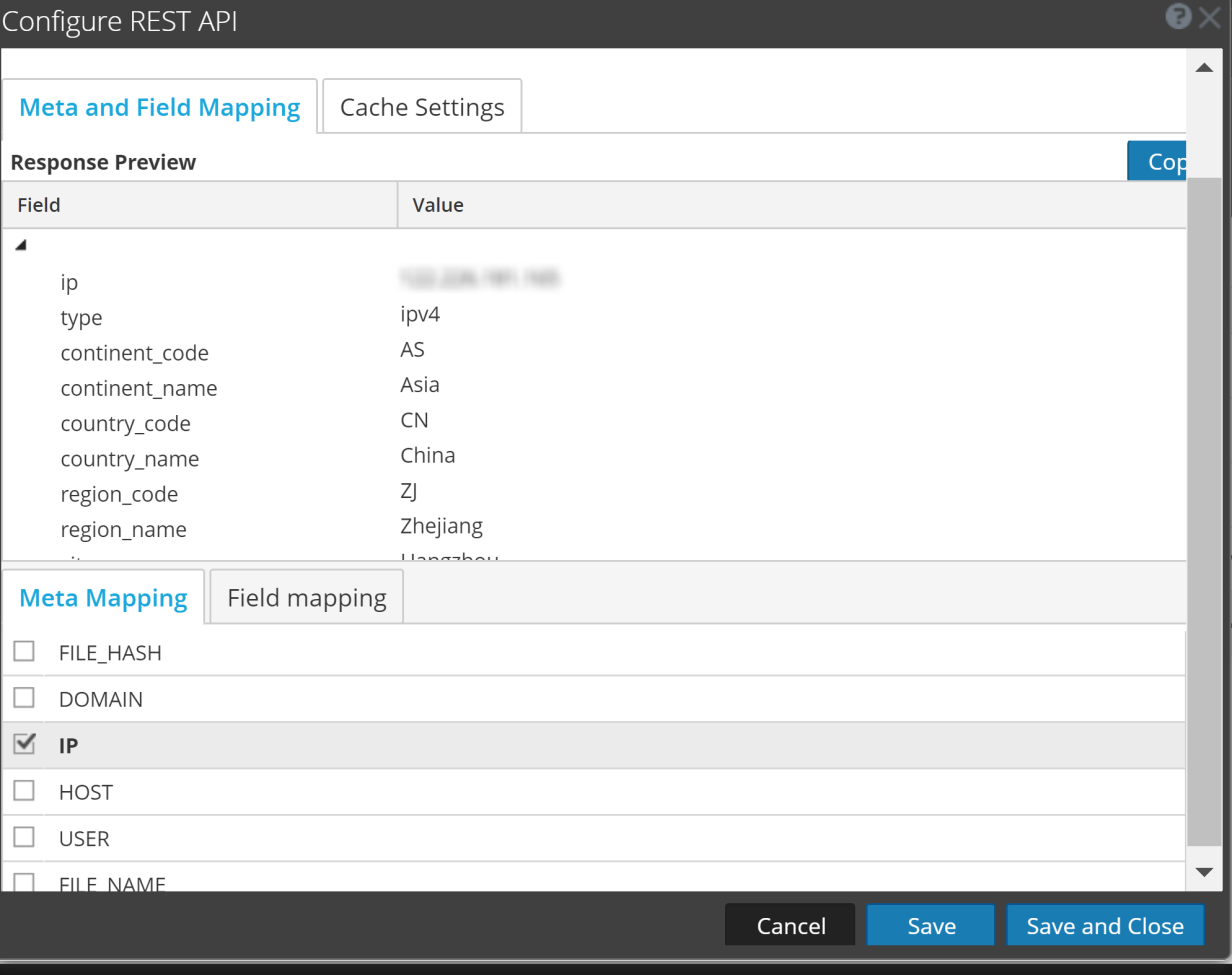
The following screenshot is an example of the REST API settings dialog:
-
Configure the following fields:
- Field: Enable
- Description: This option is enabled by default (checked) and can be used to enable or disable the response from the selected data source.
- Field: Cache Settings
- Description:
Any lookup from Context Hub can be stored in the Context Hub cache for a configured time. Response to any subsequent matching request will be fetched from the Context Hub cache.
Use this section to define the following cache settings for query lookup:- Cache Enabled: By default, this checkbox is selected and the query response is cached.
- Cache Expiration (Minutes): The maximum time the query lookup is retained in cache. The default time is 30 minutes and maximum is 7200 minutes that you can configure.
- Field:
List value Expiration
- Description:
Enable: Select Enable to define the number of days the list values must be available. By default, this option is disabled and the values are retained.
Time to Live (Days): Enter the number of days you want to the list values to be retained.
- Field:
Meta Mapping
- Description:
Any list stored in Context Hub should be made available for a lookup. The lookup in Context Hub is performed based on meta type or entities. Examples IP, HOST, MAC ADDRESS, DOMAIN, FILE_NAME, FILE_HASH, USER.
Meta Type: Entities available in Context Hub.
Context Hub Fields: Column headers from CSV file you have added when creating a list.
- Field:
Meta and Field Mapping
- Description:
Response Preview: You can view the live response for the REST API configured, using the test meta value as a placeholder.
Copy: Copies the response preview.
Meta Mapping: Any REST API stored in Context Hub should be made available for a lookup. The lookup in Context Hub is performed based on meta type or entities selected. Examples IP, HOST, MAC ADDRESS, DOMAIN, FILE_NAME, FILE_HASH, USER.
Meta Type: Entities available in Context Hub.
Field Mapping: Add friendly display name for the response field which is displayed during the context lookup.
- Add a field mapping.
- Delete a field mapping.Field- Enter the path for which you want to add a friendly name.
Value (from Preview)- The value is filled automatically based on the path.
Display Name- Enter friendly name.
- Field: Minimum IIOC Score
- Description: The minimum IIOC score to be considered for fetching contextual information of NetWitness Endpoint modules.
- Field:
Query Last (Days)
- Description:
The duration (in days) for which the Context Data must be queried.
- Field: Limit
- Description: The maximum number of records to be displayed when Context Lookup is performed.
- Field:
Recur Every
- Description:
Configure recurring schedule to fetch and store contextual data for the required intervals.
-
Click any one of the following options:
- Cancel - select this option to cancel the changes.
- Save - select this option to save the changes.
-
Save and Close - select this option to save and close the dialog.
To access and configure settings for STIX data sources
- Go to
(Admin) > Services and select Context Hub service. - Click > View > Config > STIX tab.
-
Select the data source for which you want to configure the settings and click
in the Configurations column.- For REST Server, the following fields are displayed.
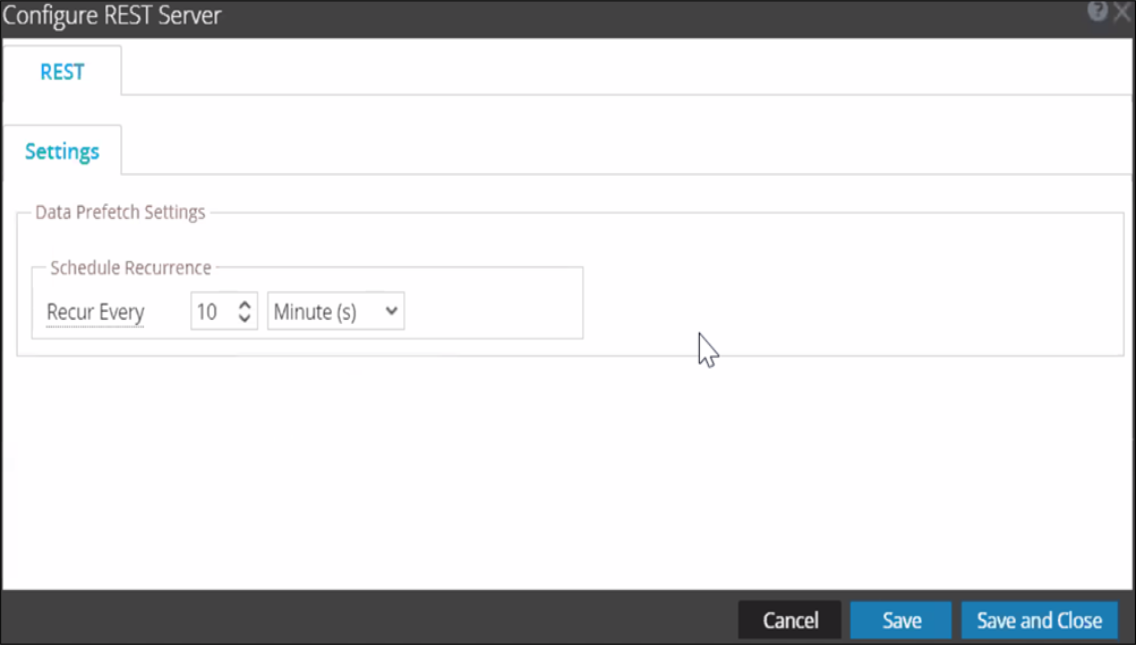
Configure the following fields for REST Server.- Field: Recur Every
- Description: Specify the time frequency in minutes, hours, days or weeks to retrieve the content from the data source.
- For TAXII Server, the following fields are displayed.
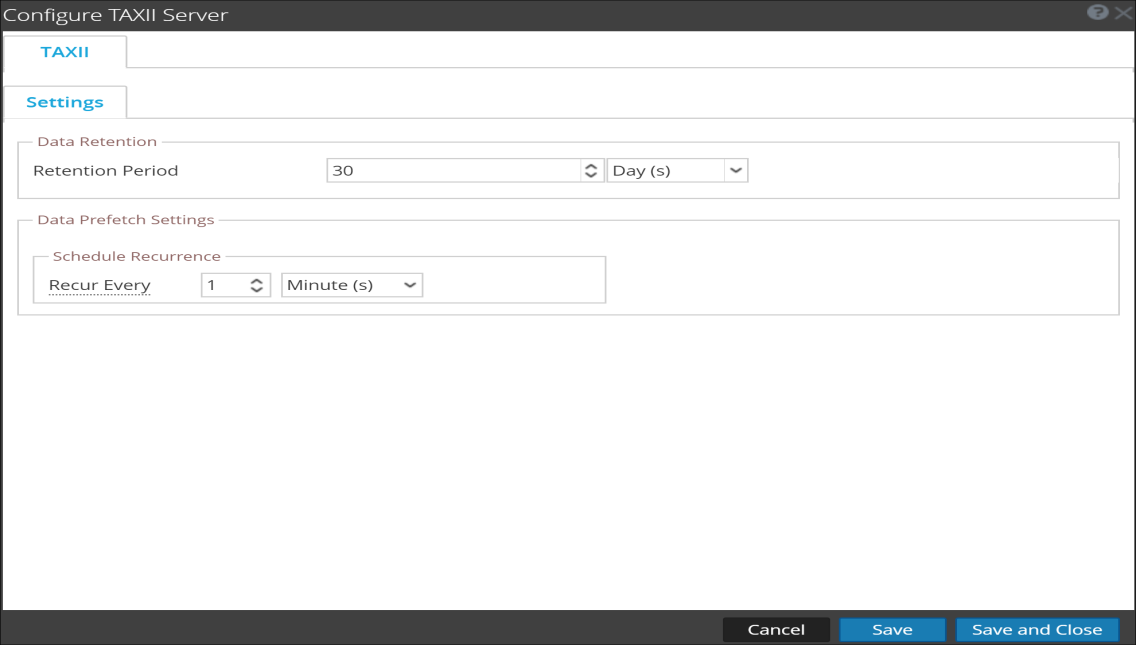
Configure the following fields for TAXII Server.- Field: Retention Period
- Description: Specify the number of days the content retrieved from the taxi data source must be retained before it is automatically deleted.
- Field: Recur Every
- Description: Specify the time frequency in minutes, hours, days or weeks to retrieve the content from the data source .
Based on the data source you select, the Response Groups differ. The following table describes the response groups for every data source.
- Data Source (Connection):
List - Response Supported Groups: List
- Field Settings:
Meta Mapping
Meta Type
Context Hub FieldsSettings
Data Prefetch Settings
Schedule Recurrence
List Value ExpirationCache Settings
Cache Enabled
Cache Expiration (Minutes) [Min is 30 minutes Max is 7200 minutes]
- Data Source (Connection):
Archer - Response Supported Groups: Archer
- Field Settings:
Cache Settings
Cache Enabled
Cache Expiration (Minutes)Settings
Export Attributes Configuration
Export Attributes
Data Prefetch SettingsSchedule Recurrence
- Data Source (Connection):
Active Directory - Response Supported Groups: Users
- Field Settings:
Meta Mapping
Meta Type
Context Hub Fields
Settings
Data Prefetch Settings
Schedule Recurrence
List Value Expiration
Cache Settings
Cache Enabled
Cache Expiration (Minutes)[Min is 30 minutes Max is 7200 minutes]
- Data Source (Connection):
NetWitness Endpoint - Response Supported Groups:
- Field Settings: IOC
- Column 4: Machines
- Column 5: Modules
- Column 6:
- Column 7: Cache Settings
Cache Enabled
Cache Expiration (Minutes)
Settings
Context Panel Settings - Column 8:
Cache Settings
Cache Enabled
Cache Expiration (Minutes)Settings
Context Panel Settings - Column 9: Cache Settings
Cache Enabled
Cache Expiration (Minutes)
Settings
Minimum IIOC Score
Context Panel Settings
- Data Source (Connection): IOC
- Data Source (Connection): Machines
- Data Source (Connection): Modules
- Data Source (Connection): Cache Settings
Cache Enabled
Cache Expiration (Minutes)
Settings
Context Panel Settings
- Data Source (Connection):
Cache Settings
Cache Enabled
Cache Expiration (Minutes)Settings
Context Panel Settings
- Data Source (Connection): Cache Settings
Cache Enabled
Cache Expiration (Minutes)
Settings
Minimum IIOC Score
Context Panel Settings
- Data Source (Connection): Respond
- Response Supported Groups:
- Field Settings:
Alerts - Column 4:
Incidents - Column 5:
Context Panel Settings
Data Prefetch Settings
Query Last [DaysCache Settings
Cache Enabled
Cache Expiration (Minutes)
- Data Source (Connection):
Alerts
- Data Source (Connection):
Incidents
- Data Source (Connection): File Reputation Server
- Response Supported Groups: File Reputation Server
- Field Settings: Cache Settings
Cache Enabled
Cache Expiration (Minutes)
- Data Source (Connection):
TI - Response Supported Groups:
Displays information for STIX data sources.
- Field Settings:
IP address, email address, domain, filename, URL's, and file hash.
Note: The context lookup for email address and URL will be displayed only if these metas are mapped. To map the metas, navigate to
(Configure) > System > Investigation > Context Lookup.
- Data Source (Connection):
REST API - Response Supported Groups:
REST API
- Field Settings:
- Meta and Field Mapping
- Meta Type
- Field
- Value (from Preview)
- Display Name
- Cache Settings
- Cache Enabled
- Cache Expiration (Minutes)
Note: After you configure the data source settings, you can configure the Context Hub configuration parameters by navigating to
(Admin) > Services> View > Explore view. Make sure you restart the Context Hub service if you make any configuration changes in the Explore view.