.png?width=180&height=32&name=NW%20Logo%20(2).png)
Configure NetWitness Suite to Work With Archer
The Archer Cyber Incident & Breach Response solution enables you to aggregate all actionable security alerts, allowing you to become more effective, proactive, and targeted in your incident response and SOC management. For more information on Archer Cyber Incident & Breach Response capabilities, see Archer documentation on the Archer Community or on the Archer Exchange Community.
This version of Archer determines how NetWitness will be integrated. For supported Archer platforms, see the SecOps Installation Guide.
Archer Cyber Incident & Breach Response1.3.1.2 integrates with NetWitness using the UCF (Unified Collector Framework), which comprises of NetWitness Respond integration service and Archer Cyber Incident & Breach Response Watchdog service.
This figure represents the flow of NetWitness integration with Archer Cyber Incident & Breach Response 1.3.1.2.
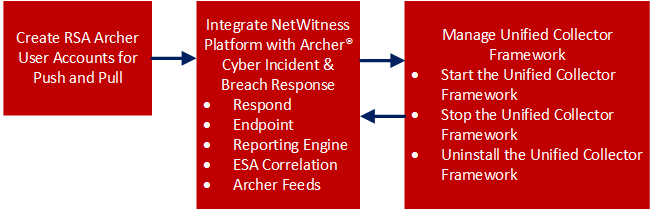
Create Archer User Accounts for Push and Pull
You must create a user account for the web service client to transfer data to the Archer GRC Platform.
You require two Archer user accounts to avoid conflicts while sending and receiving data from NetWitness.
To create a user account for push and pull:
- On the Archer UI, click Administration > Access Control > Users > Add New.
-
In the First Name and Last Name fields, enter a name that indicates that the Unified Collector Framework (UCF) uses this account to push data into Archer GRC. For example, UCF User, Push.
Note: When configuring the Pull account, enter a name that indicates that the UCF uses this account to pull data from Archer GRC. For example, UCF User, Pull.
-
(Optional) Enter a user name for the new user account.
Note: If you do not specify a user name, the Archer GRC Platform creates the user name from the first and last name entered when you save the new user account.
- In the Contact Information panel, in the Email field, enter an email address to associate with the new user account.
-
In the Localization section, change the time zone to (UTC) Coordinated Universal Time.
Note: The UCF uses UTC time to baseline all the time-related calculations.
-
In the Account Maintenance section, enter and confirm a new password for the new user account.
Note: Make a note of the user name and password for the new user account that you created. You need to enter these credentials when you set up the UCF to communicate with the Archer GRC Platform through the web service client.
- Clear the Force Password Change On Next Sign-In option.
-
In the Security Parameter field, select the security parameter that you want to use for this user.
Note: If you assign a default security parameter with a password change interval of 90 days, you also must update the user account password stored in the SA IM integration service every 90 days. To avoid this, you can optionally create a new security parameter for the SA IM integration service user account, and set the password change interval to the maximum value allowed by your corporate standards.
-
Click the Groups tab, and perform the following:
- In the Groups panel, click Lookup.
- In the Available Groups window, expand Groups.
- Scroll down and select SOC: Solution Administrator and EM: Read Only.
- Click OK.
- Click Apply and click Save.
-
If the machine language and regional settings of your Archer GRC system are set to anything other than English-US, perform the following:
- Open the user account you just created, and in the Localization section, in the Locale field, select English (United States), and click Save.
- On the Windows system hosting your Archer GRC Platform, open Internet Information Services (IIS) Manager.
- Expand your Archer GRC site, click .Net Globalization, in both the Culture and UI Culture fields, select English (United States), and click Apply.
- Restart your Archer GRC site.
- Repeat steps 1 – 11 to create a second user account for the UCF to pull data from Archer GRC.
Integrate NetWitness Platform With Archer Cyber Incident & Breach ResponseIntegrate NetWitness Platform With Archer Cyber Incident & Breach Response
You have to configure the system integration settings to manage incident workflow in Archer Cyber Incident & Breach Response.
For information on how to configure system integration settings, see the "Manage Incidents in Archer Cyber Incident & Breach Response" in the NetWitness Respond Configuration Guide.
Unified Collector FrameworkUnified Collector Framework
NetWitness integrates with Archer Cyber Incident & Breach Response 1.3.1.2 using the UCF. The UCF integrates with all supported SIEM tools and the Archer Cyber Incident & Breach Response solution. After you configure the system integration settings, all incidents are managed in Archer Cyber Incident & Breach Response instead of NetWitness Respond. Incidents created before the integration will not be managed in Archer Cyber Incident & Breach Response.
Note:
• You must configure the same option in both NetWitness and the Unified Collector Framework.
• Integration of the NetWitness Respond module with Reporting Engine or ESA Correlation can result in duplicate events, alerts, and incidents created in Archer Cyber Incident & Breach Response.
UCF supports multiple SIEM tools connections at the same time, such as supporting NetWitness Reporting Engine, HP ArcSight, and NetWitness Respond. However, different instances of the same SIEM tool are not supported, such as two NetWitness servers connected to the same UCF.
Prerequisites
-
Install the Archer Cyber Incident & Breach Response package on Archer. See Archer documentation Archer Community or on the Content Tab at https://www.archerirm.community/t5/exchange-overviews/archer-exchange-offering-list/ta-p/672315.
- Install Archer Cyber Incident & Breach Response 1.3.1.2.
-
Ensure you have NetWitness 11.1 as it is compatible with Archer Cyber Incident & Breach Response 1.3.1.2.
-
Ensure that Respond is configured inNetWitness.
The UCF allows you to integrate your Archer Cyber Incident & Breach Response system with the following:
- NetWitness Respond
- NetWitness Reporting Engine
- NetWitness ESA Correlation.
- Archer Feeds
Configure Respond for Integration with Archer Cyber Incident & Breach ResponseConfigure Respond for Integration with Archer Cyber Incident & Breach Response
Step 1: Select the Mode for NetWitness Respond
- Go to
 (Admin) > Services, select the Respond Server service, and select
  > View > Explore.
 - Navigate to respond/integration/export.
-
Set the archer-sec-ops-integration-enabled field to true.
- Restart the Respond service by running the following command:
systemctl restart rsa-nw-respond-server
Step 2: Configure NetWitness Respond to Forward Alerts to UCF
-
Navigate to C:\Program Files\RSA\SA IM integration service\cert-tool\certs in the SecOps Middleware box.
-
Copy both keystore.crt.pem and rootcastore.crt.pem from the certs folder (to the import folder of NetWitess server):
cp rootcastore.crt.pem /etc/pki/nw/trust/importcp keystore.crt.pem /etc/pki/nw/trust/import
Note: Before you copy the files from UCF to NetWitness Admin server, examine the files to remove any blank lines and save them.
-
SSH to NW-server box
-
Run the update-admin-node command:
orchestration-cli-client --update-admin-node -
Restart the RabbitMQ service:
systemctl restart rabbitmq-server
-
Restart the SMS service:
systemctl restart rsa-sms.service
Note: This step is mandatory to avoid receiving the "message bus down" error message which indicates that the EventSourceMessagePublisher has failed to reconnect to RabbitMQ on restart. This can cause some features such as deleting event sources to function improperly.
-
Create user archer and set permissions for the virtual host ‘/rsa/system’
rabbitmqctl add_user archer archerrabbitmqctl clear_password archer
rabbitmqctl set_permissions -p /rsa/system archer ".*" ".*" ".*"
-
Step 3: Forward Alerts to the NetWitness Respond
-
To forward NetWitness ESA Correlation alerts to the NetWitness Respond:
- Go to (Admin) > Services > ESA service.
- Select an ESA Correlation service and select > View > Explore.
-
Navigate to the Correlation option in the left panel and select the Alert option.
-
Edit the respond-enabled option to TRUE.
- Restart the Correlation server.
- Go to
-
To forward NetWitness Reporting Engine alerts to NetWitness Respond:
- Go to (Admin) > Services > Reporting Engine service.
- Select the Reporting Engine service, and then select > View > Config.
- Click the General tab.
- In the System Configuration section, select the Forward Alerts to Respond checkbox and click Apply.
- Go to
-
To forward NetWitness Malware Analysis alerts to NetWitness Respond:
- Go to (Admin) > Services > Malware Analysis service
- Select the Malware Analysis service, and select > View > Config.
- Click the Auditing tab.
- In the Respond Alerting panel, verify that the Enabled Config Value checkbox is selected. If the checkbox is not selected, select the checkbox, and click Apply.
- Go to
Step 4: Forward Endpoint Alerts to the NetWitness Respond
You can forward Endpoint alerts to the Archer GRC through NetWitness Respond. For more information on how to Configure NetWitness Endpoint Alerts via Message Bus, see "Configure NetWitness Endpoint Alerts via Message Bus" in the NetWitness Endpoint Integration Guide.
Step 5: Aggregate Alerts into Incidents
The Respond Server service consumes alerts from the message bus and normalizes the data to a common format (while retaining the original data) to enable simpler rule processing. It periodically runs rules to aggregate multiple alerts into an incident and set some attributes of the Incident (for example, severity, category, and so on). For more information on aggregating alerts, see the "Configure Alert Sources to Display Alerts in Respond View" topic in the NetWitness Respond Configuration Guide.
To configure alert aggregation:
- Go to
 (Configure) > Incident Rules.
 -
To enable the rules provided out-of- the-box:
- Double-click the rule.
- Select Enabled.
- Click Save.
- Repeat steps a-c for each rule.
-
To add a new rule:
- Click Create Rule.
- Select Enabled.
-
Enter the values in the following fields:
- Rule Name
- Action
- Match Conditions
- Grouping Options
- Incident Options
- Priority
- Notifications
- Click Save.
Configure Endpoints in Unified Collector Framework
Endpoints provide the connection details required for the UCF to reach both your NetWitness and Archer GRC systems.
Note: Some endpoints are necessary to use different integrations. The following list shows the mandatory endpoints.
Mandatory Endpoint Integration
- Archer Push endpoint
- Archer Pull endpoint
- Mode selection: SecOps or Non SecOps mode.
Note:
• If Non SecOps mode is selected, incidents are managed in NetWitness Respond instead of Archer Cyber Incident & Breach Response.
• You must configure the port depending on the protocol (TCP, UDP, or secure TCP).
• Make sure the certificate subject name for your Archer GRC server matches the hostname.
Procedure
- On the UCF system, open the Connection Manager, as follows:
- Open a command prompt.
- Change directories to <install_dir>\SA IM integration service\data-collector.
-
Enter
runConnectionManager.bat. - In the Connection Manager, enter 1 for Add Endpoint.
-
Add an endpoint for pushing data to Archer Cyber Incident & Breach Response, as follows:
-
Enter the number for Archer.
Note: Enable SSL to add the Archer endpoints.
- For the endpoint name, enter push.
- Enter the URL of your Archer GRC system.
- Enter the instance name of your Archer GRC system.
- Enter the user name of the user account you created to push data into your Archer GRC system.
- Enter the password for the user account you created to push data into your Archer GRC system, and confirm the password.
- When prompted if this account is used for pulling data, enter False.
-
-
Add an endpoint for pulling data from Archer Cyber Incident & Breach Response, as follows:
-
Enter the number for Archer.
Note: SSL must be enabled to add the Archer endpoints.
- For the endpoint name, enter pull.
- Enter the URL of your Archer GRC system.
- Enter the instance name of your Archer GRC system.
- Enter the user name of the user account you created to pull data from your Archer GRC system.
- Enter the password for the user account you created to pull data from your Archer system, and confirm the password.
- When prompted if this account is used for pulling data, enter True.
-
-
Add an endpoint for NetWitness:
- For Respond
-
Enter the number for NetWitness IM.
- Enter a name for the endpoint.
- Enter the SA Host IP address.
- For SA Messaging Port, enter 5671.
- Enter the target queue for remediation tasks. Selecting All processes both the Archer Integration (GRC) and IT Helpdesk (Operations).
-
When prompted to automatically add certificates to the SA trust store, enter No.
The certificates are added manually in previous steps. - In UCF connection manager, select the mode, as follows:
- Enter the number for Mode Selection.
- Select Manage incident workflow exclusively in Archer Cyber Incident & Breach Response from the drop-down.
-
Note: Make sure you select the second option as the first option is not supported in NetWitness Platform 11.x release.
- For Reporting Engine and ESA Correlation
- To use third-party integrations, add the Syslog Server Endpoint, as follows:
- Enter the number for Syslog Server Endpoint.
- Enter the following:
-
User defined name
-
SSL Configured TCP port number
Note: Defaults to 1515. If you do not want to host the Syslog server in this mode, enter 0.
-
TCP port number - Enter the TCP port if the Syslog client sends the Syslog message in TCP mode.
Note: Defaults to 1514. If you do not want to host the Syslog server in this mode, enter 0.
-
UDP port number - Enter the UDP port if the Syslog client sends the Syslog message in UDP mode.
Note: Defaults to 514. If you do not want to host the Syslog server in this mode, enter 0.
By default, the Syslog server runs in the above three modes, unless it is disabled by entering 0.
-
- To test the Syslog client, enter the number for Test Syslog Client. Use the Test Syslog client with the files from <install_dir>\SA IM integration service\config\mapping\test-files\.
- To use third-party integrations, add the Syslog Server Endpoint, as follows:
- For Respond
- In the Connection Manager, enter 5 to test each endpoint.
Configure Reporting Engine for Integration with Archer Cyber Incident & Breach Response
To configure Syslog Output Action for the Reporting Engine:
- Go to (Admin) > Services.
- Select the Reporting Engine service, and click
 View > Config.
 - Click the Output Actions tab.
- In the NetWitness Platform Configuration panel, in the Host Name field, enter the host name or IP address of the Reporting Engine server.
- In the Syslog Configuration section, add the Syslog Configuration as follows:
- In the Server Name field, enter the host name of the UCF.
- In the Server Port field, enter the port that you selected in the UCF Syslog configuration.
-
In the Protocol field, select the transport protocol.
Note: Configure SSL if you select Secure TCP.
- Click Save.
To configure NetWitness Reporting Engine SSL for Secure Syslog Server:
- Copy the certificate keystore.crt.der from the UCF machine to NetWitness server box at /usr/lib/jvm/java-1.8.0-openjdk-1.8.0.161-0.b14.el7_4.x86_64/jre/lib/security.
-
Run the following command:
keytool -import -file keystore.crt.der -alias ucf-syslog -keystore /etc/pki/nw/trust/truststore.jks -storepass changeitNote: Do not copy and paste the above command. Type the command to avoid errors.
-
Enable ServerCertificateValidationEnabled to true:
- Go to (Admin) > Services.
- Select > View > Explore of the Reporting Engine service .
- Expand com.rsa.soc.re > Configuration > SSLContextConfiguration.
- Expand SSLContextConfiguration and set ServerCertificateValidationEnabled to true.
- Go to
- Restart the Reporting Engine service by running the following command:
service rsasoc_re restart
To configure rules in NetWitness Platform:
- Go to Reports > Manage.
The Manage tab is displayed. - In the Rules > Groups panel, click
 .
. - Enter a name for the new group.
- Select the group you created, and in the Rule toolbar, click .
- In the Rule Type field, select NetWitness Platform DB.
- Enter a name for the rule.
-
Enter values in the Select and Where fields based on the rule that you want to create.
Note: Add the Syslog configuration with the Syslog name set above.
- Click Save.
<>
and click Next.