.png?width=180&height=32&name=NW%20Logo%20(2).png)
Configure Windows Event Sources in NetWitness
This topic tells you how to configure the Windows collection protocol.
In NetWitness, you need to configure the Kerberos Realm, and then add the Windows Event Source type.
To configure the Kerberos Realm for Windows collection:
- Go to
 (Admin) > Services.
 - Select a Log Collection service.
- Under Actions, select
 > View > Config to display the Log Collection configuration parameter tabs.
 -
Click the Event Sources tab.
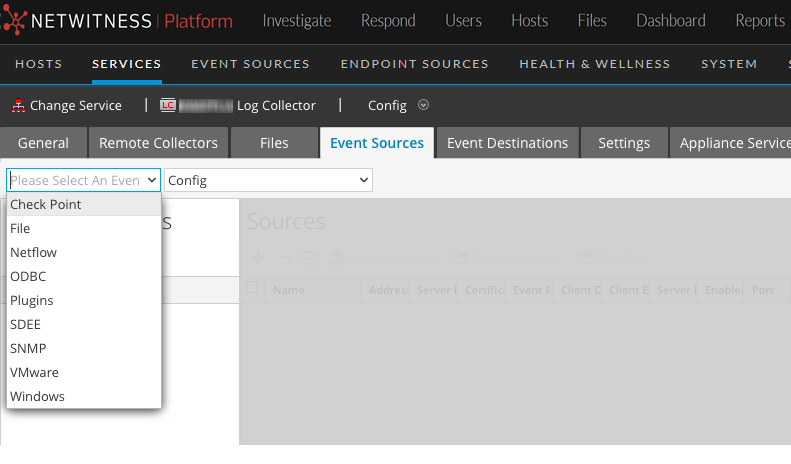
- Select Windows/Kerberos Realm from the drop-down menu.
-
In the Kerberos Realm Configuration panel toolbar, click
 to add a new realm.
The Add Kerberos Domain dialog is displayed.
-
Fill in the parameters, using the guidelines below.
-
Click Save to add the Kerberos domain.
To add a Windows Event Source:
- Go to (Admin) > Services.
- Select a Log Collection service.
- Under Actions, select > View > Config to display the Log Collection configuration parameter tabs.
-
Click the Event Sources tab.
-
In the Log Collector Event Sources tab, select Windows/Config from the drop-down menu.
The Event Categories panel displays the VMware event sources that are configured, if any.
Next, continue from the current screen to add a Windows Event Category and type.
To configure the Windows Event Type:
-
Select Windows/Config from the drop-down menu.
-
In the Event Categories panel toolbar, click
to add a source.The Add Source dialog is displayed.
-
Fill in the parameters, using the guidelines below.
-
Click OK to add the source.
The newly added Windows event source is displayed in the Event Categories panel.
-
Select the new event source in the Event Categories panel.
The Hosts panel is activated.
- Click in the Hosts panel toolbar.
-
Fill in the parameters, using the guidelines below.
-
Click Test Connection.
Note: You should be able to successfully test the connection, even if the Windows service is not running.
For more information on any of the previous steps, see the following Help topics in the NetWitness User Guide: