Skip to content
  • There are no suggestions because the search field is empty.

Content Library Tab

Tags: Configuration, Version 12.3

Content Library Tab

The Configure (CONFIGURE) > Policies view contains two tabs: Configuration and Content.

The CONTENT tab has Content Library, Policies, Groups and Services on the left panel.

Below is an example of the Content > Content Library tab:
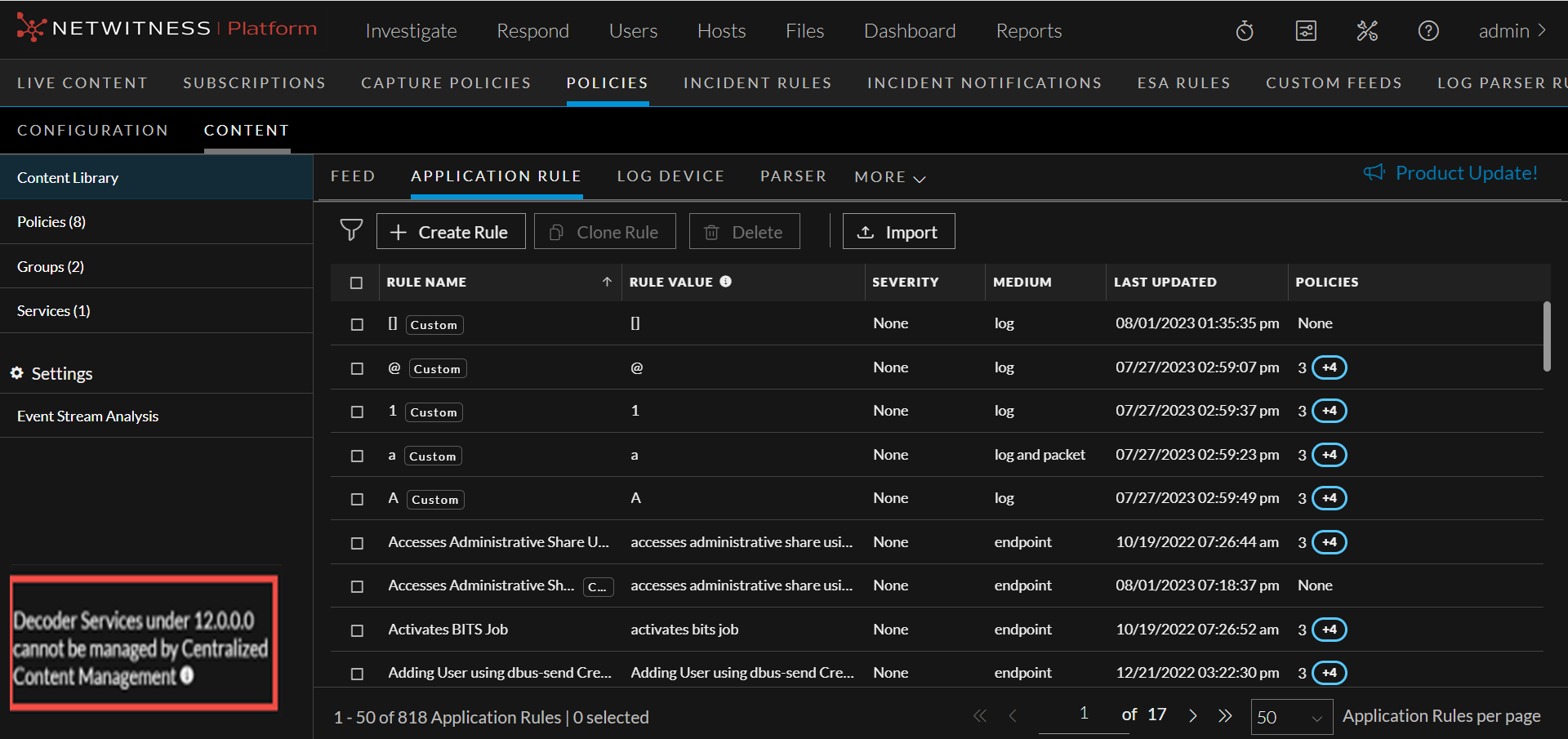
1231_Decodersunder1200_0823.png

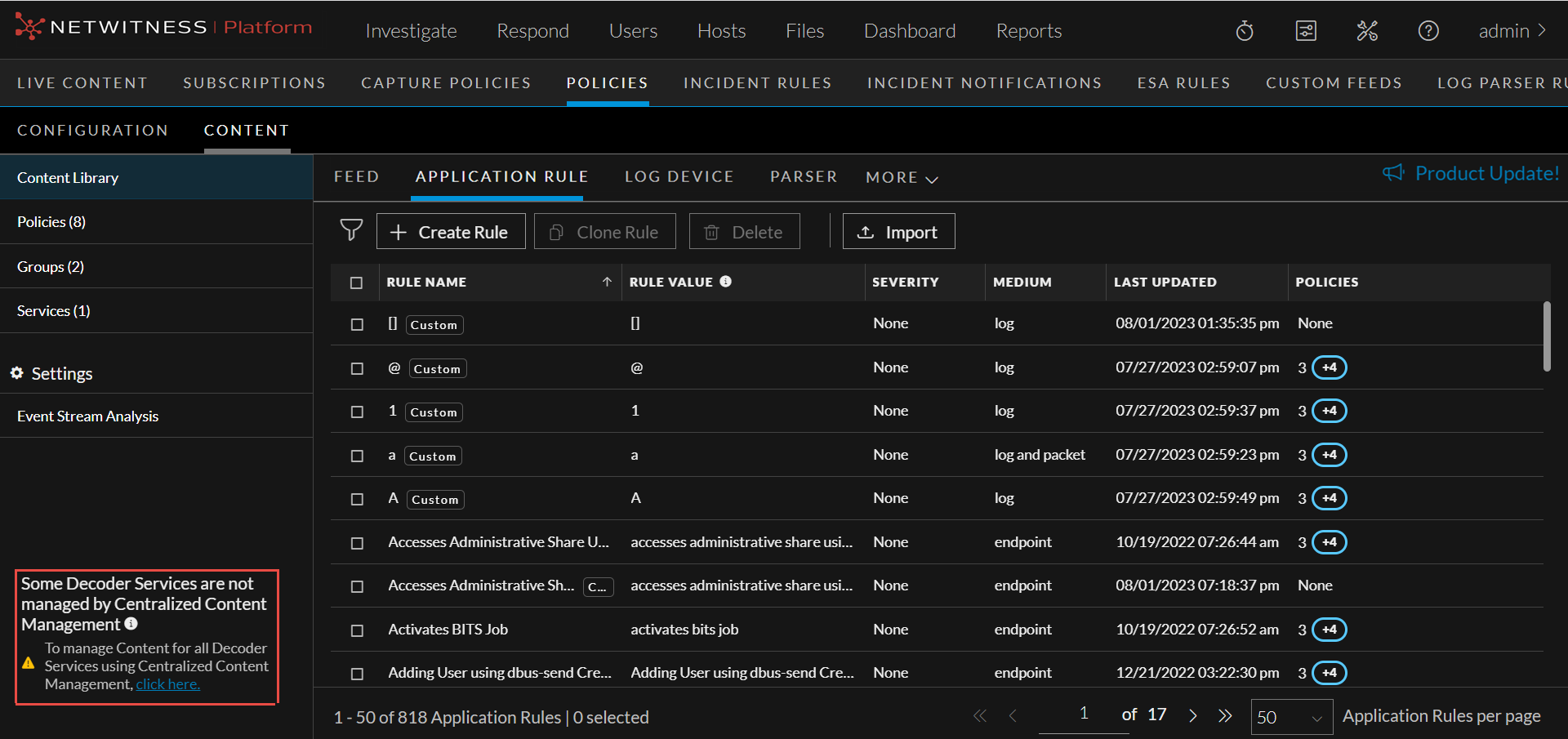
122_ManageContentSomDecoder_0223.png

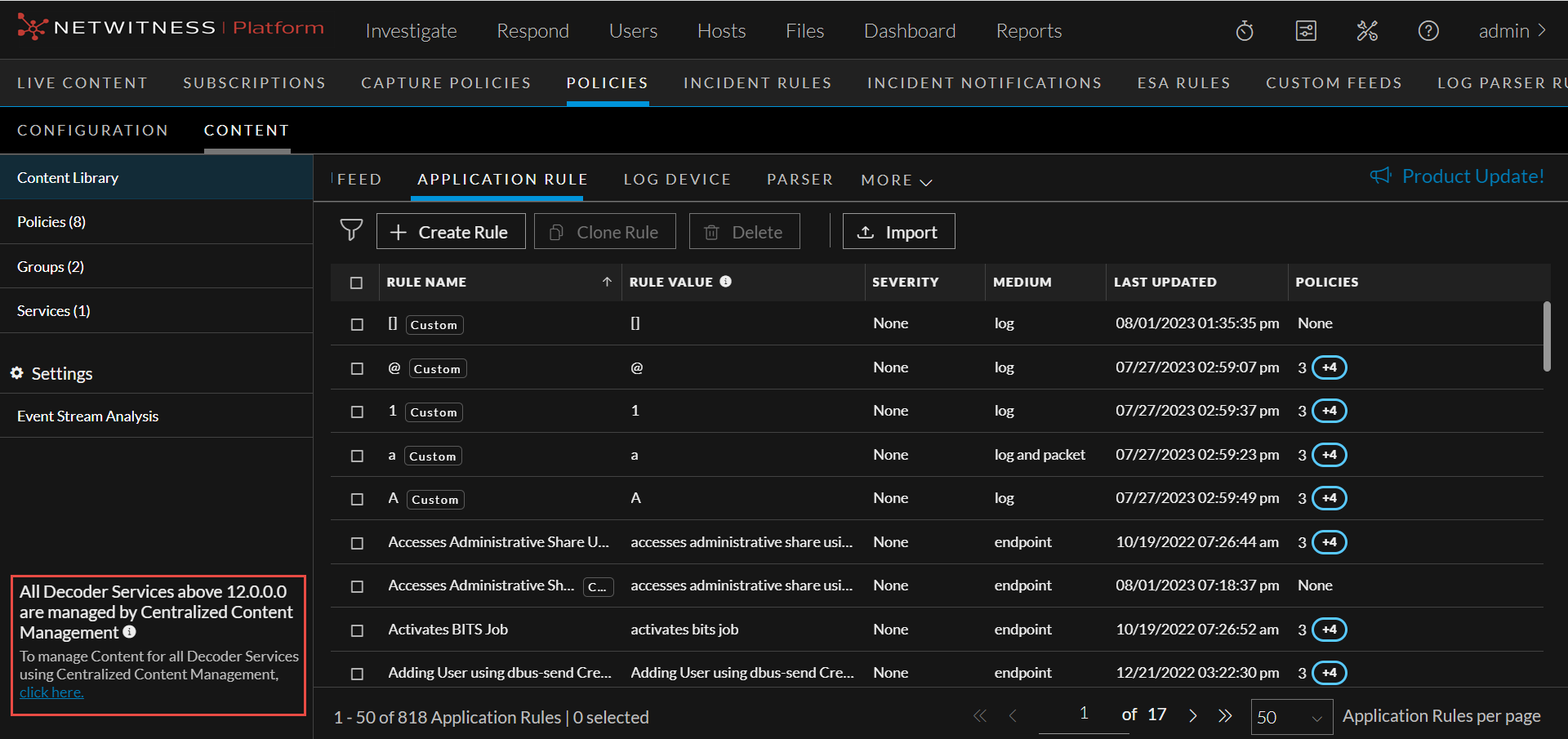
122_ManageContentAllDecoder_0223.png

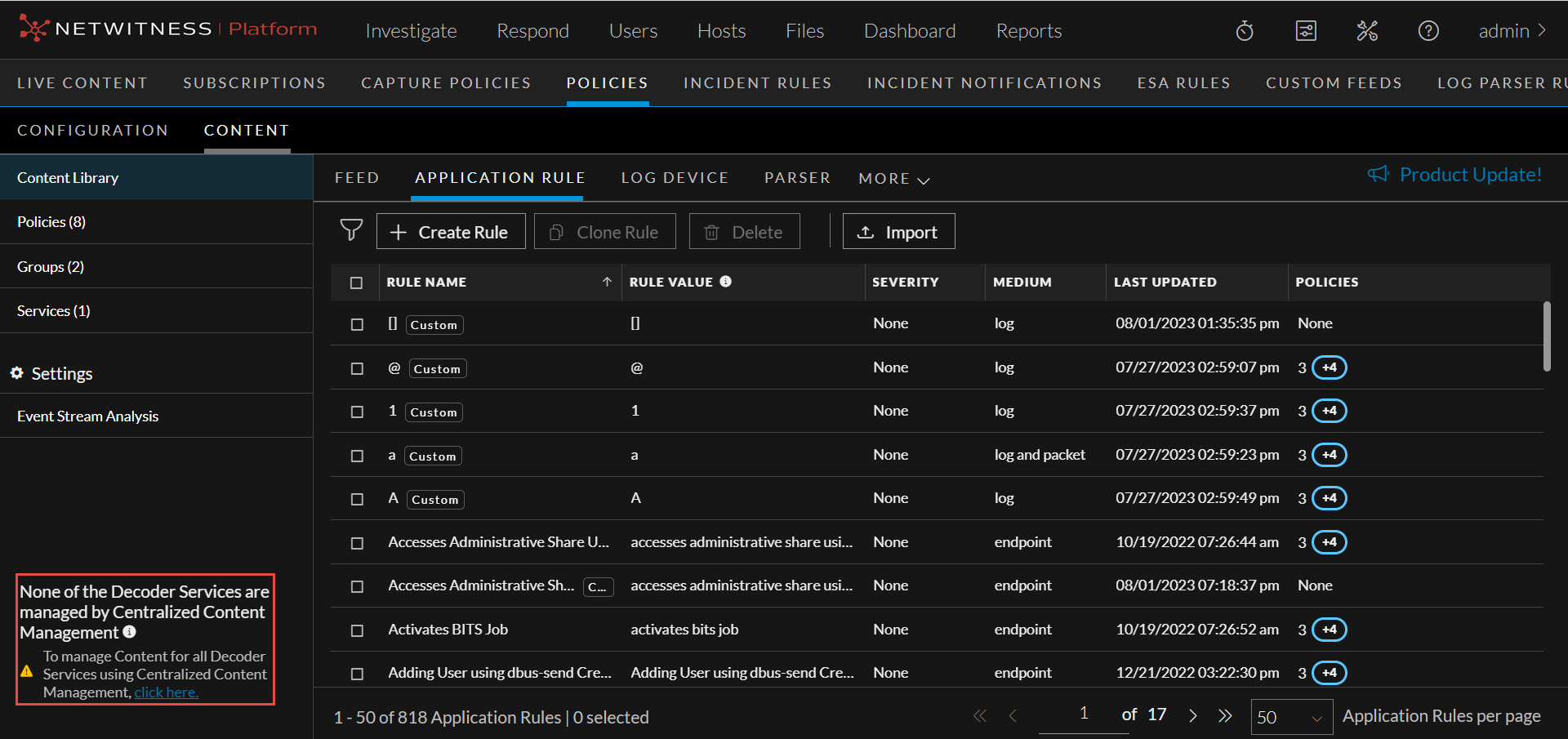
122_ManageContentNoDecoder_0223.png

The following table describes the Content Library tab.

  • Column 1:

    1

  • Column 2:

    By default, 50 contents are displayed per page. To go to the next page, click 123_NextPage_0523.png. To go to the last page, click 123_LastPage_0523.png.


  • Column 1: 3
  • Column 2:

    Rule List Pane

    • Rule Name - Name of the rule.

    • Rule Value - The rule value.

    • Medium - Medium through which the rule is created.

    • Last Updated - Displays the time when the rule is updated.

    • Policies - Policies to which the rule is applied.

    You can also sort on any column. If you mouse over a column header, a sort icon is displayed: . Click the Sort.png icon to sort by the selected column.


Create New Rule dialog:

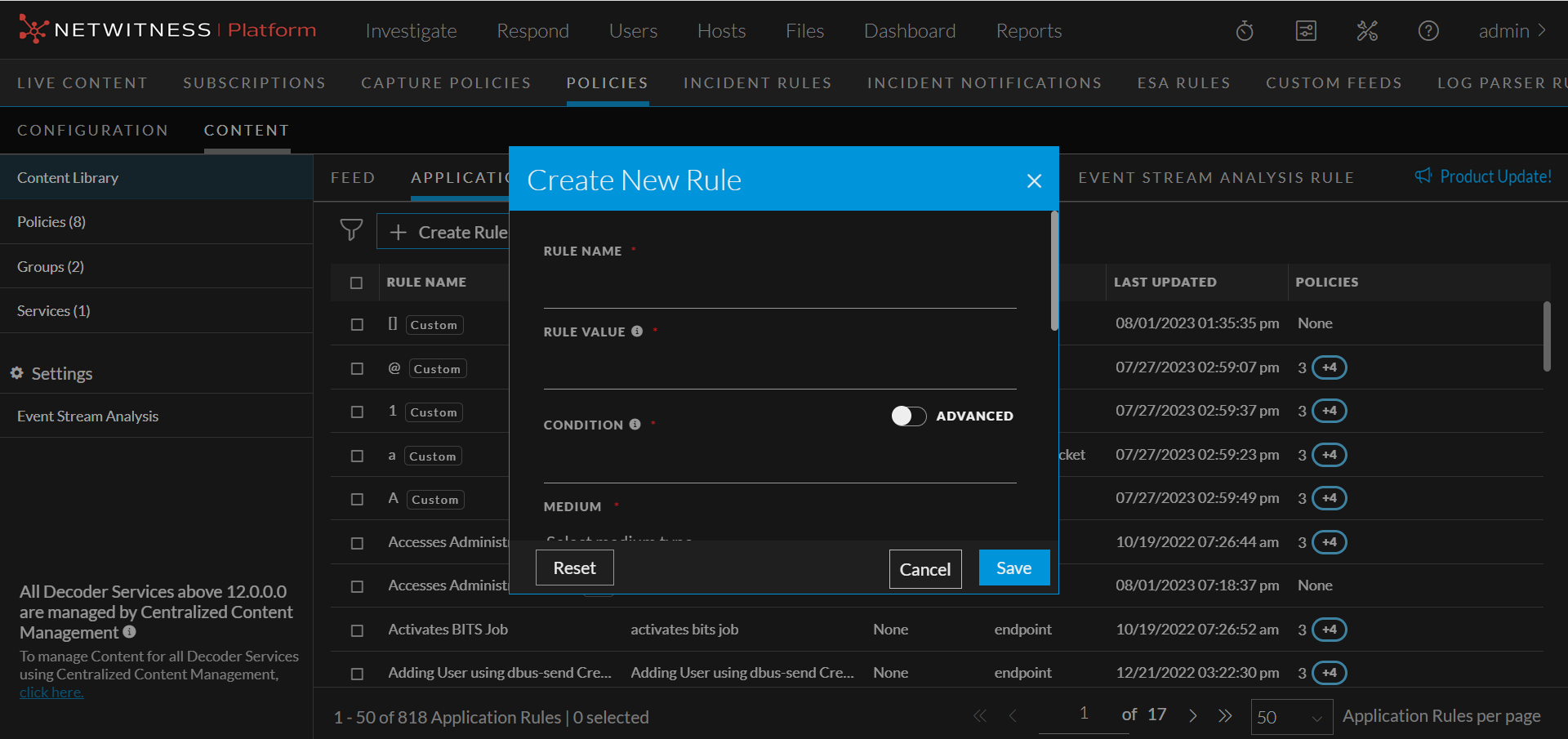
Below is an example of the Create New Rule dialog:
12.2_CreateNewRule_1122.png

The table describes the information and options in the Create New Rule dialog:

  • Column 1: Field
  • Column 2: Description

  • Column 1: Rule Name
  • Column 2: Name of the new rule. The name should be unique.

  • Column 1:

    Rule Value

  • Column 2:

    The rule value. While creating a new rule, the rule value is defaulted with the rule name. However, you can modify the same.


  • Column 1: Condition
  • Column 2:

    Condition for the new rule. You can apply two types of conditions for the rule.

    Normal mode:

    It gives suggestions for supported metas (ip, host and so on) and operators (“=”, “Not Equal To”, “Contains”, “Exists” and so on).

    The entered condition will be enclosed in a ‘Pill’. When you enter multiple conditions, the conditions are automatically joined by an ‘AND’ operator. On clicking the ‘AND’ operator, you can toggle between ‘AND’ and ‘OR’ operators.

    Advanced:

    You can customize the conditions as a free form text.


  • Column 1: Medium
  • Column 2: Medium through which the rule is created. For a network rule, the value of medium is selected as Packet as default and you cannot edit it.

  • Column 1: MITRE ATT&CK Tactics
  • Column 2:

    Tactics associated with the rule.

    For example: Credential Access.

    For more information on MITRE ATT&CK Tactics, see Use MITRE ATT&CK Framework topic in the NetWitness Respond User Guide for 12.4


  • Column 1:

    MITRE ATT&CK Techniques

  • Column 2:

    Techniques associated with the rule.

    For example: OS Credential Dumping.

    For more information on MITRE ATT&CK Techniques, see Use MITRE ATT&CK Framework topic in the NetWitness Respond User Guide for 12.4


  • Column 1: Description
  • Column 2: The description of the new rule.

  • Column 1: Session Data
  • Column 2: Session data for the new rule. Indicates if the rule processing should stop, keep, filter or truncate when the session data is running.

  • Column 1: Session Options
  • Column 2: Session options for the new rule. Indicates if the session options should be alert, forward or transient.

  • Column 1: Flag session with rule name in meta key
  • Column 2: Conditions for which the alert should be turned on.

  • Column 1: Save
  • Column 2: Saves the settings and closes the Create New Rule dialog.

  • Column 1: Cancel
  • Column 2: Cancels the operations.

Clone Rule dialog:

Below is an example of the Clone Rule dialog.

12.2_CloneRule_1122.png

The table describes the information and options in the Clone Rule dialog:

  • Column 1: Field
  • Column 2: Description

  • Column 1: Rule Name
  • Column 2: Name of the cloned rule. The name should be unique.

  • Column 1:

    Rule Value

  • Column 2:

    The rule value written to the alert meta.


  • Column 1: Condition
  • Column 2:

    Condition for the new rule. You can apply two types of conditions for the rule.

    Normal mode:

    It gives suggestions for supported metas (ip, host and so on) and operators (“=”, “Not Equal To”, “Contains”, “Exists” and so on).

    The entered condition will be enclosed in a ‘Pill’. When you enter multiple conditions, the conditions are automatically joined by an ‘AND’ operator. On clicking the ‘AND’ operator, you can toggle between ‘AND’ and ‘OR’ operators.

    Advanced:

    You can customize the conditions as a free form text.


  • Column 1:

    Medium

  • Column 2:

    Medium through which the rule is created. For a network rule, the value of medium is selected as Packet as default and you cannot edit it.


  • Column 1: MITRE ATT&CK Tactics
  • Column 2:

    Tactics associated with the rule.

    For example: Credential Access.

    For more information on MITRE ATT&CK Tactics, see Use MITRE ATT&CK Framework topic in the NetWitness Respond User Guide for 12.4


  • Column 1:

    MITRE ATT&CK Techniques

  • Column 2:

    Techniques associated with the rule.

    For example: OS Credential Dumping.

    For more information on MITRE ATT&CK Techniques, see Use MITRE ATT&CK Framework topic in the NetWitness Respond User Guide for 12.4


  • Column 1: Description
  • Column 2: The description of the new rule.

  • Column 1:

    Session Data

  • Column 2:

    Session data for the new rule. Indicates if the rule processing should stop, keep, filter or truncate when the session data is running.


  • Column 1: Session Options
  • Column 2: Session options for the new rule. Indicates if the session options should be alert, forward or transient.

  • Column 1:

    Flag session with rule name in meta key

  • Column 2:

    Conditions for which the alert should be turned on.


  • Column 1: Clone
  • Column 2:

    Clones the rule and closes the Cone Rule dialog.


  • Column 1: Cancel
  • Column 2: Cancels the operation.

Edit Rule dialog:

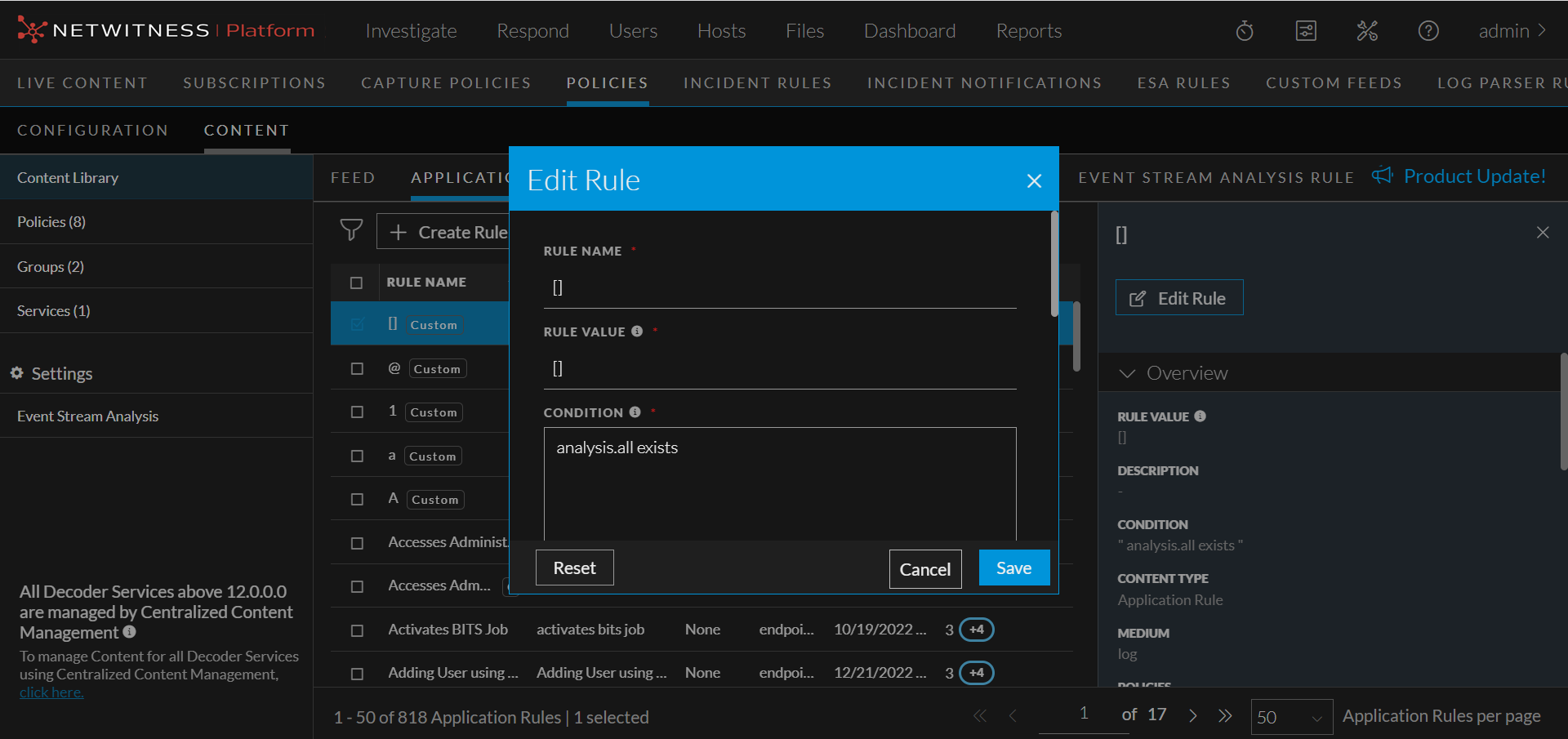
Below is an example of the Edit Rule dialog:
122_EditRule_0123.png

The table describes the information and options in the Edit Rule dialog:

  • Column 1: Field
  • Column 2: Description

  • Column 1: Rule Name
  • Column 2: Name of the new rule. The name should be unique.

  • Column 1:

    Rule Value

  • Column 2:

    The rule value.


  • Column 1: Condition
  • Column 2:

    Condition for the new rule. You can apply two types of conditions for the rule.

    Normal mode:

    It gives suggestions for supported metas (ip, host and so on) and operators (“=”, “Not Equal To”, “Contains”, “Exists” and so on).

    The entered condition will be enclosed in a ‘Pill’. When you enter multiple conditions, the conditions are automatically joined by an ‘AND’ operator. On clicking the ‘AND’ operator, you can toggle between ‘AND’ and ‘OR’ operators.

    Advanced:

    You can customize the conditions as a free form text.


  • Column 1: Medium
  • Column 2: Medium through which the rule is created. For a network rule, the value of medium is selected as Packet as default and you cannot edit it.

  • Column 1: MITRE ATT&CK Tactics
  • Column 2:

    Tactics associated with the rule.

    For example: Credential Access.

    For more information on MITRE ATT&CK Tactics, see Use MITRE ATT&CK Framework topic in the NetWitness Respond User Guide for 12.4


  • Column 1:

    MITRE ATT&CK Techniques

  • Column 2:

    Techniques associated with the rule.

    For example: OS Credential Dumping.

    For more information on MITRE ATT&CK Techniques, see Use MITRE ATT&CK Framework topic in the NetWitness Respond User Guide for 12.4


  • Column 1: Description
  • Column 2: The description of the new rule.

  • Column 1: Session Data
  • Column 2: Session data for the new rule. Indicates if the rule processing should stop, keep, filter or truncate when the session data is running.

  • Column 1: Session Options
  • Column 2: Session options for the new rule. Indicates if the session options should be alert, forward or transient.

  • Column 1: Flag session with rule name in meta key
  • Column 2: Conditions for which the alert should be turned on.

  • Column 1: Save
  • Column 2: Saves the settings and closes the Edit Rule dialog.

  • Column 1:

    Reset

  • Column 2:

    Reset the fields.


  • Column 1: Cancel
  • Column 2: Cancels the operation.

Search Pattern Rule tab

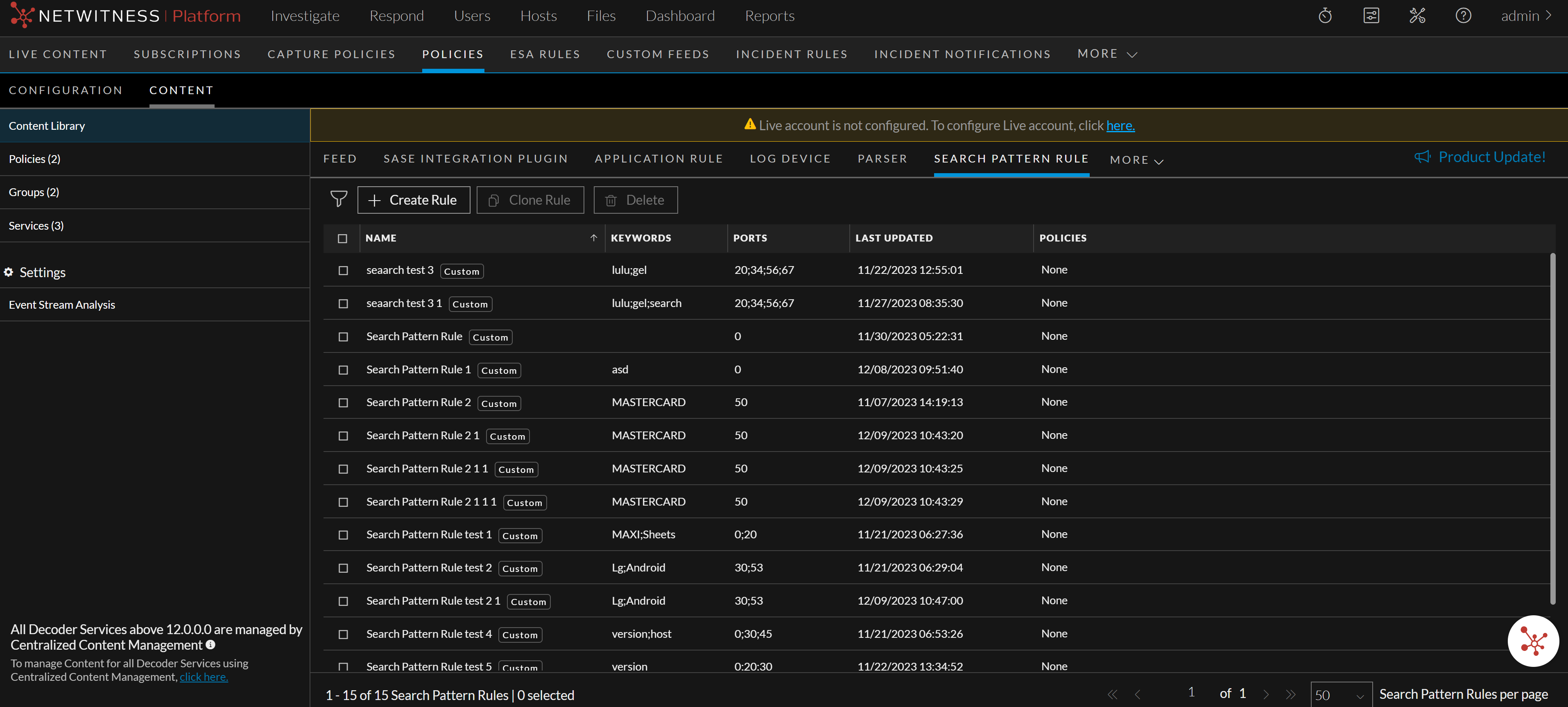
Following is an example of the Content > Content Library > More > Search Pattern Rule tab:
124_search_pattern_rule_tab.png

  • Column 1: 1
  • Column 2:

    Toolbar

    • Create Rule - Allows you to create a search pattern rule.

    • Clone Rule - Allows you to clone a search pattern rule. For more information, see Manage Search Pattern Rules

    • Delete - Allows you to delete a search pattern rule. For more information, see Manage Search Pattern Rules


  • Column 1: 2
  • Column 2:

    Rule List Pane

    • Name - Name of the search pattern rule.

    • Keywords - Displays the keywords associated for each search pattern rule.

    • Ports - Displays the ports associated for each search pattern rule.

    • Last Updated - Displays the time when the rule is updated.

    • Policies - Policies to which the rule is applied.

    You can also sort on any column. If you mouse over a column header, a sort icon is displayed: . Click the Sort.png icon to sort by the selected column.


Create New Rule dialog for Search Pattern Rule:

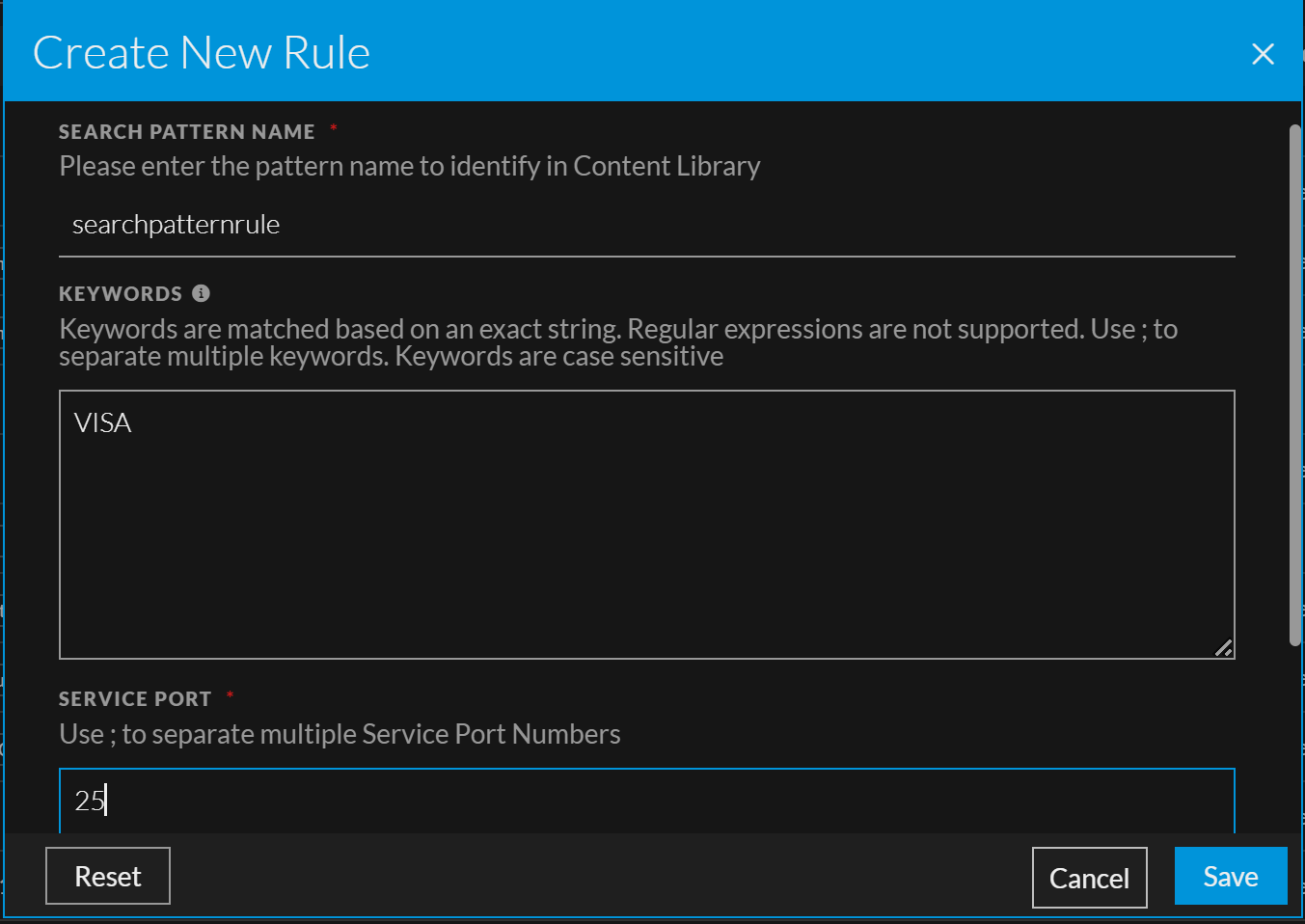
Below is an example of the Create New Rule dialog for Search Pattern Rule:
create_new_search_pattern_rule_12.4.png

  • Field: Search Pattern Name
  • Description: Name of the new rule. The name should be unique.

  • Field: Keywords
  • Description: Allows you to add one or more keywords. Keywords are matched based on an exact string only. Regular expressions (Regex) are not supported.
    Use semicolons (;) to separate multiple keywords. For example, CreditCard;VISA;US.

  • Field: Service Port
  • Description:

    Allows you to add one or more ports. Use semicolons (;) to separate multiple port numbers.For example, 20;21;23.

    The port numbers must be between 1 and 65535.


  • Field: Save
  • Description: Saves the settings and closes the Create New Rule dialog.

  • Field: Cancel
  • Description: Cancels the operations.

  • Field:

    Reset

  • Description:

    Reset the fields.


Clone Rule dialog for Search Pattern Rule:

Below is an example of the Clone Rule dialog.
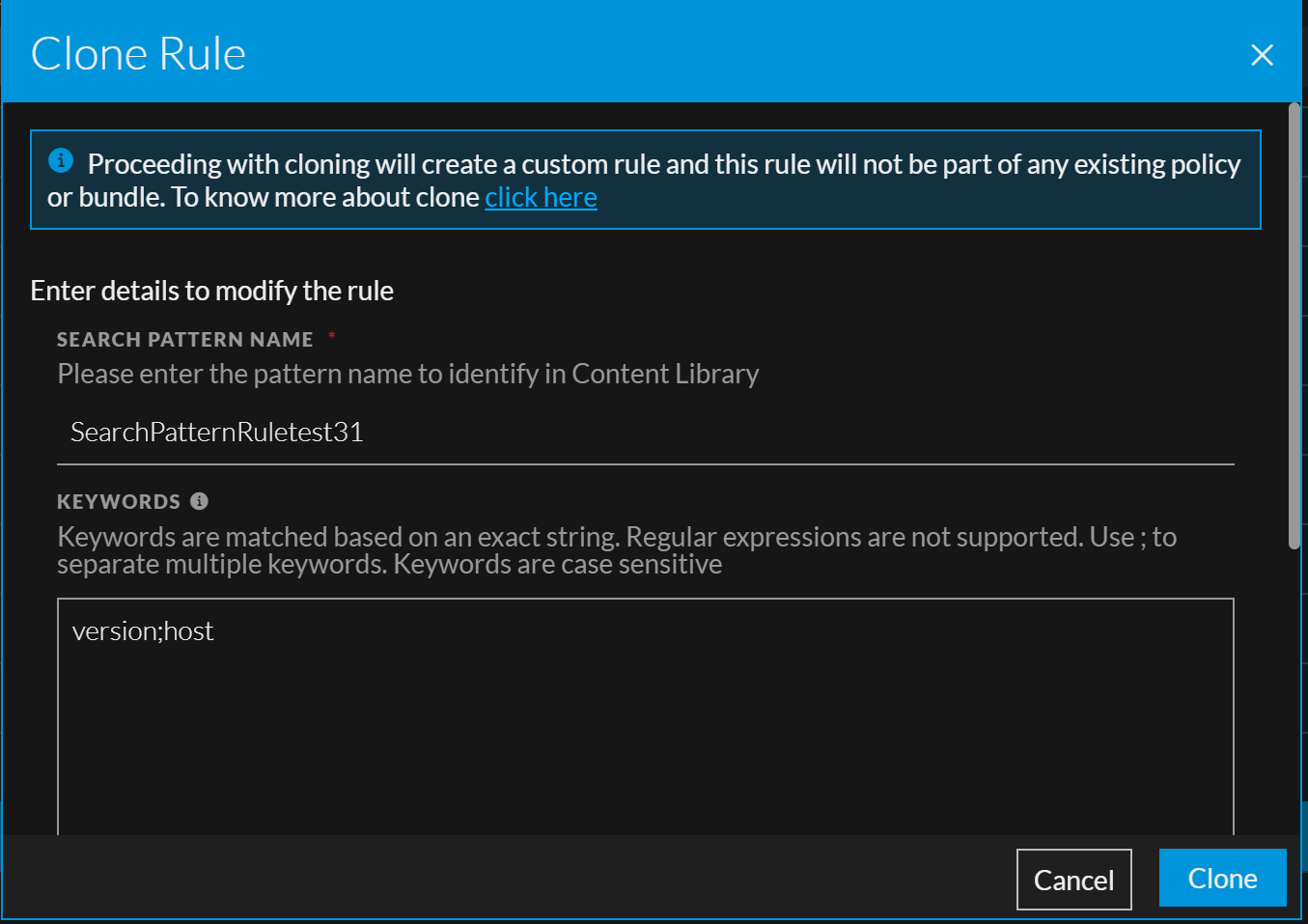
Clone_Search_Pattern_Rule_12.4.png

  • Field: Search Pattern Name
  • Description: Name of the new rule. The name should be unique.

  • Field: Keywords
  • Description: Allows you to add one or more keywords. Keywords are matched based on an exact string only. Regular expressions (Regex) are not supported.
    Use semicolons (;) to separate multiple keywords. For example, CreditCard;VISA;US.

  • Field: Service Port
  • Description:

    Allows you to add one or more ports. Use semicolons (;) to separate multiple port numbers.For example, 20;21;23.

    The port numbers must be between 1 and 65535.


  • Field: Clone
  • Description: Clones the rule and closes the Cone Rule dialog.

  • Field: Cancel
  • Description: Cancels the operations.

Edit Rule dialog for Search Pattern Rule:

Below is an example of the Edit Rule dialog.
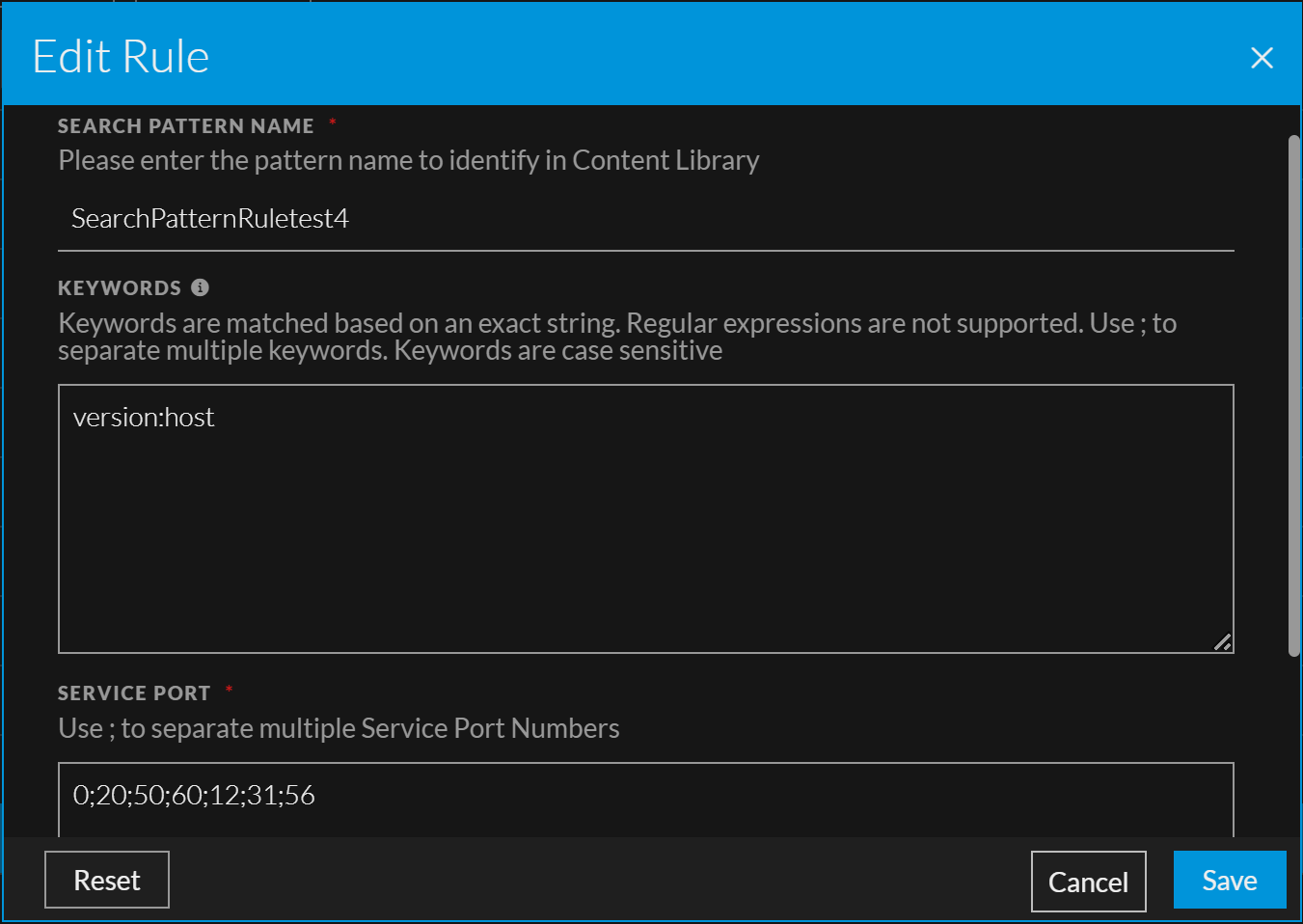
Edit_Serach_Pattern_Rule_12.4.png

  • Field: Search Pattern Name
  • Description: Name of the new rule. The name should be unique.

  • Field: Keywords
  • Description: