Skip to content
  • There are no suggestions because the search field is empty.

Context Hub Data Sources Tab

Context Hub Data Sources Tab

In the Data Sources tab, you can configure one or more data sources for Context Hub service. Navigate to netwitness_adminicon_25x22.png (Admin) > Services > Select Context Hub service > View > Config > Data Sources tab.

Workflow

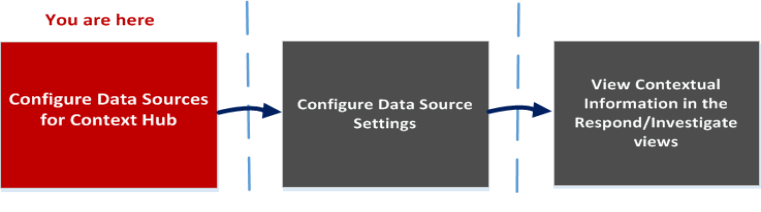
This workflow shows the procedure to configure data sources for Context Hub service to view contextual information in the Respond / Investigate views.
netwitness_wf_datasourcestab_761x212.png

  • The first task is to add a data source
  • The second task is to configure data sources settings to enhance your deployment. This task is optional as the settings for each data source is already configured with default values for optimal performance.
  • And the third task is to view and analyze the contextual information in the Context Summary panel of the Respond or Investigate views.

What do you want to do?


  • Role: Analyst
  • I want to ...: View Contextual Information in Respond View
  • Show me how:

    See the NetWitness Respond User Guide.


  • Role: Analyst
  • I want to ...: Add, create and delete list from the Respond or Investigate View
  • Show me how:

    See the NetWitness Respond User Guide.

    See the Investigate User Guide.


  • Role:

    Analyst

  • I want to ...:

    Add or delete an entry from an existing list

  • Show me how:

    See the NetWitness Respond User Guide.


*You can complete this task here (that is in the Context Hub Data Sources Tab.)

Related Topics

Quick Look

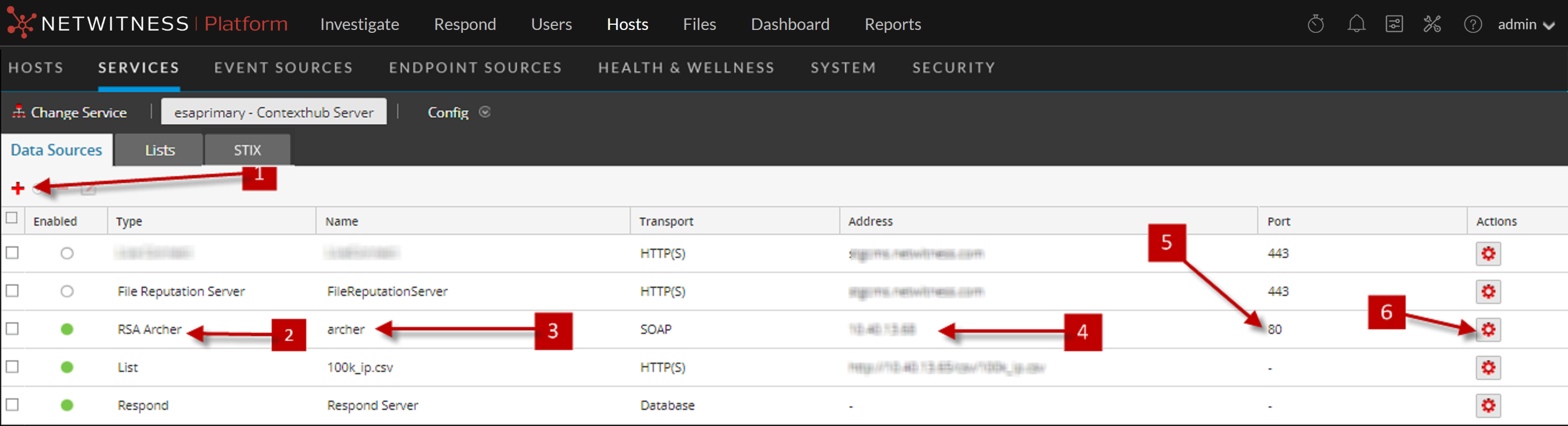
The following example illustrates how to add a data source for Context Hub service.
121_LP_DS_tab_1122.png

  • Column 1: 1
  • Column 2: Click netwitness_add.png to display the Add Data Source dialog.

  • Column 1: 2
  • Column 2: Displays the type of Data Source.

  • Column 1: 3
  • Column 2: Name that identifies the Data Source.

  • Column 1: 4
  • Column 2: The IP address or hostname of the data source.

  • Column 1: 5
  • Column 2: The connection port for the data source.

  • Column 1: 6
  • Column 2: Opens the Configure Settings dialog. You can view and edit the settings to be displayed on the Context Summary panel in the Respond or Investigate views.

  • Column 1: 7
  • Column 2: Click Test Connection to verify that the host is connected to the Context Hub service.

Toolbar

The following table describes the toolbar actions.

  • Feature: netwitness_add.png
  • Description:

    Opens the Add Data Source dialog so that you can add a data source. You can add only one data source of each type. Except in case of Lists and Active Directory data sources which can be added in multiples. For detailed instructions to add a data source, see Configure Lists as a Data Source.


  • Feature: netwitness_delete.png
  • Description:

    Delete a data source.

    If you delete a data source, Context Hub does not consider the deleted service as a data source. All contextual information fetched previously will not be available.


  • Feature: netwitness_ic-edit.png
  • Description:

    Opens the Edit Data Source dialog.


  • Feature: netwitness_ic-actns2.png
  • Description:

    Opens the Configure Settings dialog. You can view and edit the settings for the data sources.

    For description of each field in Configure Responses dialog, see Configure Context Hub Data Source Settings .


Data Source Configurations

The following table describes the listed configurations.

  • Feature: Enabled
  • Description:

    Indicates whether the data source is enabled or disabled. A solid colored green circle indicates that data source is enabled (netwitness_greencir.png). An blank white circle indicates that data source is disabled.


  • Feature: Type
  • Description:

    The type of data source. For example, Lists, Archer, Active Directory, Endpoint, Respond, REST API or File Reputation server.


  • Feature: Name
  • Description:

    The unique name to identify the data source. For example, Respond.


  • Feature: Address
  • Description:

    The IP address or hostname of the data source.


  • Feature: Port
  • Description:

    The connection port for the data source and vary based on the data source being added. For example, for Endpoint the port is 9443, for Lists the port is 80 and so on.