.png?width=180&height=32&name=NW%20Logo%20(2).png)
Context Lookup Panel
After an administrator configures the Context Hub service, you can view the contextual information for the meta values in the Navigate view, Legacy Events view, and Events view. The Context Hub service is pre-configured with a default meta type and meta key mapping. For information about mapping of the context hub meta value with investigation meta key, see "Manage Meta Type and Meta Key Mapping" in the Context Hub Configuration Guide.
The Context Lookup panel is displayed on the right side of the Navigate view, Legacy Events view, or Events view. Meta values that have been added to a Context Hub list are highlighted in gray in the Navigate view or Legacy Events view results. In the Events view, they are marked by an underscore. When you right-click a highlighted value and select Context Lookup in the resulting context menu, the lookup results are displayed in the Context Lookup panel for configured sources for the selected meta value. You can select a source in the Context Lookup panel icon bar to view the contextual information.
There are some differences between the appearance and contents of the Context Lookup panel when open in the Navigate view or Events view and when open in the Events view.
Note: The contexthub-server.contextlookup.read permission is enabled only for Administrators, Analysts, Malware Analysts, SOC Managers and Respond Administrators. Administrators can enable this permission for other roles in the Respond view to view context lookups for meta values and perform the Add/Remove from List actions. For more information, see the "Role Permissions" topic in the System Security and User Management Guide.
What do you want to do?
Workflow
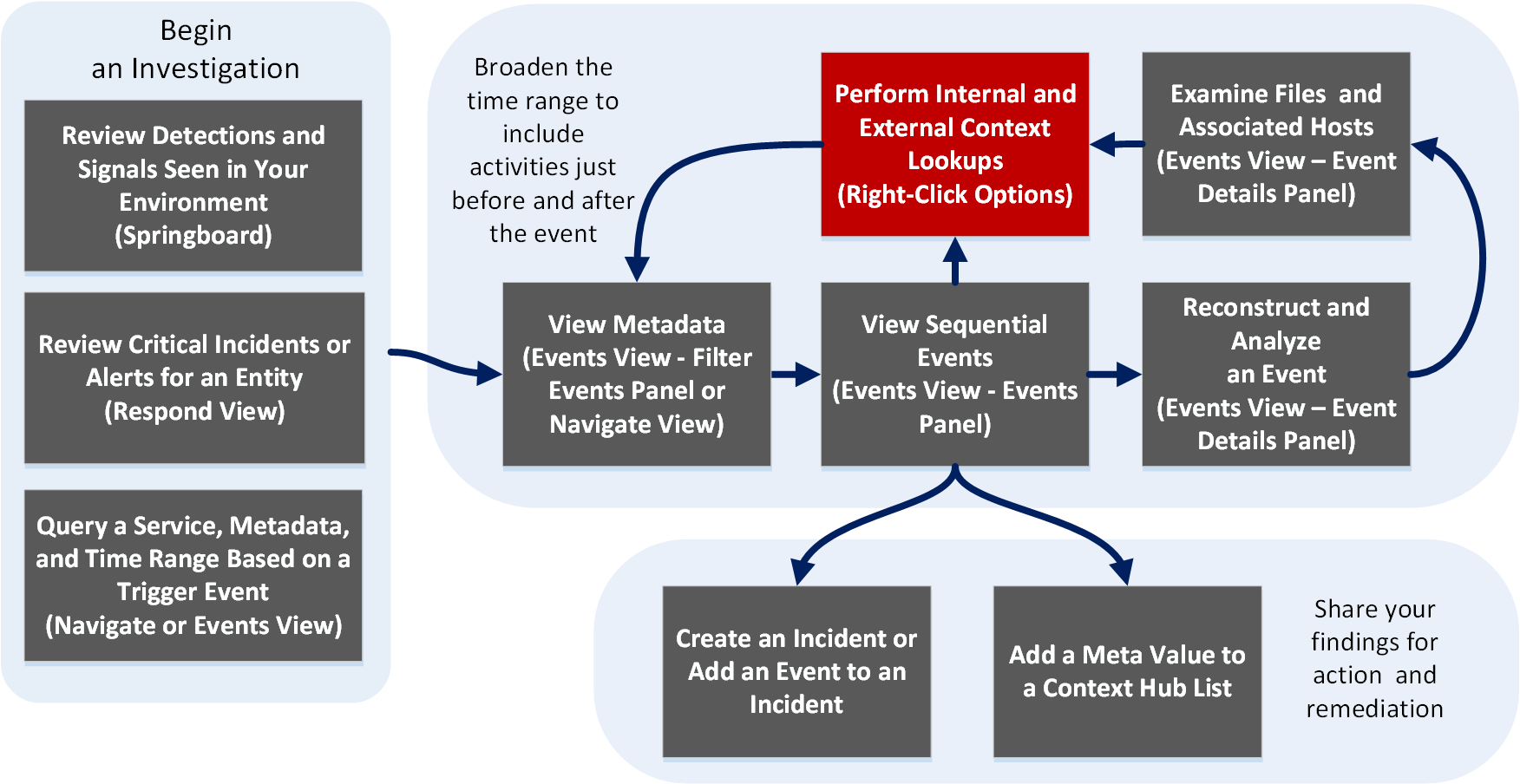
What do you want to do?What do you want to do?
*You can perform this task in the current view.
Related TopicsRelated Topics
- How NetWitness Investigate Works
- Legacy Events View
- Navigate View
- Events View
- "NetWitness Feedback and Data Sharing" in the Live Services Management Guide
Quick Look (in the Navigate and Legacy Events Views)
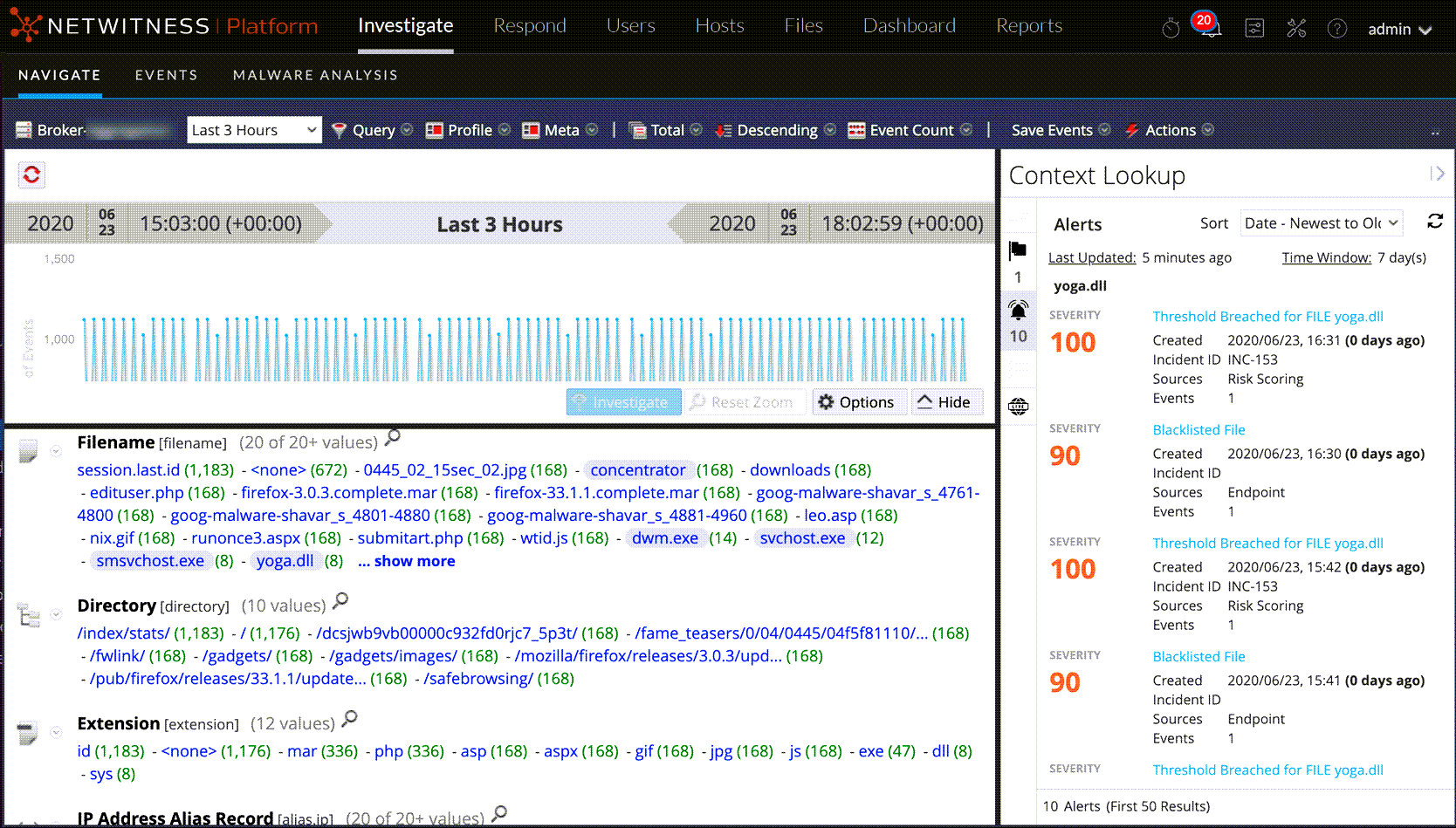
The following figure is an example of the Context Lookup panel as it appears in the Navigate view. Controls and features are described in the table.
IncidentsIncidents
Incidents are displayed based on time first (Newest to Oldest) and then priority status. The following information is displayed for incident lookups:
- Incident Name and ID
- Priority status of the incidents
- Risk Score value of the incidents
- Date when the incident was created
- Status of the incident
- Assignee for the incident
- Last Updated: Indicates when contextual data was last fetched from data source and updated to cache.
- Time window: This is based on the value that is set for the "Query Last (Days)" field in the Configure Respond window. For details, see the "Configure Respond as a Data Source" topic in the Context Hub Configuration Guide.
- Sort: This drop-down field provides options to change the sorting of result based on time or priority.
Alerts
Alerts are displayed based on the Severity. ;The following information is displayed for alert lookups:
- Alert Name
- Severity value of the alerts
- Date when the alert was created
- Incident ID: This is the ID of the incident that the alert is associated with (If any).
- Sources: Event source name
- Number of events associated with the alert.
- Last Updated: Indicates when contextual data was last fetched from data source and updated to cache.
- Time window: This is based on the value that is set for the "Query Last (Days)" field in the Configure Respond window. For details, see the "Configure Respond as a Data Source" topic in the Context Hub Configuration Guide
- Sort: This drop-down field provides option to change the sorting of result based on time or priority.
Lists
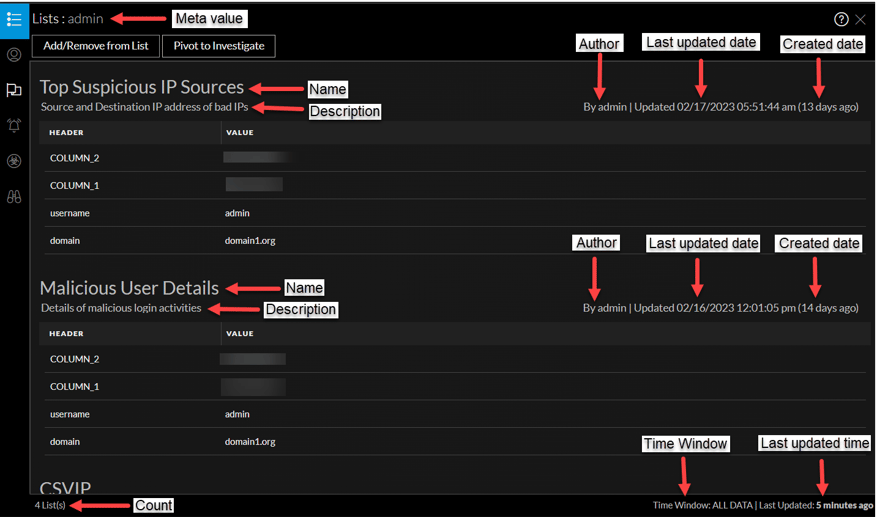
The following information is displayed for list lookups.
- List Name
- Owner who created the list
- Created Date
- Last Updated Date
- Description of the list
Endpoint
The following information is displayed for Endpoint lookups.
- Machine name and IP address of the machine.
By clicking on the IP or Endpoint machine name, you will be navigated to Endpoint UI to perform further investigation. - Last Updated: Indicates when contextual data was last fetched from data source and updated to cache.
- Machine Score: A machine IIOC score is aggregated based on the module scores.
- Number of modules: Number of active files for the selected machine.
- Last Updated: Indicates when the scan results were last updated in Endpoint database.
- Last Login User
- Machine MAC Address
- Operating System Version
- Admin Notes (if any)
- Admin Status (if any)
- Top Suspicious Modules (Modules that have an IIOC score > 500). This is based on the value set for "Minimum IIOC Score" field in the Configure Endpoint window. The default value for "Minimum IIOC Score" is 500.
- Machine IIOC Levels
Quick Look in the Events View
The following figure is an example of the Context Lookup panel as it appears in the Events view.
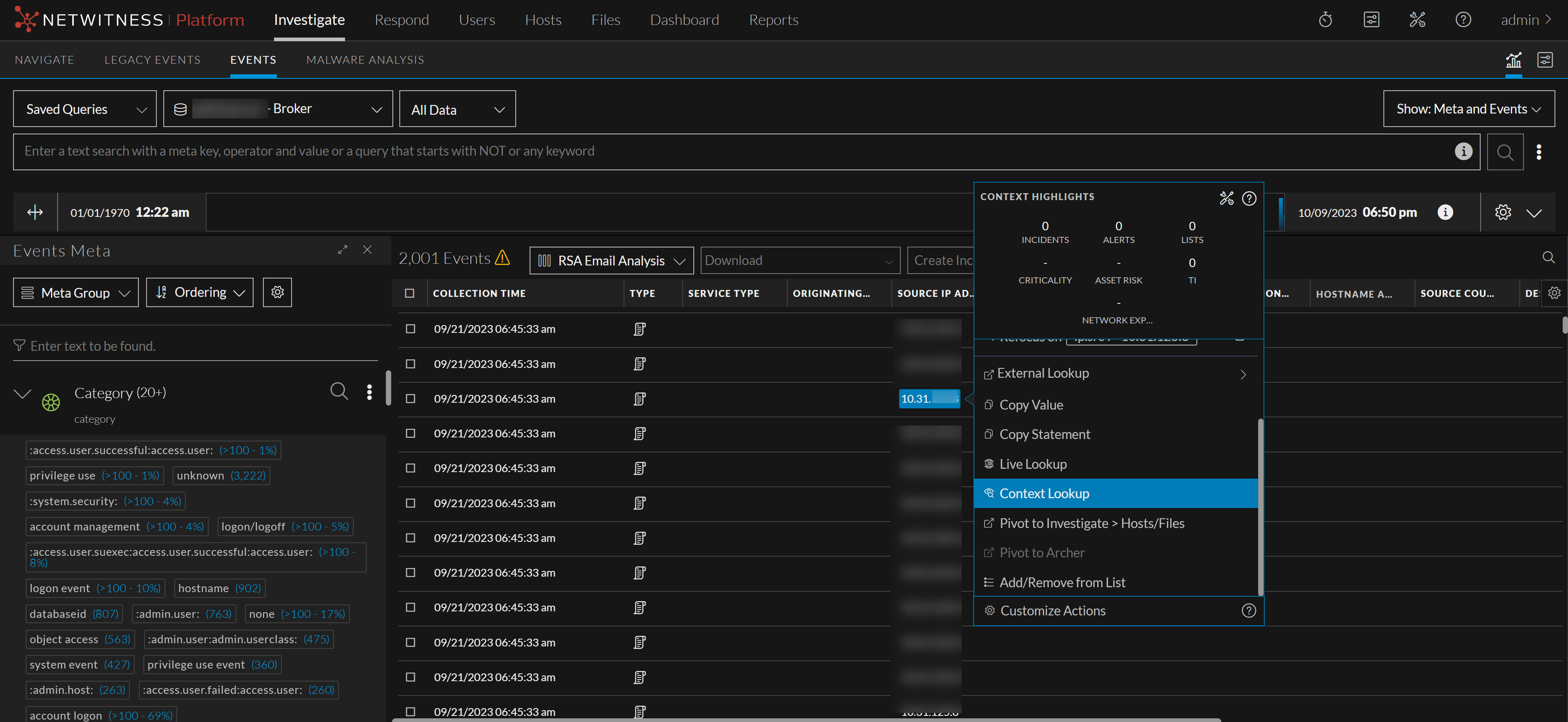
The contextual information or query results displayed in the Context Lookup panel depends on the selected entity and the associated data sources. The Context Lookup panel has separate tabs for each of the data sources. The tabs are: List data source, Archer, Active Directory, Endpoint, Incidents, Alerts, and REST API. The following figure shows the Context Lookup panel for a selected entity in the Incident Details view. 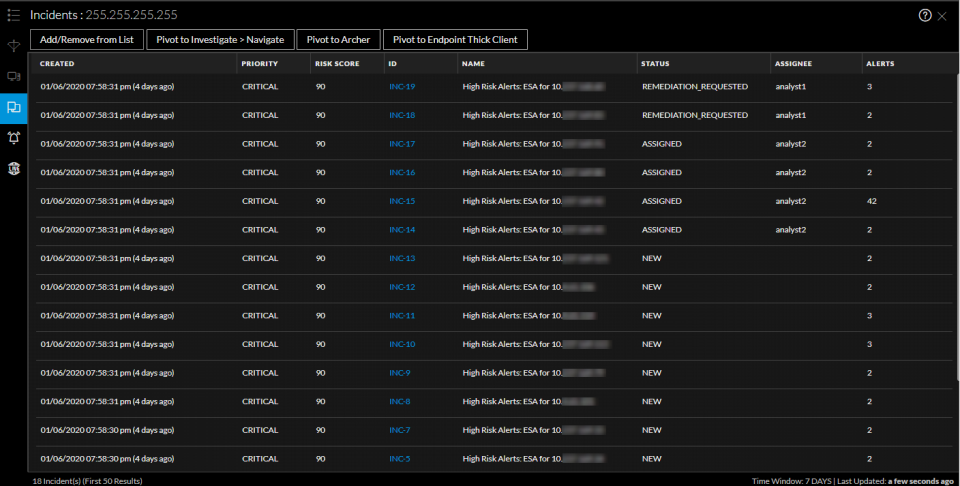
The following table describes the data available on each tab and the supported entities.
Lists Tab
The Context Lookup panel for Lists shows one or more lists associated with the selected entity or meta value. The following figure is an example of the Context Panel for Lists, and the table describes the fields.
Archer Tab
The Context Lookup panel for Archer displays asset information along with criticality ratings using the Archer data source for IP, Host, and Mac entities. The following figure is an example of the Context Lookup panel for Archer, and the table describe
IP Address