.png?width=180&height=32&name=NW%20Logo%20(2).png)
Tags: Configuration, Version 12.2
Create and Publish Policies
You can create a policy and assign it to one or more groups.
To create a Policy
- Go to
 (CONFIGURE) > Policies.
 - In the policies panel, click Content.
- Click Policies.
The available policies are displayed. - Click + Create New to add a new policy.
- In the New Policy panel, do the following:
- Enter a unique policy name.
- Enter a description for the policy.
- Click Next.
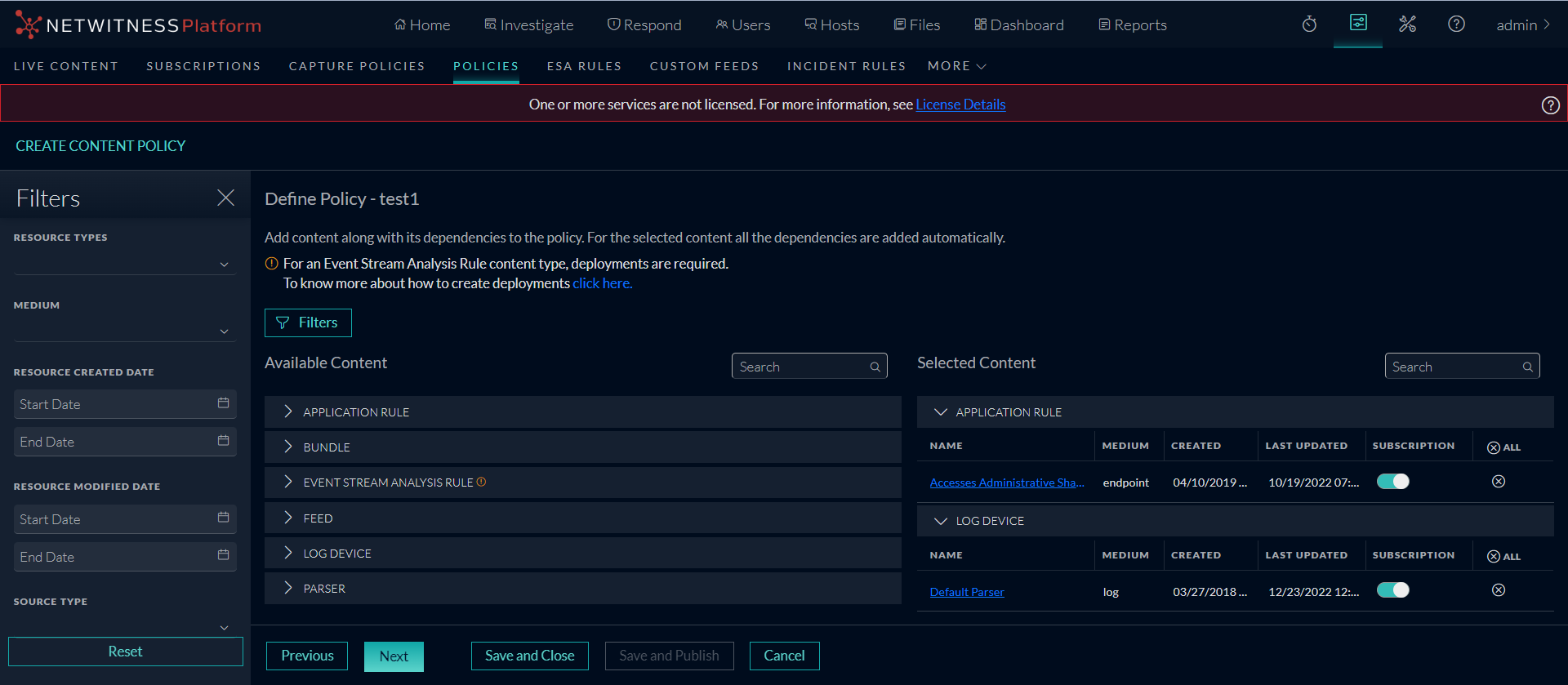
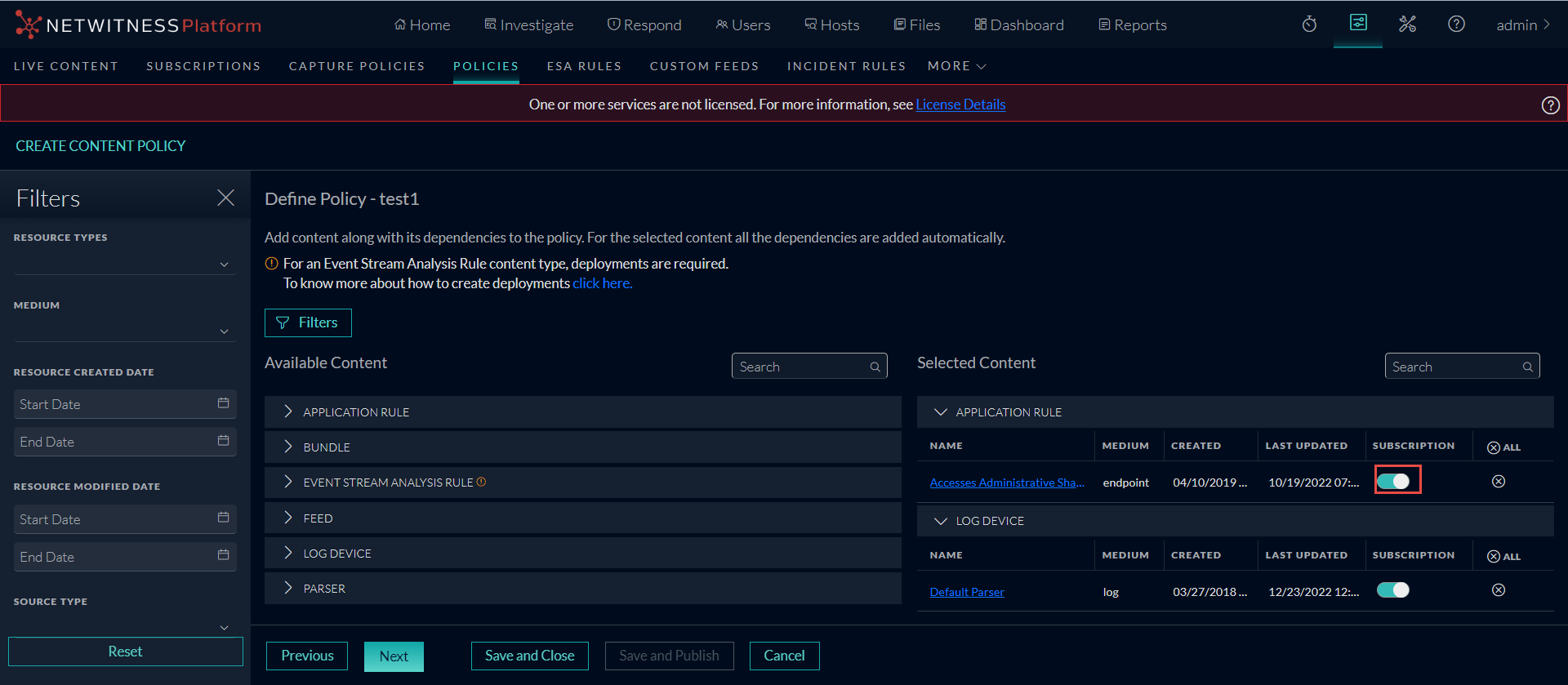
- In the Available Content, select the content type and click + to add the content to the policy. To add all content based on the resource type, click
 . After you add the content, you can enable subscription (if required) by clicking subscribed toggle. Once the content is subscribed the updates are pushed automatically. To conveniently search the available content, type the initial content text in the Search box available under the Available Content .To conveniently search the selected content, type the initial content text in the Search box available under the Selected Content.
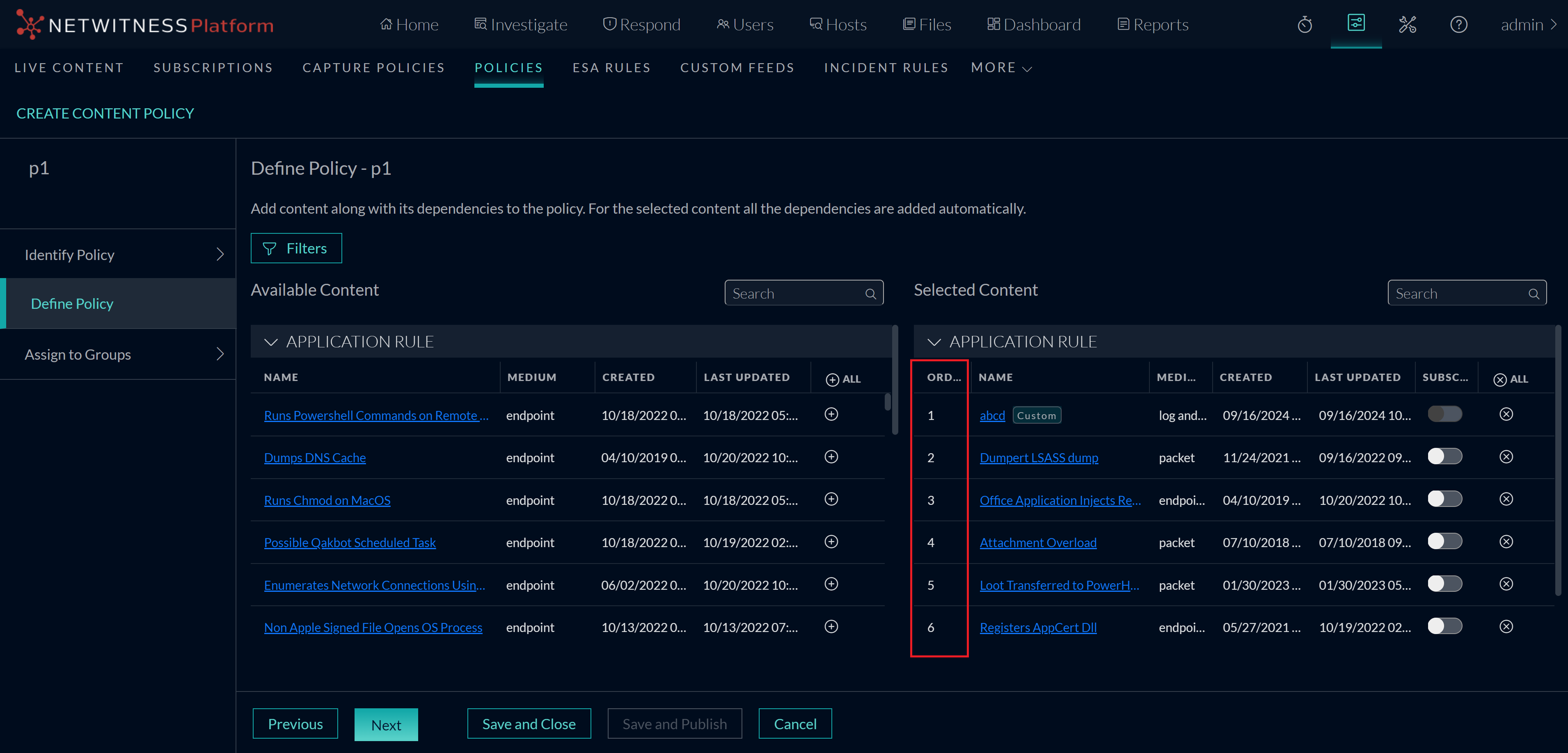
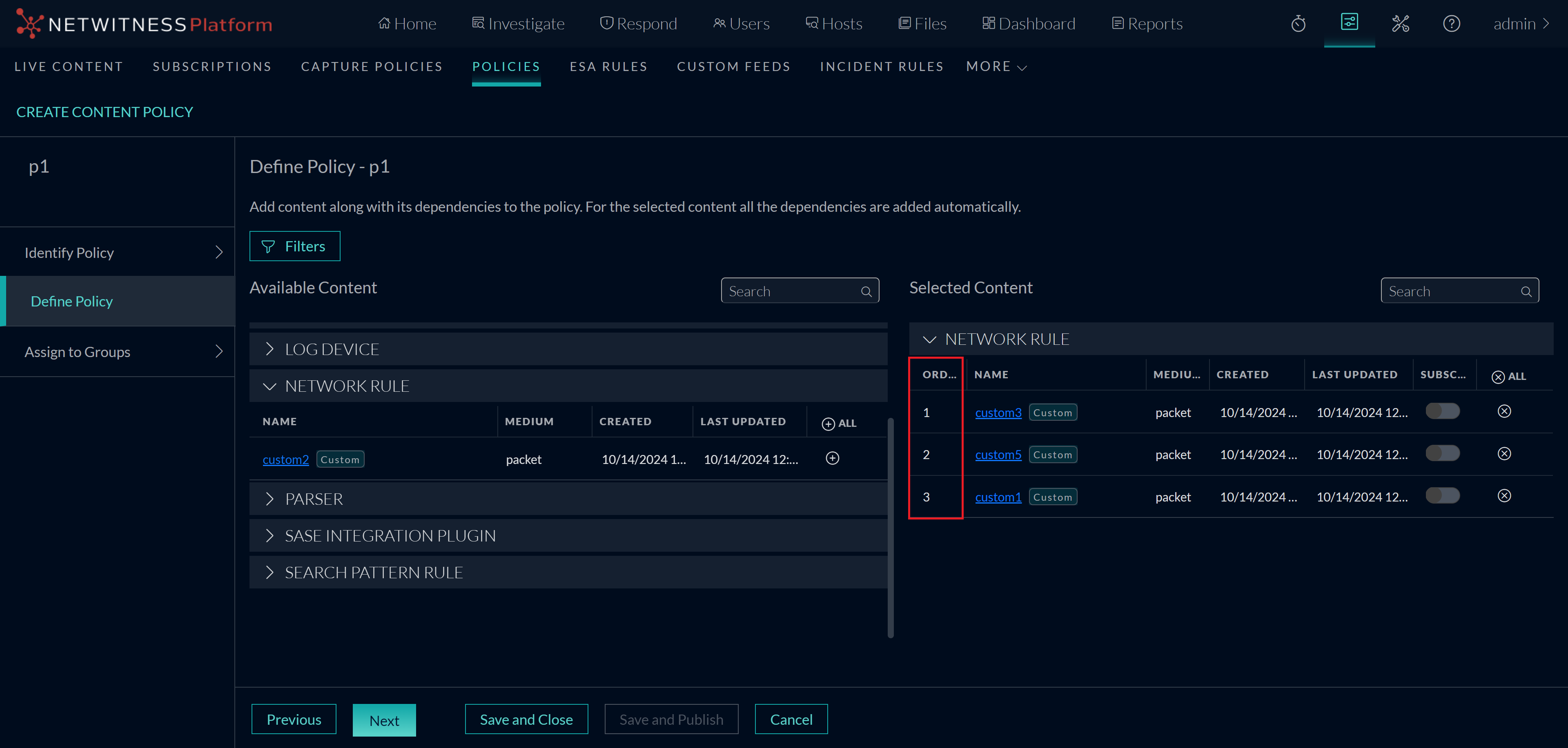
 Note: In NetWitness 12.5.1, users can view the order of the selected Application or Network Rules when creating a new policy or editing an existing one. The selected rules are displayed sequentially under the Order column in the Selected Content view under the Define Policy option. Now, the Selected Content can be sorted based on the rule Order.
- To filter both available and selected content, do the following:
- Click the
 icon. The filter panel window is displayed.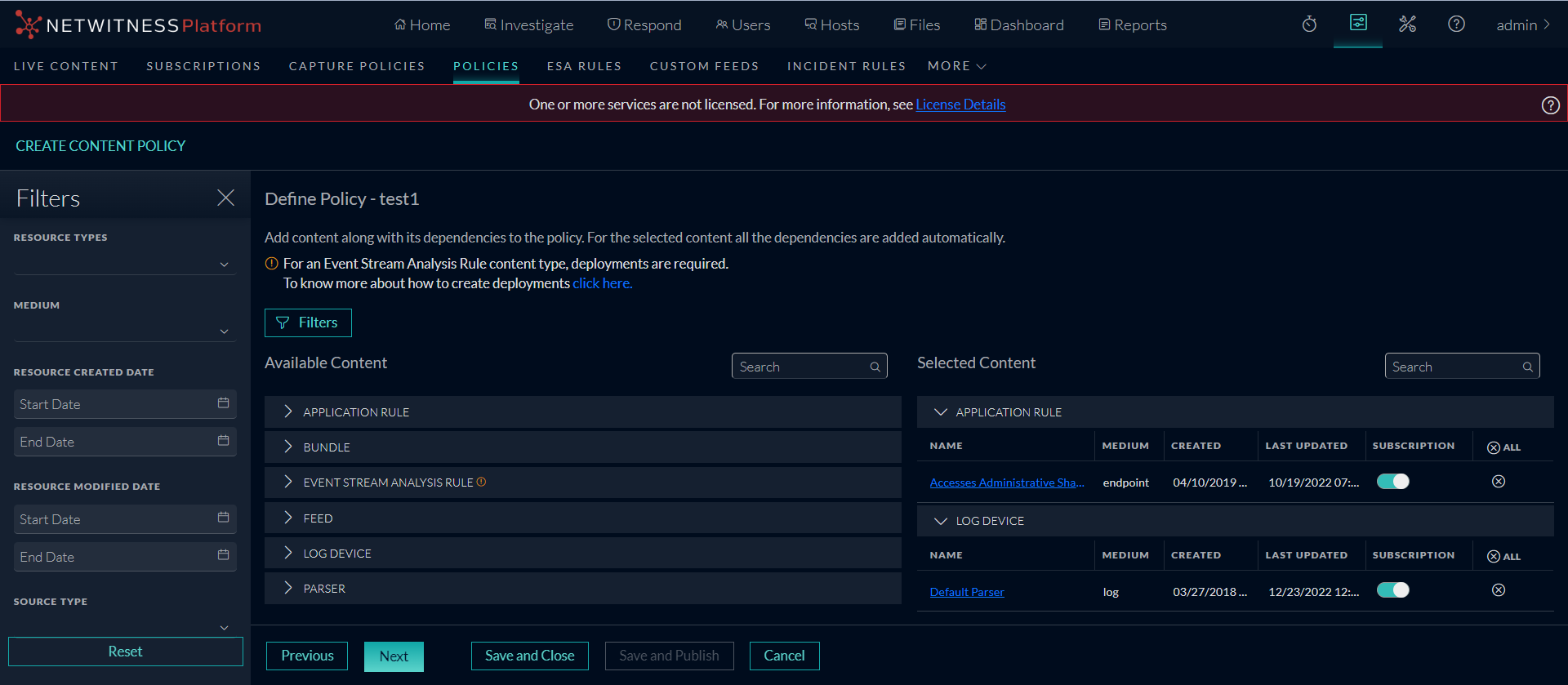
- Select the Resource Types from the available drop-down values.
- Select the Medium from the available drop-down values.
- Select the Resource Created Date and Resource Modified Date.
- Select the Source Type as either 'Custom', 'Live' or 'Native Parser'.
- To reset the fields, click Reset.
Note: Subscription is not allowed for custom content.
- Click the
-
Note: All the dependencies are added automatically for the selected content. You can click on the content name highlighted in blue and look for details such as content description, content type, resources and dependencies and so on. You can also add and subscribe the resource from the details view.
-
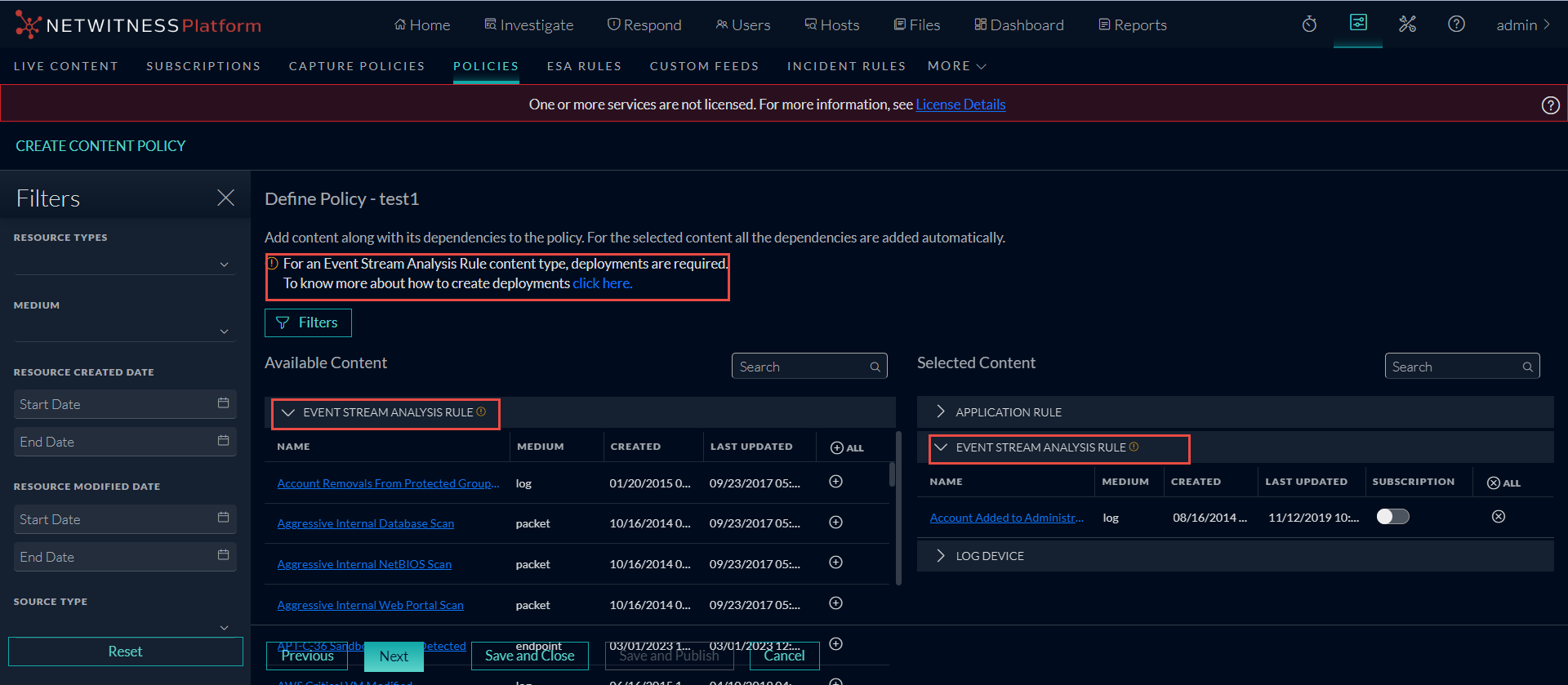
To implement the Event Stream Analysis Rule content type, you must have a deployment.
-
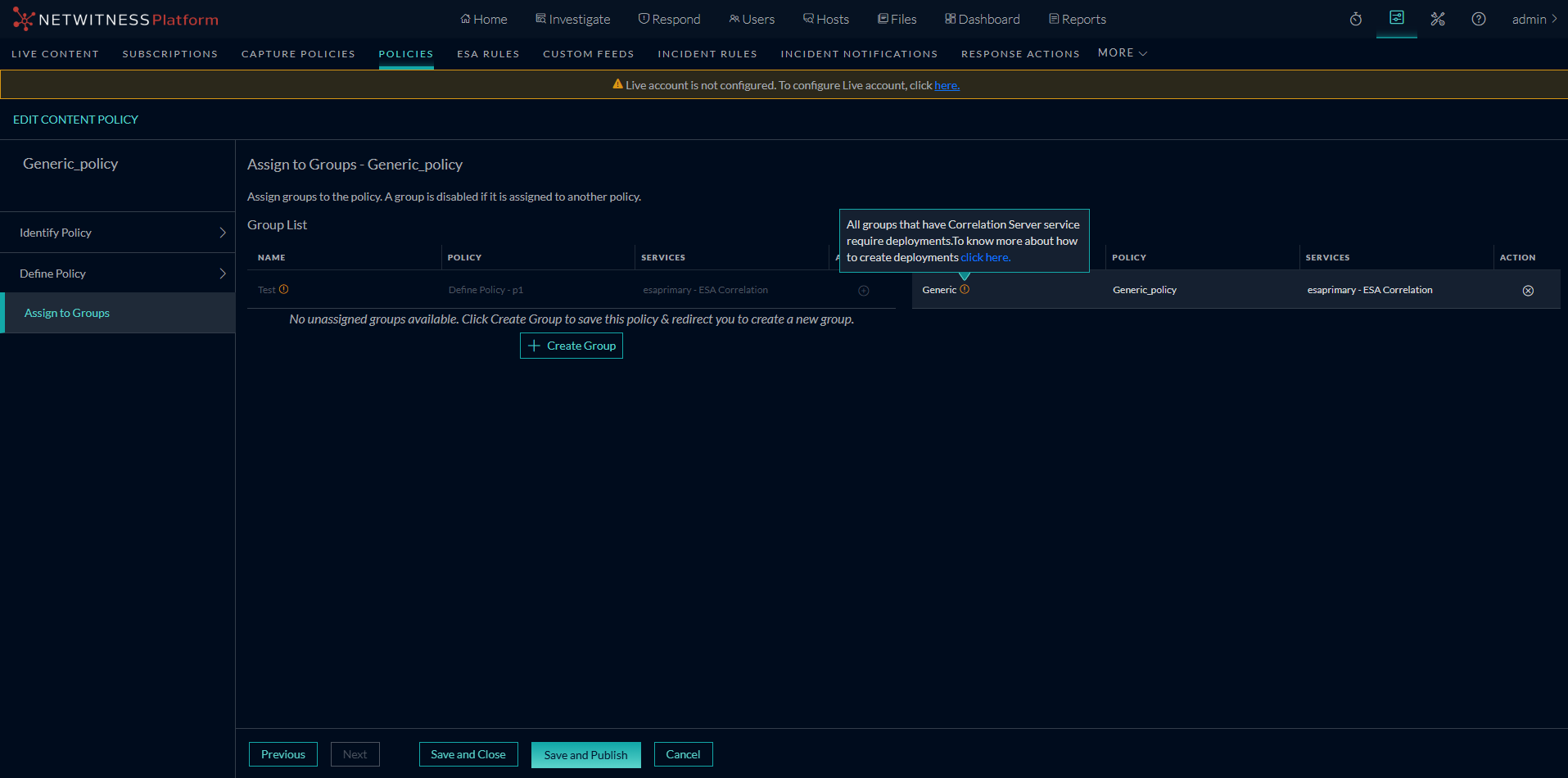
All groups that have correlation server service must have a deployment.
-
For any selected policy with an ESA rule, deployment are must be created.
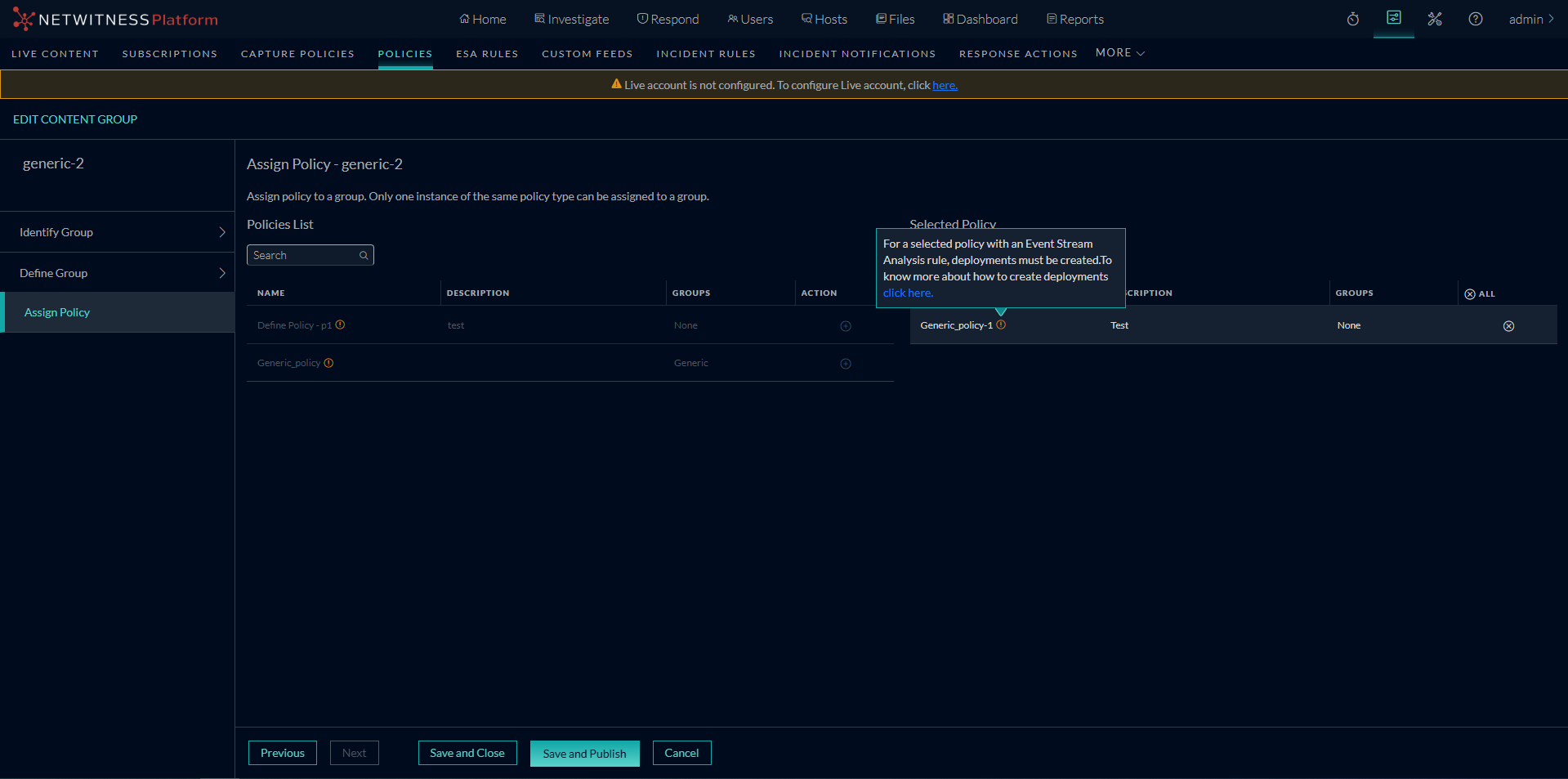
To create and manage deployments, refer to Manage Deployments feature.
-
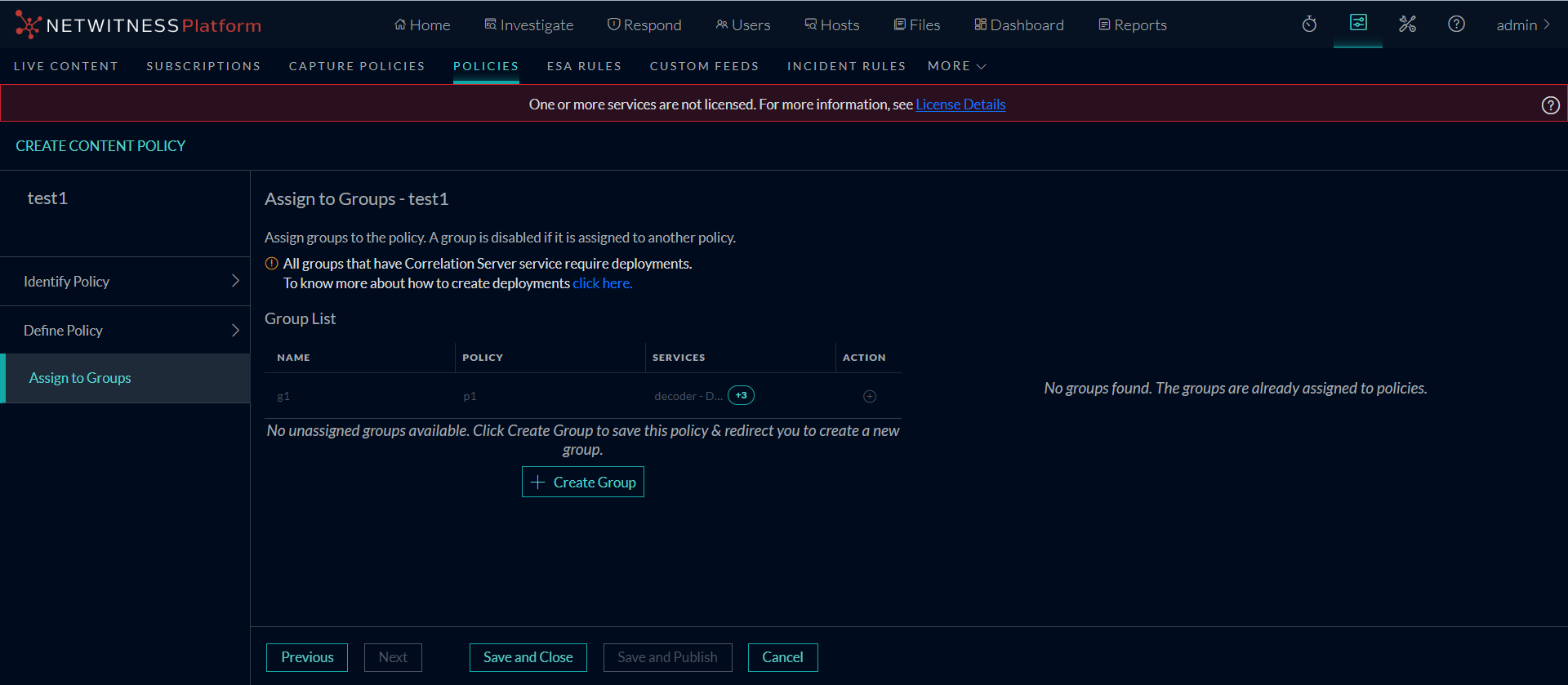
- In the Group List, click + to assign groups to the policy.
Note: A group is disabled if another policy of the same type is already assigned to this group.
-
If there are no unassigned groups available, click
 to save the policy and redirect you to Create New Group screen. For more information on creating a new group, see Create a Group feature.
 - Click Save and Publish to save and publish the settings.
Note: You can also publish a policy from Policy Details screen. For more information on publishing a policy from Policy Details screen, refer View a Policy feature.
-
Click Cancel to cancel the publish content dialog.
-
Click Save and Close to save the settings.
Important: From 12.3 version onwards, contents of services are not wiped out while publishing the first policy.
- The endpoint risk scoring requires certain application rules. Refer Endpoint Risk Scoring Rules to view the list of these application rules.