Skip to content
  • There are no suggestions because the search field is empty.

Create an Incident Dialog

Create an Incident Dialog

In the Create an Incident dialog, analysts can create an incident from selected events in the Events view. The incident is then available to incident responders working in Respond.

To access this dialog, while investigating a service in the Investigate > Events view, select Incidents > Create New Incident from the toolbar.

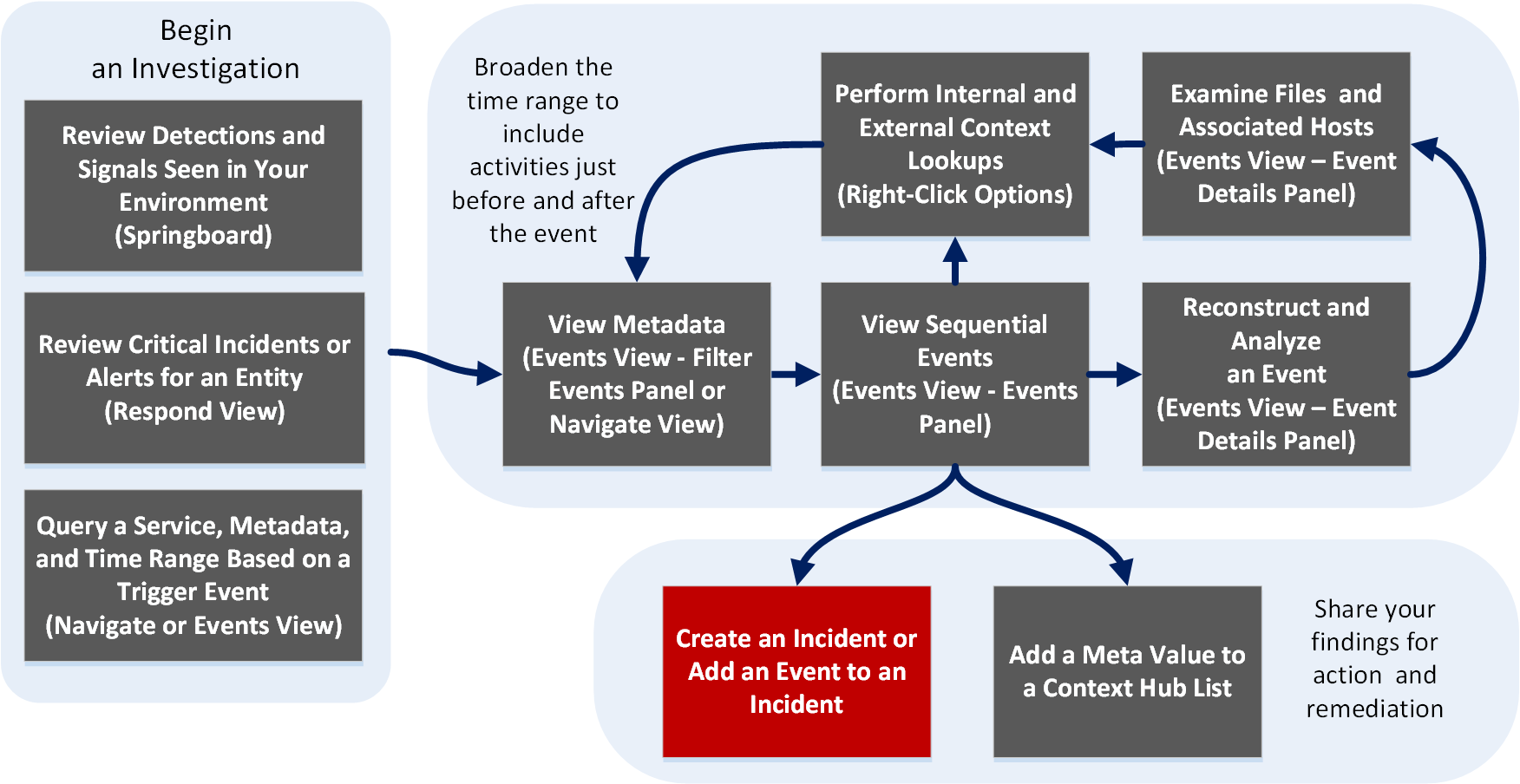
Workflow
netwitness_wkflow-createincdg.png

What do you want to do?

  • User Role:

    Incident Responder or Threat Hunter

  • I want to ...:

    review detections and signals seen in my environment

  • Show me how:

    NetWitness Platform Getting Started Guide


  • User Role: Incident Responder
  • I want to ...:

    review critical incidents or alerts

  • Show me how:

    NetWitness Respond User Guide


*You can perform this task in the current view.

Related Topics

Quick Look

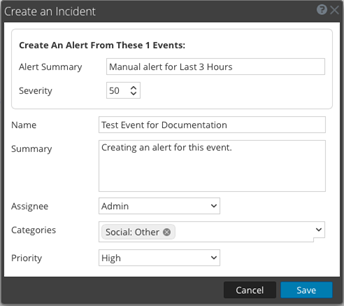
The following figure is an example of the Create an Incident Dialog, and the features are described in the table.
netwitness_crtincdg.png 

  • Feature: Create Summary from These Events
  • Description: The Alert Summary field is filled by the query that produced the select alerts, which you selected to create this incident. The Severity field reflects the Severity of the selected alert, an integer between 1 and 100.

  • Feature: Name
  • Description: (Required) Specifies a name to identify the incident. In the example, the name is Sample Incident. You can provide a name that clearly identifies the nature of events that will be added to this incident

  • Feature: Summary
  • Description: (Optional) Specifies a description for the incident. A good summary clearly identifies the incident for other analysts and responders.

  • Feature: Assignee
  • Description: (Optional) Assigns the incident to a user in the SOC. Clicking Assignee opens a drop-down list showing the user names of SOC personnel who respond to incidents.

  • Feature: Categories
  • Description: (Optional) Identifies categories of incidents. Clicking Categories, opens a drop-down list of Incident categories and subcategories. You can select one or more categories to which the incident belongs. Categories fall into these major groups: Environmental, Error, Hacking, Malware, Misuse, and Social.

  • Feature: Priority
  • Description: Identifies the priority for the incident. Clicking Priority opens a drop-down list of priorities: Critical, High, Medium, or Low displayed in the drop-down list.

  • Feature: Cancel
  • Description: Closes the dialog without saving changes.

  • Feature: Save
  • Description: Saves the incident and closes the dialog. A message confirms that the incident was created successfully.

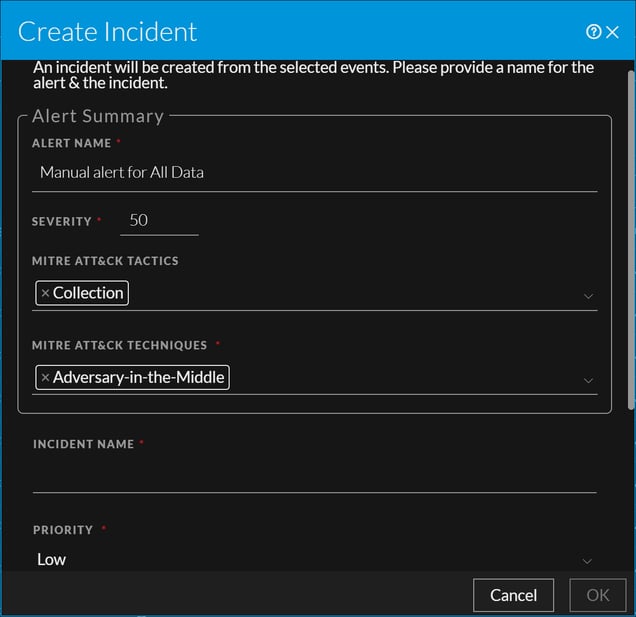
The following figure is an example of the Create an Incident Dialog in the Events view. The table describes the information and options in the Add to Incident dialog.
12.4_Add_incident_mitre_0124.png

  • Feature: Alert Name
  • Description: (Required) Specifies a name to identify the alert. In the example, the name is Manuel alert for All Data . You can provide a name that clearly identifies the nature of events that will be added to this incident.

  • Feature:

    Severity

  • Description:

    The Severity field reflects the Severity of the selected alert, an integer between 1 and 100.


  • Feature:

    MITRE ATT&CK Tactics

  • Description:

    Displays the type of tactics associated with the alert.

    For example: Credential Access.

    The tactic Credential Access tries to steal account names and passwords.


  • Feature: MITRE ATT&CK Techniques
  • Description: Displays the type of techniques and sub-techniques associated with the tactics.

  • Feature: Incident Name
  • Description: (Required) Specifies a name to identify the incident. You can provide a name that clearly identifies the nature of events that will be added to this incident

  • Feature: Priority
  • Description: Identifies the priority for the incident. Clicking Priority opens a drop-down list of priorities: Critical, High, Medium, or Low displayed in the drop-down list.

  • Feature: Assignee
  • Description: (Optional) Assigns the incident to a user in the SOC. Clicking Assignee opens a drop-down list showing the user names of SOC personnel who respond to incidents.

  • Feature: Categories
  • Description: (Optional) Identifies categories of incidents. Clicking Categories, opens a drop-down list of Incident categories and subcategories. You can select one or more categories to which the incident belongs. Categories fall into these major groups: Environmental, Error, Hacking, Malware, Misuse, and Social.

  • Feature: Cancel
  • Description: Closes the dialog without saving changes.

  • Feature: Ok
  • Description: Saves the incident and closes the dialog. A message confirms that the incident was created successfully.