.png?width=180&height=32&name=NW%20Logo%20(2).png)
Create an Instance using Google Cloud SDK Shell
- Determine what machine type is appropriate for selection. For more information, see GCP Instance Configuration Recommendations.
-
Using the image names listed under Find NetWitness Platform GCP Images, create a GCP Instance by running the command:
gcloud compute instances create
--image --image-project --machine-type --zone --network --subnet --no-address For example:
gcloud compute instances create nw-server --image rsa-nw-12-5-0-0-21645-full --image-project nw-onprem-images-prod --machine-type n1-standard-8 --zone us-west1-c --network rsa-network --subnet rsa-subnet --no-address
Note:
- The network and subnet values may vary based on the setup.
- The simple example is shown above, but there are many other options available. For more information, see the Quickstart: Creating a New Instance Using the Command Line section in the GCP documentation. -
To modify the machine type, region, zone, or other configurations:
-
Go to Google Cloud Platform > Compute Engine > VM Instance view to find the VM Instance.
- Select the instance and click
 .
.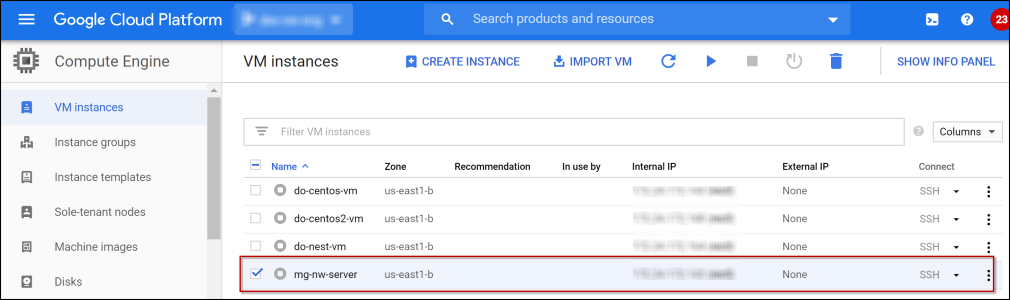
- Click the Instance name (mg-nw-server).
- Click
 to modify the settings according to your preference and click Save.
The VM instance details view is displayed.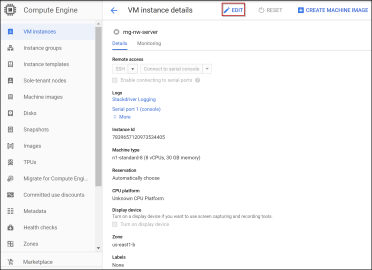
- SSH to the newly-created instance using the default NetWitness credentials.
-