Create Chart Dialog from Events View
Tags: Documentation
Administrators and analysts can create charts based on the real-time data from the Investigate > Events page. This enhancement enables them to create various types of charts based on Event Count, Session Size, Packet Count, and Meta Key. It provides an all-in-one solution for tracking trends for analysts. Additionally, analysts can add these real-time charts to their Default dashboard, allowing them to track critical data seamlessly within the organization.
What do you want to do?
- User Role:
Administrators / Analysts
- I want to ...:
Configure Charts
- Show me how:
Related Topics
Quick Look - Create Chart Dialog from Events View
This is an example of the Create Chart Dialog from Events View
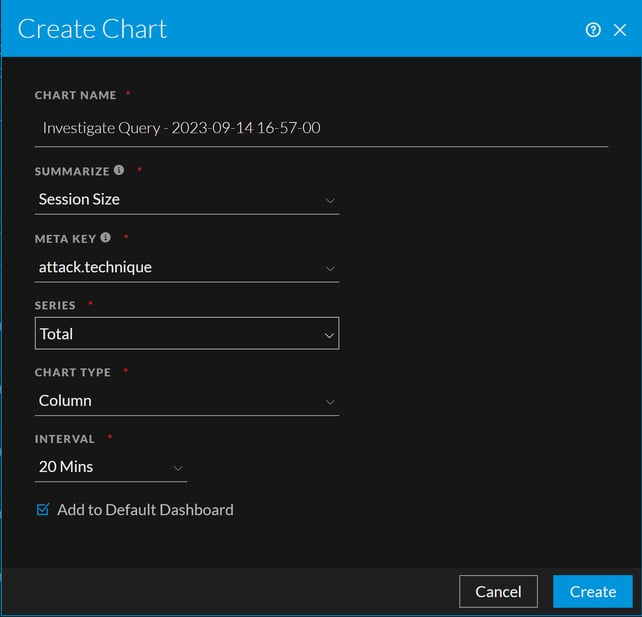
- Feature: Chart Name
- Description: Specifies a name to identify the chart. In the example, the name is Investigate Query - 2023-09-14 16-57-00. You can provide a name that clearly identifies the nature of events that will be added to this chart.
- Feature: Summarize
- Description:
Displays a drop-down listing different in-built aggregate meta options to obtain the desired summarized meta values:
-
Event Count: The total number of events that have occurred at a specific time.
-
Session size: The total size of the events recorded by services at a certain time.
-
Packet Count: The total number of packets that have been transmitted or received.
-
- Feature: Meta Key
- Description:
Displays a drop-down listing different meta key options.
Note: You can select only one meta value at a time.
- Feature:
Series
- Description:
Displays a drop-down listing different Series options for the chart.
-
Total: The chart displays a total for each aggregate value for the selected time.
-
Value: The chart displays the change in values for the selected time.
Note: The option will only be available if you select the Add to Default Dashboard checkbox.
-
- Feature: Chart Type
- Description:
Displays a drop-down listing chart type options:
-
Tabular(Default)
-
Pie
-
Area
-
Bar
-
Bubble
-
Column
-
Line
-
Step line
-
Step Area
-
Spline Area
-
Spine
Note:
- The option will only be available if you select the Add to Default Dashboard checkbox.
- By default, column type chart is selected.
- Based on the Series options selected, charts will be displayed accordingly.
- For Total option: only Pie and Column charts are enabled.
- For Value option: Area, Column, Line, Step Line, Step Area, Spline Area, and Spline charts are enabled.
-
- Feature:
Interval
- Description:
Displays a drop-down listing time range options.
The available interval ranges from 10 minutes to 180 minutes, with a 10-minute gap between each interval.
Note: By default, the number of records (Top) displayed on each chart is 15.
- Feature: Add to Default Dashboard
- Description: Displays a checkbox option to add the chart under the Dashboard > Default Dashboard view.
- Feature:
Create
- Description:
Creates the chart and closes the dialog. A message confirms that the chart was scheduled successfully.
- Feature: Cancel
- Description: Closes the dialog without applying changes