Skip to content
  • There are no suggestions because the search field is empty.

Create Future Alert Dialog

Tags: Documentation

In the Create Future Alert dialog, Administrators and Analysts can create an application rule from the Investigate > Events page for any suspicious activity. You can create rules with a flexible query that covers a wide set of events and system information from your network, including suspected breach activities and misconfigured servers. Once the rule is applied to a matched policy with services (Decoders), it generates alerts whenever a match occurs and helps analysts with further investigation.

To access this dialog, while investigating a service in the Investigate > Events view, add a query on the query search bar > three_dots.png > Create Future Alert from the toolbar.

IMPORTANT: The Create Alert option will be enabled for users only if the Decoder services are managed by Policy-based Centralized Content Management and the user has the investigate-server.alert.manage permission enabled.

Note: An administrator must enable investigate-server.alert.manage permission and source-server.centralpolicy.manage permission on the source server and rules.manage permission on the core devices to allow analysts to create the application rules.
For more information, see the "Role Permissions" topic in the System Security and User Management Guide.

What do you want to do?


Related Topics

Quick Look - Create Future Alert Dialog

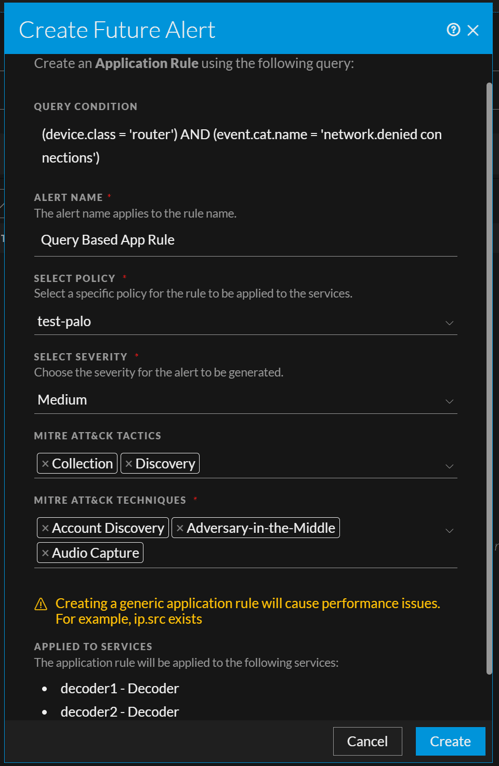
This is an example of the Create Future Alert Dialog.
12.4_Future_alert_mitre_0124.png

The following table describes the fields in the Create Future Alert view.

  • Feature: Alert Name
  • Description: Specify a descriptive Name to identify the alert or leave the default name automatically populated using Query Based App Rule format.

  • Feature: Select Policy
  • Description: Displays a drop-down list of available policies for selection.

  • Feature: Select Severity
  • Description:

    Displays the level of severity for the alert to be generated. The options are listed below:

    • Low

    • Medium

    • High

    • Critical

    Note: By default, Low is selected as severity.


  • Feature: MITRE ATT&CK Tactics
  • Description:

    Displays the type of tactic associated with the alert.

    For example: Credential Access.

    The tactic Credential Access tries to steal account names and passwords.


  • Feature: MITRE ATT&CK Techniques
  • Description:

    Displays the type of techniques and sub-techniques associated with the tactics.


  • Feature: Create
  • Description: Creates the Application rule and closes the dialog. A message confirms that the application rule was created successfully.

  • Feature: Cancel
  • Description: Closes the dialog without applying changes.